PDF Permissions Explained: Print, Copy and Edit Limits
PDF permissions are rules stored inside an encrypted file that ask reader apps to block printing, copying text or making changes; they are set with an owner code and they are not the same thing as an open code. Only the open code actually keeps people out, because without it the contents cannot be decrypted. The restrictions are honored by well-behaved readers such as Adobe Acrobat, but they are not DRM, and any tool that chooses to ignore them can. This explainer covers what each switch does, how the encryption options compare, and which settings to pick in GrabCast's Protect PDF.
🛡️ Try Protect PDF now — freeOpen →
A grayed-out Copy menu looks like a locked door, so teachers, consultants and small businesses often rely on it to protect an exam, a proposal or a wholesale price list. Then a recipient opens the file in a different viewer, or runs it through a free command-line utility, and the restriction simply is not there. Even in a reader that respects every rule, a screenshot and a text-recognition app recover the words in seconds. Knowing what the settings really do helps you choose honestly: use an open code when content must stay confidential, use restrictions as a polite signal that discourages casual reuse, and add a visible watermark or a named recipient when you need a leaked copy to be traceable. Picking the right combination takes a minute and avoids a false sense of security.
Open code versus owner code
The PDF standard defines two secrets, historically called the user and owner passwords, and they do very different jobs.
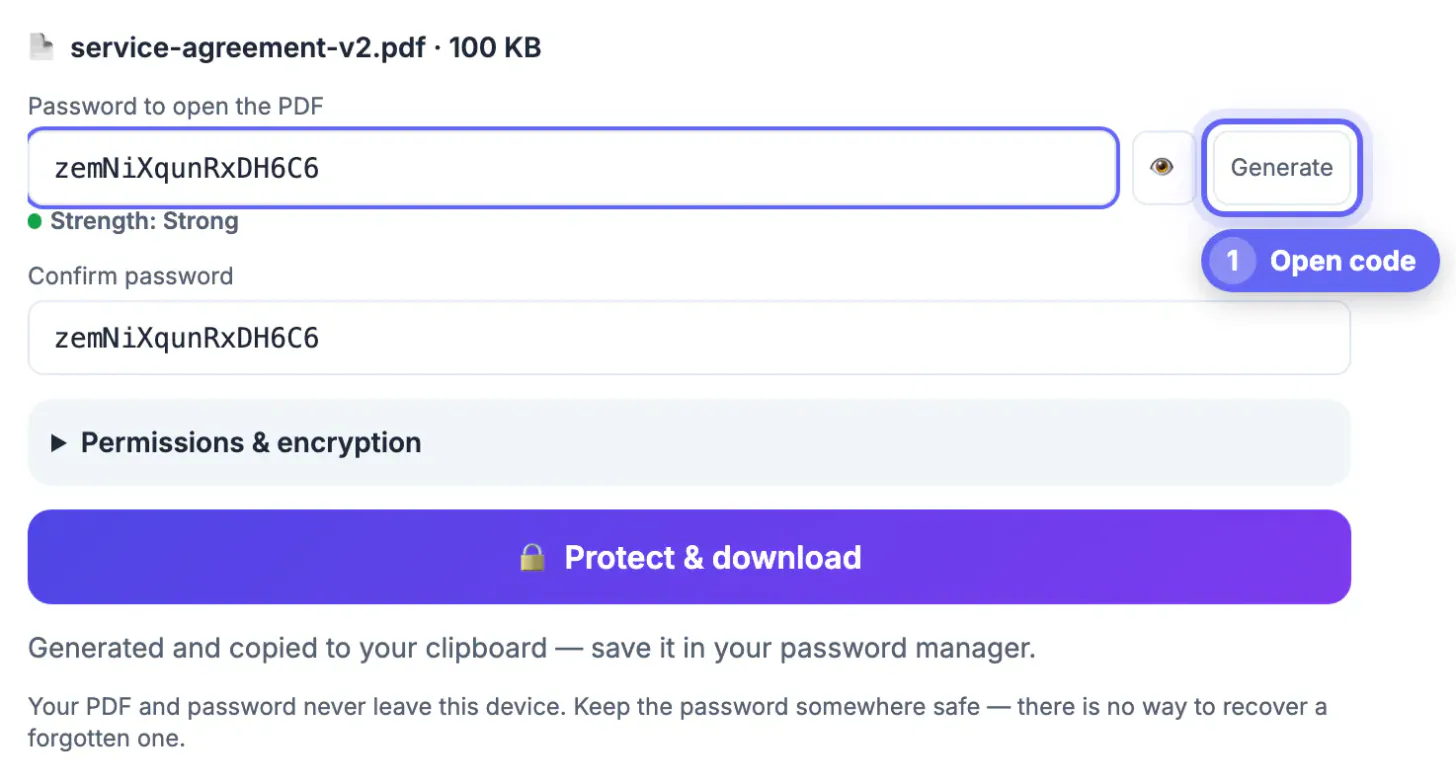
- Open code: the file's contents are encrypted with a key derived from it. Without the code, a reader sees nothing but scrambled bytes. This is real protection.
- Owner code: governs the restriction flags. A file with restrictions but an empty open code is still technically encrypted, yet any reader can decrypt it, because the key comes from an empty string.
- Entering the owner code instead of the open code usually opens the document with full rights in readers like Acrobat.
- If both codes are identical, many readers treat whoever types it as the owner, so the restrictions quietly stop applying.
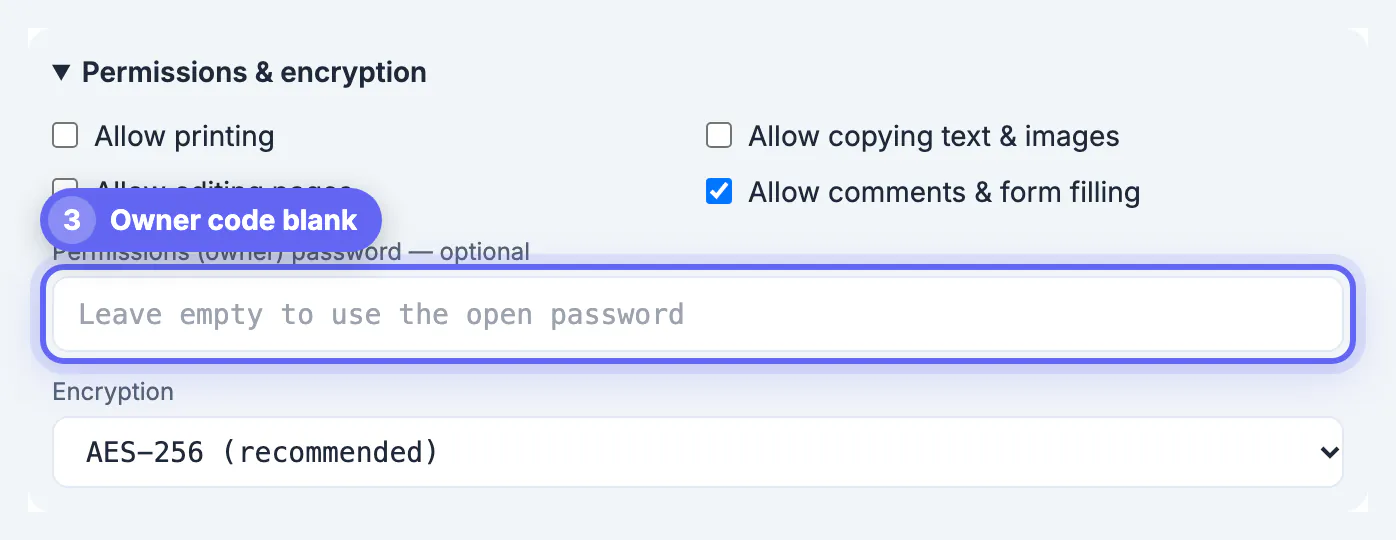
That last point is a classic setup mistake in many apps. GrabCast's Protect PDF avoids it: if you untick any restriction box and leave the owner field blank, it generates a random hidden owner code, and the status line says so, so people who only know the open code stay restricted. Type your own owner code instead if you want to open the file with full rights in Acrobat later.
What the print, copy and edit flags control
Inside the file, the rules are a set of bits that reader apps check before enabling a menu item. The main ones are:
- Printing: none, low resolution only, or full quality. Blocking it hides the command in compliant readers.
- Extracting text and graphics: controls selecting and copying content to the clipboard.
- Modifying: covers changing page content and, in finer levels, inserting, rotating or deleting pages.
- Annotations and form fields: separately allow comments, highlights and filling in interactive fields.
- Accessibility: lets screen readers extract text for blind and low-vision readers, and should almost always stay on.
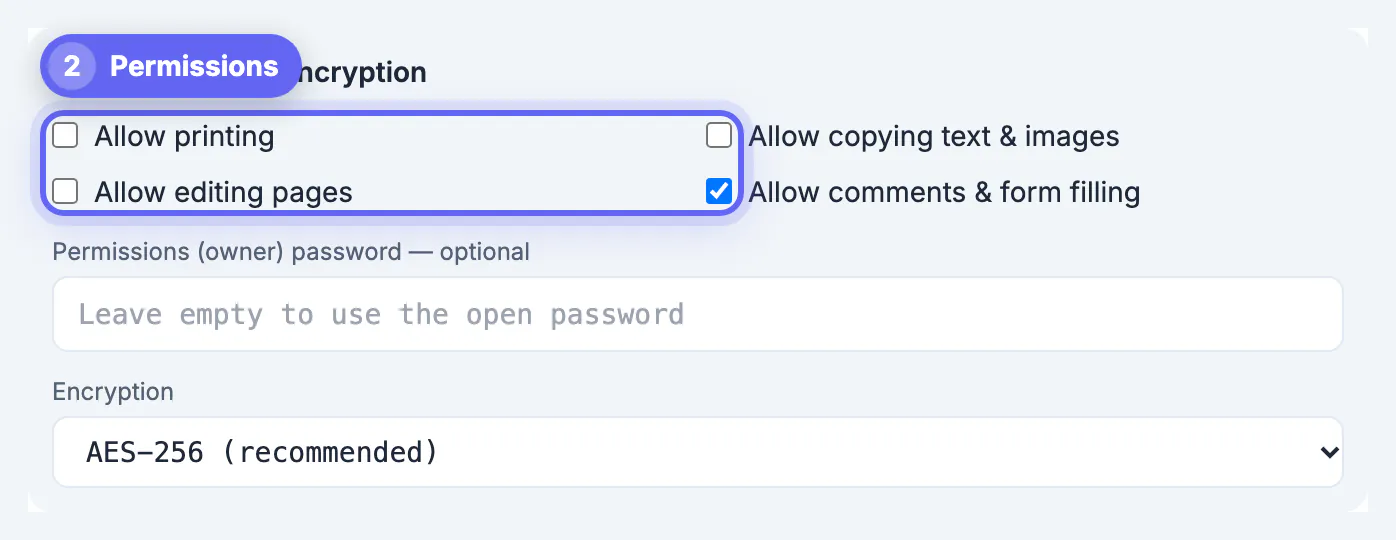
Protect PDF groups these into four checkboxes: allow printing, allow copying text and images, allow editing pages, and allow comments and form filling. Unticking editing while keeping comments allowed produces a comment-only file, which suits a draft you want reviewed but not rewritten. Printing is either full quality or off; the low-resolution level is not offered. Accessibility is always left enabled so assistive technology keeps working.
Honored by readers, not enforced like DRM
Restriction bits work on the honor system. Adobe Acrobat and Reader follow them closely, and most mainstream viewers do too, but nothing in the file's math stops a program from ignoring them once the contents are decrypted, and open-source tools can write out a copy with the rules removed. That is also why GrabCast's Unlock PDF can lift them on a document you own after you confirm your rights.
- Good use: discouraging casual reuse of a price sheet, a template or a draft marked for review only.
- Poor use: protecting exam answers, trade secrets or personal data that must not leave the recipient's hands.
- Better for traceability: a diagonal watermark with the recipient's name, added before encryption.
- Stronger control: an open code shared with only the intended reader, or a managed rights platform run by your organization.
Anything a person can see on screen can also be photographed or captured, so no setting can make visible content truly uncopyable.
If content must stay private, remove it with the Redact PDF tool instead of relying on flags alone.
AES-256, AES-128 and legacy RC4
The cipher decides how the contents are scrambled, and older options have not aged well.
- RC4 40-bit: the original scheme from the late 1990s. The key space is small enough that the file can be decrypted by exhaustive search regardless of the code, so treat it as no protection.
- RC4 128-bit: introduced around Acrobat 5. Stronger key, but RC4 itself is considered broken and modern standards deprecate it.
- AES-128: added with Acrobat 7 and PDF 1.6. Still sound, and useful only when a recipient runs very old software.
- AES-256: added in the Acrobat 9 era and refined in Acrobat X and the PDF 2.0 standard, which deprecates the RC4 methods. This is the one to use.
Protect PDF offers AES-256 by default and AES-128 as a fallback, and never RC4. Remember that the cipher is rarely the weak link: an attacker with the file guesses codes offline, so a 16-character random code or a five-word passphrase matters more than choosing 256 over 128 bits.
Step-by-step
Common mistakes to avoid
Pro tips
Frequently asked questions
Do PDF restrictions really stop copying?
Only in reader apps that choose to honor them. They discourage casual copying, but other tools can ignore them and screenshots always work.
What happens if I set only an owner code?
The document opens for anyone, and compliant readers apply the restrictions. Protect PDF always sets an open code; the rules are then guarded by your own owner code or a random hidden one it generates.
Is AES-128 still safe?
Yes, AES-128 itself is sound. AES-256 is preferred because it is the current standard and every modern reader supports it; use 128 only for very old software.
Why should accessibility stay enabled?
It lets screen readers extract text for blind and low-vision users. Turning it off harms them and does not stop anyone who wants to copy.
Can I change the restrictions later?
Yes. Unlock the file with its code in Unlock PDF, then protect it again with the new settings, or rebuild from your original.
An open code is security; restriction flags are etiquette that compliant readers follow. Set a long open code with AES-256, make sure the owner code differs from it whenever you block printing, copying or changes (Protect PDF generates one if you leave it blank), leave accessibility on, and use a named watermark when you need to trace a leak. Avoid RC4 entirely, and do not expect any setting to stop someone who can already see the page.
Related guides
Browse more: all PDF guides · Protect PDF