Fix PDF to Word Formatting: Columns, Breaks and Scans
When a PDF to Word conversion comes out messy, the cause is almost always one of five things: a multi-column layout, hard line breaks inside paragraphs, headings that look like body text, a scanned page, or a layout that was never meant to be edited. Each has a specific fix. This troubleshooting guide uses a two-column neighborhood newsletter as the running example and shows what GrabCast's PDF to Word tool does with it, where it needs help, and when switching to Exact look mode is the smarter move.
📘 Try PDF to Word now — freeOpen →
A PDF is a set of drawing instructions: put these characters at these coordinates in this font. Nothing in the file says this line continues the previous sentence, or this block is the second column. Every converter, whether it is Microsoft Word's built-in PDF reflow, Google Docs, Acrobat or a browser tool, has to guess the structure from geometry. The guesses fail in the same places across all of them: where columns sit side by side, where a paragraph ends near the right margin, where designers used size instead of bold for headings, and where a page is a photo of paper. Knowing which symptom maps to which cause turns an hour of random clicking into a five-minute repair.
Symptom: text from two columns is interleaved
If sentences from the left and right columns alternate line by line, the converter read straight across the page. GrabCast's PDF to Word looks for a vertical gutter that many lines cross with a gap, then reads the left column top to bottom before the right one, while full-width lines such as a masthead keep their place.
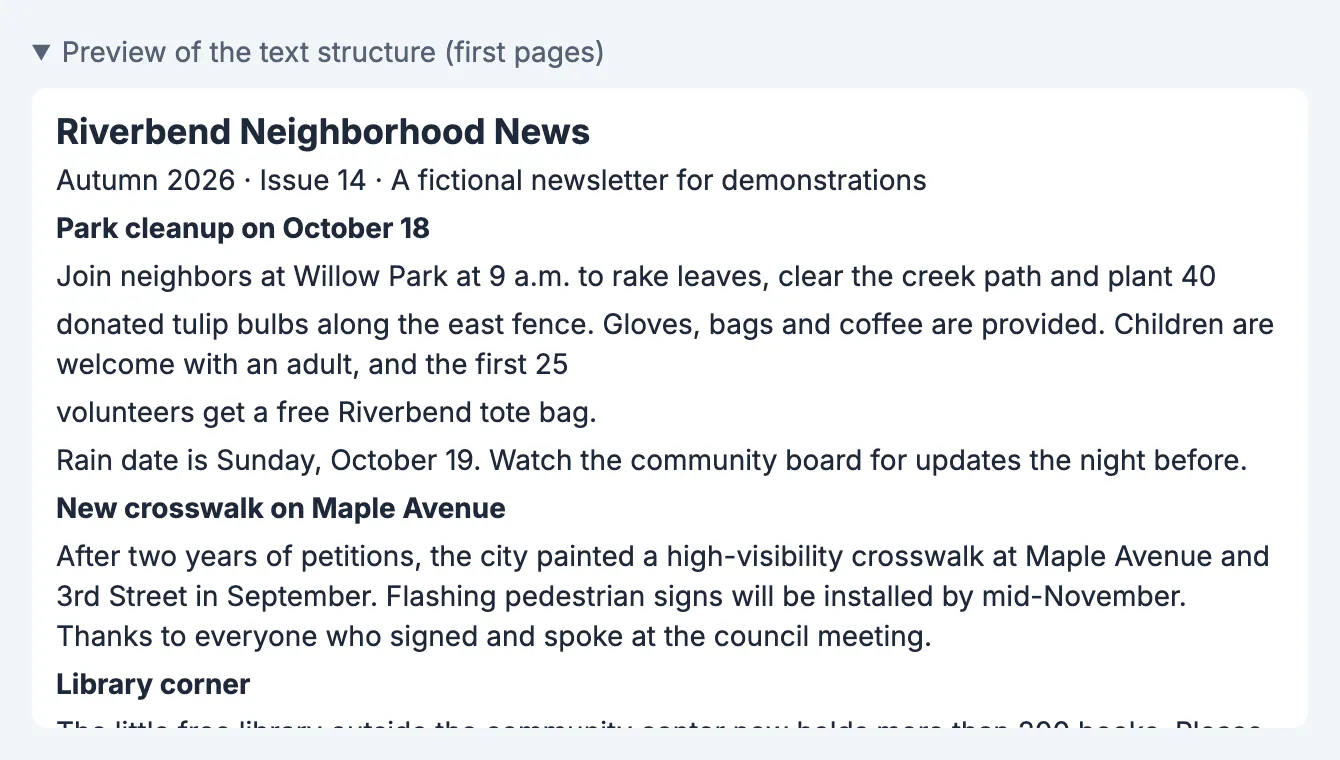
In the Riverbend newsletter sample, the preview shows Park cleanup on October 18 followed by its paragraphs, then New crosswalk on Maple Avenue, then Library corner: the left column in story order. If your file still comes out interleaved, check these causes.
- Fewer than about a dozen lines on the page, which is too little evidence to detect columns.
- Columns of very different widths, such as a narrow sidebar beside a wide article.
- Three or more columns, which the detector is not built to separate.
- Text placed in separate floating boxes by a design app rather than flowing in columns.
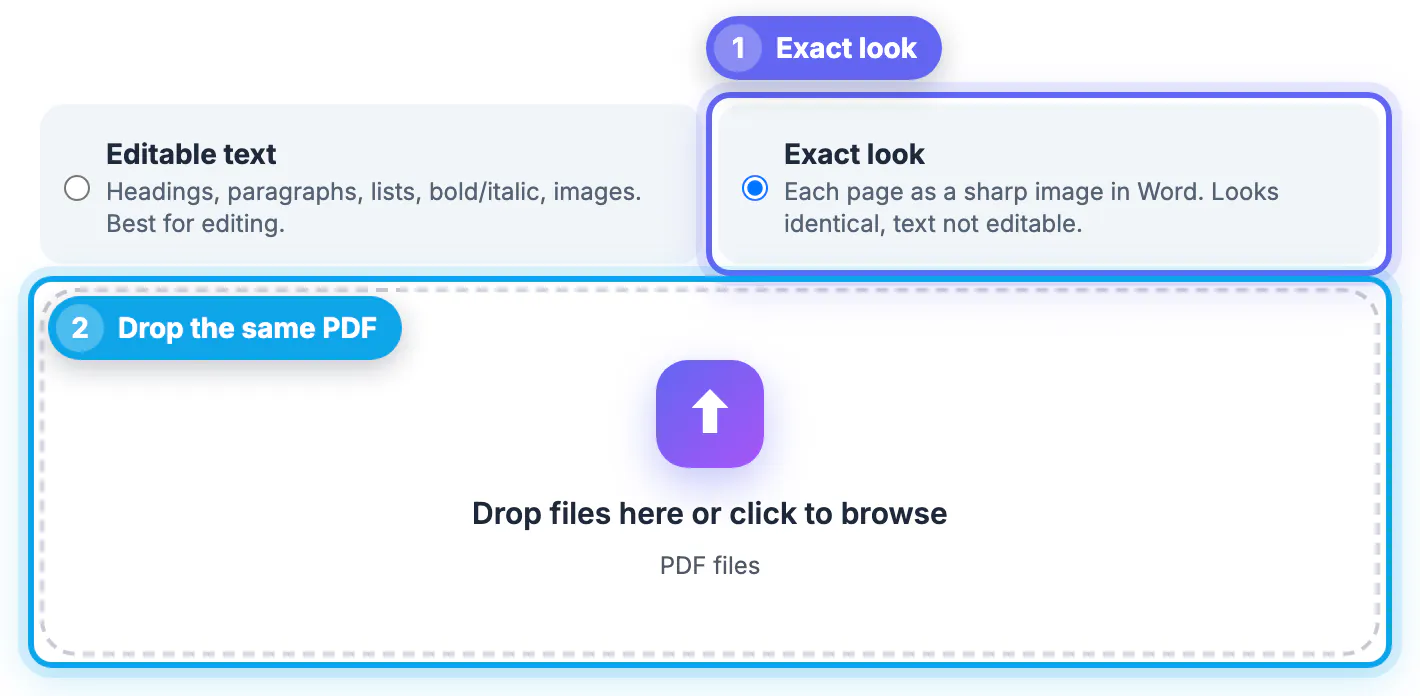
For those pages, Exact look keeps the layout intact, and you can copy the few paragraphs you need from the original PDF.
Symptom: every line is its own paragraph
Short lines that stop well before the right margin are treated as the end of a paragraph, because that is usually true. In narrow columns, justified text or lines ending with a number, the rule can split one paragraph into two or three. In the newsletter preview, the first story breaks after plant 40 and again after the first 25 for exactly this reason.
- In Word, turn on Show formatting marks to see the paragraph marks at the end of each line.
- Place the cursor at the end of the broken line and press Delete, then add a space if needed.
- For many breaks, use Find and Replace with ^p to find paragraph marks in a selected block only, never the whole document.
- In Google Docs, the same cleanup works with Find and replace and regular expressions turned on.
If more than a third of the paragraphs are split, the page probably uses tight justified columns. Converting it with Exact look and retyping the key passages may be quicker.
Symptom: headings, bullets or tables look plain
Headings are detected from size and weight. A heading set in the body size, or in uppercase letters without bold, has nothing to distinguish it from a sentence, so it arrives as normal text. Bullets drawn as graphics rather than typed characters may arrive as plain lines without list formatting.
- Select one misdetected heading, apply Heading 2, then use Select, Select all text with similar formatting to apply it everywhere.
- Turn plain lines back into a list with the Bullets button once you have selected them.
- If a table came through as tab-separated lines, select them and use Insert, Table, Convert text to table with tabs as the separator.
- If a table has an extra empty column, merge or delete it rather than rebuilding the table.
These fixes take seconds per style because Word applies them across the whole file.
Symptom: PDF pages turn into pictures in Word
If a page shows up as an image, or the result warns that some pages have no selectable text, the PDF is a scan or was flattened when it was exported. There are no characters to rebuild, only pixels.
- Run the file through OCR PDF first to add a text layer, then convert the new copy.
- For one or two pages, Image to Text extracts the words you can paste into your document.
- If the PDF opens with a password prompt, unlock it with the password you have, then convert.
- If the conversion stops with an error, try Exact look; it uses a different path that renders each page.
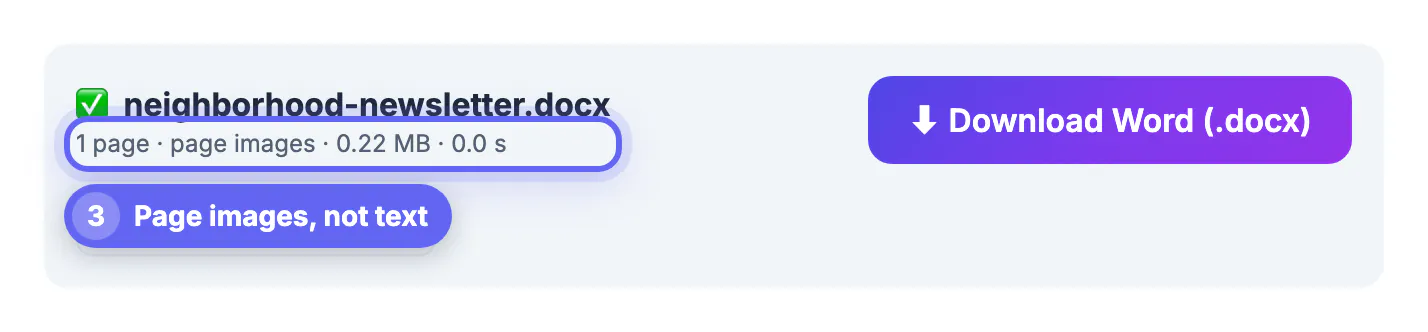
Exact look is also the right choice for forms full of drawn boxes, certificates and flyers. It places the page as a picture, so the look is identical, and the result bar says page images instead of listing paragraphs.
Step-by-step
Common mistakes to avoid
Pro tips
Frequently asked questions
Why is my converted Word file jumbled?
Usually because the page has columns, sidebars or text boxes that sit side by side. The converter reads two-column pages column by column, but narrow sidebars, three columns or floating boxes can still mix the order. Exact look keeps such pages intact.
How do I remove the extra line breaks?
Turn on formatting marks in Word, then delete the paragraph marks at the ends of broken lines. For many lines, select only the affected block and replace ^p with a space.
Why are my headings not headings in Word?
The converter recognizes headings by their larger size or bold weight. Headings set in body size or plain capitals look like normal text. Apply Heading styles in Word once and use Select all text with similar formatting.
Can a scanned PDF be converted to editable Word?
Not directly. A scan contains only images of text. Add a text layer with OCR PDF, or extract the words with Image to Text, and then convert or paste the text.
Does Exact look make the text editable?
No. Exact look puts each page into Word as a high-resolution image, so it looks identical to the PDF but the words cannot be edited or searched. Use it for pages where appearance matters most.
Most messy PDF to Word conversions come down to columns, split lines, plain headings or scans. Read the preview first, fix line breaks and styles in Word in bulk, run OCR on scans, and use Exact look for pages where the design itself is the point.
Related guides
Browse more: all PDF guides · PDF to Word