Signed Form to PDF: Scan It and Email It Back
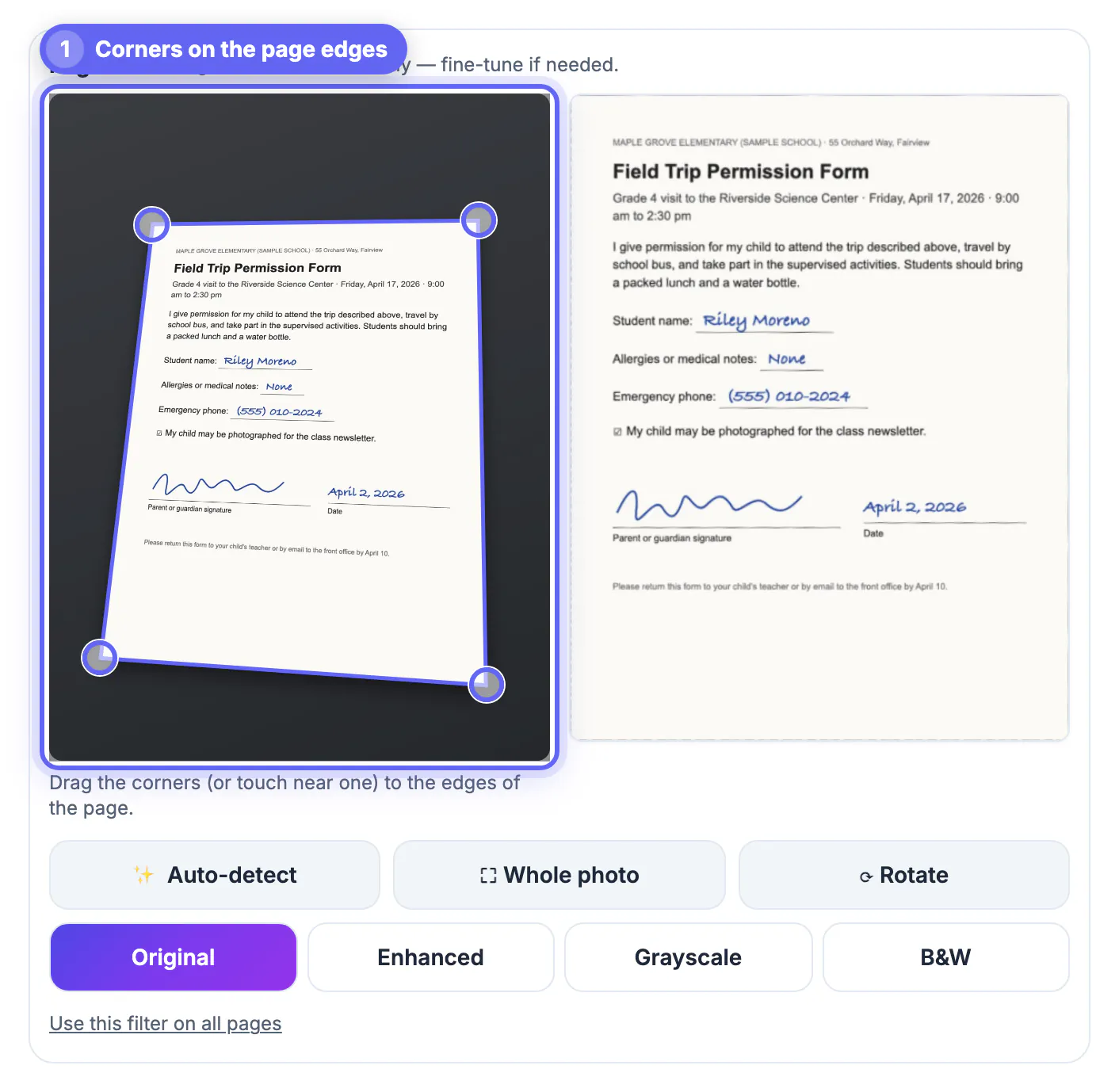
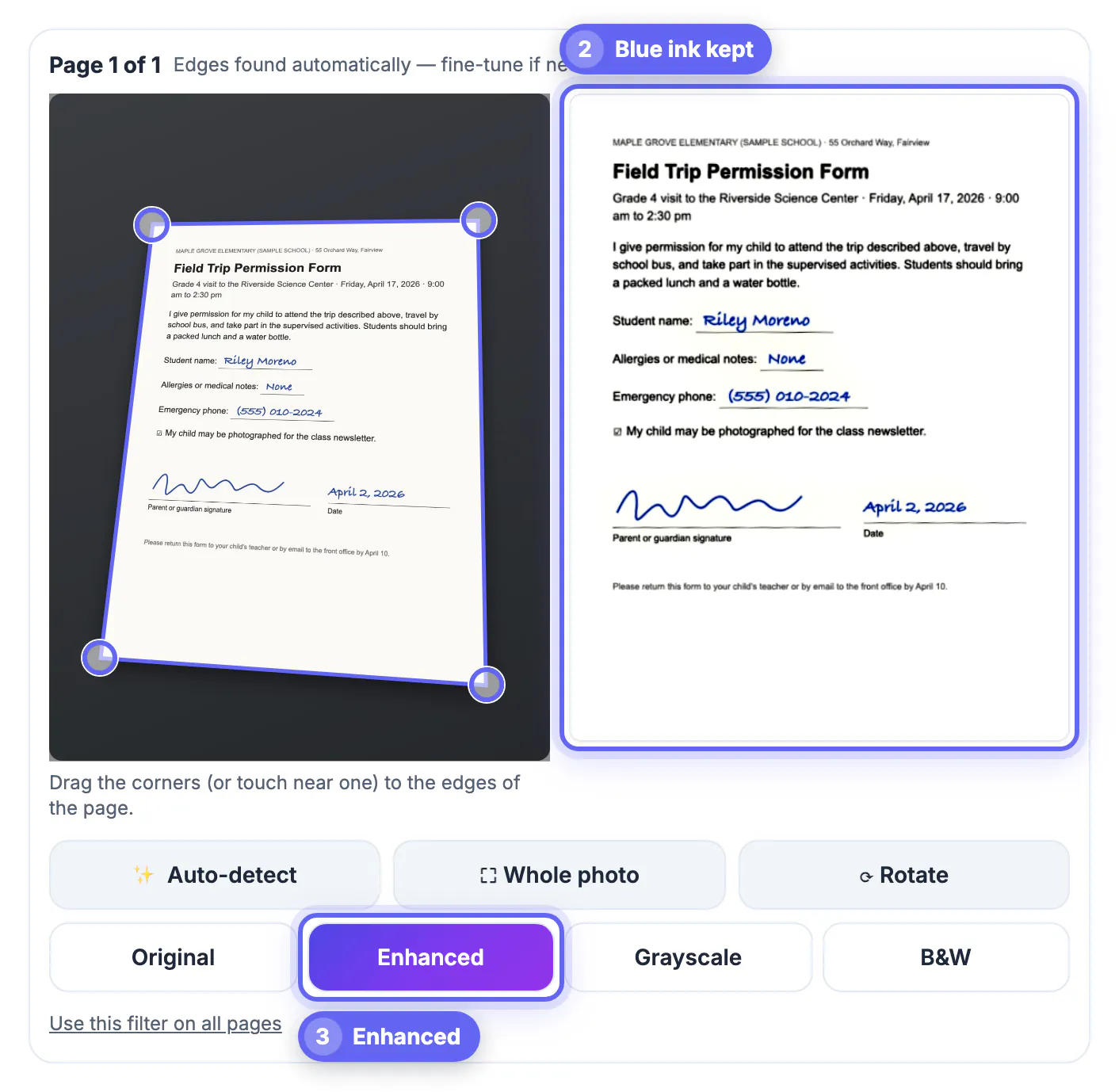
To scan a signed form to PDF and email it back, photograph the whole sheet on a contrasting surface, open the photo in GrabCast Scan to PDF, let it find the page corners, choose the Enhanced filter so the paper turns white while blue ink stays blue, and create a one-page US Letter PDF. Our test, a fictional school field trip permission form photographed at an angle on a gray desk, came out as a flat, upright page of 0.07 MB, a size any school office, landlord or HR inbox accepts. No scanner, printer or app install is needed, and the form never leaves your phone or computer. Below: how to photograph a form so every field is legible, which filter protects a signature, how to name the file, and when a scanned signature is not the right tool.
📷 Try Scan to PDF now — freeOpen →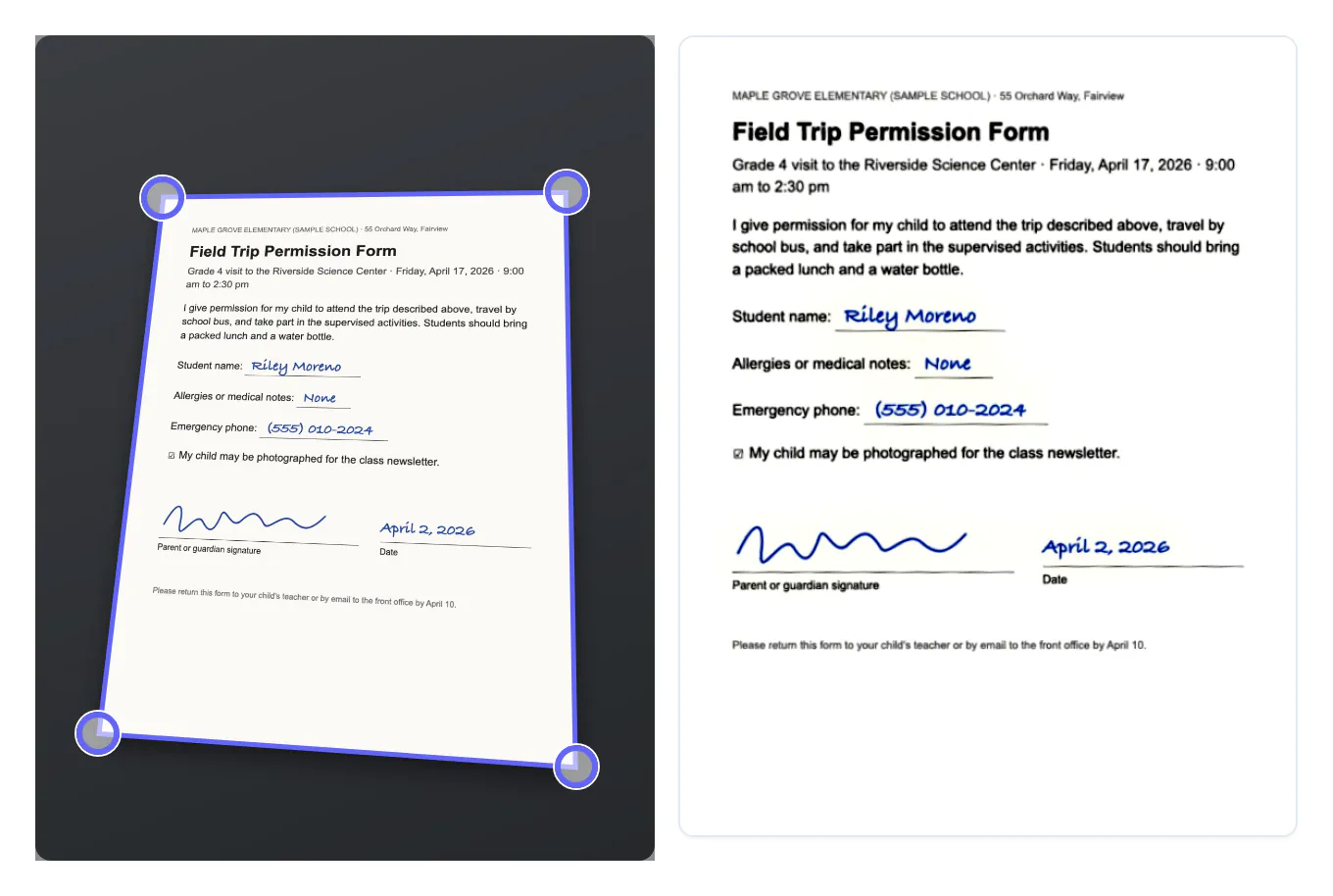
Permission slips, lease addenda, consent forms and HR paperwork still arrive on paper, and the person waiting for them usually wants a PDF by email. A quick photo is tempting, but a skewed image with a thumb in the corner and a yellow cast is hard to print and easy to reject, and the recipient cannot tell whether the bottom of the page, where the signature lives, is complete. A scanned page that is cropped to the paper, square and white looks like the original, prints on one sheet and makes the filled-in fields obvious. Doing it in the browser also avoids signing up for a scanning service just to send one page containing your child's details or your home address.
Photograph the signed form so every field survives
A form carries small print, check boxes and handwriting, so the photo needs a little more care than a receipt.
- Place the sheet on a darker, plain surface such as a gray desk or a closed laptop, with a strip of background visible on all four sides.
- Capture the entire page, including the footer; return instructions and deadlines often sit in the last line.
- Shoot from above in even light. A slight angle is fine because perspective is corrected, but a steep angle stretches the far edge and softens small type.
- Let the ink dry before you shoot so a fresh signature does not smear or shine.
- Photograph each page of a multi-page form separately; all of them can go into the same PDF.
- Check the photo before you put the paper away: zoom in on the signature and any handwritten phone number or date, because a blurry digit is the most common reason a returned form bounces back.
Scan the signed form and keep the ink color
The filter choice decides whether a signature looks like ink or like a photocopy.
- Enhanced evens out lighting, whitens the paper and boosts contrast while keeping color. On our form the handwriting, the signature and the date stayed blue, which shows at a glance that the page was signed by hand.
- B&W produces the smallest, crispest text but turns blue ink black. That is fine for internal paperwork, less so when someone wants to see an original signature.
- Grayscale removes color and stretches contrast; use it for pencil-filled forms where color adds nothing.
- Original keeps the photo's colors, including any yellow cast from indoor lighting, so it is rarely the best choice for paperwork.
Page size, file name and a sensible file size
Recipients often print forms and file them, so match the paper the form came on.
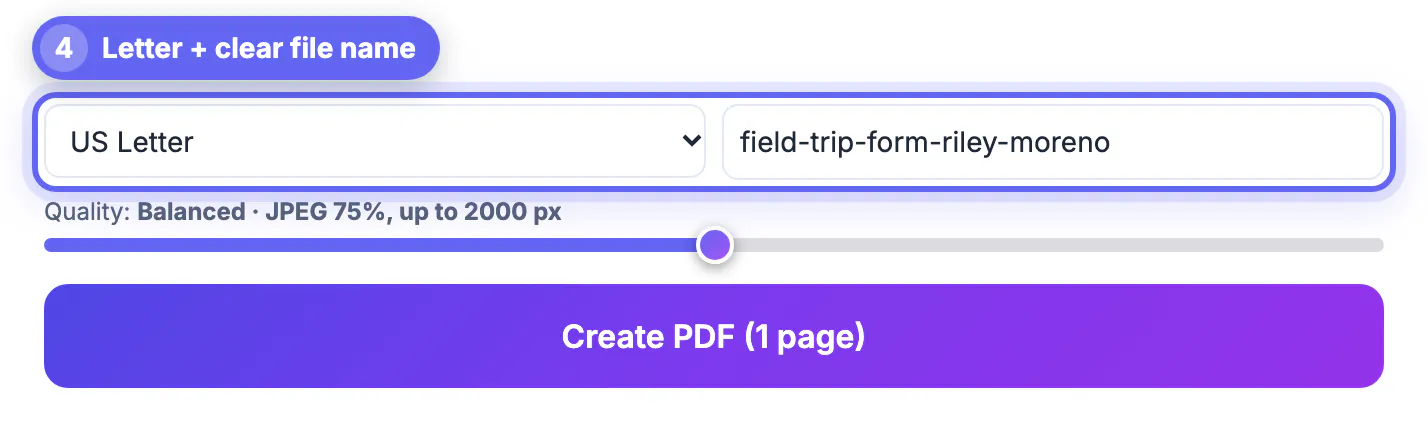
- Choose US Letter for forms printed in the United States and A4 for most other countries. The page is scaled to fit and centered, so it prints on one sheet.
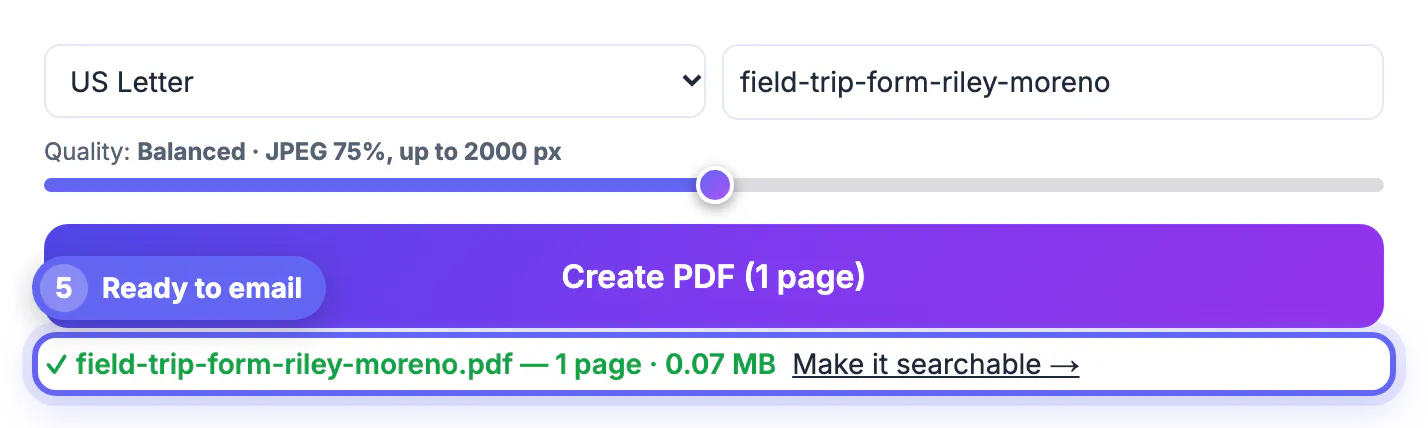
- Balanced quality (JPEG 75%, up to 2000 px) kept every word of the fine print readable in our test at 0.07 MB. Use High for dense legal text.
- Name the file after the form and the person, for example field-trip-form-riley-moreno, so the office can file it without renaming.
- For a form with several pages, add all the photos, check the order in the page strip and create one PDF instead of sending separate attachments.
If the file is too big to send, the Compress PDF tool shrinks it.
When a scanned signature is not the right tool
A scan proves you signed a paper page. Some situations call for something else.
- If the sender gave you a fillable PDF, you can often type into it and add a signature digitally with Sign PDF instead of printing at all.
- Contracts that require a notary, a wet-ink original or a verified e-signature platform cannot be replaced by a phone scan; ask the recipient before you rely on one.
- The PDF holds an image of the page, so the recipient cannot search or copy the text unless it is run through OCR.
- Keep the paper original until the recipient confirms they have what they need, and store it with the date you sent the PDF.
- Forms with personal data, such as medical notes or an emergency phone number, should go only to the address the sender gave you, not to a general inbox.
Step-by-step
Common mistakes to avoid
Pro tips
Frequently asked questions
Can I scan a signed form without a scanner?
Yes. Photograph it with your phone and open the photo in Scan to PDF, which finds the page edges, straightens the perspective and saves a PDF in the browser.
Will my signature stay blue in the PDF?
With the Enhanced or Original filter, yes. Enhanced whitens the paper while keeping ink colors. B&W and Grayscale turn the signature black or gray.
What page size should a scanned form use?
Use the size the form was printed on: US Letter in the United States, A4 in most other countries. Auto fits the page to the scan itself if you are not sure.
Is a scanned signature legally valid?
It depends on the recipient and the document. Many schools, landlords and employers accept scanned forms, while notarized or wet-ink documents do not. Ask the recipient when in doubt.
Is the form uploaded when I use the tool?
No. Edge detection, filters and PDF creation run in your browser, and only the open-source PDF library is downloaded when you create the file.
Photograph the whole signed page on a darker surface, let Scan to PDF square it up, choose Enhanced to keep the ink blue, and save a named one-page Letter or A4 PDF. It takes about a minute, looks like a real scan and stays on your device until you attach it.
Related guides
Browse more: all PDF guides · Scan to PDF