Two-Factor Authentication Setup, Step by Step
To turn on two-factor authentication, open your account's security page, choose an authenticator app or a security key, scan the QR code, type the 6-digit code to confirm, and save the backup codes somewhere safe. That takes about five minutes per account. What makes the difference later is what you keep: the setup key, the backup codes, and a second sign-in method, so a lost or broken phone does not lock you out. This guide covers which method to pick, which accounts to protect first, the exact order of steps that avoids lockouts, and the phishing tricks that still work against some kinds of codes. It also explains where a browser-based code generator fits and where it does not.
🔐 Try the 2FA Code Generator now — freeOpen →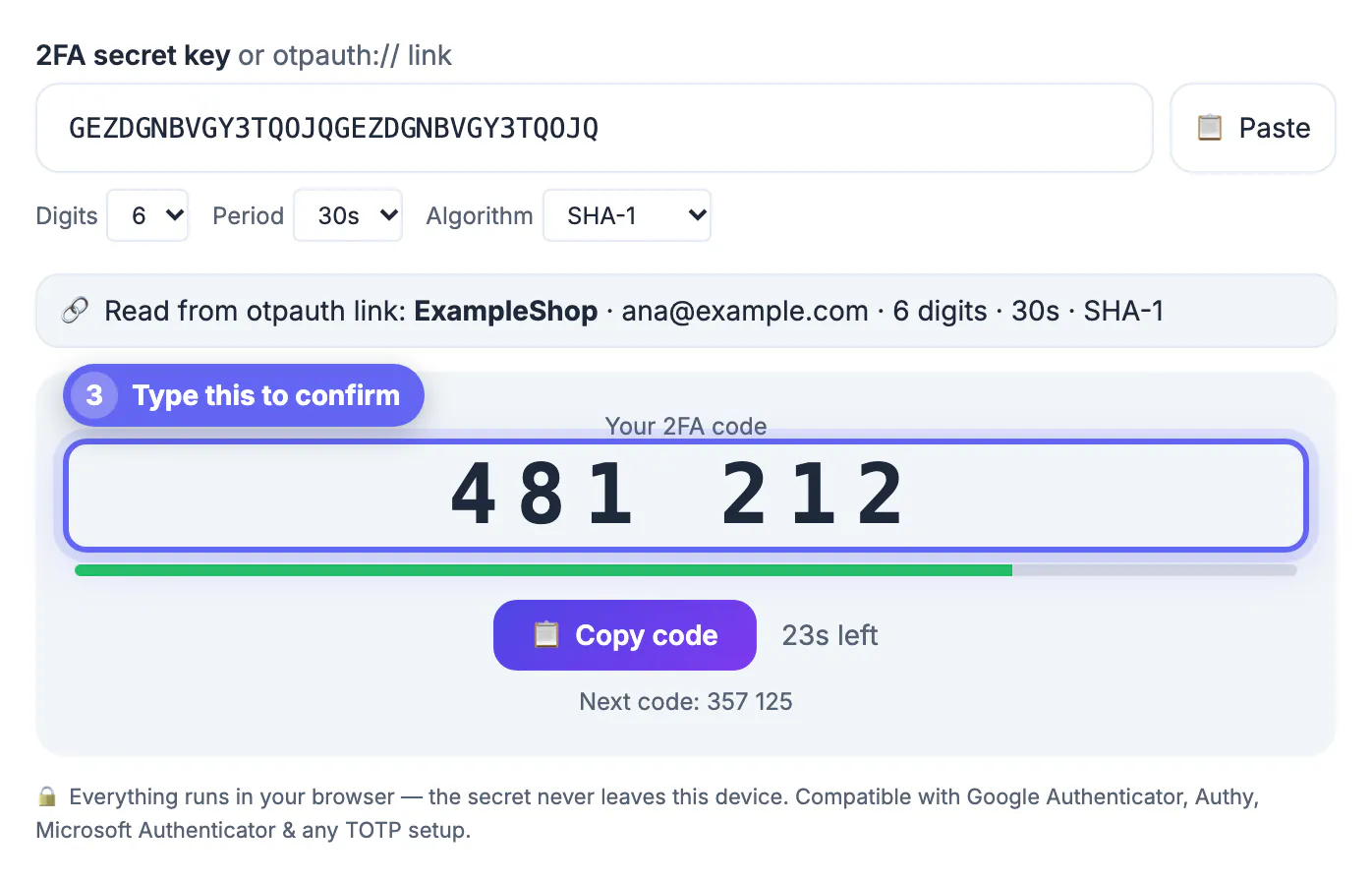
Passwords leak constantly through data breaches, reused logins, and fake sign-in pages, and attackers try leaked email and password pairs across hundreds of sites automatically. A second factor means a stolen password on its own no longer opens the account. Security agencies such as CISA in the US recommend multi-factor authentication for exactly this reason. Not all second factors are equal, though. Text-message codes can be intercepted through SIM swapping, and any typed code can be captured by a convincing fake login page in real time. Hardware security keys and passkeys resist that phishing because they check the website's real address. Even so, any second factor is far better than none, and an authenticator app is a strong, free starting point for most people.
Pick a two-factor authentication method
Most services offer several options. From strongest to weakest, roughly:
- Hardware security keys and passkeys: phishing-resistant because they only respond to the genuine site. Ideal for email, financial, and work accounts.
- Authenticator apps such as Google Authenticator, Microsoft Authenticator, or a password manager with built-in codes: they generate time-based one-time codes (TOTP) that change every 30 seconds and work without a phone signal.
- Push approvals: convenient, but only approve a prompt you triggered yourself. Attackers sometimes spam requests hoping for an accidental tap.
- Text message or voice codes: better than nothing, but vulnerable to SIM swapping and number porting. Keep them as a backup, not the main factor, where you have a choice.
Protect these accounts first
Start where a takeover would hurt most. Your email account is the master key, because every other password reset lands there.
- Primary email, plus the Apple, Google, or Microsoft account tied to your phone and cloud backups.
- Your password manager, if you use one.
- Banking, payment apps, brokerage, and tax accounts.
- Social media and messaging, which scammers use to impersonate you to friends and family.
- Work accounts, following whatever methods your employer requires.
Before you turn on two-factor, check whether your password has already leaked with the Password Breach Checker and change it if needed.
Keep your setup key and backup codes safe
The lockout stories almost always involve a lost phone and no recovery path. Build one during the enrollment, not after the emergency.
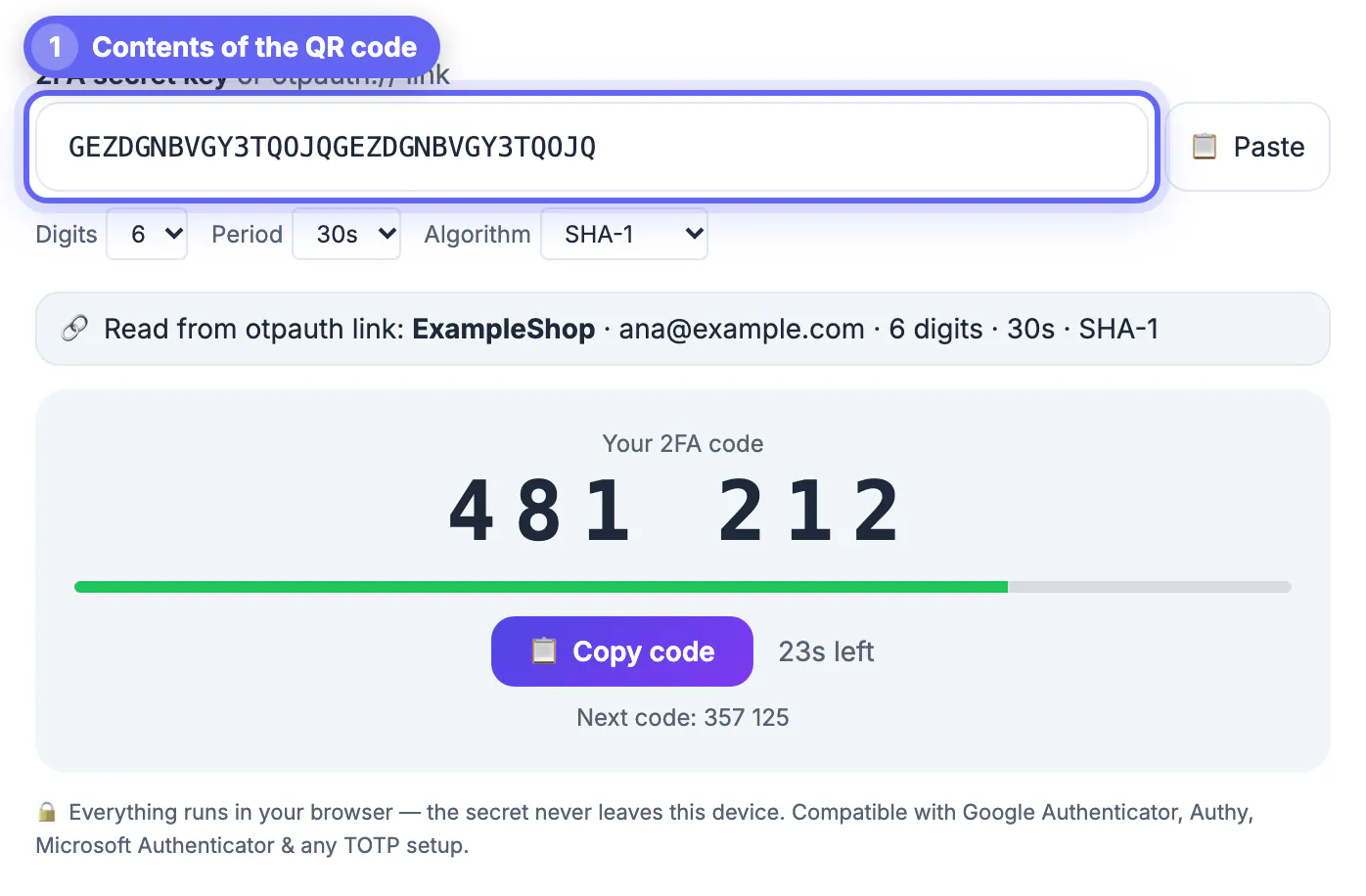
- When the QR code appears, look for an option such as Can't scan it? or Enter a key manually. It reveals the setup key, a string of letters and numbers. Store it in your password manager; anyone with it can generate your codes, so treat it like a password.
- Download or print the backup codes, often 8 to 10 single-use codes, and keep them offline, for example in a home safe or a sealed envelope with important papers.
- Add a second method, such as a second security key or a backup phone number, where the service allows it.
- Keep your phone's clock on automatic time. TOTP codes depend on the clock, and a phone that drifts by more than about 30 seconds produces codes that are rejected.
Where GrabCast's 2FA Code Generator fits
The GrabCast 2FA Code Generator produces TOTP codes from a setup key in your browser, using the Web Crypto API. The key never leaves your device, and nothing is stored after you close the tab.
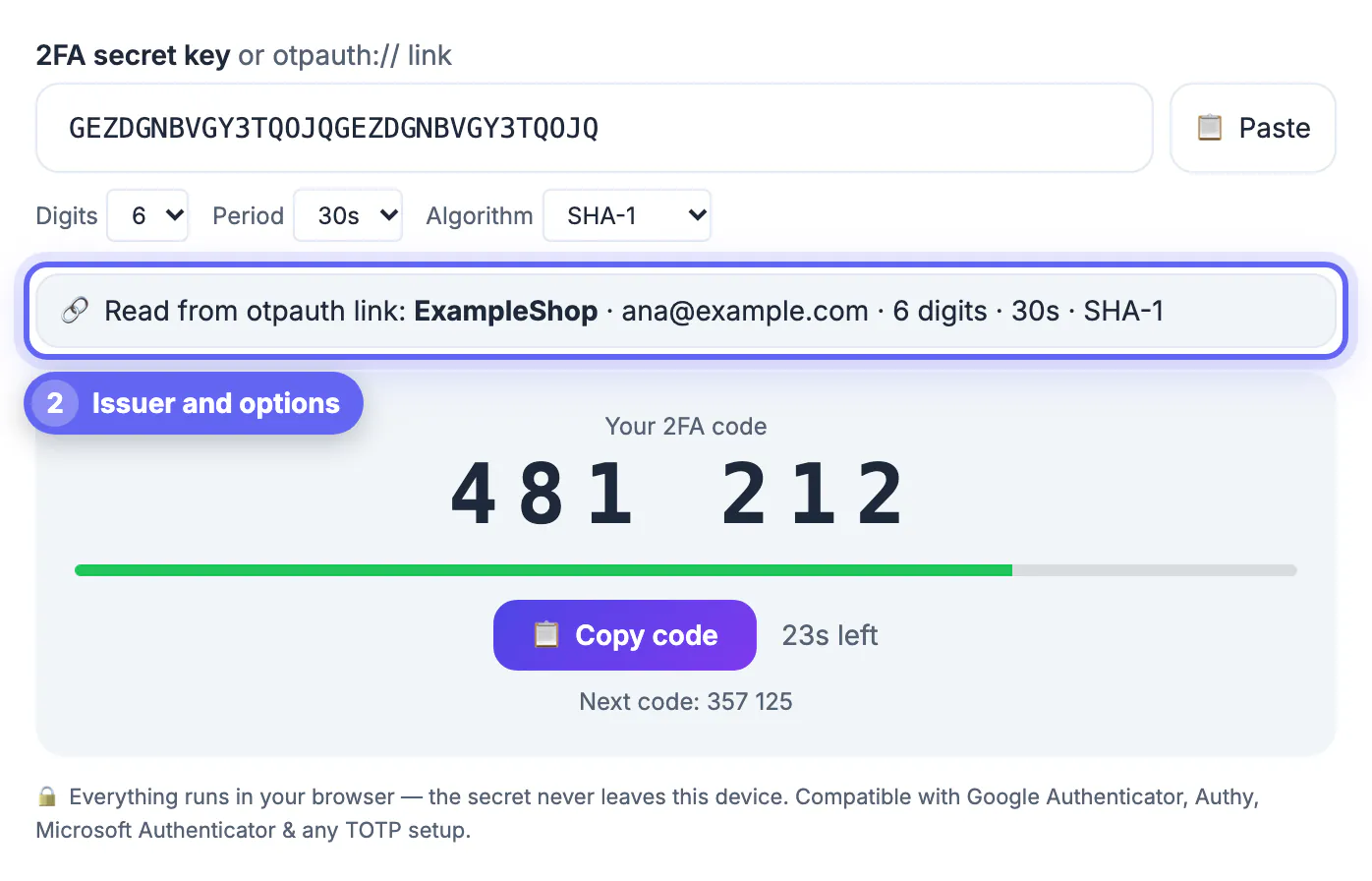
- Paste a Base32 key or a full otpauth link into the box, or use the Paste button; a link fills in the secret, issuer, account, digits, period, and algorithm automatically.
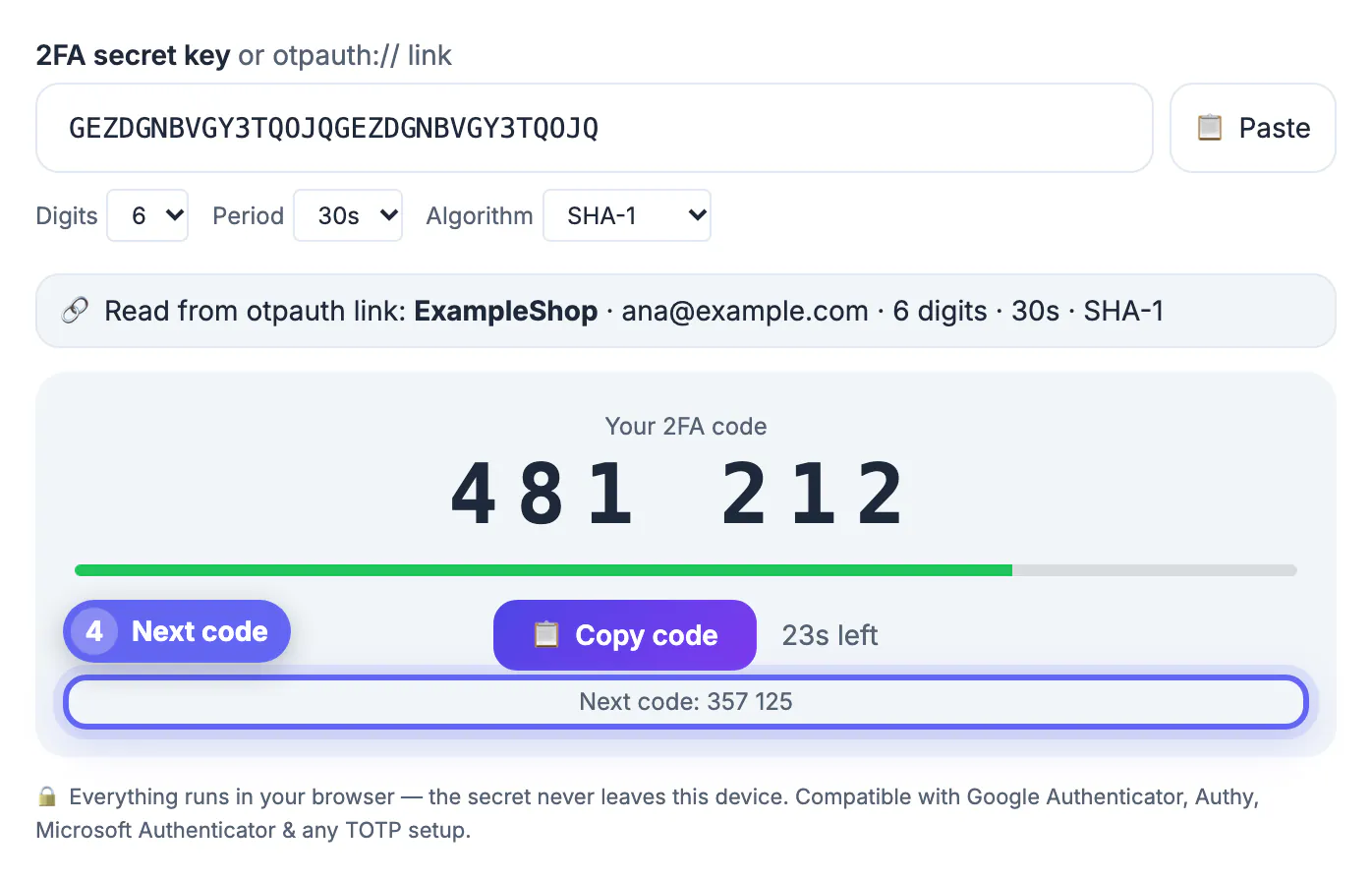
- It supports 6, 7, or 8 digits, 30 or 60-second periods, and SHA-1, SHA-256, or SHA-512, and shows the current code, the next code, and a countdown.
- Use it to confirm that a saved setup key still produces the same codes as your app, or to get a code on your own computer when your phone is unavailable and you kept the key.
- It is not a replacement for an authenticator app, because it does not keep your accounts. Use it only on a device you trust, never on a shared or public computer.
Step-by-step
Common mistakes to avoid
Pro tips
Frequently asked questions
Is SMS two-factor authentication safe?
It is much better than a password alone, but codes can be intercepted through SIM swapping. Use an authenticator app, passkey, or security key as the main method where possible, and keep SMS as a backup.
What happens if I lose my phone?
Use a backup code or a second method to sign in, then remove the lost phone and enroll the new one. If you saved the setup key, you can also add the account to a new authenticator.
Why are my authenticator codes rejected?
The most common cause is the phone's clock being out of sync. Turn on automatic date and time, then try again with a fresh code.
Is the GrabCast 2FA Code Generator safe to use?
It runs entirely in your browser and does not send or store your key. Use it only on your own trusted device, because anyone who sees the key can generate your codes.
Do passkeys replace two-factor authentication?
A passkey combines something you have, the device, with something you are or know, such as a fingerprint or PIN, so many services treat it as a strong, phishing-resistant sign-in on its own. Support varies by service.
Two-factor authentication is one of the most effective security steps you can take in five minutes per account. Start with email and your password manager, prefer an authenticator app, passkey, or security key over SMS, and save the setup key and backup codes during enrollment. Test the login before you close the page, and a lost phone becomes an inconvenience rather than a lockout.
Related guides
Browse more: all all guides · the 2FA Code Generator