How to Store 2FA Backup Codes and Setup Keys Safely
To store 2FA backup codes safely, keep two copies in two different places: one offline, such as a printed sheet in a home safe or file folder, and one encrypted, such as a password manager entry or an encrypted file. Do the same with the setup key, the long string or QR code shown when you first turn on an authenticator, because it can rebuild your codes on a new phone. Then test the backup once, so you know it works before the day your phone falls in a lake. Disclosure: this guide includes affiliate links to NordPass. If you buy through them, GrabCast may earn a commission at no extra cost to you. Every step here also works with free tools. How we handle affiliate links.
🔐 Try 2FA Code Generator now — freeOpen →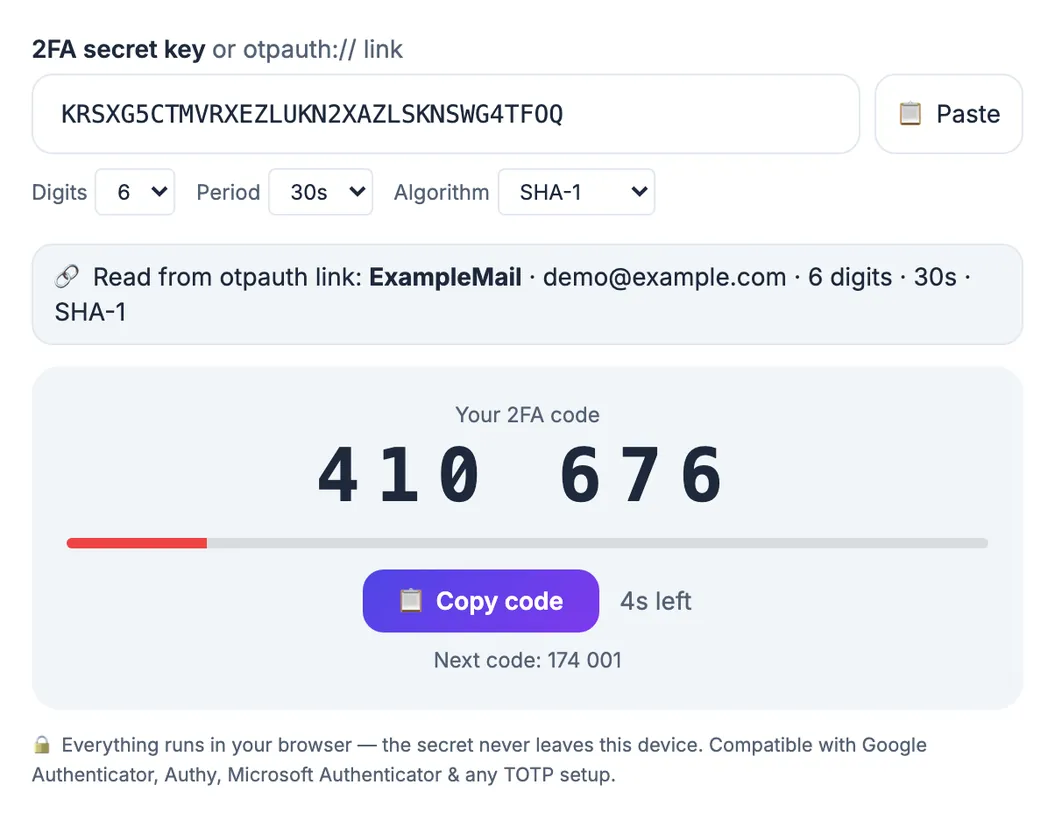
Two-step verification stops most account takeovers, but it creates a new way to lose access: the device that makes the codes. Phones get lost, stolen, reset and replaced, and support teams at large services often cannot, or will not, bypass two-step checks quickly, precisely because attackers try to talk their way past them. The single-use backup codes and the original setup key are your own recovery path. People who lose accounts after a phone swap almost always skipped saving them, or saved them somewhere that disappeared with the phone.
What to save when you turn on 2FA
The setup screen shows several things for only a minute. Capture all of them.
- Backup or recovery codes. Usually eight to ten single-use codes. Each gets you in once when your authenticator is unavailable. Note which ones you have used.
- The setup key. The QR code encodes a secret, often also shown as text like KRSX G5CT MVRX… or an otpauth link. Anyone with it can generate your codes, and so can you on a new device.
- Which account it belongs to. Write the service name and the email or username. Ten sheets labeled codes are useless in an emergency.
- Your other recovery options. Recovery email, phone number and any security key. Check they are current once a year.
Where 2FA backup codes should live, and where not
Good places keep the codes away from the phone and away from casual eyes:
- Paper at home. Printed or handwritten, in a safe, locked drawer or the folder with your passport. Offline paper cannot be phished.
- An encrypted vault entry. A password manager or an encrypted archive on a drive you back up.
- A trusted person for your most important account, sealed in an envelope, if you have someone who would help in an emergency.
Poor places: a screenshot in your camera roll, which syncs everywhere and is easy to leak; an unencrypted note titled 2FA; your email inbox, since email is often the account you are trying to recover; and only on the phone that generates the codes.
Test your backup before you need it
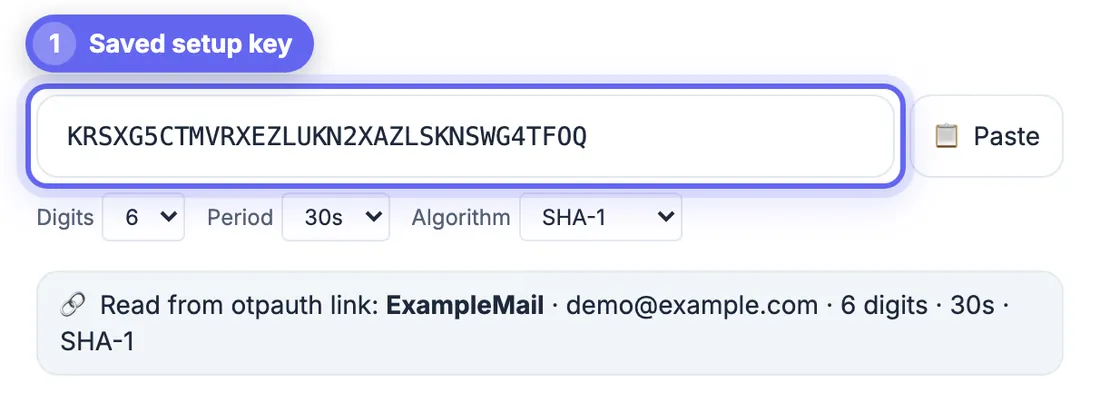
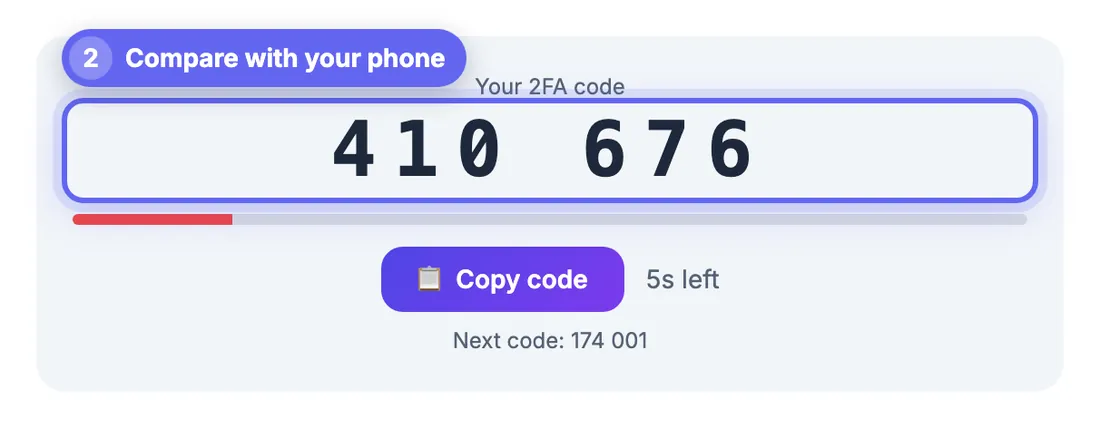
A backup you have never tried is a hope, not a plan. Here is a quick test that does not touch the account itself. Paste the saved setup key or otpauth link into a TOTP generator and compare the six-digit code with the one your phone shows at the same moment. If they match, the saved key is correct and complete.
GrabCast's 2FA Code Generator does this entirely in your browser: the key is never uploaded. If you prefer extra caution, load the page, disconnect from the internet, then paste the key. Close the tab afterwards. For backup codes, the only true test is signing in with one, so consider doing that on a low-stakes account and crossing the code off your list.
Keeping codes in a password manager: convenience versus separation
Many password managers can now generate two-step codes themselves, and they can autofill them. That is convenient and still blocks attackers who only have a leaked password. The trade-off is that the password and the second factor now sit in one vault, so the vault's own protection matters even more: a long master passphrase, and two-step verification on the manager itself using a separate device or security key.
A sensible split for most people: let the manager handle codes for everyday accounts, and keep your primary email, your bank and the password manager itself on a separate authenticator app or a hardware key, with paper backups at home.
NordPass. NordPass Premium includes an authenticator that stores two-step codes next to the login and autofills them in the browser extension after biometric confirmation, and the vault can also hold passkeys. Premium also supports file attachments, which is one way to keep an encrypted copy of a backup-code sheet.
See NordPass Premium →Free options work as well: most authenticator apps now offer an encrypted backup or sync, and the paper method costs nothing.
Step-by-step
Common mistakes to avoid
Pro tips
Frequently asked questions
Where is the safest place to store 2FA backup codes?
Two places at once: an offline paper copy at home and an encrypted digital copy, such as a password manager entry. Avoid screenshots, email and storing them only on the phone that generates your codes.
What is a 2FA setup key?
It is the shared secret behind your authenticator codes, shown as a QR code and usually as a line of letters and numbers. Any TOTP app with that key produces the same codes, which is why it works as a backup and why you must guard it.
Can I store 2FA codes in the same password manager as my passwords?
You can, and it is convenient. It still stops attackers with only a leaked password, but the vault becomes a single point of failure, so protect it with a strong master passphrase and a separate second factor. Many people keep email and banking on a separate authenticator.
What if I already lost my phone and have no backup?
Use the service's account recovery process, which may involve a recovery email, identity checks or a waiting period. It is slower but often works. Our guide on losing a 2FA device walks through the options.
Is it safe to paste my setup key into a website?
Only into a tool that runs locally. GrabCast's 2FA Code Generator computes codes in your browser and does not upload the key; you can even disconnect from the internet before pasting. Never paste keys into a site that sends them to a server.
Save both backup codes and setup keys when you enable two-step verification, keep one copy on paper and one encrypted, and test the key once against your phone. Ten minutes now saves days of account recovery later.
Related guides
Browse more: all all guides · 2FA Code Generator