vCard QR Code for Business Cards: Fields, Size, Testing
A vCard QR code for business cards stores your contact details inside the pattern, so one scan offers to save you straight into the other person’s phone, no typing and no website needed. Keep it to the fields people use, because every extra character makes the code denser and harder to scan at card size.
🔳 Try QR Code Generator (Contact) now — freeOpen →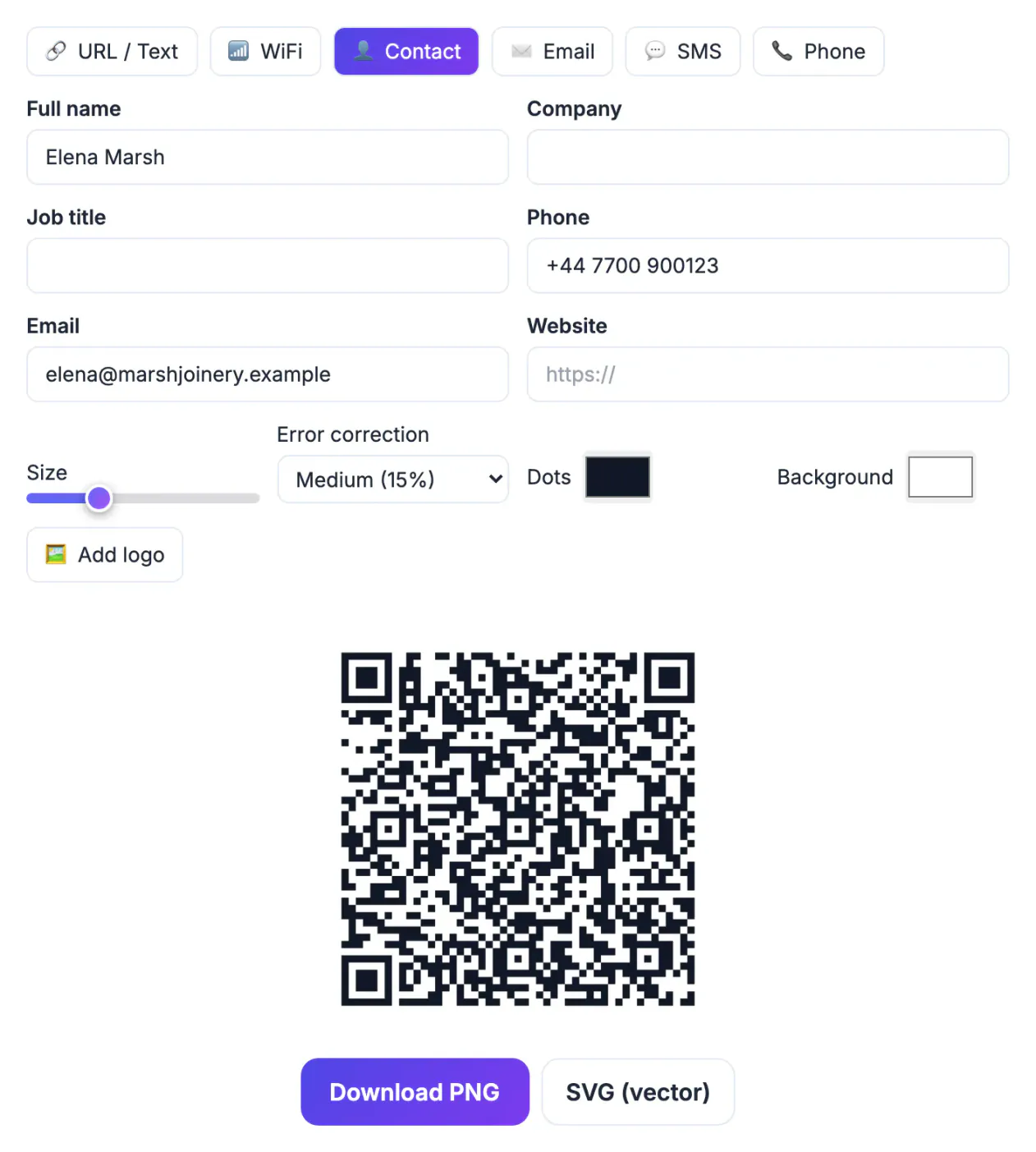
People who take your card want your name, number and email in their contacts. A code that opens a web profile adds a step, needs mobile data and breaks if the page moves; a vCard code works offline in a trade-show hall. The catch is space: a card is about 3.5 × 2 inches in the US or 85 × 55 mm in most of Europe, and small codes punish long data.
Which fields a vCard QR code should carry
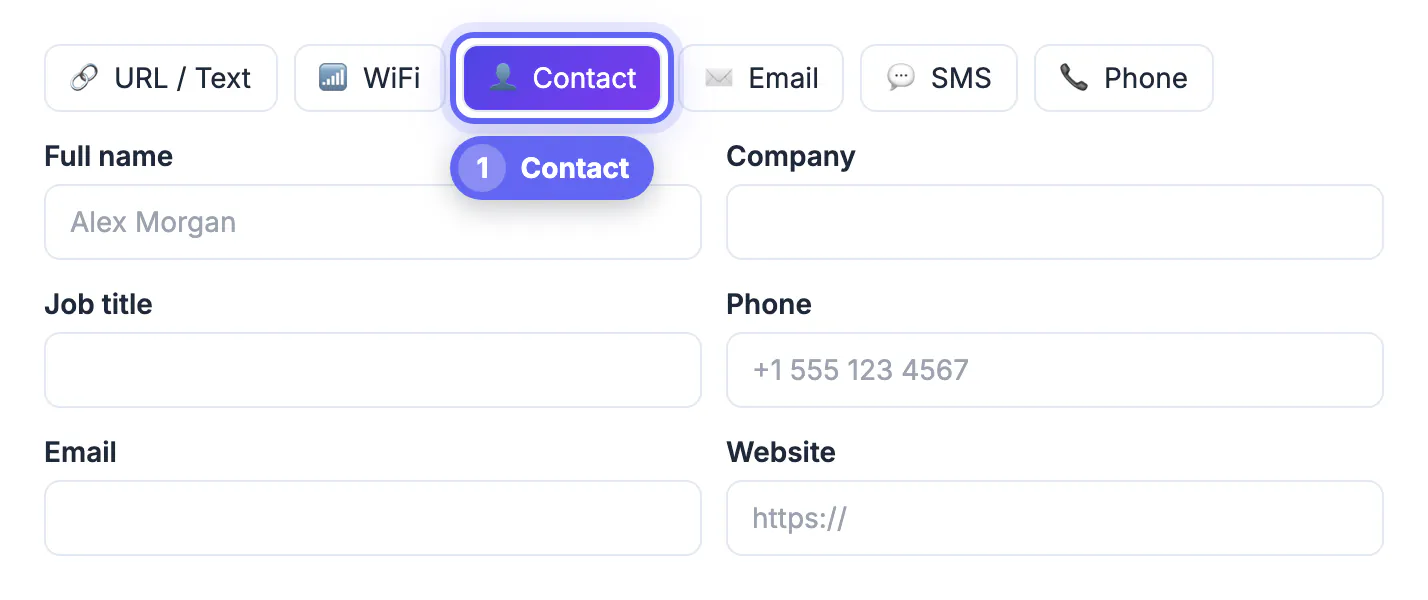
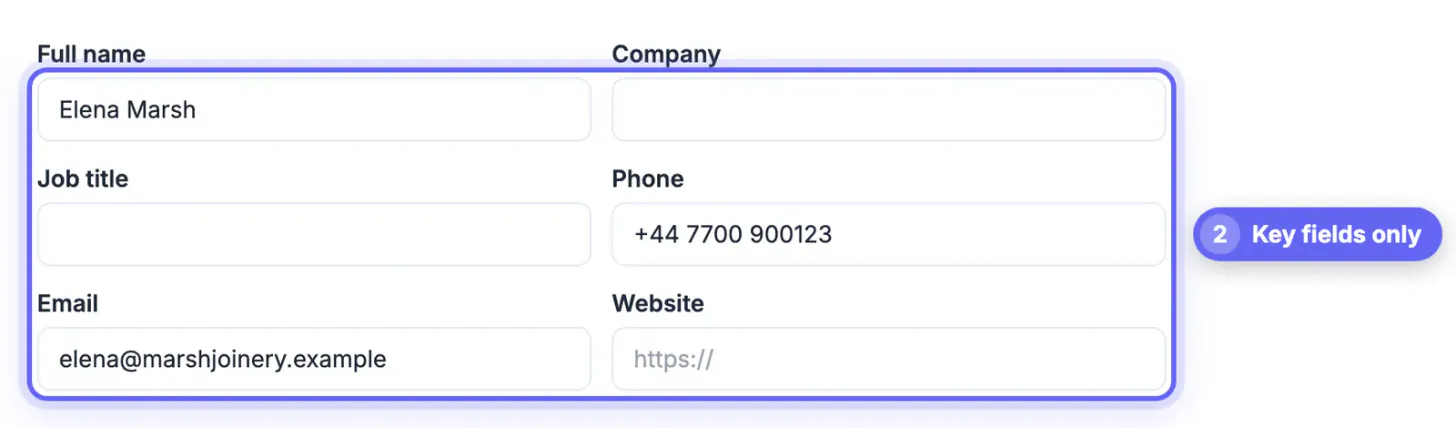
GrabCast’s QR Code Generator has a Contact mode with six fields: full name, company, job title, phone, email and website. It writes them as a standard vCard 3.0 card, which the camera apps on current iPhones and Android phones recognise.
- Full name is required. The tool treats the last word as the family name, so “Maria Lopez Garcia” is filed under Garcia; check the saved contact if your surname has several words.
- Phone is saved as a mobile number. Type it in international form, such as +1 555 123 4567 or +44 20 7946 0000, so it dials correctly abroad.
- Email and website: one of each. Use your work address, not a personal one you may abandon.
- Company and job title are optional; skip them if already printed on the card.
There is no field for a postal address, second phone, photo or notes, a sensible limit for a card-sized code.
Data size vs density: why fewer fields scan better
A QR code grows in steps called versions, each adding modules (the small squares). More characters mean smaller modules at the same printed size.
- A full card with all six fields runs to roughly 200 characters. At Medium error correction that needs a 57 × 57 module grid.
- Name, mobile and email only is about 120 characters and fits in 45 × 45 modules, so each square is about a quarter larger at the same print size.
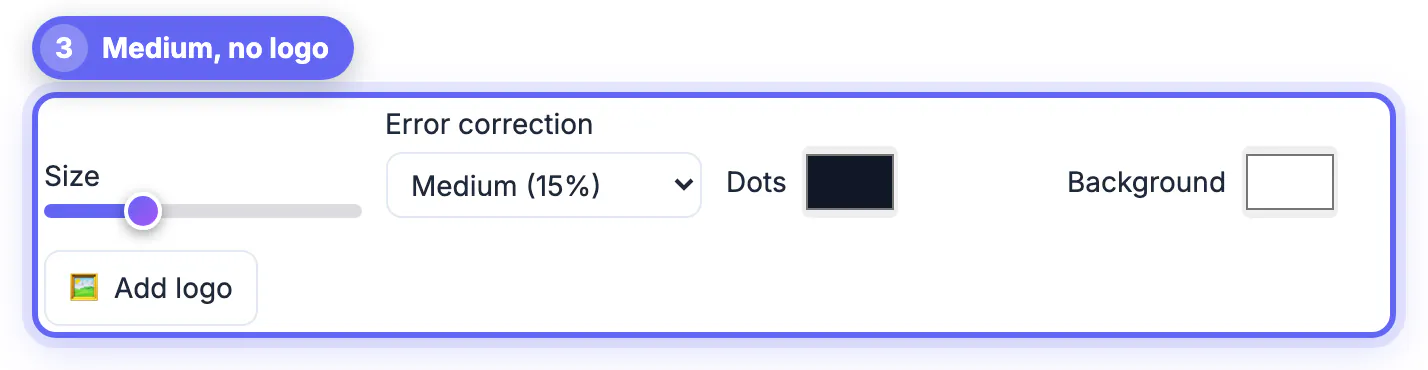
- Adding a logo locks error correction to High, which pushes the full card to about 77 × 77 modules. On a business card that is often too dense.
Drop anything the card already shows in print, and skip the logo on small cards.
Print size for a business card QR code
Cards are scanned close, 15 to 25 cm (6 to 10 inches), so the limit is how small your printer reproduces each module cleanly.
- Minimum for a full vCard: about 2.5 cm (1 inch) wide including the white border. Each module is then roughly 0.4 mm.
- Keep the quiet zone. The tool adds a white border four modules wide; do not let the designer crop it or place text inside it.
- Send the printer the SVG; it stays sharp at any size.
- Dark dots on a light background only; the tool warns when contrast is low or colours are inverted.
Avoid gloss varnish or foil over the code; reflections cause failed scans.
Test the contact QR code on iPhone and Android
Test the screen preview, then a printed proof at real size; problems often appear only on paper.
- iPhone: open Camera, point at the code and tap the contact banner; check each field before saving.
- Android: use the camera app or Google Lens, depending on the model, and check the same fields.
- Try an older phone too; they are less forgiving of dense codes.
- Scan the proof under indoor light and at a slight angle.
The code is generated in your browser, so your details are not sent to GrabCast. It is static and never expires, but cannot be edited after printing.
Layout tips for the card itself
A code works only if there is room to scan it. Place it on the back of the card or in a corner with a clear margin, and add a short instruction such as scan to save my contact. Keep the code on a plain light background and avoid placing it over patterned paper or a fold.
- Use dark modules on a light background; inverted codes fail on many scanners.
- Leave a blank border of at least four modules around the code.
- Choose matte paper if possible, because glossy finishes reflect light and make scanning harder.
- Print one test card before ordering a full batch.
For other contact methods, creating a QR code step by step covers the basics, and an email signature with a logo keeps your digital contact details consistent with the card.
Keep your details current
A static contact code cannot be updated after printing. If your phone number or job title changes often, include only the stable fields, such as name, company and website, and put changing details on the page the website link leads to. Printing smaller batches also reduces waste when something changes.
Common scanning problems and fixes
If a code will not scan, the cause is almost always size, contrast or damage. Enlarge it slightly, remove decorative logos, avoid shiny stock and reprint a proof. If an iPhone shows the banner but the contact looks wrong, check for stray characters in the name field and keep phone numbers in international format.
Step-by-step
Common mistakes to avoid
Pro tips
Frequently asked questions
What is a vCard QR code?
A QR code containing a vCard contact card; scanning it offers to save the details to the phone’s contacts.
Does a vCard QR code need internet to work?
No. The details are inside the code, so the phone can read and save them without a connection.
Can I add my address or photo?
Not in GrabCast’s Contact mode, which supports name, company, job title, phone, email and website.
How small can I print it?
Around 2.5 cm (1 inch) wide is a safe minimum for a full card. Always test a printed proof.
Can I update the contact after printing?
No. The code is static, so new details mean a new code.
A good vCard QR code for business cards carries your name, mobile and email, prints at least an inch wide on clean white, and has been scanned on real phones from a real proof.
Related guides
Browse more: all all guides · QR Code Generator (Contact)