Email QR Code That Opens a Pre-Written Message
An email QR code opens a new message in the phone's mail app with your address, and optionally a subject and body, already filled in; the person adds their note and taps Send. To make one, choose the Email tab in a QR generator, enter the To address, a subject that tells you where the message came from, and a one-line prompt, then test it on a phone before printing. This guide covers how the underlying mailto link behaves on iPhone and Android, how to use subjects to sort incoming mail automatically, and the places where a scan-to-email square beats a web form.
✉️ Try the QR Code tool now — freeOpen →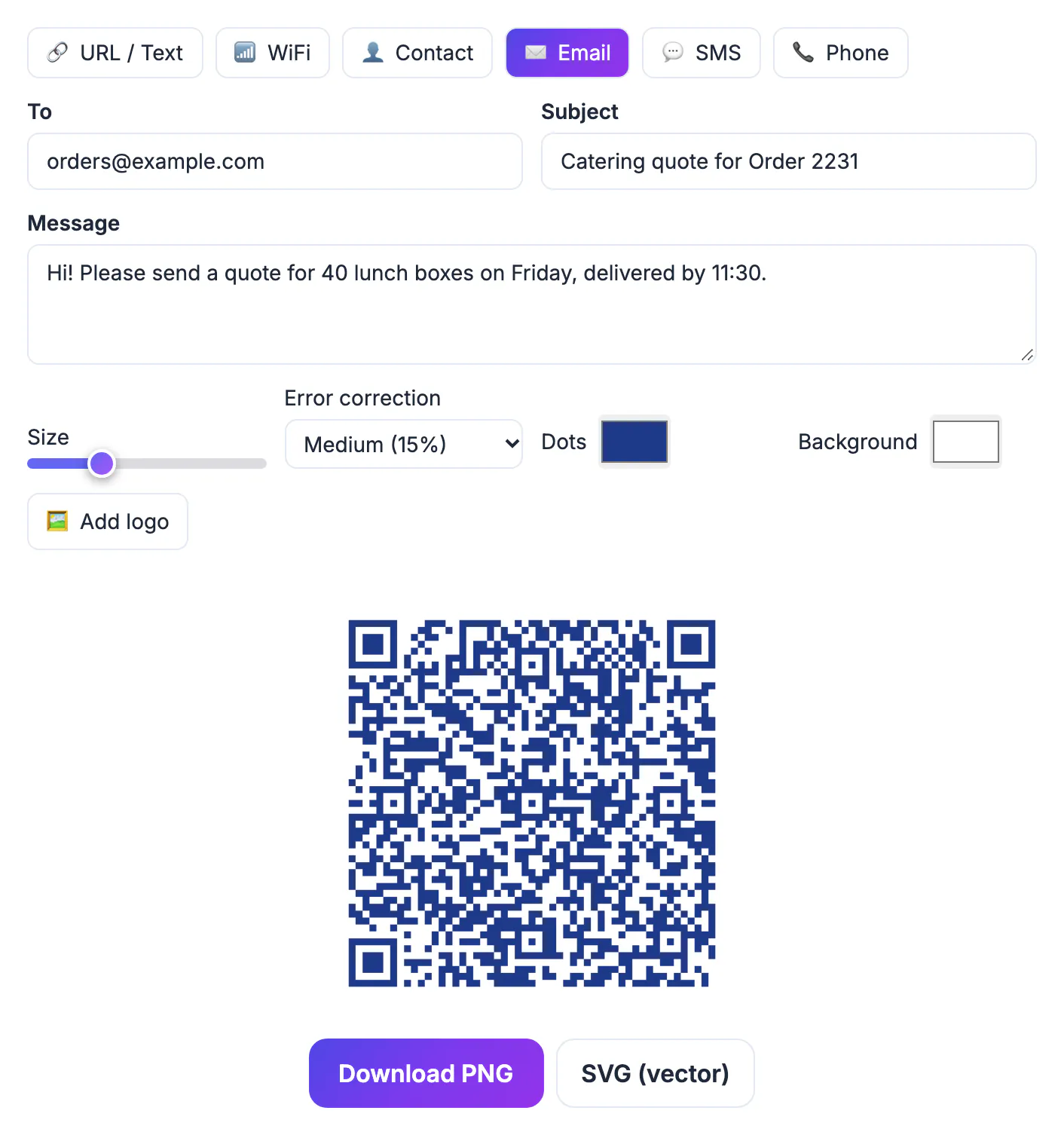
Every step between wanting to write and actually writing loses people. Typing an address like warranty@northfieldtools.com on a phone keyboard is slow, and one wrong letter sends the message nowhere with no error the customer will ever see. A scan removes the typing and the typos. The pre-filled subject does something just as valuable on your side: it labels each message by source, so a support inbox can route repair requests, feedback and sales questions without anyone reading them first. For small teams with no ticket system, that labeling is often the real win.
How a mailto email QR code behaves on a phone
Behind the square is a standard mailto link: the address, then an optional subject and body, such as mailto:help@example.com?subject=Repair%20request. When a phone reads it, the camera shows a banner and one tap opens a draft.
- It opens the default mail app. On iPhone that is Apple Mail unless the person set Gmail or Outlook as default in Settings; Android usually shows its own default or a chooser.
- Nothing is sent automatically. The person always sees the draft and taps Send themselves, which is what makes it trustworthy.
- If the phone has no mail account set up, the scan may open an empty setup screen. Print your address in text too.
- Spaces and punctuation in the subject and body must be encoded as %20 and similar. GrabCast does this for you as you type.
On a laptop the same link behaves differently: desktop browsers hand mailto links to whatever mail program is registered, which is often an unused desktop client. That is one more reason the square belongs on paper and packaging that people meet with a phone in hand, while web pages should use an ordinary clickable address.
Filling the Email tab in GrabCast
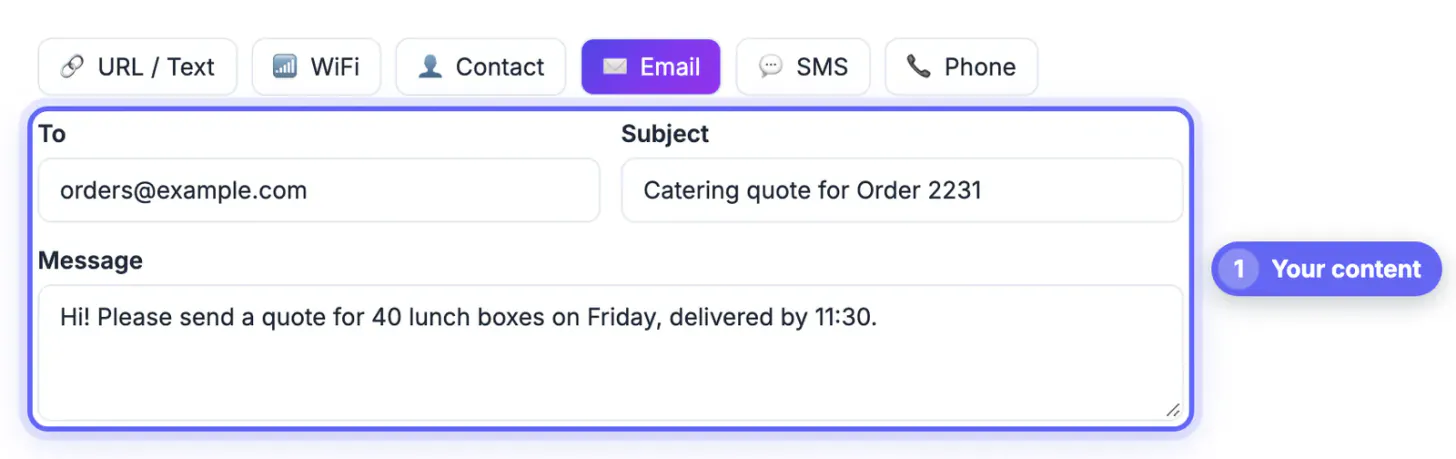
Open the QR Code tool and choose Email. You get three fields, and the preview updates as you type; everything is built in your browser.
- To: one address, ideally a shared role inbox like support@ or hello@ rather than a personal one that changes when staff leave.
- Subject: the label you will filter on later, such as Warranty claim, Box insert, Model X200.
- Message: an optional starter line that tells people what to include, for example Order number: and Photo of the damage attached.
- There are no CC or BCC fields, and the format cannot attach files for the sender. If you need those, link to a web form with the URL / Text tab instead.
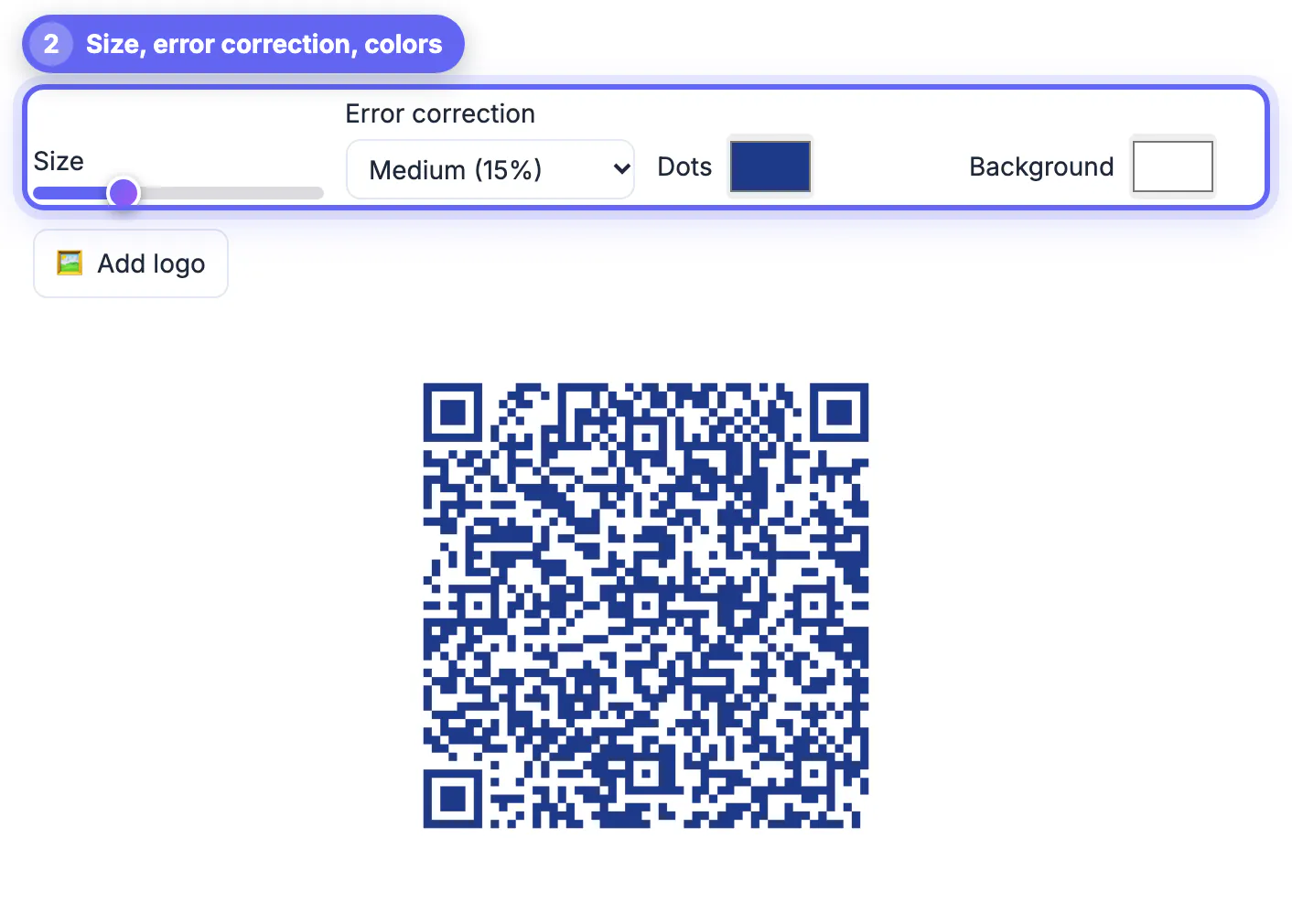
Keep the body short. Each character adds modules, and a paragraph of instructions makes the pattern dense enough to need a much larger print. A 60-character link fits comfortably at a 1 inch print size; a 300-character one does not.
Route replies automatically with the subject line
The subject is a free tagging system. Give every printed placement its own wording and let your mail rules do the sorting.
- Product inserts: Setup help, Model X200. A Gmail filter on that phrase can apply a label and forward to the right technician.
- Event feedback cards: Feedback, Spring Workshop 2026, so replies stay grouped even months later.
- Real estate yard signs: Info packet request, 14 Oak Street, answered by an Outlook rule that replies with the PDF.
- Lost-item tags on luggage or equipment: Found item, Tag 0412, which tells you whose bag it is without printing a phone number.
Test each code by scanning it and sending the draft to yourself; confirm the filter caught it before you print a thousand copies.
If the message is a draft you will reuse, see how to write a professional email with AI and reply to emails faster with AI.
Email QR code or a web form: choosing honestly
Scan-to-email is not always the best tool. It shines when replies are short, personal and need a real reply thread. It is weaker for structured data.
- Choose email for support questions, feedback in the customer's own words, and anything where you want to reply directly from your inbox.
- Choose a form, linked through a URL code, when you need consistent fields, file uploads, anonymous responses or a spreadsheet of answers.
- Your address is readable by anyone who scans, so avoid personal addresses; a role inbox with a spam filter handles the rare harvesting attempt.
- Consider the Contact tab (a vCard) instead if the goal is for people to save your details, and the SMS tab if your customers prefer texting.
Step-by-step
Common mistakes to avoid
Pro tips
Frequently asked questions
Does an email QR code send the message automatically?
No. It opens a draft with the address, subject and any starter text filled in. The person reviews it, adds their message and taps Send, so nothing leaves their phone without their action.
Will it work with Gmail and Outlook apps?
It opens whatever the phone uses as its default mail app. On iPhone that can be Gmail or Outlook if the person set it in Settings; otherwise Apple Mail opens. On Android the default or a chooser appears.
Can I add CC, BCC or an attachment?
Not in GrabCast's Email tab, which fills To, Subject and Message only. The sender can attach a photo themselves before sending, and you can prompt them to in the message line.
Is my email address exposed?
Yes, in the sense that anyone who scans can read it, exactly as if it were printed. Use a shared role inbox with a good spam filter rather than a personal address.
Is anything uploaded when I make the code?
No. GrabCast builds the mailto link and draws the square in your browser. Your address and message text are not sent to a server to create it.
An email QR code replaces a typed address with one scan and a ready-made draft. Point it at a shared inbox, use the subject line to tag where each message came from, keep the body to a single prompt, and test the send before you print. GrabCast builds it free, in your browser, with no account.
Related guides
Browse more: all all guides · the QR Code tool