Professional Email Signature Generator for Gmail & Outlook
A professional email signature generator turns your name, title, company, phone, email and website into a tidy HTML block you can paste into Gmail or Outlook in about five minutes. In GrabCast's free Email Signature Generator you type the details, pick one accent color, optionally add a hosted logo, check the live preview and click Copy signature; nothing you enter is sent to a server. The tool handles the formatting. What makes the result look professional is judgment: four to six useful lines, one color, one clear next step, and details that stay current. This guide covers both halves, the choices that separate a polished sign-off from a cluttered one and the exact steps to install it in each email app.
✉️ Try the Email Signature Generator now — freeOpen →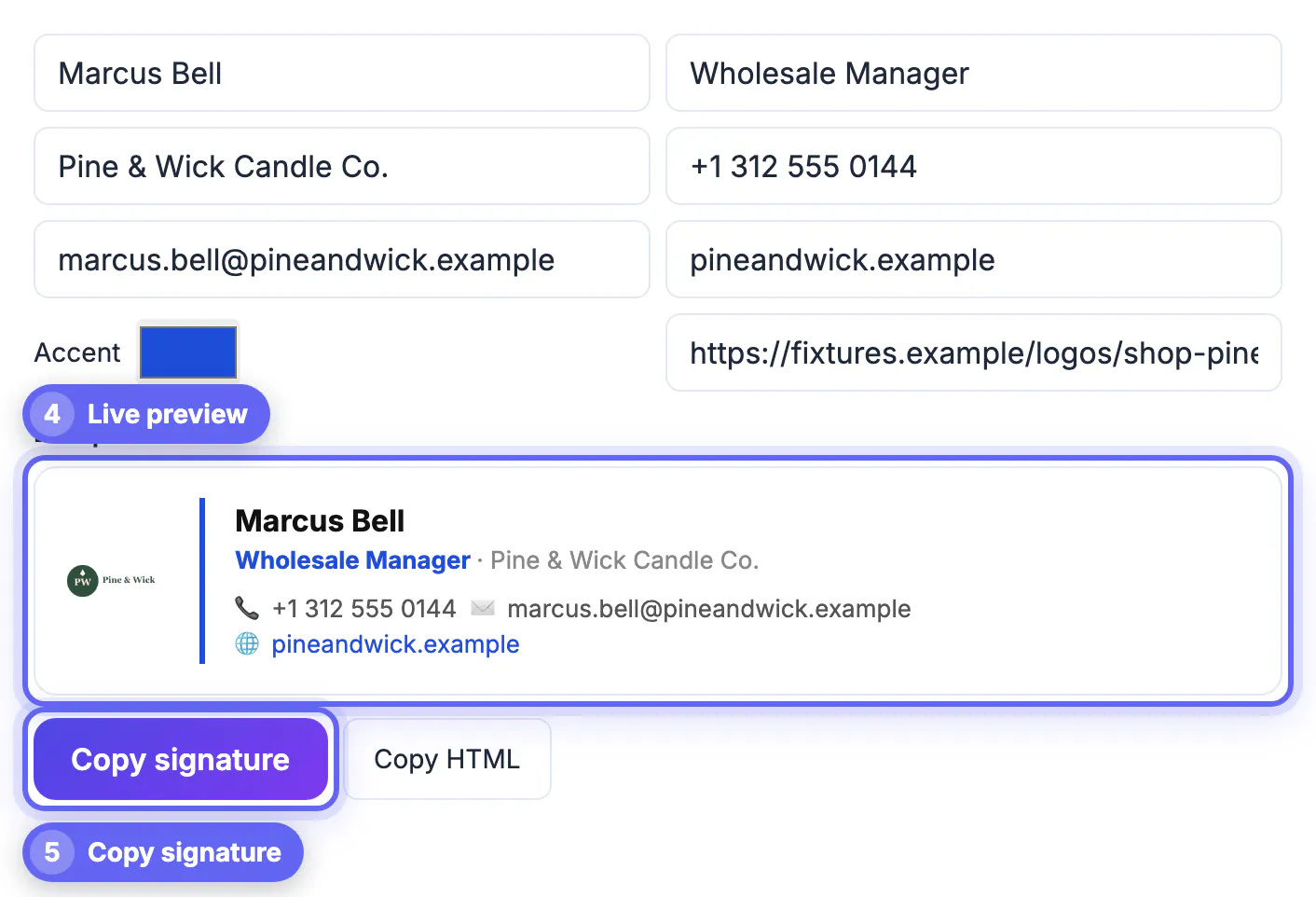
Your signature appears on every message you send, often to people who have never met you, so small flaws repeat hundreds of times a month. Typing it straight into Gmail's editor usually produces uneven spacing, a phone number that wraps on mobile and links formatted differently on each line, and every colleague ends up with a slightly different version. A generator produces a structured HTML table with fixed font sizes and pre-formatted links, so the block looks the same on every message and across a whole team. Because it sits at the end of the email, the signature is also the last impression a reader gets before deciding whether to reply.
What makes an email signature look professional
Professional signatures are defined more by what they leave out than by what they add. Two people can list the same details, and the one with less decoration looks more credible.
- Restraint: one name, one role, one phone number, one email and one link. Every extra line dilutes the ones that matter.
- Discipline: one accent color and one font family, ideally close to ordinary email text. Rainbow colors, script fonts and shaded backgrounds read as trying too hard.
- One call to action: decide whether you want people to call, book a meeting or visit a portfolio, and feature that single link rather than five competing ones.
- Consistency: the same block on every device, no stray blank lines, and no outdated number or dead link undermining the rest.
Leave out inspirational quotes, full street addresses unless clients visit you, rows of social icons and long legal disclaimers that your industry does not actually require. If you have to ask whether an element belongs, it usually does not.
What goes in the generator, line by line
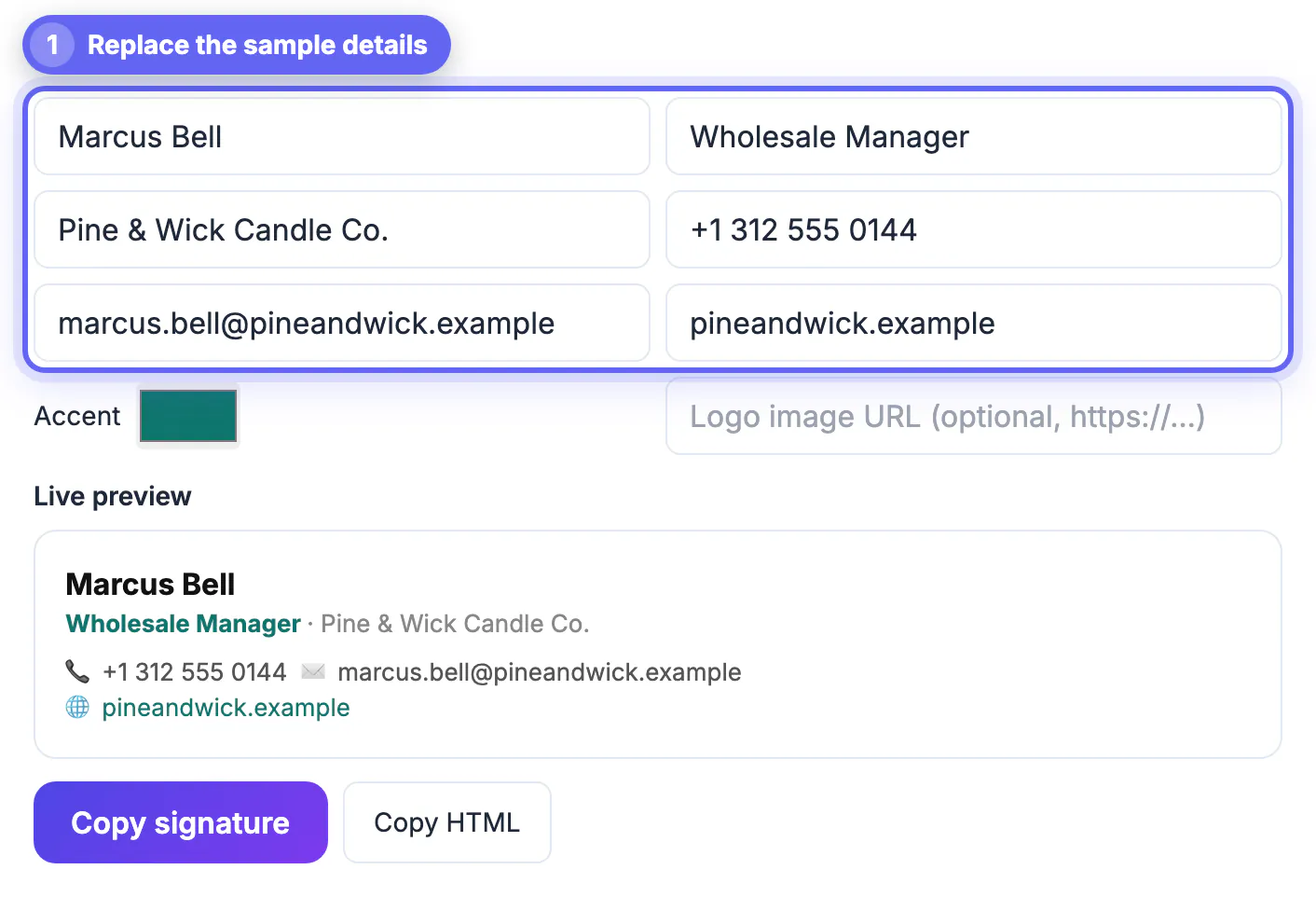
The GrabCast form has eight inputs, and the preview updates as you type, replacing the sample details.
- Full name, shown in bold at 16 pixels so it anchors the block.
- Job title and company on the second line; the title uses your accent color and the company follows in gray. Write the title the way customers understand it, such as Account Manager, not an internal code.
- Phone, email and website on the lines below. Format the phone number the way your market expects, for example (555) 201-7788 for US contacts, and keep the website short, such as acme.com/book.
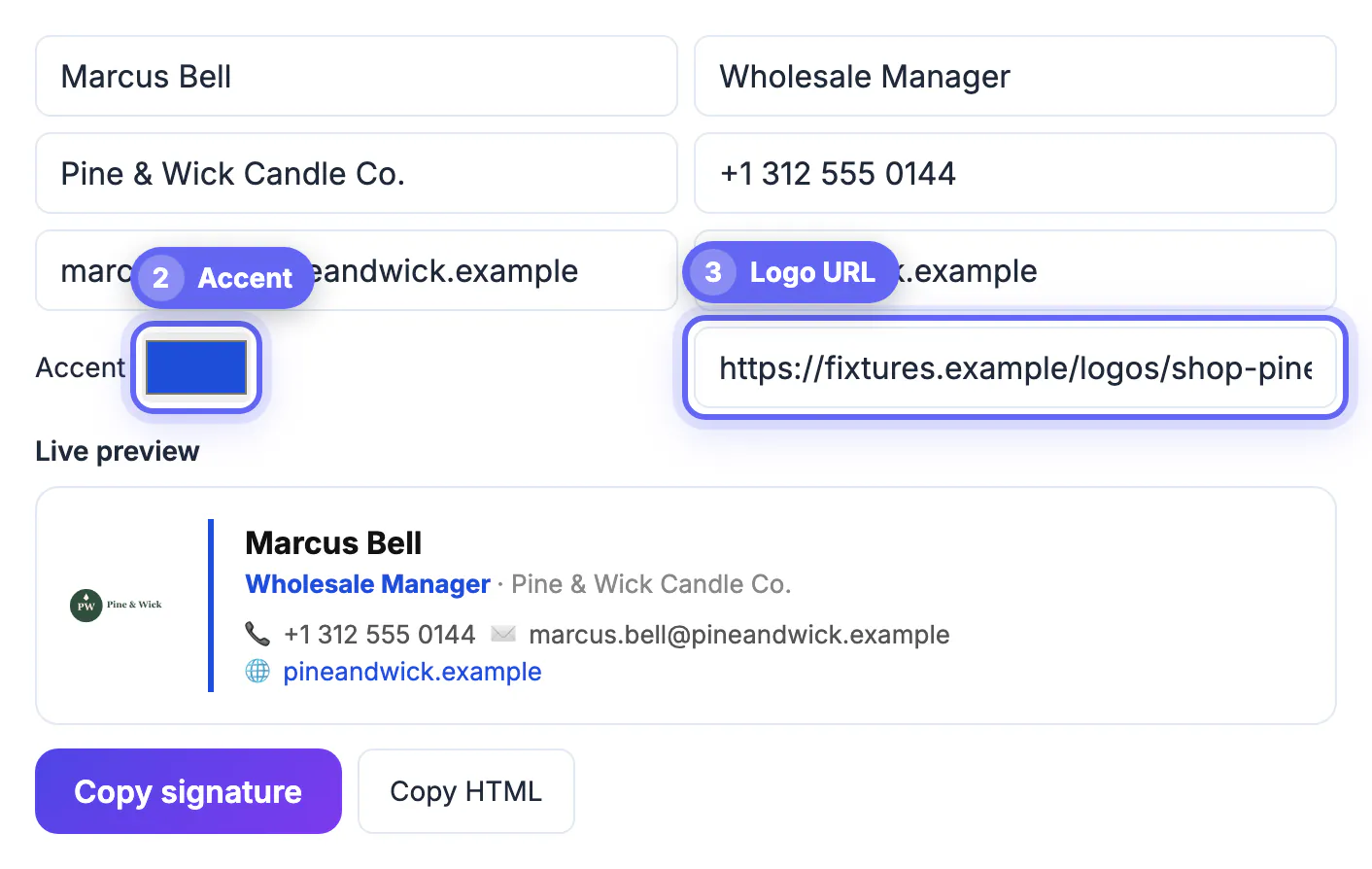
- Accent color and an optional Logo image URL. The logo appears to the left of your details with a thin divider in the accent color; it must be a public https link, not a file on your computer.
The output is a simple HTML table using Arial and inline styles, which Gmail, Outlook and Apple Mail display reliably. The phone, email and web markers are emoji, so they can look slightly different from one device to another.
Want a face or a scannable link in your signature? Make a tidy portrait with the Professional Headshot Maker and a code with the QR Code generator.
Installing the signature in Gmail, Outlook and Apple Mail
Click Copy signature, then paste into the app's signature settings rather than into a draft, which can flatten the formatting.
- Gmail on the web: gear icon, See all settings, General, Signature, Create new, paste, choose it as the default for new emails and replies, then click Save Changes at the very bottom of the page.
- Outlook desktop: File, Options, Mail, Signatures. Outlook on the web and the new Outlook: Settings, Mail, Compose and reply. Paste into the editor and save.
- Apple Mail: Settings, Signatures, add a new one, paste, and untick Always match my default message font so the styling is kept.
- Apps that accept code, such as some CRM and help desk tools, take the Copy HTML output instead.
Phone apps usually keep their own, separate signature, often plain text only. Set a short version there, such as your name and phone number, so replies from your phone still look intentional.
Checks before it goes out on hundreds of emails
A two-minute test catches nearly every problem.
- Send a message to a personal address and open it on a phone and a laptop; the block should stay on four to six lines without awkward wrapping.
- Switch the phone to dark mode. Gray text and a dark logo can fade, so check that the name and number stay readable.
- Click every link and the email address to confirm they go where you expect.
- For a team, share one template and have each person change only the name, title and phone, so the company looks consistent to clients.
Review the signature whenever your role, number or booking link changes, and do a quick audit every quarter. An outdated detail quietly undoes the polish of everything else in the block.
Step-by-step
Common mistakes to avoid
Pro tips
Frequently asked questions
Does this email signature generator work with Gmail and Outlook?
Yes. It produces an HTML table with inline styles that you paste into the signature settings of Gmail, Outlook desktop, Outlook on the web or Apple Mail.
What makes a signature look unprofessional?
Clutter: too many lines, several colors, script fonts, rows of social icons and broken images. A short, consistent block with one accent color reads as organized.
Are my details uploaded or stored?
No. The signature is built in your browser and copied to your clipboard. If you add a logo URL, the image loads from the address you provide, not from GrabCast.
Is a plain-text signature still professional?
Yes. A clean text signature is often more professional than an image-heavy one, because it loads everywhere and never breaks.
Is the generator really free?
Yes. There is no account and no sign-up, and no branding or watermark is added, so you can make one for every team member.
A professional email signature generator handles the formatting; your job is restraint. Keep four to six useful lines, one accent color and one clear next step, paste the block into your mail app's signature settings, and test it on a phone and in dark mode. Review it whenever your details change, and it will look polished on every message you send.
Related guides
Browse more: all business guides · the Email Signature Generator