Make a Scanned PDF Searchable With an Invisible Text Layer
To make a scanned PDF searchable, run OCR on each page and add the recognized words back as an invisible text layer placed exactly over the printed ones, so the page still looks like the scan but Ctrl+F, copy and screen readers finally work. GrabCast's free OCR PDF does this in your browser in 20 languages and saves a new file ending in -ocr.pdf. Below, a fictional two-page vet visit summary goes from a flat picture to a searchable document, including the spots where OCR still needed a human eye.
🔎 Try OCR PDF now — freeOpen →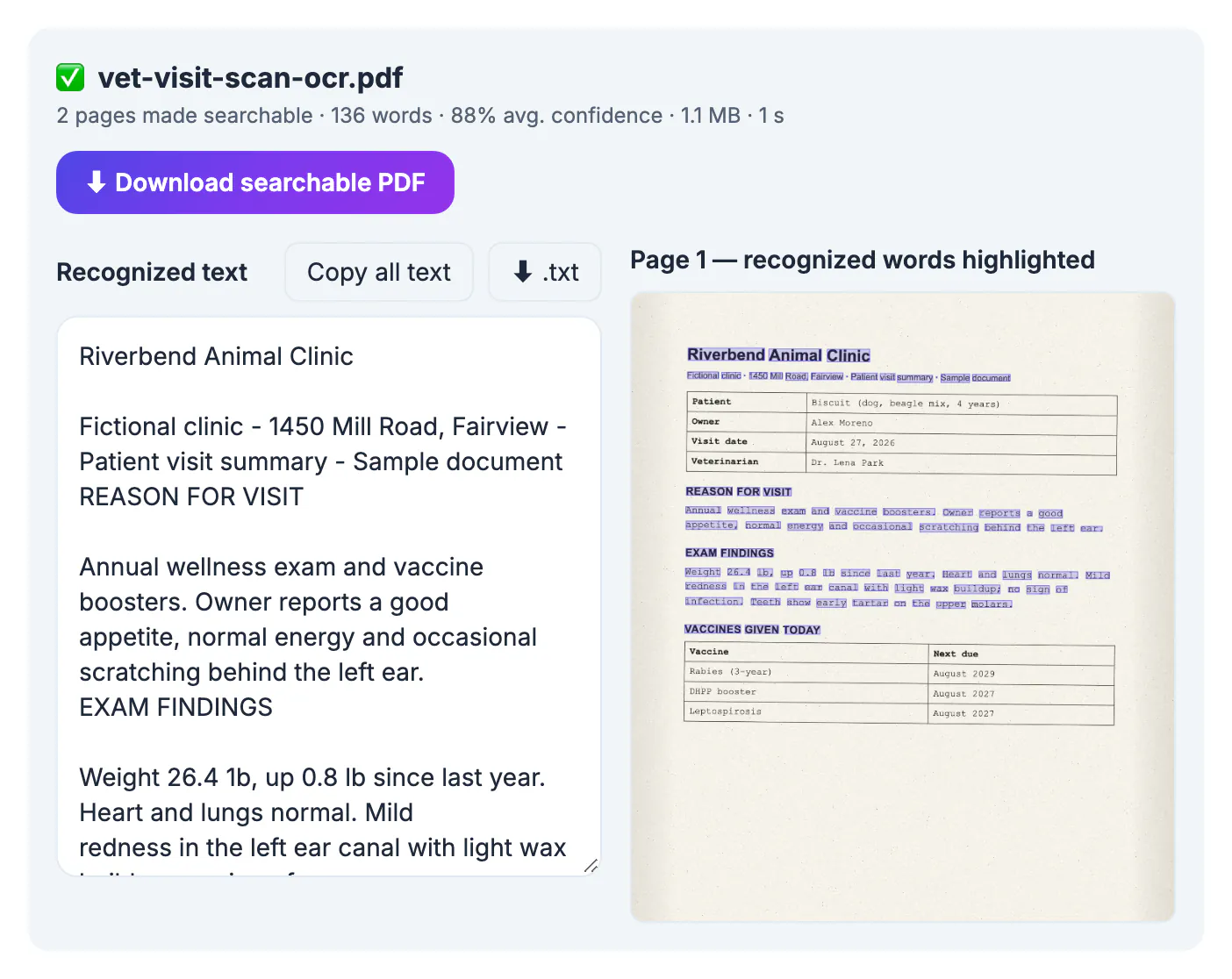
A phone scanner app or office copier saves each page as a photograph wrapped in a PDF. Your eyes see words, but the file contains only pixels, so searching for a patient name, a policy number or the word rabies returns nothing, and selecting text grabs the whole image. Cloud drives, email archives and desktop search tools skip those files too. Adding a hidden text layer fixes every one of those problems without changing how the page looks when printed or shared.
What a searchable scanned PDF actually contains
After OCR the page has two layers. The bottom one is the original scan, untouched. On top sits text drawn in invisible render mode, positioned and sized so each word lines up with its printed twin. Viewers ignore it when painting the page but use it for search, selection, copy and accessibility.
- The look of every page stays the same: no retyped fonts, no shifted tables, no redrawn signatures.
- Search highlights land on the right words because each recognized word keeps its own position, even on slightly tilted scans.
- Copying a paragraph pastes real text into email or a document.
- Screen readers can read the page aloud instead of announcing an image.
That is different from extracting text into a separate file. Extraction gives you words without the page; a searchable PDF keeps the original page as evidence and adds the words underneath, which is what archives, HR records and insurance claims usually need.
How OCR PDF makes a scanned PDF searchable in the browser
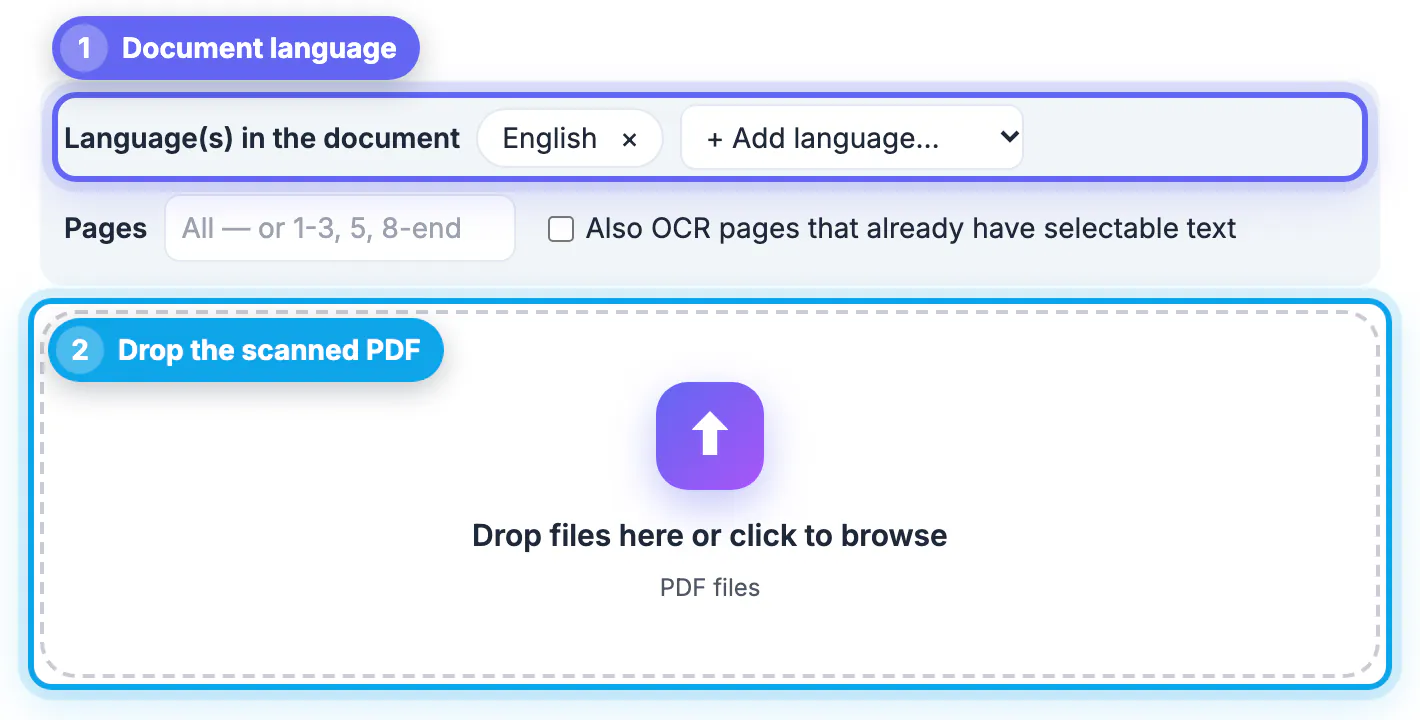
The tool opens the file with pdf.js, reads each page with the open-source Tesseract.js engine and writes the new layer with pdf-lib. The engine and the language data download the first time you use them; the document itself stays on your device.
- Pages are read at the scan's own resolution, between 150 and 400 DPI, and low-resolution faxes are enlarged up to 2x first because that helps accuracy.
- If a page reads with low confidence, the tool retries it upside down and sideways and keeps the clearly better result.
- Stray specks that look like tiny words with very low confidence are dropped so they do not pollute search.
- Pages that already have 30 or more characters of real text are skipped unless you tick the option to OCR them anyway.
- On desktop computers with enough processor cores, two pages are read at once; a progress bar shows the time left, and Cancel stops the job.
Our two-page sample, scanned at about 200 DPI with a slight tilt and some paper noise, finished in a few seconds: 2 pages made searchable, 136 words, 88% average confidence, 1.1 MB.
Where OCR still needs a human check
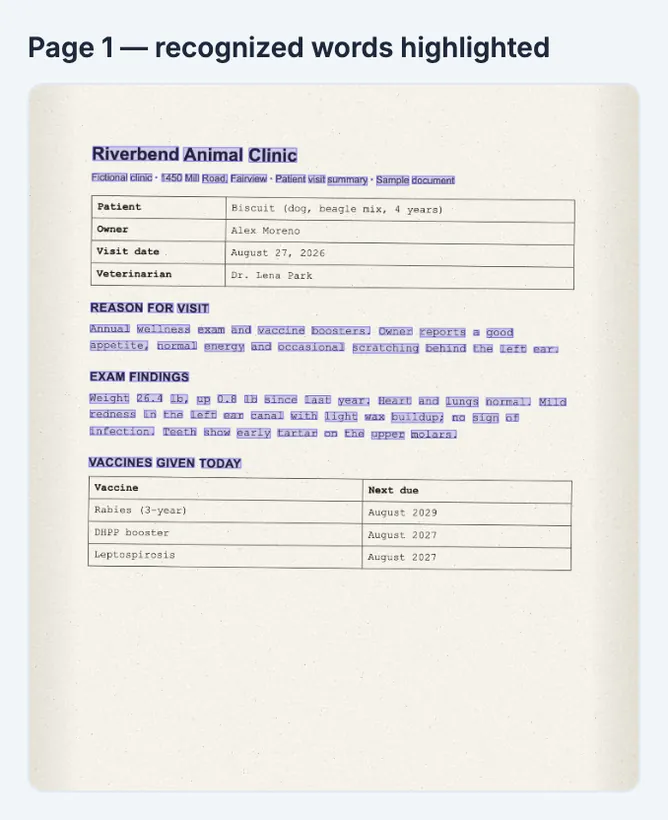
An average confidence of 88% sounds high, and for headings and paragraphs it was: every sentence of the exam notes came through cleanly. The preview, which outlines each recognized word in purple, showed two weaknesses worth knowing.
- Text inside ruled table cells was not picked up on this scan; the vaccine table and the patient details grid had no word boxes, so searching for a vaccine name inside that table would still fail.
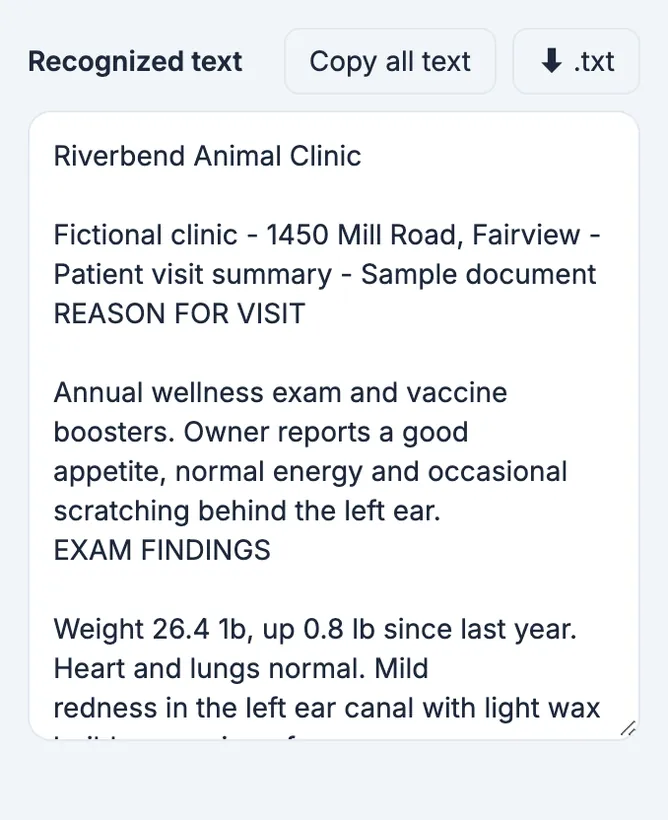
- Look-alike characters swap: the weight 26.4 lb came out as 26.4 1b, a classic confusion between the letter l and the digit 1.
- Faint, blurred, handwritten or very small print reads worse than clean typed pages.
- Stamps and signatures are usually ignored, which is normally what you want.
Scroll the preview before you rely on the file. If a critical block has no purple boxes, a rescan at 300 DPI with more contrast, or cropping the table into its own page, often fixes it. For documents where one wrong digit matters, such as dosages or account numbers, keep treating the scan image as the source of truth.
Using the searchable file afterwards
Download the searchable PDF and try it immediately: open it, press Ctrl+F or Cmd+F and search for a word you can see on page 2.
- File size barely changes, since the text layer is tiny next to the images; to shrink the scan itself, use Compress PDF afterwards.
- Existing digital signatures become invalid because the file is re-saved, so OCR a copy, not the signed original you must keep.
- Copy all text and the .txt button give you the plain words when you need them in an email or a spreadsheet.
- Password-protected or encrypted PDFs must be unlocked first, with the password you already have.
There is no fixed page limit, but everything runs in the browser's memory, so a 300-page archive box is best done in chunks with the Pages field, such as 1-50, then 51-100.
Once searchable, the Chat with PDF tool lets you ask questions about the content.
Step-by-step

Common mistakes to avoid
Pro tips
Frequently asked questions
Does making a PDF searchable change how it looks?
No. The original page images are kept as they are, and the recognized words are added as invisible text on top, so printing and viewing look the same.
Is the scanned PDF uploaded?
No. pdf.js, Tesseract.js and pdf-lib run in your browser. Only the OCR engine and language data are downloaded the first time; your document stays on your device.
How accurate is the text layer?
Clean typed scans at 200 to 300 DPI are usually close to word-perfect for paragraphs. In our test, table cells were skipped and one l became a 1, so proofread anything critical.
Can I make only some pages searchable?
Yes. Type a range such as 1-3, 5, 8-end in the Pages field. Pages outside the range are left as they are.
What happens to pages that already have text?
Pages with 30 or more characters of selectable text are skipped so the words are not doubled. Tick Also OCR pages that already have selectable text to include them.
A searchable scanned PDF keeps the page exactly as scanned and hides the recognized words underneath it, so search, copy and screen readers work. Pick the right language, let the tool read the pages locally, check the purple word boxes for skipped tables, and test the -ocr file with a quick search.
Related guides
Browse more: all PDF guides · OCR PDF