Make a Video Louder Online and Keep the Picture Untouched
To make a video louder online, drop the MP4 into GrabCast's Volume Booster, pick a gain such as plus 15 dB and click Boost & save; the booster raises only the sound track and copies the picture bit for bit. An 8-second 720p clip with barely audible narration came back 15 dB louder, still H.264 1280×720, in seconds, without the video being uploaded.
🔊 Try the Volume Booster now — freeOpen →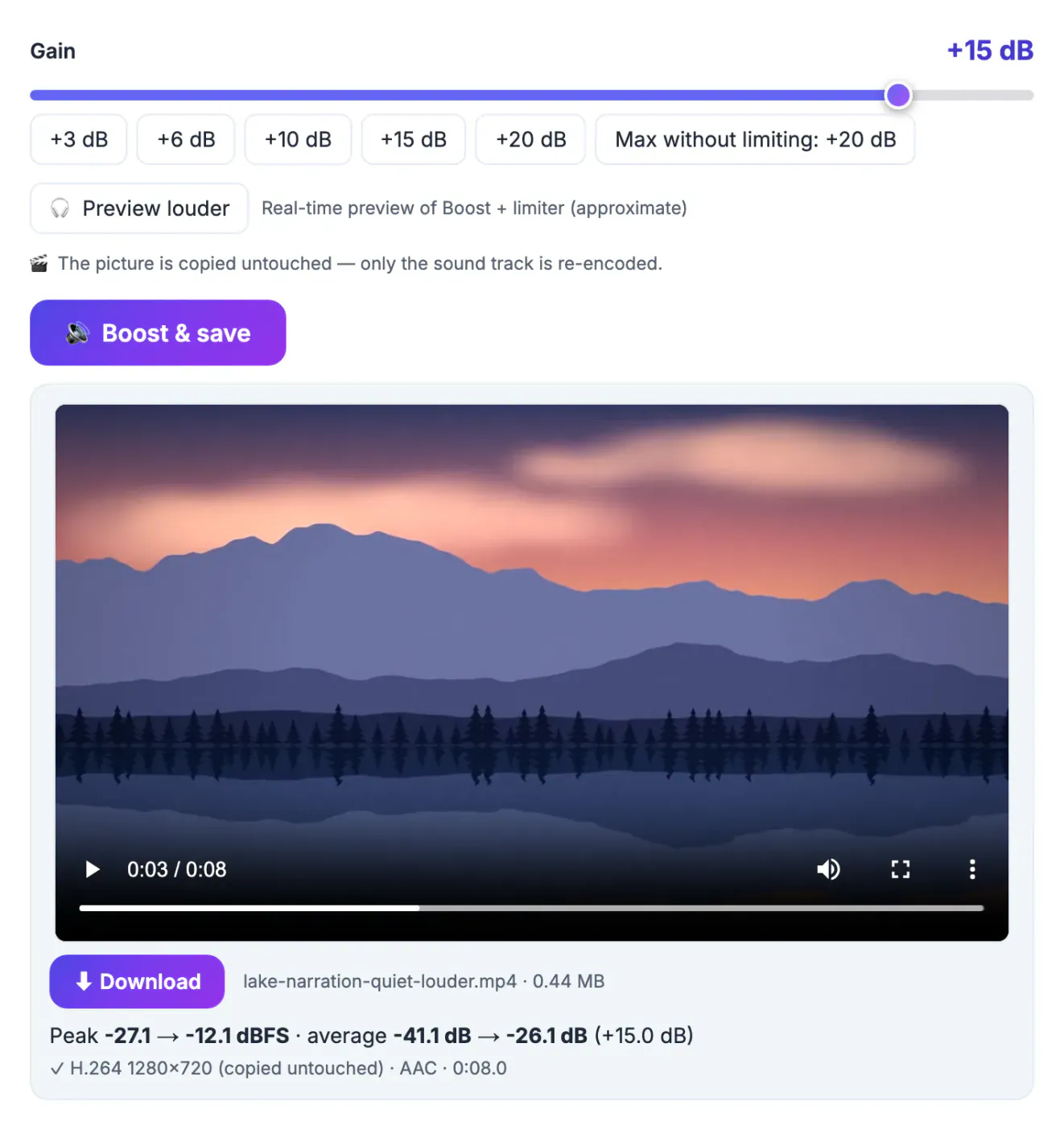
Phone and camera microphones are built to capture everything around them, so a narrator a few steps away, a presenter at the far end of a room or a voice-over recorded at a cautious level all end up quiet. Viewers turn their volume up, then get blasted by the next video in their feed, and many simply scroll past. Re-exporting from a full video editor fixes the sound but usually re-encodes the picture, which costs time and can soften the image. For a clip that only needs louder audio, the better approach is to leave the video stream alone and process the sound track only.
How the booster treats video files
The Volume Booster accepts both audio and video. With a video, it changes its behavior in a few important ways, all stated on the tool page.
- For MP4, MOV, M4V, MKV and WebM files the video stream is copied bit for bit and only the audio is re-encoded
- The new sound track is AAC for most containers and Opus for WebM
- Other video formats such as AVI or WMV are saved as MP4; if their video codec does not fit MP4 it is re-encoded to H.264
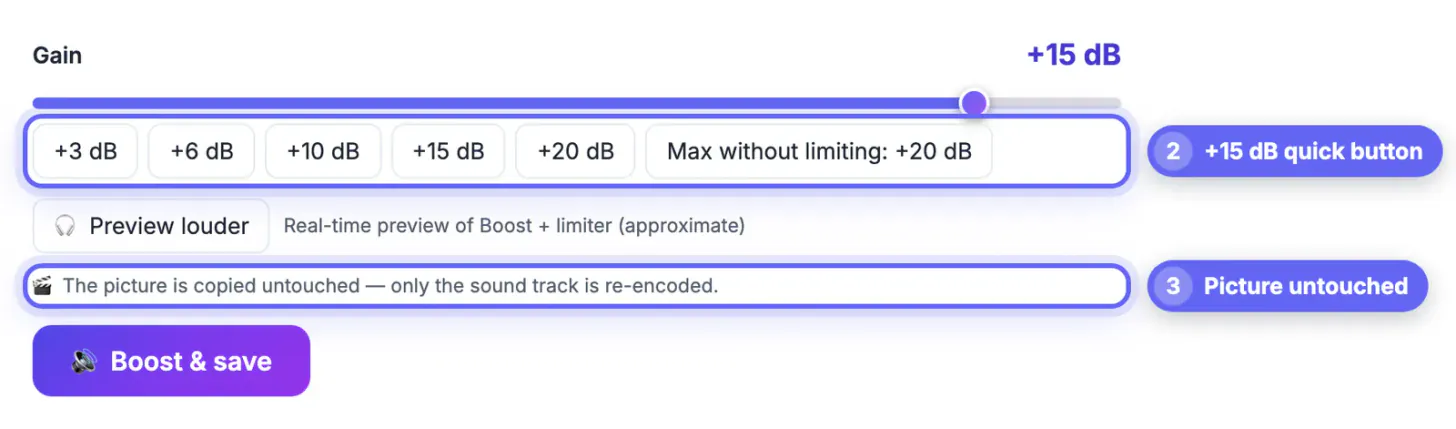
- There is no Save as menu for video; the output keeps the input's container, with a note that the picture is copied untouched
- Only the first audio track is processed, and a sound track with more than two channels is mixed down to stereo
Because the picture is copied, the output is the same resolution and frame rate as the input and the job is fast: only the sound has to be encoded. The 8-second test clip finished in a few seconds on an ordinary laptop.
Make a video louder: the lake clip example
The screenshots use lake-narration-quiet.mp4, a synthetic 8-second 1280×720 clip of a lake at dawn with a deliberately quiet, speech-like sound track.
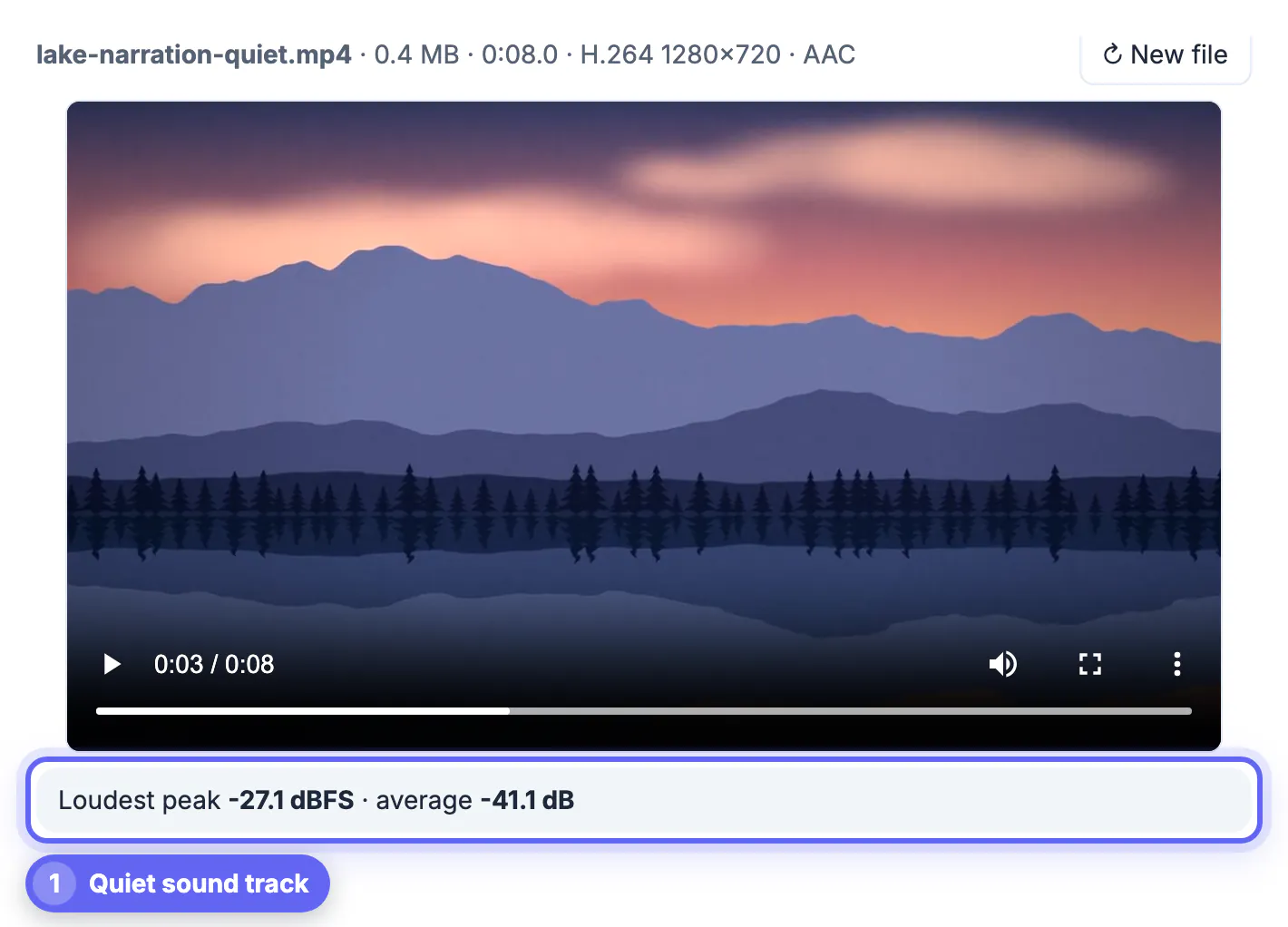
- After loading, the info line read 0.4 MB, 0:08.0, H.264 1280×720 and AAC, and a video player appeared above the meter
- The meter showed a loudest peak of -27.1 dBFS and an average of -41.1 dB, far too quiet for a social feed
- The plus 15 dB quick button set the gain; Max without limiting offered plus 20 dB, but 15 was enough for this clip
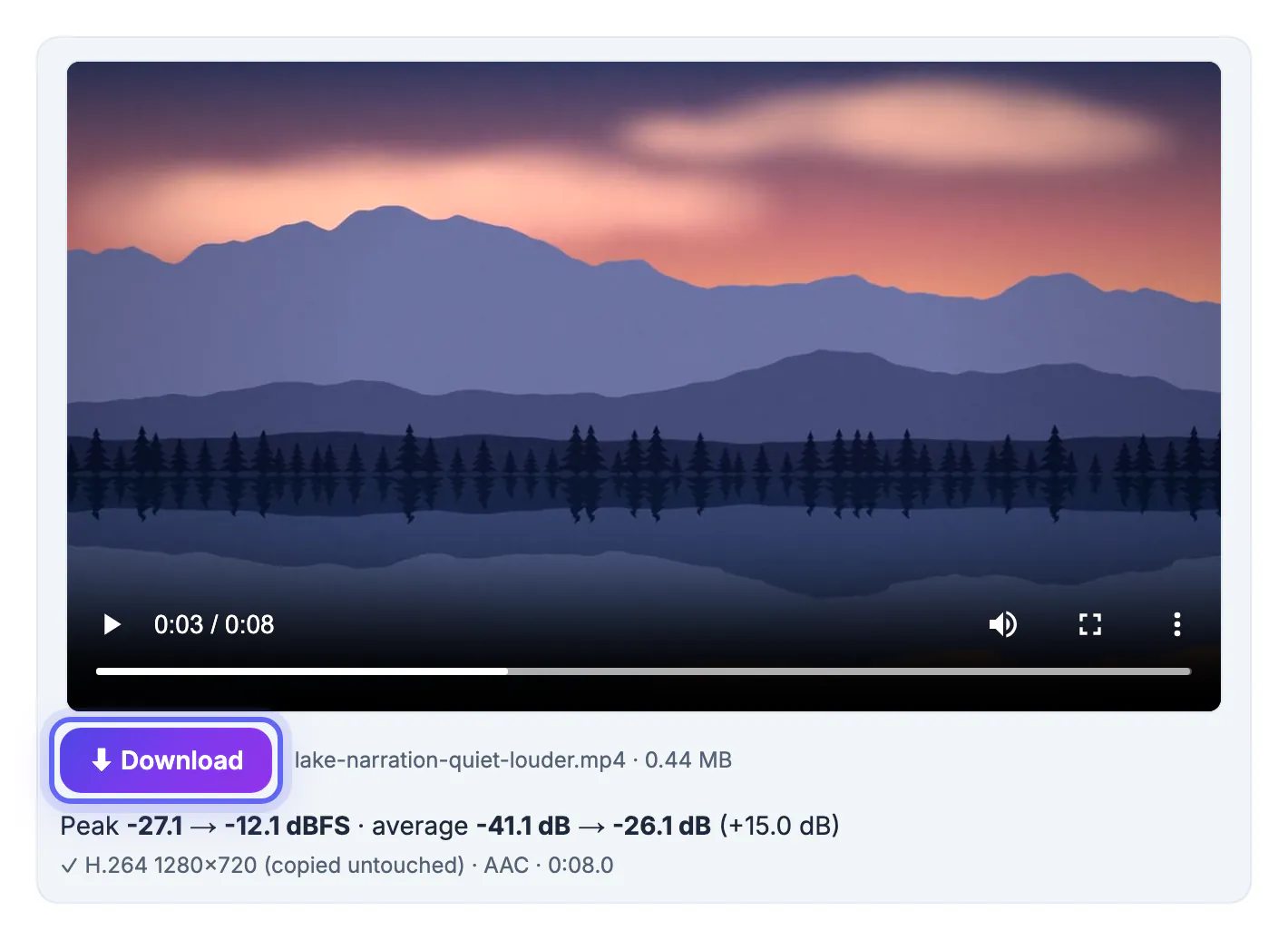
- The result read peak -27.1 to -12.1 dBFS and average -41.1 to -26.1 dB, a change of plus 15.0 dB
- The status line confirmed H.264 1280×720 (copied untouched), AAC, 0:08.0, and the file was lake-narration-quiet-louder.mp4 at 0.44 MB
The size barely changed because only the audio was re-encoded. A clip where the picture had been re-encoded would usually differ much more in size and could look slightly different.
The same approach works for screen recordings, a school play filmed from the back row, a video message recorded at arm's length, or a product demo with a soft-spoken presenter. In each case the picture is already fine, so there is no reason to touch it.
How much gain a video needs
The right boost depends on where the clip will be watched and what else is in the sound track.
- Use Preview louder to hear the boost live through the video player before saving, and switch back to hear the original
- Start with the Max without limiting value when the peak is well below 0 dBFS; it cannot distort
- For clips with music and speech mixed together, a moderate gain plus the limiter keeps the music from overpowering
- For talks and interviews where some sentences are much quieter than others, Auto: even out lifts the quiet passages
- For a platform with a published loudness level, Auto: loudness target normalizes to -14, -16 or -23 LUFS
A louder file also makes background noise louder. Wind, traffic and air conditioning rise with the voice, so a clip recorded outdoors on a windy day may need a smaller boost than the meter suggests.
Limits worth knowing before you boost
The booster runs in your browser's memory, which sets practical limits for long or high-resolution videos.
- The tool warns when a file is very large, roughly over 300 MB on a phone or 1.8 GB on a computer, because it may fail
- Long 4K recordings are best boosted on a computer rather than a phone
- Measuring and boosting use ffmpeg compiled to WebAssembly, a one-time download of about 32 MB that is then cached
- Nothing is sent to a server, so a private family video or an unreleased client clip stays on your device
- If the original sound was distorted when recorded, a boost makes that distortion louder rather than fixing it
If you only need the audio from a clip, for example to send the narration to a transcriber, convert the video to MP3 first and boost the lighter audio file instead.
If hiss rises with the volume, the Audio Noise Reduction tool helps, and Add Music to Video mixes in a track.
Step-by-step
Common mistakes to avoid
Pro tips
Frequently asked questions
Does boosting the volume change the video quality?
No for MP4, MOV, M4V, MKV and WebM: the video stream is copied bit for bit and only the audio is re-encoded. AVI, WMV and other formats are saved as MP4, and their video is re-encoded to H.264 only if its codec does not fit MP4.
How much louder can I make a video?
Up to plus 20 dB with Boost + limiter. The limiter prevents hard clipping, and the Max without limiting button shows the largest boost that needs no limiting.
Is my video uploaded?
No. The booster runs in your browser with ffmpeg compiled to WebAssembly and saves the result to your device.
What audio format does the boosted video use?
AAC for most containers and Opus for WebM files.
Can I boost a video on my phone?
Yes, in a modern mobile browser. Very large files, roughly over 300 MB, may fail because everything runs in the phone's memory.
When a clip's picture is fine and only its sound is quiet, do not re-export the video. Boost the sound track by the Max without limiting value or a round gain like plus 15 dB, let the picture be copied untouched, and check the result on a phone speaker before you post. Keep the untouched original as a backup, because a boost is easy to redo at a different setting but impossible to undo on the saved copy.
Related guides
Browse more: all video and audio guides · the Volume Booster