GoPro and 4K Video Compression Without the Mush
To compress a GoPro or 4K video without turning water and trees into mush, downscale it to 1080p and use a quality preset rather than an aggressive size target. In GrabCast Video Compressor, pick 1080p with Balanced or Best quality, trim the clip first so it stays manageable, and the encoder will usually shrink it by well over half.
🗜️ Try Video Compressor now — freeOpen →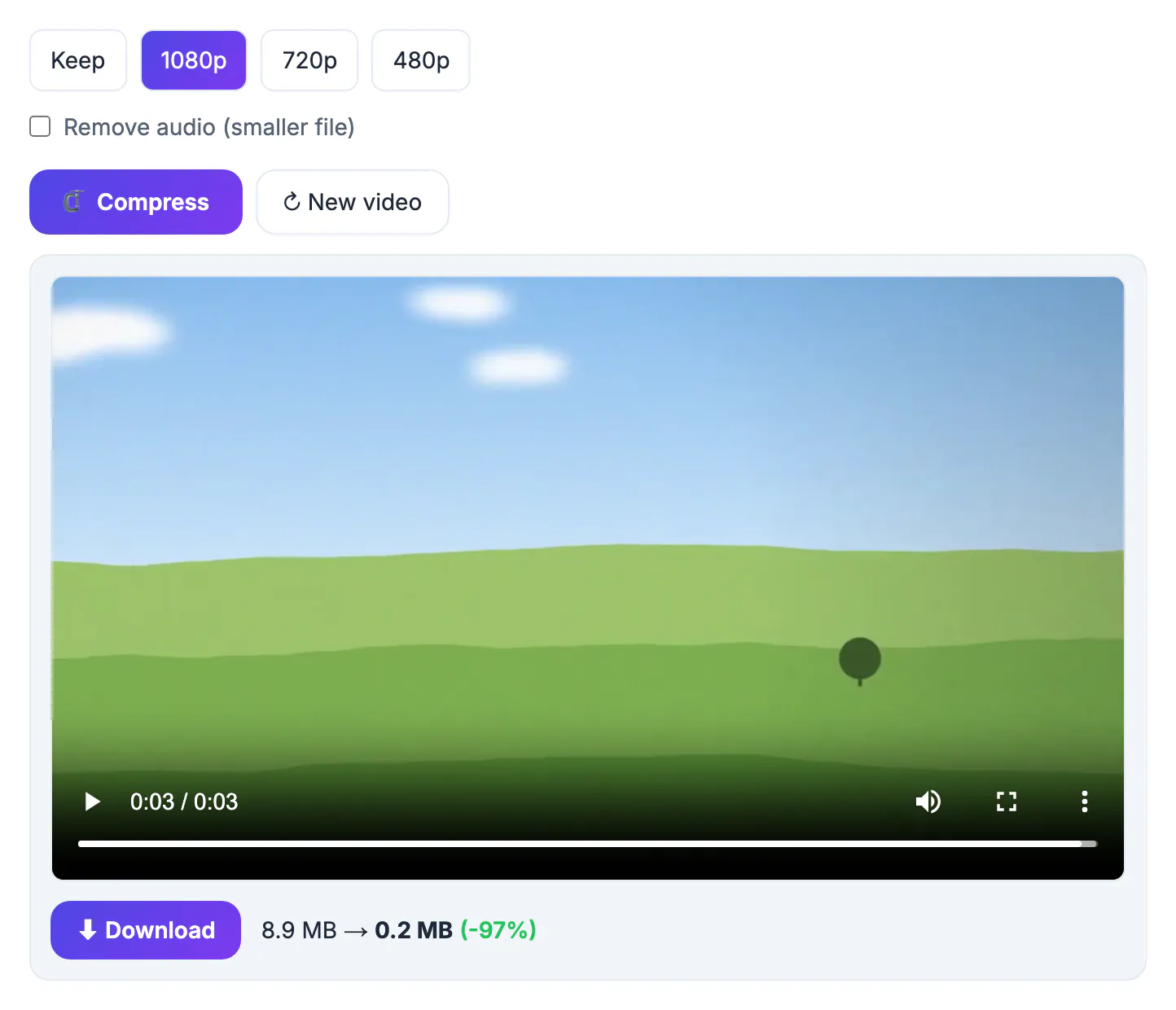
Action cameras record at very high bitrates so the footage survives editing and color grading. A GoPro shooting 4K60 typically writes around 100 megabits per second, and some modes go higher, which works out to roughly 750 MB for every minute. That is why a short ski run or surf session can fill a card fast, and why the camera splits long recordings into chapter files of about 4 GB each. Those numbers make sense for editing, but they are absurd for sending to family, posting in a group chat or uploading over hotel Wi-Fi. Most viewers will watch on a phone screen that cannot show 4K detail anyway, so a well-made 1080p version loses almost nothing visible. Smaller shareable copies also upload faster to cloud albums and play smoothly for relatives on older phones.
Why detail turns to mush when you compress a GoPro clip
Encoders struggle with footage where almost every pixel changes every frame. Action cameras produce exactly that kind of image: wide lenses, constant motion and lots of fine texture.
- Water spray, snow and foliage are the hardest scenes; they need the most bitrate
- Mounting on a helmet or handlebars adds shake, which multiplies changing pixels
- Dark scenes add sensor noise, which the encoder wastes bits trying to preserve
- Static tripod shots, like a timelapse of clouds, shrink dramatically with little loss
The practical takeaway is to judge any preset on your hardest shot. If the wave break or the snow spray still looks clean, the calmer parts of the same clip will look even better, and you can apply that setting to the rest of the trip with confidence.
The best settings for 4K footage
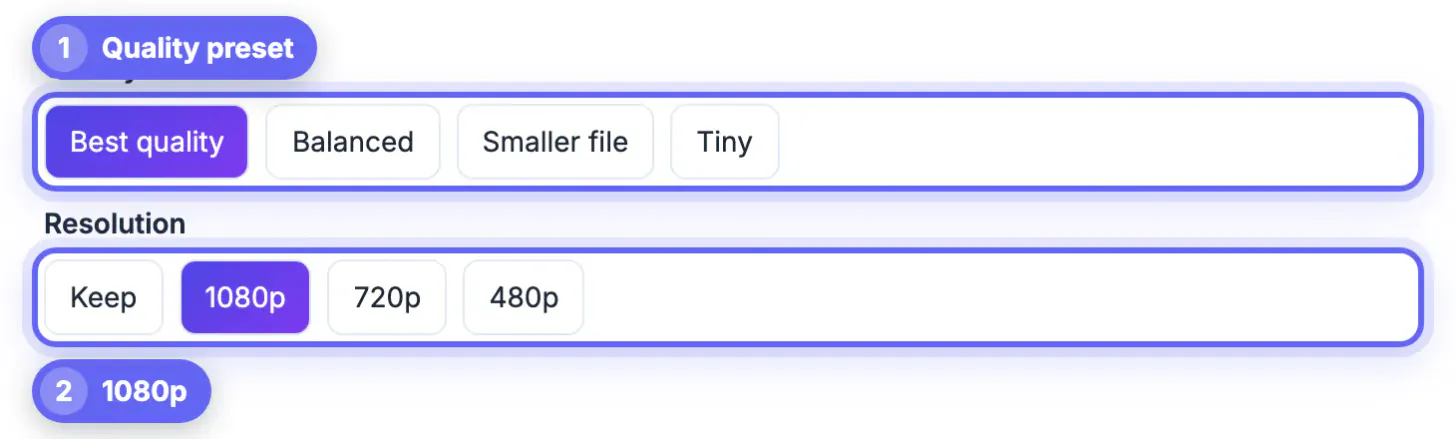
The Video Compressor gives four quality presets, Best quality, Balanced, Smaller file and Tiny, plus resolution choices of Keep, 1080p, 720p and 480p. For action footage, resolution is the lever that saves the most space with the least visible harm.
- Sharing with friends: 1080p plus Balanced is the sweet spot for most clips
- Busy water or forest scenes: 1080p plus Best quality to avoid smearing
- Quick phone previews: 720p plus Balanced for tiny files that still look clean on a small screen
- Keeping 4K: choose Keep plus Best quality, but expect a smaller saving
Frame rate is worth a thought, too. Footage recorded at 60 or 120 fps for slow motion carries far more frames than a normal viewing needs, so exporting the edited slow-motion section rather than the raw high-rate file saves both time and space.
Working within browser limits
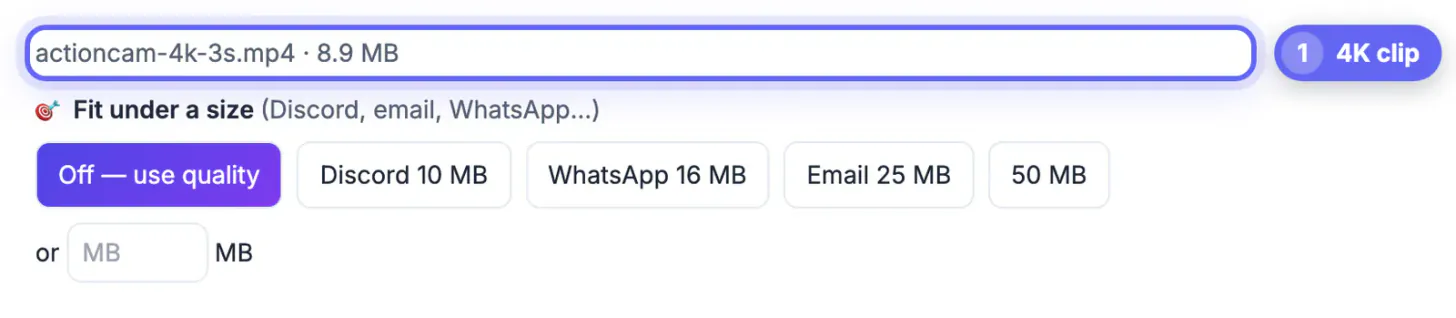
All processing happens on your computer inside the browser tab, which keeps your footage private but also means the job is bounded by the tab’s memory. Very large 4K files can exhaust it before the job finishes.
- Trim a long chapter down to the best 30 to 90 seconds before compressing
- Close other heavy tabs and apps so the encoder has more memory and CPU
- Expect 4K sources to take longer than their running time on an average laptop
- A desktop or recent laptop handles big files far better than a phone
If a file refuses to process, that is almost always a memory ceiling rather than a broken clip. Cut it into two halves with a trimmer, compress each, and the pieces will usually go through without complaint on the same machine.
If you only need a short piece, trim the video without losing quality first, and the Video Converter can switch the file type for another device.
When to keep the original instead
Compression is for sharing copies, not replacing masters. Once detail is thrown away, no tool can bring it back.
- Keep untouched originals on a drive or cloud backup for future edits
- Color grading, stabilization and slow motion all need the original data
- Frame grabs for prints look far better from the 4K master
- Compress the final edited export, not every raw chapter file
A simple folder habit helps: one folder of untouched originals, one of edited exports, and one of small shareable copies. That way nobody accidentally sends a 3 GB file by email or deletes the only full-quality version.
Step-by-step
Common mistakes to avoid
Pro tips
Frequently asked questions
How much smaller will my GoPro clip get?
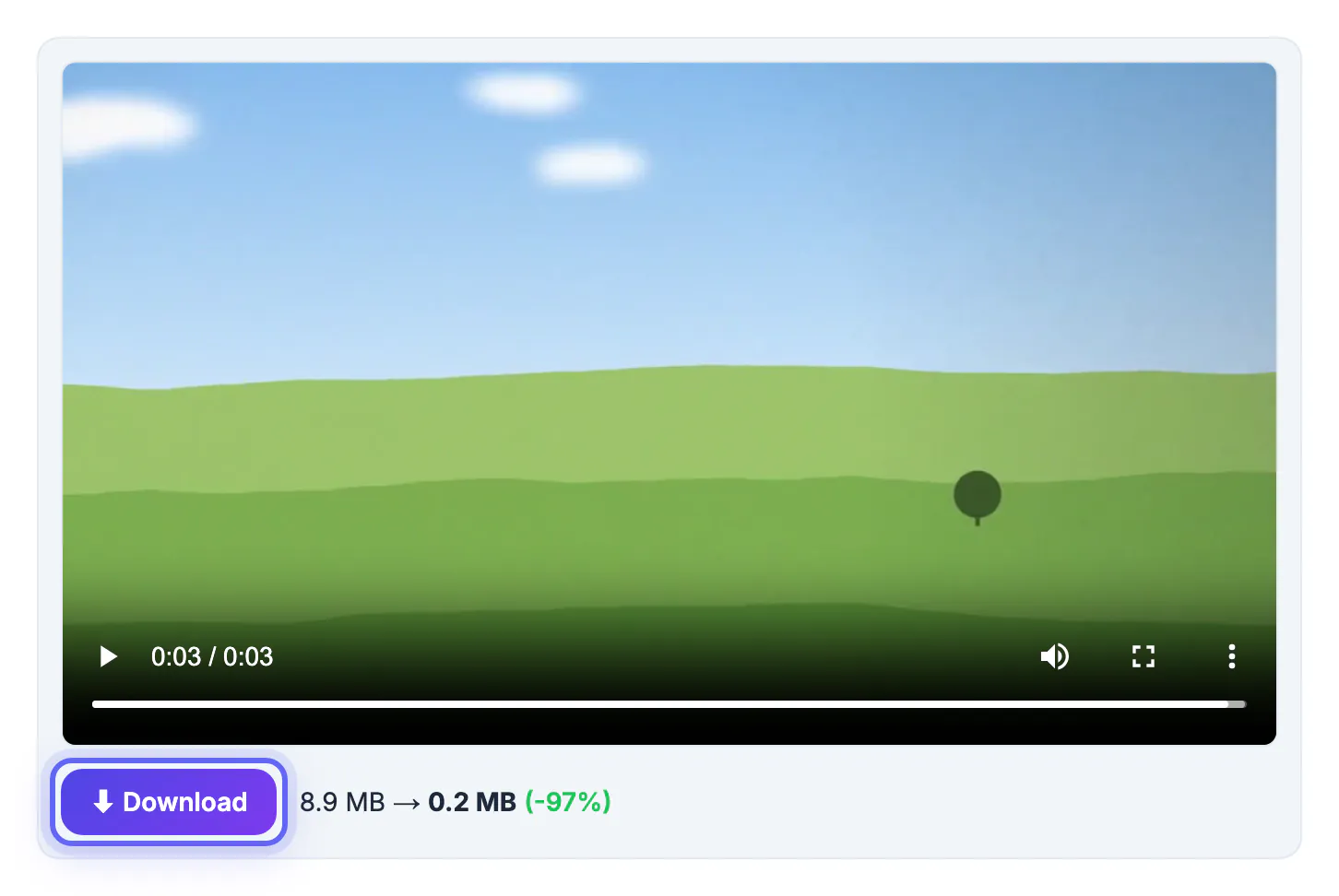
It depends on the scene, but downscaling 4K to 1080p with the Balanced preset often shrinks files by 70 percent or more. Calm footage shrinks more than busy water or snow. Night footage and grainy low-light clips tend to shrink less, because noise looks like detail to the encoder.
Should I keep 4K when compressing?
Only if viewers will watch on a large 4K display. For phones, laptops and chat apps, 1080p looks nearly identical and is dramatically smaller. If you are unsure, make both versions of one short clip and compare them on the device your audience actually uses.
Is my footage uploaded to a server?
No. The Video Compressor runs inside your browser, so personal videos stay on your device. That is also why very large files are limited by your computer's memory. Closing heavy tabs and keeping the laptop on power improves stability for large jobs.
Why is compressing 4K so slow?
Encoding high-resolution, high-frame-rate footage takes serious computing work, and the browser uses your own processor. Trimming first and closing other apps speeds it up. Let a long job run uninterrupted; switching to a heavy game or editor can slow it down considerably.
Does this work with DJI, Insta360 or phone 4K footage?
Yes, standard MP4 and MOV clips from most cameras and phones work. Some 360-degree or unusual formats may not decode in the browser, so export a regular MP4 from the camera app first. Insta360 reframed exports and DJI MP4 files usually behave just like ordinary footage from a phone.
Compress a GoPro or 4K video by trimming the highlight, downscaling to 1080p and choosing a quality preset that respects busy scenes, while keeping the originals safe. Share the small copy freely, and let the full-quality master stay safely archived.
Related guides
Browse more: all video and audio guides · Video Compressor