Slow Down a Video: Smooth Slow Motion at 0.25x to 0.75x
To slow down a video, you stretch its timeline: at 0.5x every second of footage plays over two seconds, so a 4-second clip becomes 8. GrabCast's Change Video Speed does this in your browser with presets at 0.75x, 0.5x and 0.25x, any custom value down to 0.1x, a live preview at the chosen speed and an option to keep voices at their natural pitch. How smooth the result looks depends less on the tool than on the footage, and in particular on its frame rate. This guide slows a 60 fps meadow clip to half speed and explains how to get slow motion that glides rather than stutters.
⏩ Try Change Video Speed now — freeOpen →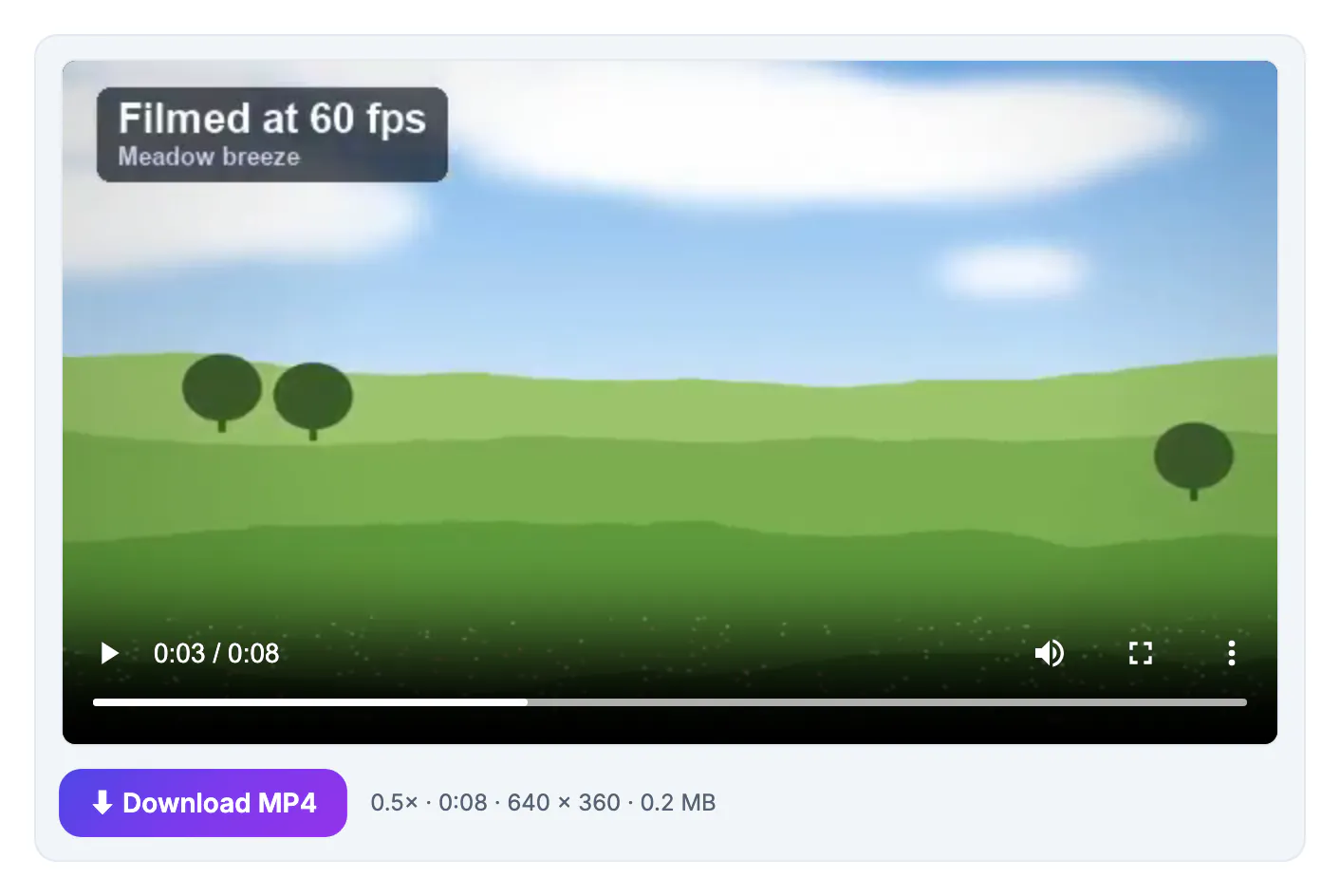
Video is a series of still frames. Normal footage from a phone is usually 30 frames per second; slow it to half speed and there are only 15 unique frames for every second of playback. To keep a standard frame rate, each frame is shown twice, which the eye reads as a slight stutter, and at 0.25x each frame is repeated four times. Tools that invent in-between frames exist, but they can also smear edges and warp fast motion. The reliable way to get smooth slow motion is to record more frames in the first place. A clip filmed at 60 fps slowed to 0.5x still delivers 30 unique frames every second, exactly as fluid as normal video, and 120 or 240 fps modes allow even slower playback. Audio adds a second problem: slowed sound drops in pitch and turns voices into a deep drawl, unless the tempo is changed without changing the pitch, which is what the tool does by default.
Slow motion speeds and the length they produce
The new length is the original length divided by the speed. The tool shows it under the controls before you export.
- 0.75x turns a 60-second clip into 1 minute 20 seconds, a subtle slowdown for sports moves or dance steps.
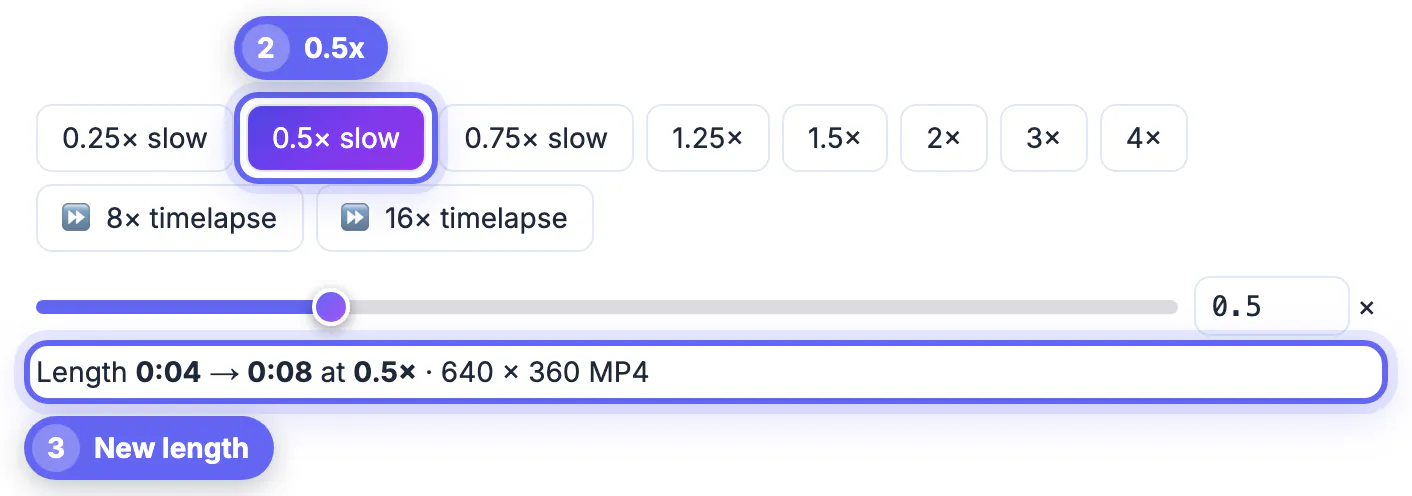
- 0.5x doubles the length; the 4-second meadow clip becomes 8 seconds, shown as Length 0:04 → 0:08 at 0.5x.
- 0.25x makes a clip four times longer, best reserved for a short moment such as a splash or a jump.
- The number box accepts any value from 0.1 to 16, so 0.6x or 0.4x are just as easy.
- The slider covers 0.25x to 4x on a curved scale with 1x in the middle, for quick exploration.
Because the length grows as the speed drops, slow motion is best used on short moments. A 3-second jump at 0.25x becomes 12 seconds, already a long time on screen.
Frame rate: why 60 fps footage slows down best
The tool keeps the original frame rate in the exported file and repeats frames to fill the longer timeline. It does not generate new in-between frames.
- A 30 fps clip at 0.5x shows each frame twice; fine for gentle motion, slightly steppy for fast action.
- A 60 fps clip at 0.5x has enough real frames to look as fluid as normal speed.
- For 0.25x, footage filmed at 120 fps or more gives the cleanest result.
- Check your camera settings before an event; many phones offer 60 fps and a separate slow-motion mode.
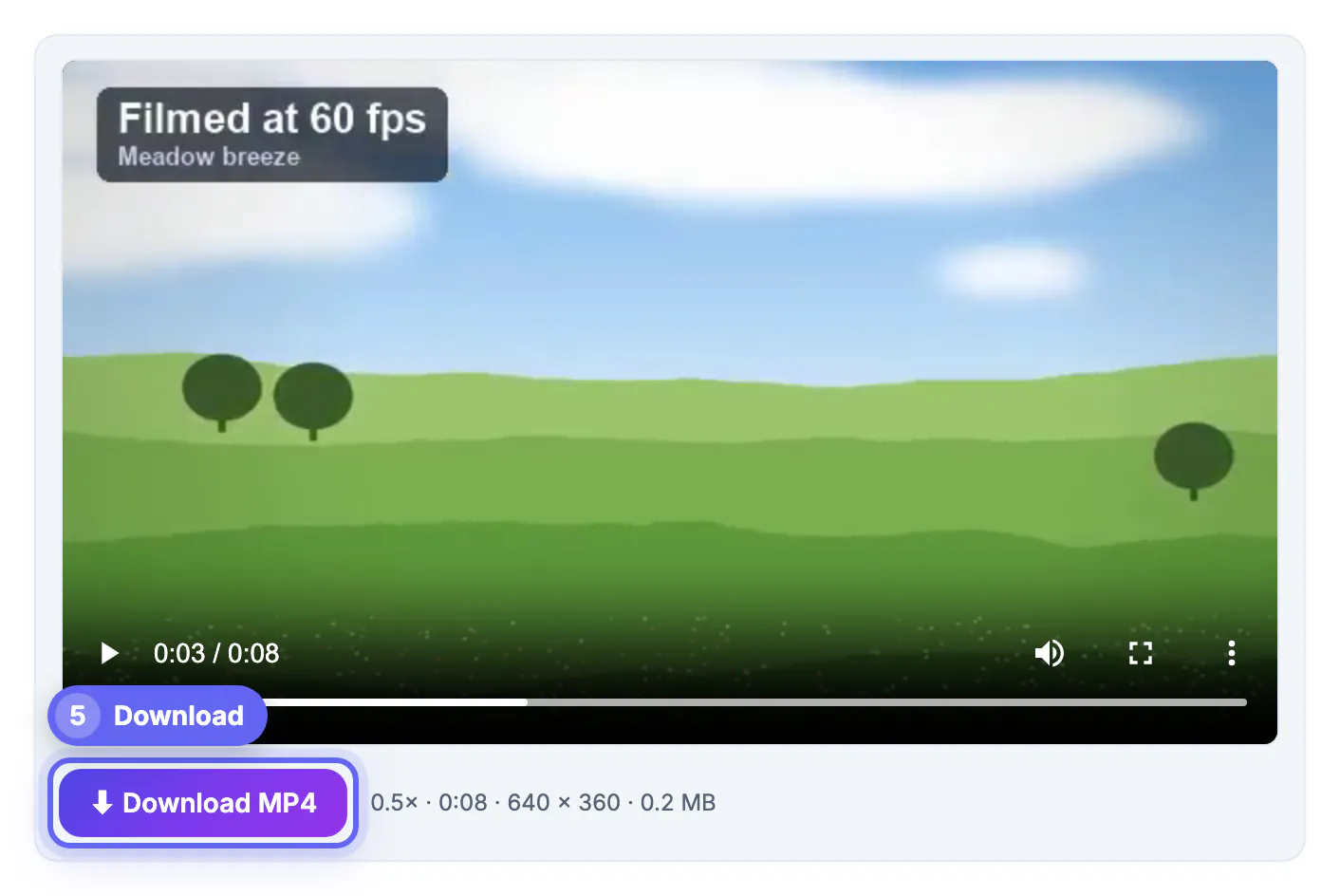
- The example clip is labeled Filmed at 60 fps and plays smoothly at half speed.
If your phone has a dedicated slow-motion mode, the file may already play slowed down with a high frame rate inside. Trying it at normal speed first shows what you have to work with.
Keeping voices natural in slowed-down video
Two checkboxes control the sound, and they matter more for slow motion than for speeding up.
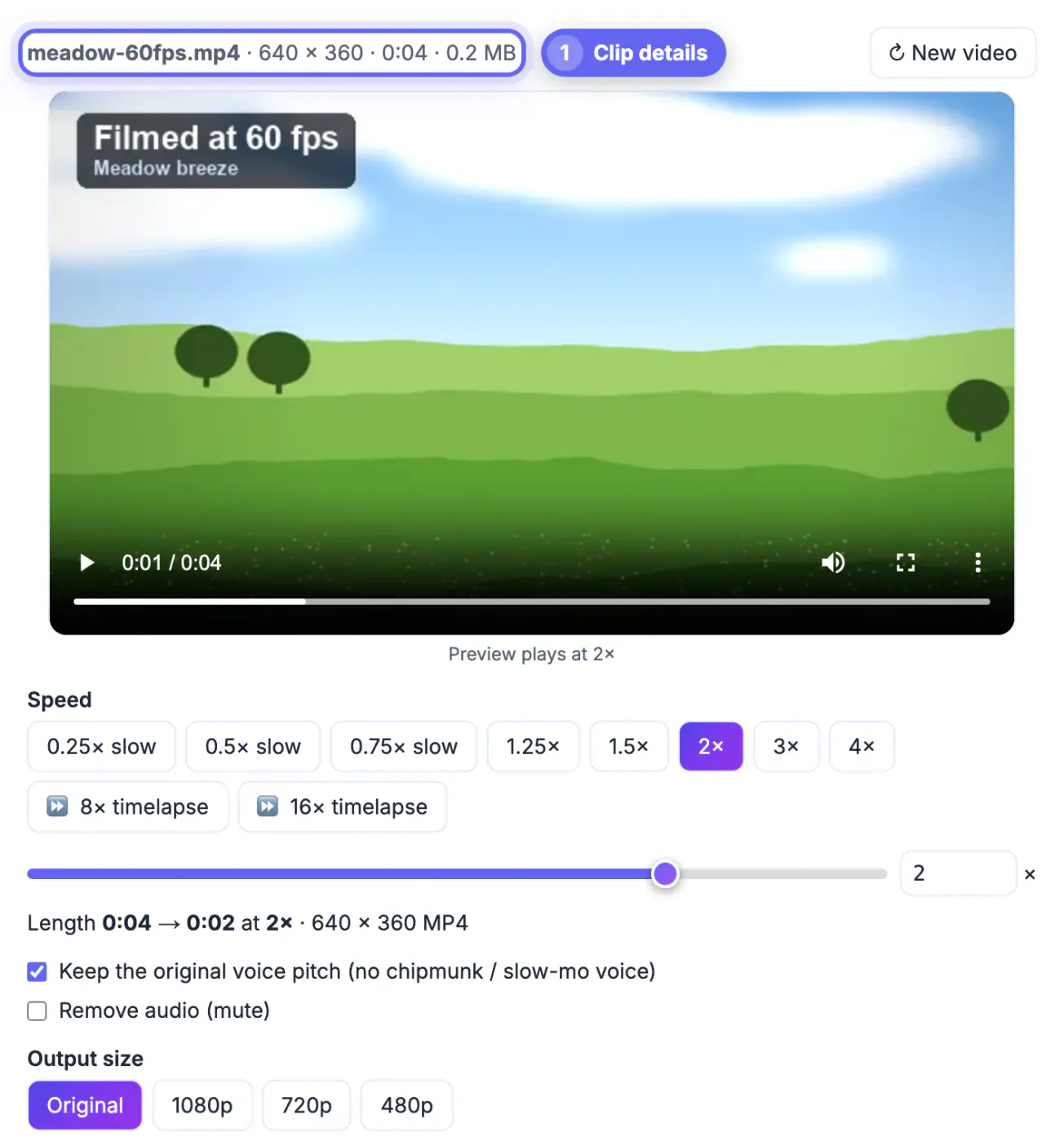
- Keep the original voice pitch is ticked by default: the audio is slowed without dropping in pitch, so voices stay recognizable.
- Untick it for the classic deep, dramatic slow-motion sound, which some sports and comedy edits use on purpose.
- At very slow speeds, even pitch-corrected speech sounds unnatural; many editors mute slow-motion shots and add music.
- Remove audio exports a silent file.
- Audio is exported as AAC at 128 kbps alongside H.264 video at quality level CRF 23.
Music usually carries slow motion better than the original sound. A steady track with a clear beat makes the slowed movement feel intentional rather than stretched.
Preview, output size and processing time
The preview player plays at the chosen speed straight away, so you can judge the effect before encoding anything.
- The line under the player confirms the speed, for example Preview plays at 0.5x.
- Output size can stay Original or drop to 1080p, 720p or 480p, which cuts encoding time considerably.
- Slowing down creates more frames to encode, so a 0.25x export takes longer than the original clip's length suggests.
- The tool warns above about 600 MB on a computer or 120 MB on a phone, because the whole video is processed in browser memory.
- Trim the moment you want to slow down first; a 5-second slow-motion shot is far lighter than a 5-minute one.
On a computer, short slow-motion exports of a few seconds usually finish quickly; the long waits come from slowing down minutes of footage at full resolution.
Add a soundtrack to the slowed clip with Add Music to Video, and shrink the result with the Video Compressor.
Step-by-step

Common mistakes to avoid
Pro tips
Frequently asked questions
How do I make a video slow motion for free?
Drop it into Change Video Speed, pick 0.5x or another slow speed, preview it and click Export MP4. It runs in your browser with no sign-up and no watermark.
How long will my slowed-down video be?
The length is divided by the speed: 30 seconds becomes 60 at 0.5x and 2 minutes at 0.25x. The exact new length appears under the speed controls before export.
Why does my slow motion look choppy?
The tool repeats frames rather than inventing new ones, so 30 fps footage at very slow speeds can look steppy. Footage recorded at 60 fps or more slows down much more smoothly. Try 0.5x first on 30 fps footage.
Will the voice sound deep and slow?
Not by default. Keep the original voice pitch changes the tempo without lowering the pitch. Untick it if you want the deep slow-motion sound.
Is my video uploaded?
No. The preview and the export both run on your device; the ffmpeg engine is downloaded once and cached.
Good slow motion starts at the camera: record at 60 fps or higher, trim to the moment that matters, then slow it to 0.5x or 0.25x with pitch correction on or the audio muted. The preview shows the effect instantly, and the export keeps the original frame rate.
Related guides
Browse more: all video and audio guides · Change Video Speed