YouTube Thumbnail Size, Format and Safe Zones Explained
The YouTube thumbnail size to aim for is 16:9 at 1280 x 720 pixels or larger, saved as JPG or PNG, and under 2 MB if you might upload from the phone app. YouTube's Help Center, as last checked for the GrabCast checker in September 2026, recommends 3840 x 2160 and requires at least 640 pixels of width, with a 50 MB cap from a computer. Beyond the file rules, two corners of every image get covered on screen. This explainer walks through each spec with a real 4K design for a fictional camping channel, Trail Budget Lab.
🖼️ Try YouTube Thumbnail Checker now — freeOpen →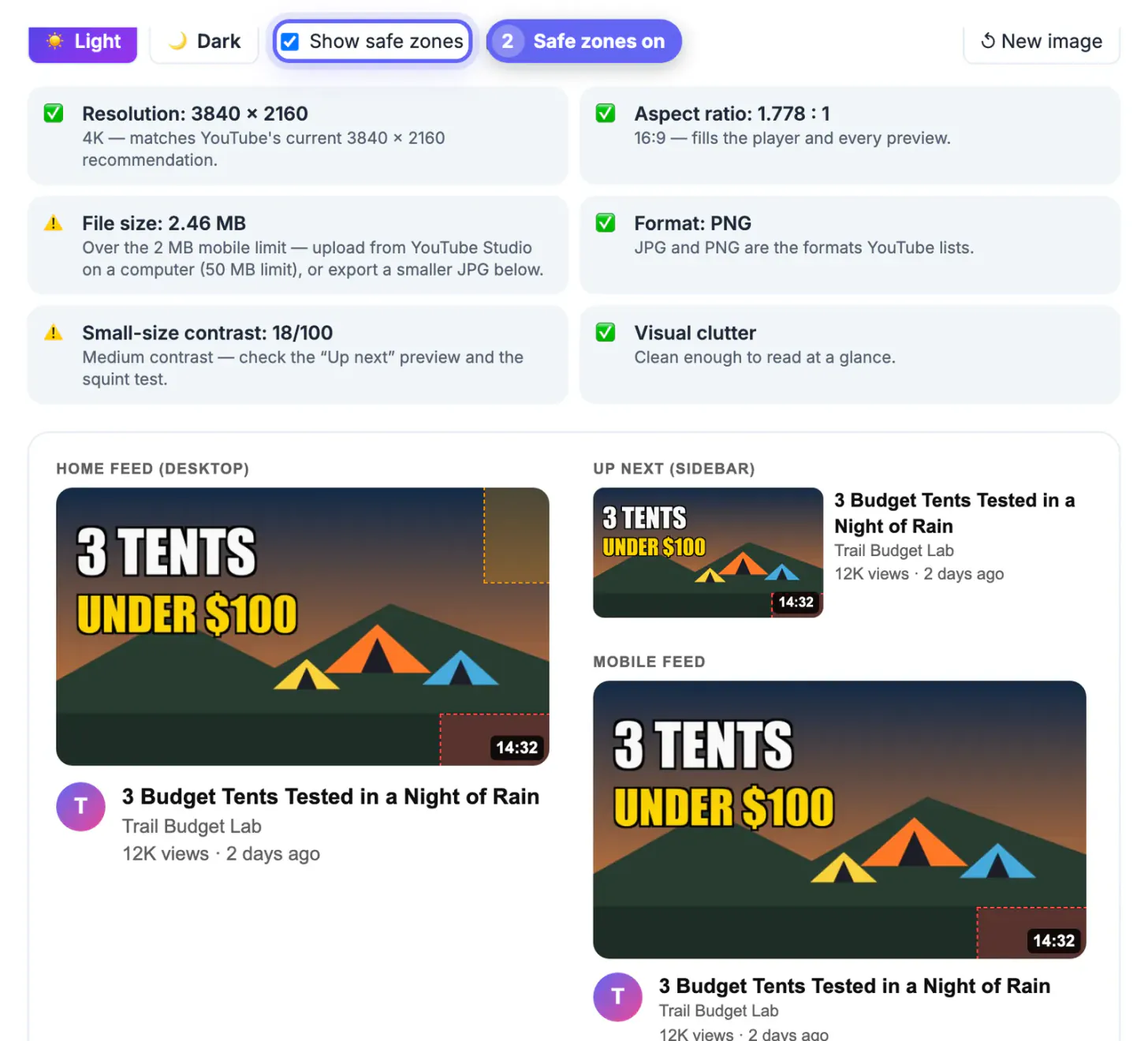
A file that breaks a rule is either rejected at upload or quietly altered: a 4:3 image gets cropped or letterboxed, a tiny one looks soft on televisions, and a heavy PNG fails from a phone at the worst moment, minutes before a premiere. Layout rules matter just as much. The duration badge sits on top of your artwork in every feed, so a price, a face or the key word placed there disappears. Knowing the specs turns thumbnail prep into a two-minute checklist instead of a guessing game.
Resolution tiers: 640, 1280, 1920 and 3840 pixels wide
Width is what YouTube checks, and each step up buys sharpness on larger screens:
- Below 640 pixels wide: not accepted. The checker marks it with a red cross.
- 640 to 1279 wide: accepted, but soft on laptops and TVs. The checker warns and suggests at least 1280 x 720.
- 1280 x 720: sharp on phones and laptops, and a JPG this size normally stays well under 2 MB.
- 1920 x 1080 and 3840 x 2160: crisper on big screens; 4K matches the current Help Center recommendation.
Designing at 3840 x 2160 and exporting a 1280 x 720 copy for upload is a sensible routine: you keep a master for future platforms, and the upload file stays light. Upscaling a small image to 4K does not add detail, so it only raises the file size. If your editor offers an export scale, set it to 1x for the upload copy and 3x for the master when you design on a 1280 x 720 artboard.
Aspect ratio and format rules for a YouTube thumbnail
The frame is 16:9, a ratio of about 1.778 to 1. Anything else is shown cropped to that shape, so text near the top or bottom of a 4:3 or square design can vanish. The checker accepts a small tolerance and shows the exact ratio, such as 1.778 : 1 for the camping design.
- JPG: best for photos and gradients, small files, the safest default.
- PNG: lossless and good for flat graphics, but large when the design has texture or noise.
- Other formats: the checker opens WebP and GIF files, but flags them, because YouTube lists JPG and PNG. Its JPG export converts them.
- Non-16:9 designs: the export offers Crop to fill (center) or Fit with blurred background, which keeps the whole image and fills the sides with a blurred copy.
Shorts are different: they use a vertical 9:16 frame in the Shorts feed, and this 16:9 preview does not reflect how a Shorts cover is cropped. For regular uploads, set your editor's canvas to 16:9 before placing any text; resizing a finished design to a new ratio always shifts or squeezes something.
File size: the 2 MB phone limit versus 50 MB on a computer
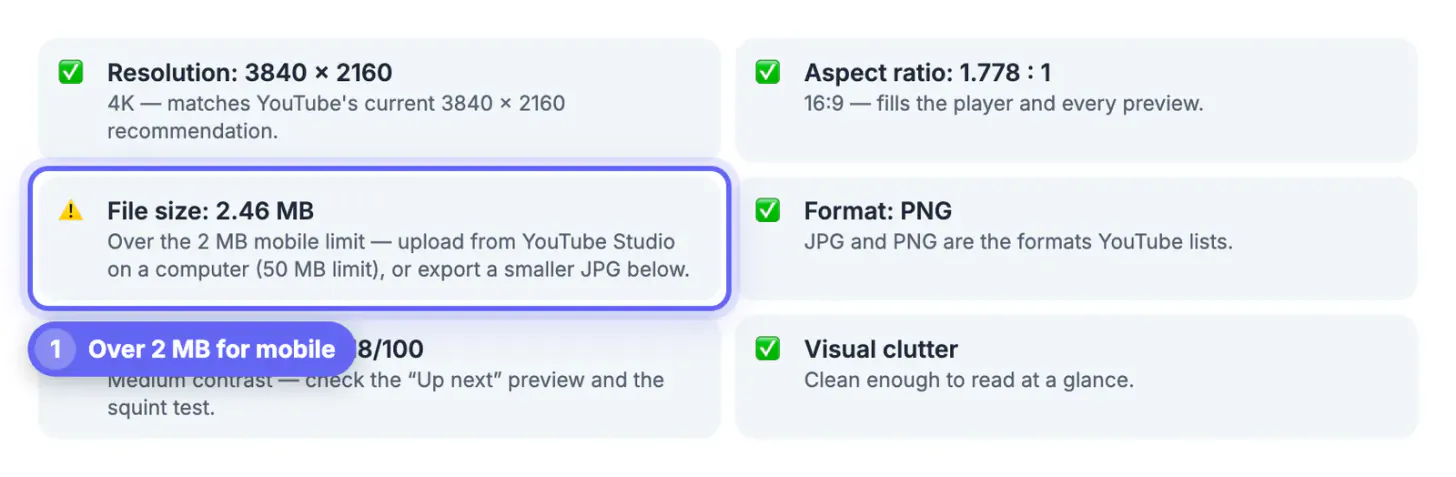
The Help Center lists a 2 MB maximum when you add a custom image from the mobile app and 50 MB from YouTube Studio on a computer. The camping design, a 3840 x 2160 PNG with a film-grain sky, weighed 2.46 MB, so the checker flagged it for mobile uploads while every other file rule passed.
- Fix one: upload from YouTube Studio on a computer, where the 50 MB limit applies.
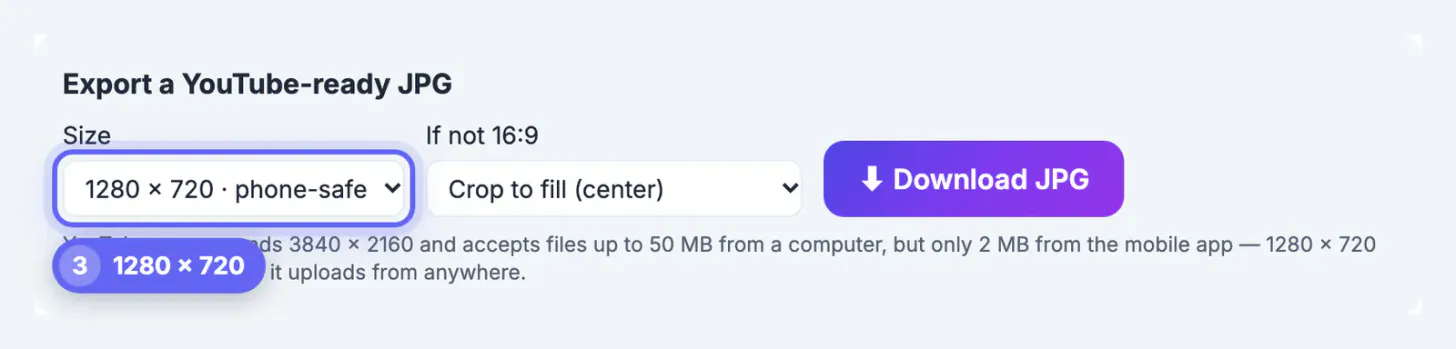
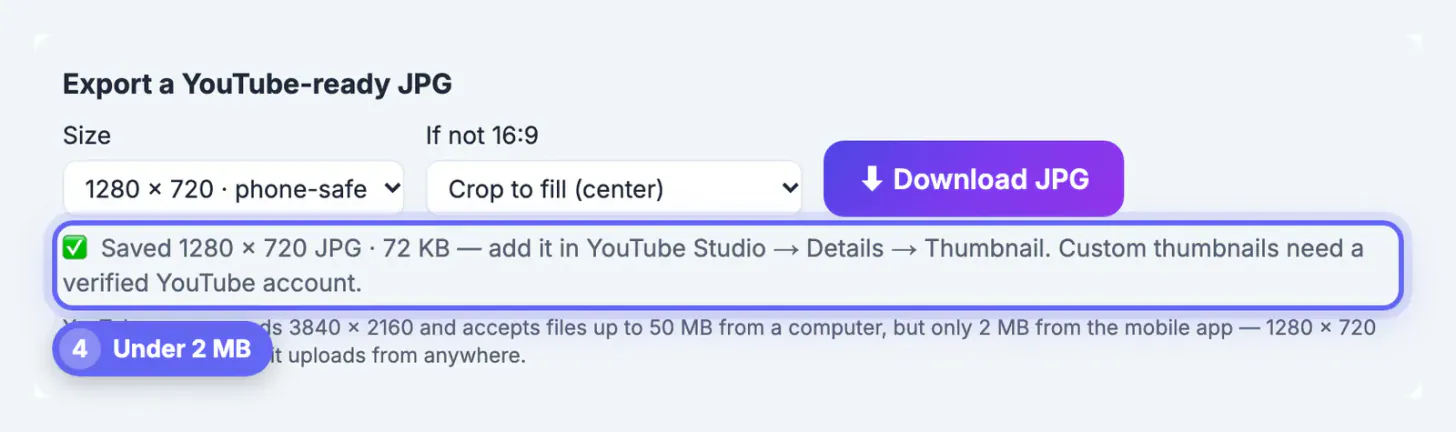
- Fix two: export a JPG from the checker. At 1280 x 720 it lowers JPG quality step by step until the file is under 2 MB; the camping design came out at 72 KB.
- Fix three: remove unnecessary texture or noise, which PNG compresses poorly.
- The 3840 x 2160 export targets the 50 MB desktop limit instead, so plan to upload that one from a computer.
Custom images also require a verified YouTube account; the upload option is unavailable until verification is done.
Safe zones: the corners YouTube covers
Two areas of every video cover are regularly hidden. With Show safe zones switched on, the checker shades them on each mockup:
- Red, bottom right: the video length badge and the red watch-progress bar. It covers roughly the lowest fifth of the height across the right fifth of the width.
- Orange, top right: where Watch later and Add to queue buttons appear when a desktop viewer hovers.
- Everything else is visible, but the image is small: about 360 pixels wide on the desktop home feed and search, and about 168 pixels in the Up next column.
- Layouts vary by app version and screen, so treat the zones as a guide rather than exact pixel boundaries.
The camping design keeps its words in the top-left half and its tents along the bottom middle, so the 14:32 badge sits on empty dark ground. Its contrast row scored a medium 18 out of 100, a cue to look closely at the Up next preview; there the outlined words still read, so the design passed the eye test even though the score asked for a second look.
Check how the design reads small with the Thumbnail Legibility Checker, and add text using the Add Text to Image tool.
Step-by-step
Common mistakes to avoid
Pro tips
Frequently asked questions
What is the best YouTube thumbnail size?
16:9 at 1280 x 720 or larger. The Help Center recommends 3840 x 2160; 1280 x 720 JPG stays under 2 MB and uploads from any device.
What is the minimum width?
640 pixels. Images this small are accepted but look soft on large screens, so treat 640 as a floor rather than a target and export at least 1280 x 720.
What is the file size limit?
2 MB from the mobile app and 50 MB from YouTube Studio on a computer, according to the Help Center as checked in September 2026.
Where is the safe zone on a YouTube cover image?
Everything except the bottom-right corner, where the length badge and progress bar sit, and the top-right strip where desktop hover buttons appear.
Does the checker upload my image or contact YouTube?
No. The file is read and drawn on your device, and the previews are mockups built in the browser. It never fetches anything from YouTube.
Design at 16:9, keep a large master, and upload a 1280 x 720 JPG under 2 MB so it works from any device. Keep words and faces out of the bottom-right badge corner and the top-right hover strip, and check the result at 168 pixels before you publish.
Related guides
Browse more: all video and audio guides · YouTube Thumbnail Checker