Combine Audio Files Into One: Order, Gaps and Crossfades
To combine audio files into one, drop them all into GrabCast's Audio Joiner, put them in order with the arrows or by dragging, choose what happens between tracks and click Join audio. Three narration takes of 34, 47 and 26 seconds become a single 1:50 MP3 with short pauses between them, and the joining happens in your browser rather than on a server.
🎶 Try the Audio Joiner now — freeOpen →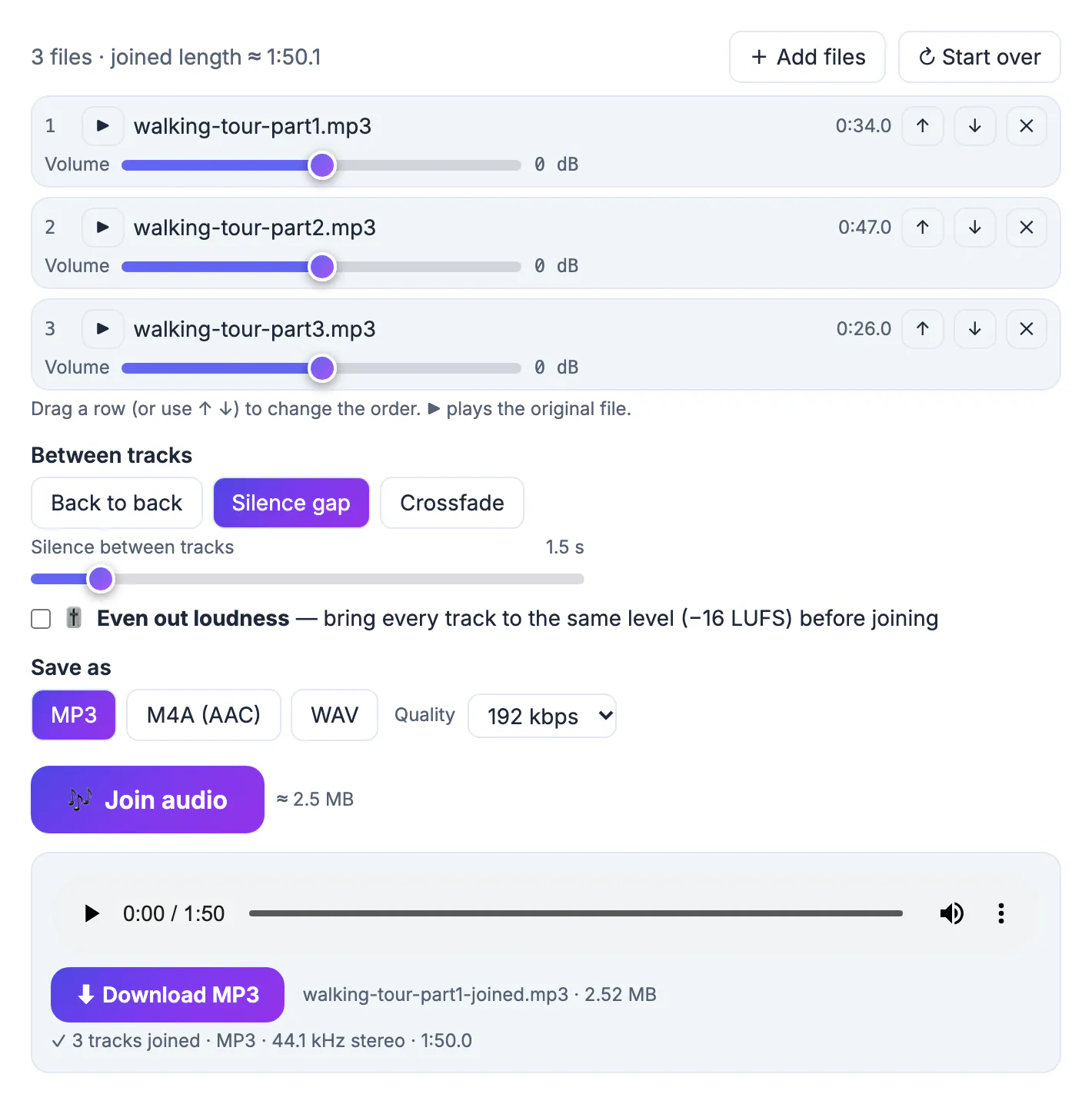
Recordings rarely come out in one piece. A walking tour you narrate stop by stop, a lecture captured in two halves around a break, a choir rehearsal split by a phone's storage warning, or chapters of a family story recorded on different evenings all end up as separate files. Sharing them as a folder means the listener has to find the order, press play again and again, and put up with different gaps every time. One file plays straight through on any device, uploads once to a course platform or a shared drive, and keeps the order you intended. The work takes a couple of minutes once you know the three decisions to make: order, transitions and format.
Combine audio files: what the Audio Joiner handles
The joiner accepts a wide mix of inputs and turns them into one consistent file. These are the limits and options stated on the tool page.
- Up to 50 files at a time; drop them together or add more later with the Add files button
- Inputs can be MP3, M4A or AAC, WAV, FLAC, OGG, Opus, and the sound of MP4 or MOV videos
- Every track is converted to 44.1 kHz stereo before joining, so mixed sample rates and mono files play smoothly
- Each row has a play button for the original file, up and down arrows, a remove button and a Volume slider from minus 12 to plus 12 dB
- Between tracks you can choose Back to back, a Silence gap or a Crossfade, with lengths from 0.5 to 10 seconds
- Output is MP3, M4A (AAC) or WAV, with 128, 192, 256 or 320 kbps for the compressed formats and a live size estimate
There is no fixed length limit, but the finished file is built in your browser's memory, so hours of WAV output may be too heavy for a phone. MP3 or M4A output is much lighter.
Worked example: a three-part walking tour
The screenshots use three synthetic narration takes named walking-tour-part1.mp3, part2 and part3. They were dropped in the wrong order on purpose, which is what usually happens when you select files in a folder sorted by date or size.
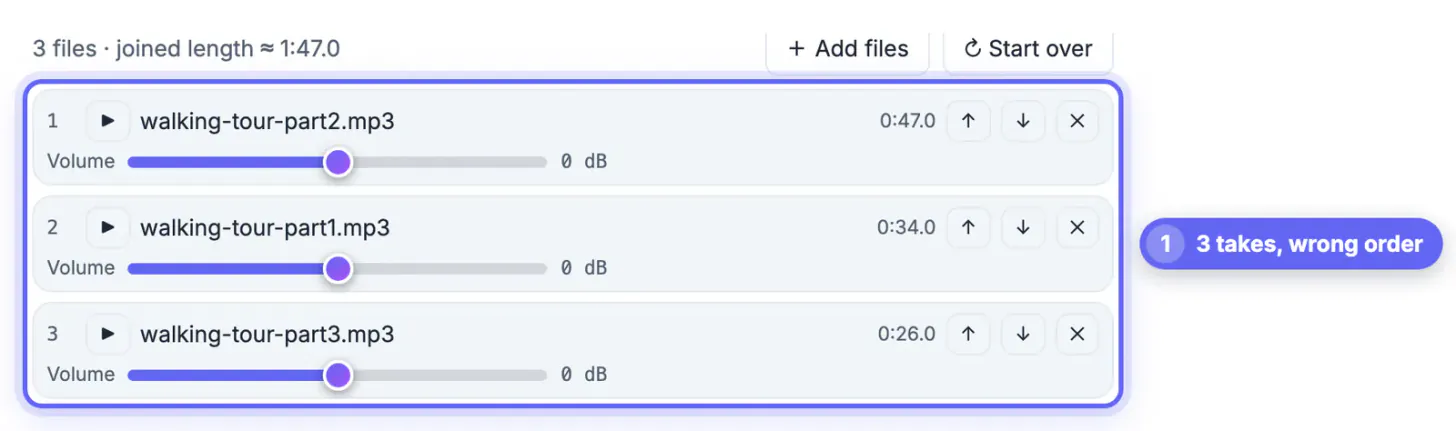
- The list showed part2 (0:47.0) first, part1 (0:34.0) second and part3 (0:26.0) last, with a joined length of about 1:47
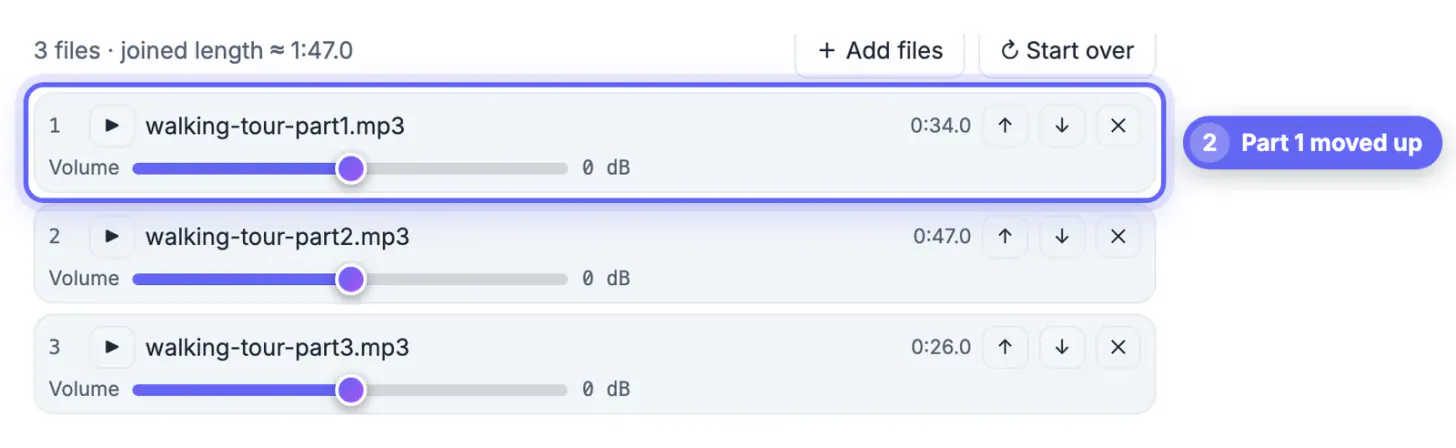
- One click on the up arrow of part1 moved it to the top, so the list read part1, part2, part3
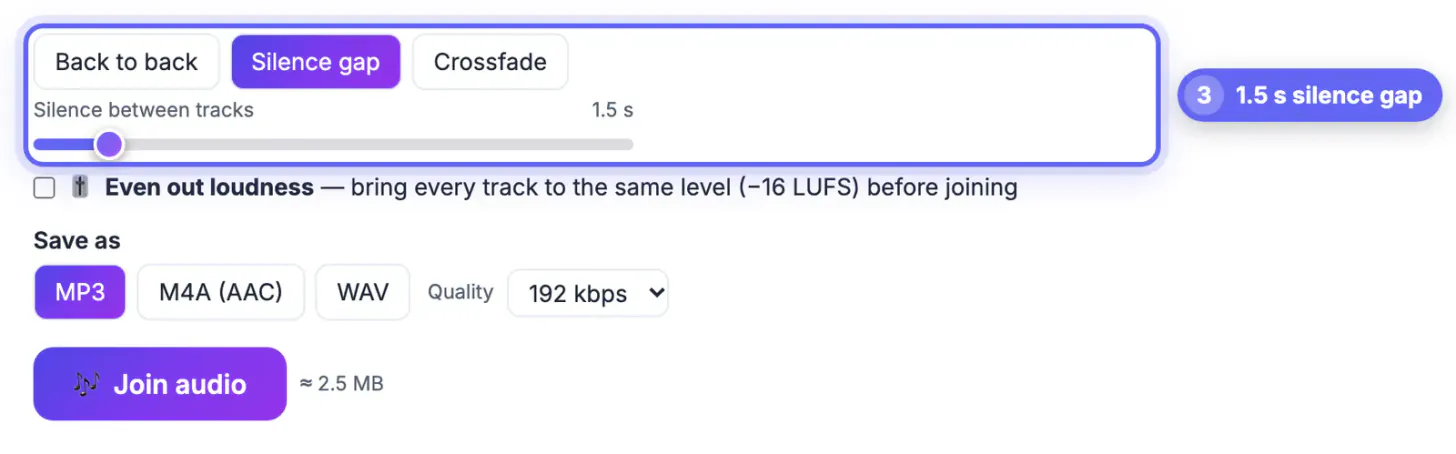
- Silence gap at 1.5 seconds gave each stop a short breath; the summary updated to a joined length of about 1:50
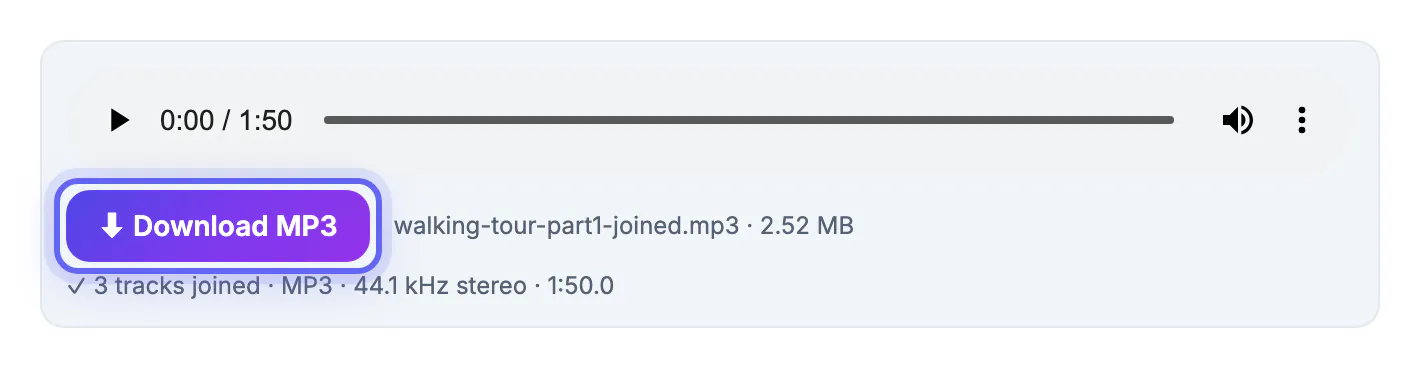
- MP3 at 192 kbps produced walking-tour-part1-joined.mp3, 2.52 MB, and the line under the player confirmed 3 tracks joined at 44.1 kHz stereo, 1:50.0
The output takes its name from whichever file is first in the list plus a -joined suffix, so it is worth putting the correct first file at the top before you save.
Back to back, silence gap or crossfade?
The transition setting changes how the result feels more than any other option. Pick it based on the material, not habit.
- Back to back suits recordings that were split by accident, such as one lecture cut in two by a full phone, because the takes already contain natural pauses
- A silence gap of 1 to 2 seconds suits separate items such as tour stops, chapters or answers to different questions; it tells the listener a new part is starting
- A crossfade overlaps the end of one track with the start of the next while fading one out and the other in; it suits music, ambient recordings and jingles
- Crossfades on speech can blur the last word of one take into the first word of the next, so keep them short or avoid them
- A crossfade cannot be longer than half of the shortest track; the tool shortens it automatically and says so under the result
Each gap adds its length to the total, while each crossfade subtracts its length, because the tracks overlap. The joined length shown above the list already accounts for that.
Formats, quality and file size
The joined file is encoded once, in the format you pick, so this is the only step where quality is decided.
- MP3 at 192 kbps is a safe default for spoken audio and plays on everything
- M4A (AAC) at the same bitrate sounds slightly cleaner and suits Apple devices and most messaging apps
- WAV is lossless 16-bit audio and the right choice when the joined file will be edited or mastered later
- Choose 256 or 320 kbps when the source files are high-quality music; lower bitrates are fine for voice
- Tags and cover art from the original files are not copied, so add a title in your player or podcast host afterward
If one take is much quieter than the others, drag its Volume slider up a few decibels before joining. When any slider is raised, a limiter keeps the peaks from clipping, so a modest boost is safe.
Clips recorded at different levels? The Volume Booster helps even them out, and the Audio Noise Reduction tool can clean hiss before you join.
Step-by-step
Common mistakes to avoid
Pro tips
Frequently asked questions
How many audio files can I combine at once?
Up to 50 files per join. There is no fixed length limit, but very long WAV results can exceed a phone's memory.
Can I combine different formats, like M4A and WAV?
Yes. MP3, M4A, WAV, FLAC, OGG, Opus and the sound of MP4 or MOV videos can be mixed. Every track is converted to 44.1 kHz stereo before joining.
Are my files uploaded?
No. Joining runs in your browser with ffmpeg compiled to WebAssembly, a one-time download of about 32 MB that is then cached.
Why was my crossfade shortened?
A crossfade cannot be longer than half of the shortest track. The joiner shortens it automatically and notes the new length under the result.
Does joining reduce quality?
The result is encoded once. MP3 or M4A at 192 kbps or more, or lossless WAV, keeps it close to the originals.
Combining recordings comes down to three choices: the order, the transition and the format. Put the first file at the top, use a short silence gap for separate parts or a crossfade for music, and save MP3 or M4A for sharing or WAV for further editing.
Related guides
Browse more: all video and audio guides · the Audio Joiner