Podcast Intro and Outro Music: Attach Your Own Jingles
To add intro and outro music to a podcast, load your intro jingle, the episode recording and your outro jingle into GrabCast's Audio Joiner in that order, pull the jingles down about 4 dB, choose a 2-second crossfade and click Join audio. A one-minute test episode came back as a single 1:12 MP3 with the music overlapping the first and last words, and the files never left the browser.
🎶 Try the Audio Joiner now — freeOpen →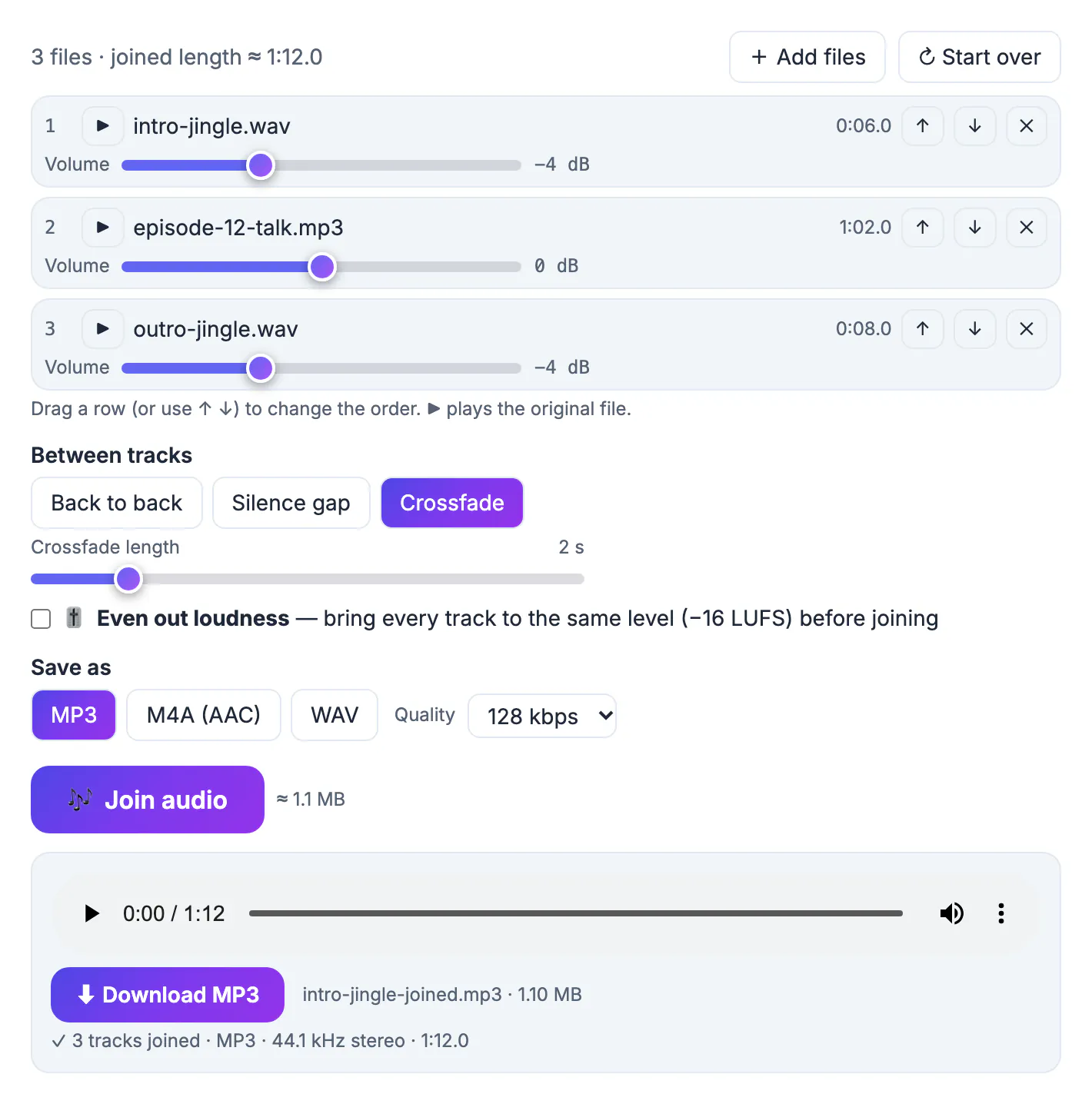
Listeners decide within seconds whether an episode feels produced or improvised, and a short, familiar intro is one of the cheapest signals of care. The outro does the quieter job of telling people the episode is over and where to find the next one. Doing it by hand in a full editor for every episode is repetitive: import, align, fade, export. When the jingles are always the same, the job is really a join with the right order, level and overlap, which is exactly what a joiner does. Use music you composed, commissioned or licensed for this purpose; a clip from a commercial song can get an episode taken down.
Add intro and outro music in three rows
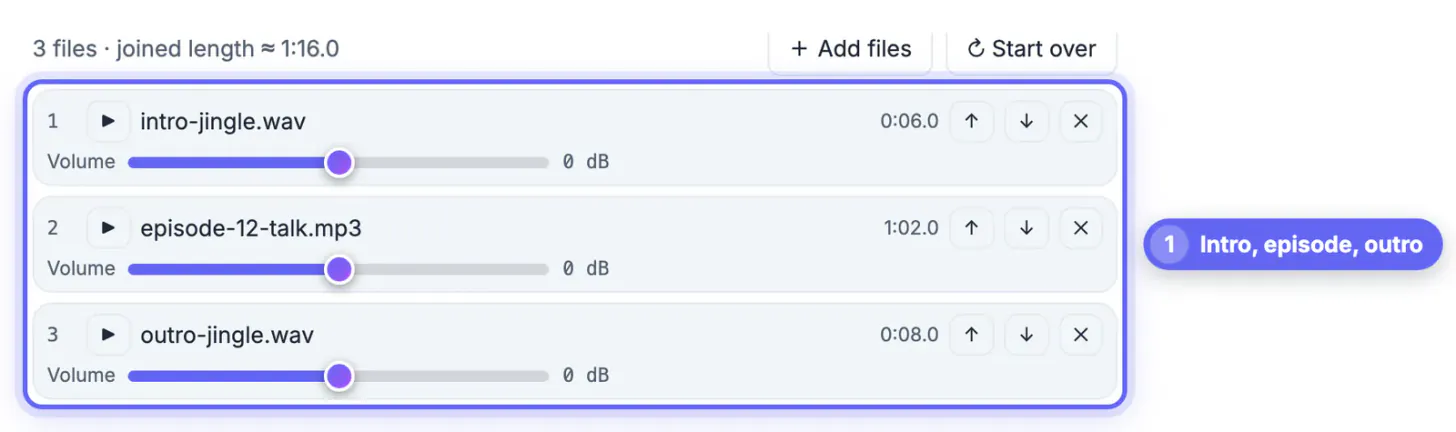
The example uses three synthetic files: intro-jingle.wav (6 seconds of rising chords), episode-12-talk.mp3 (1:02 of two alternating speech-like voices) and outro-jingle.wav (8 seconds of closing chords).
- Dropping all three at once put them in the list in the order selected; the arrows fix it if your file picker sorted them differently
- WAV jingles and an MP3 episode can be mixed freely; the joiner converts every track to 44.1 kHz stereo first
- The summary above the list showed 3 files with a joined length of about 1:16 before any crossfade
- Press the play button on a row to confirm which jingle is which before moving on
If you record several episodes a week, keep the two jingles in one folder next to the raw episodes. Each new episode is then a matter of dropping three files and repeating the same settings. Consistency is the point: listeners learn the sound of your intro, and a reused set of settings means episode 40 opens exactly like episode 4, without anyone having to remember what was done last time.
If the voice track has long gaps, the Remove Silence tool can tighten it before you add the music.
Set the jingle level below the voices
Music that is as loud as speech feels louder, because it is dense and constant. The per-track Volume slider, from minus 12 to plus 12 dB, is the simple fix.
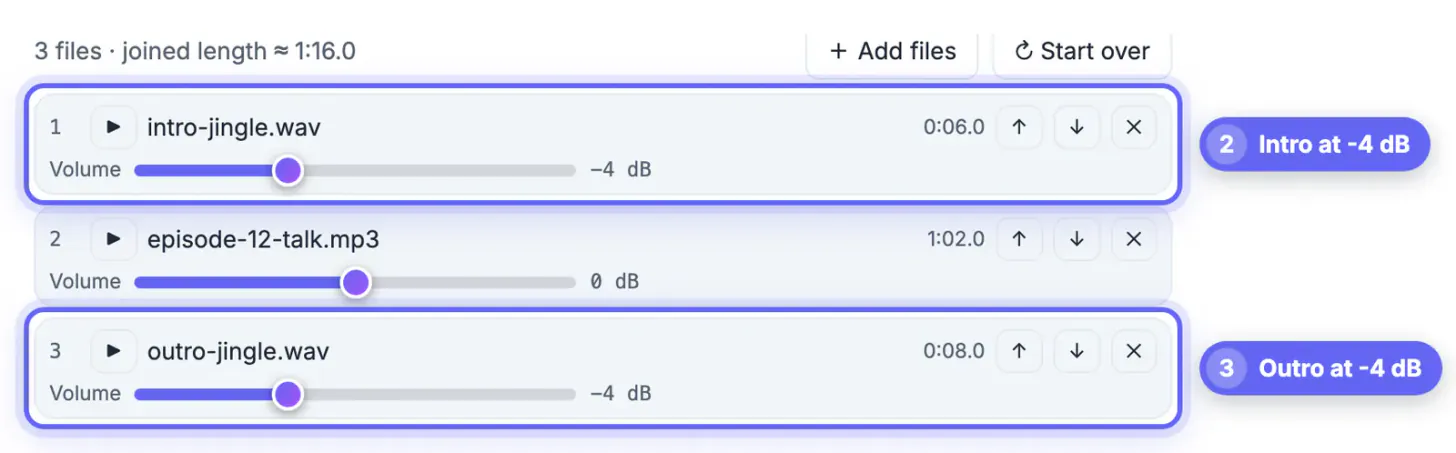
- In the example both jingles were pulled down to minus 4 dB while the episode stayed at 0 dB
- Measured separately, the test jingles averaged about 5 dB louder than the talk, so a 4 dB cut brought them close to the voices
- Start around minus 3 to minus 6 dB for music under or next to speech, then adjust by ear
- If the whole episode is quiet, raise it with its own slider instead; a limiter then keeps the peaks from clipping
- Listen on earbuds as well as speakers, since that is how most people hear podcasts
Lowering volume never distorts, so it is the safer direction. When a jingle is much too loud, a bigger cut on the jingle is better than a big boost on the talk. Write down the values that sound right, for example minus 4 dB for both jingles, and reuse them every week.
Crossfade length for a natural handoff
A crossfade overlaps the end of one track with the start of the next, fading one out while the other fades in. For jingles it removes the dead air that makes a show sound stitched together.
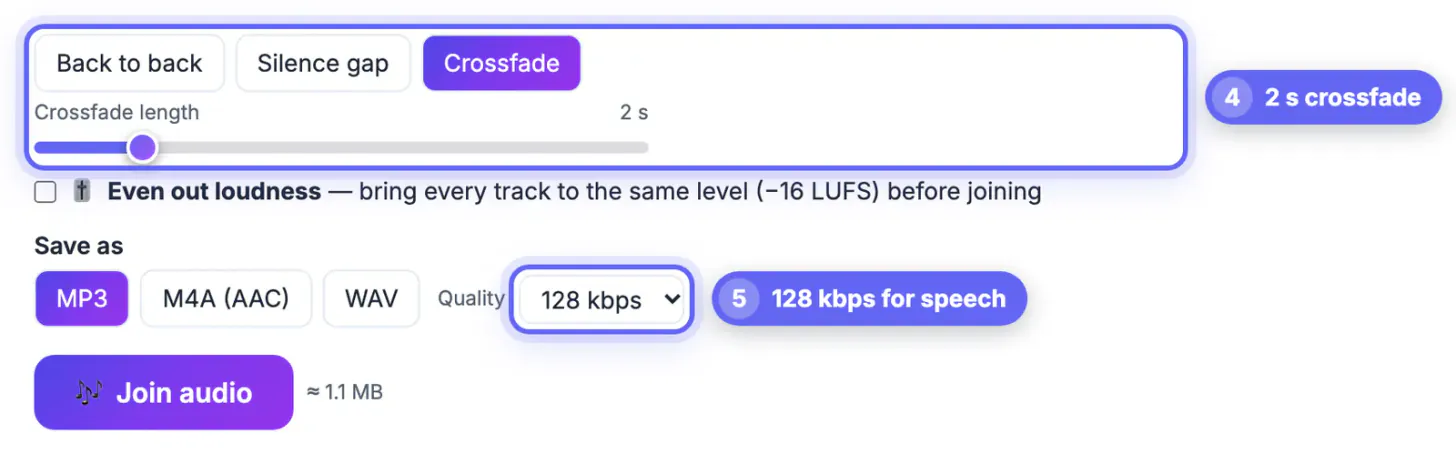
- A 2-second crossfade, as in the example, lets the intro's last chord ring under the first word and the outro swell under the sign-off
- The slider runs from 0.5 to 10 seconds in half-second steps
- A crossfade can be no longer than half of the shortest track; with a 6-second intro, the maximum is just under 3 seconds
- One setting applies to every join, so both the intro and the outro get the same overlap
- If you want silence instead of overlap, Silence gap inserts a fixed pause between the tracks
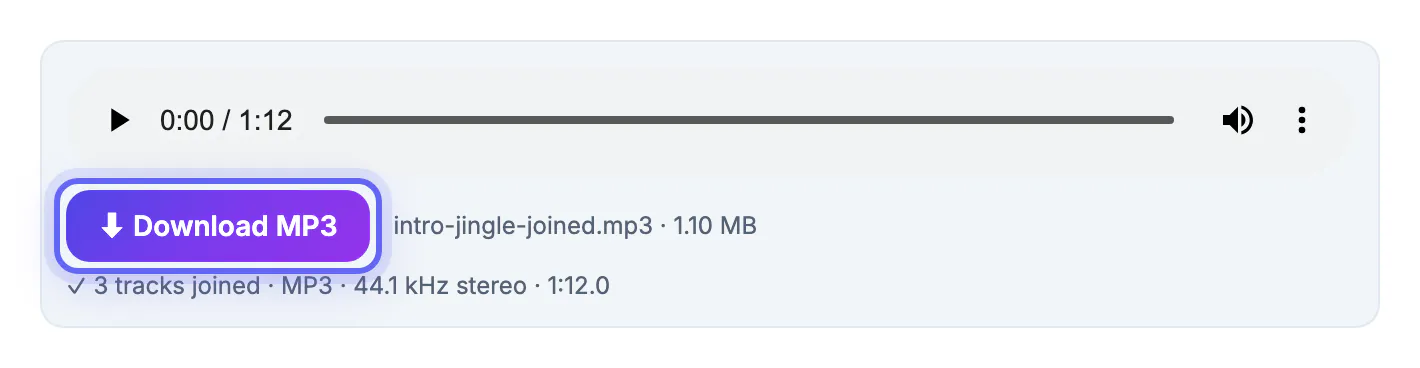
Because the tracks overlap, the result is shorter than the sum of its parts. The test episode went from about 1:16 of separate files to a 1:12.0 joined file, two 2-second overlaps in total.
Export settings for a podcast episode
Most podcast hosts accept MP3, and spoken audio does not need a high bitrate. The joiner shows an estimated file size next to the Join audio button so you can compare before saving.
- MP3 at 128 kbps is a common choice for speech-led shows; the test episode came out at 1.10 MB for 1:12
- Use 192 kbps if the show has a lot of music or you want extra headroom
- Save WAV instead if the joined episode will go through more editing, so it is compressed only once at the end
- Tags and cover art are not copied from the inputs, so add the episode title and artwork in your podcast host
- The file is named after the first track plus -joined, so rename it to your episode number before uploading
Loudness targets for publishing and tagging are a separate step. Once the episode is joined, you can normalize it with the Volume Booster's loudness target option before uploading.
Step-by-step
Common mistakes to avoid
Pro tips
Frequently asked questions
Can I add music to both the start and the end in one step?
Yes. Put the intro first, the episode second and the outro last; one join produces the whole episode with the same transition at both edges.
Can the music play under the speech?
Only at the joins. A crossfade overlaps the end of one track with the start of the next for up to 10 seconds; continuous background music under a whole episode needs a multitrack editor.
What bitrate should a podcast episode use?
For speech-led shows, MP3 at 128 kbps is common. Use 192 kbps if the show relies heavily on music.
Where do I get intro music?
Compose it, commission it, or use music whose license allows podcast use. Avoid clips of commercial songs.
Is my episode uploaded while joining?
No. The Audio Joiner runs in your browser and saves the finished file directly to your device.
An intro and outro take three rows in the joiner: jingle, episode, jingle. Lower the music by about 4 dB, crossfade by 2 seconds, save MP3 at 128 or 192 kbps and rename the file. Use music you own or license, and every episode will open and close the same polished way. Keep the settings written down next to the jingle files so any co-host can produce an episode that sounds identical.
Related guides
Browse more: all video and audio guides · the Audio Joiner