Ringtone From Your Own Recording: iPhone M4R and Android
To make a ringtone from your own recording, load the file into GrabCast's Audio Cutter, choose iPhone ringtone (M4R) or MP3, set the start where your hook begins and tap Make it 30 s. You get a 30-second clip with a 2-second fade out, ready for an iPhone or an Android phone, and the audio never leaves your browser.
✂️ Try the Audio Cutter & Ringtone Maker now — freeOpen →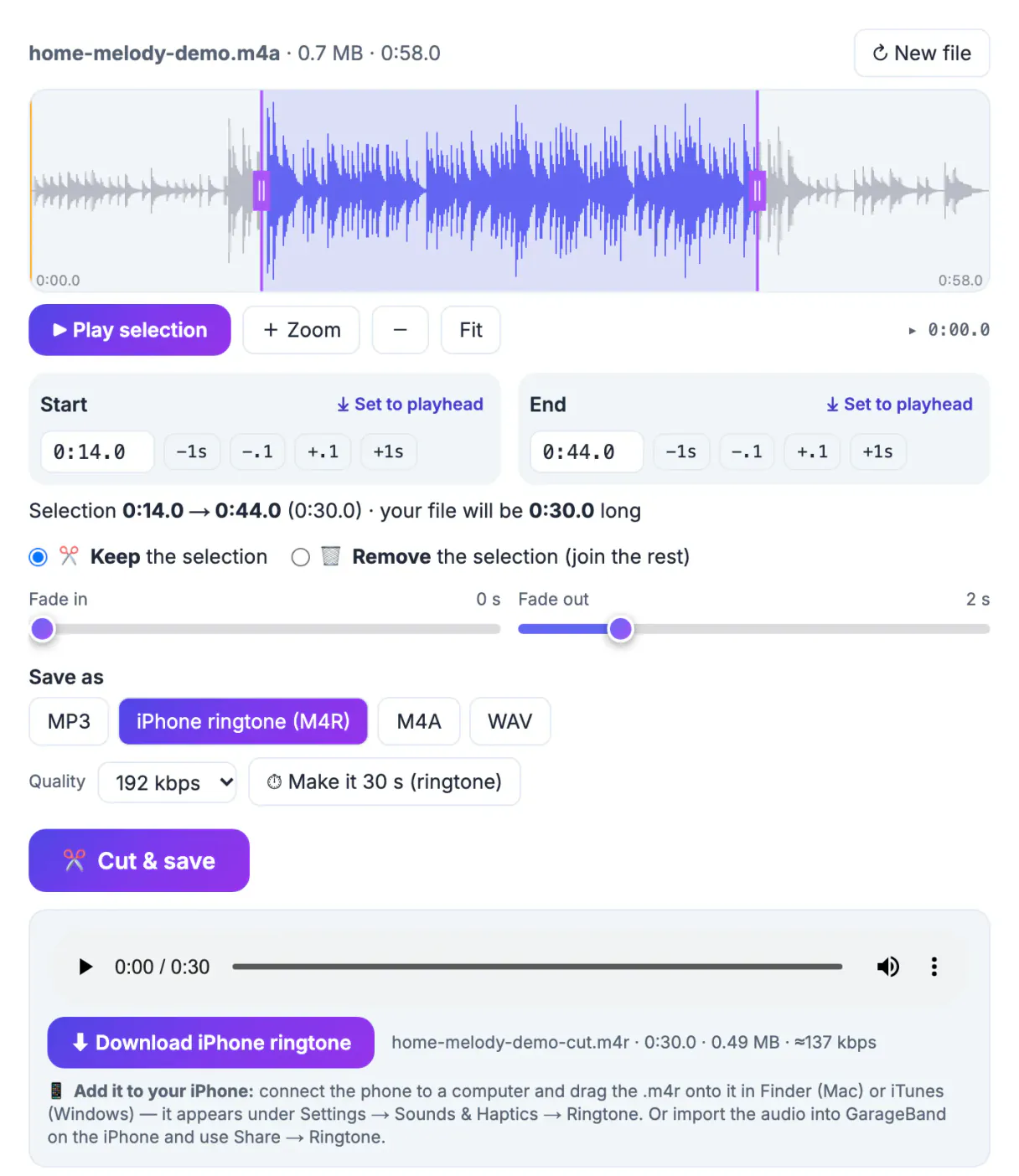
A ringtone you recorded yourself is instantly recognizable in a room full of default chimes, and it avoids the licensing question that comes with clipping a commercial song. Good sources are closer than you think: a guitar or piano idea you captured on your phone, your kid's first recorder tune, a birdsong from a morning walk, a synth loop you made in a free app, or a royalty-free sound you have the rights to use. The hard part is not recording, it is picking the right 20 to 30 seconds and packaging them in the format your phone accepts. That is the job this guide covers.
Ringtone rules for iPhone and Android
The two platforms want different files, and the Audio Cutter produces both.
- iPhone ringtones are .m4r files, which are AAC audio in an iPhone-specific container; the tool's iPhone ringtone (M4R) option creates exactly that
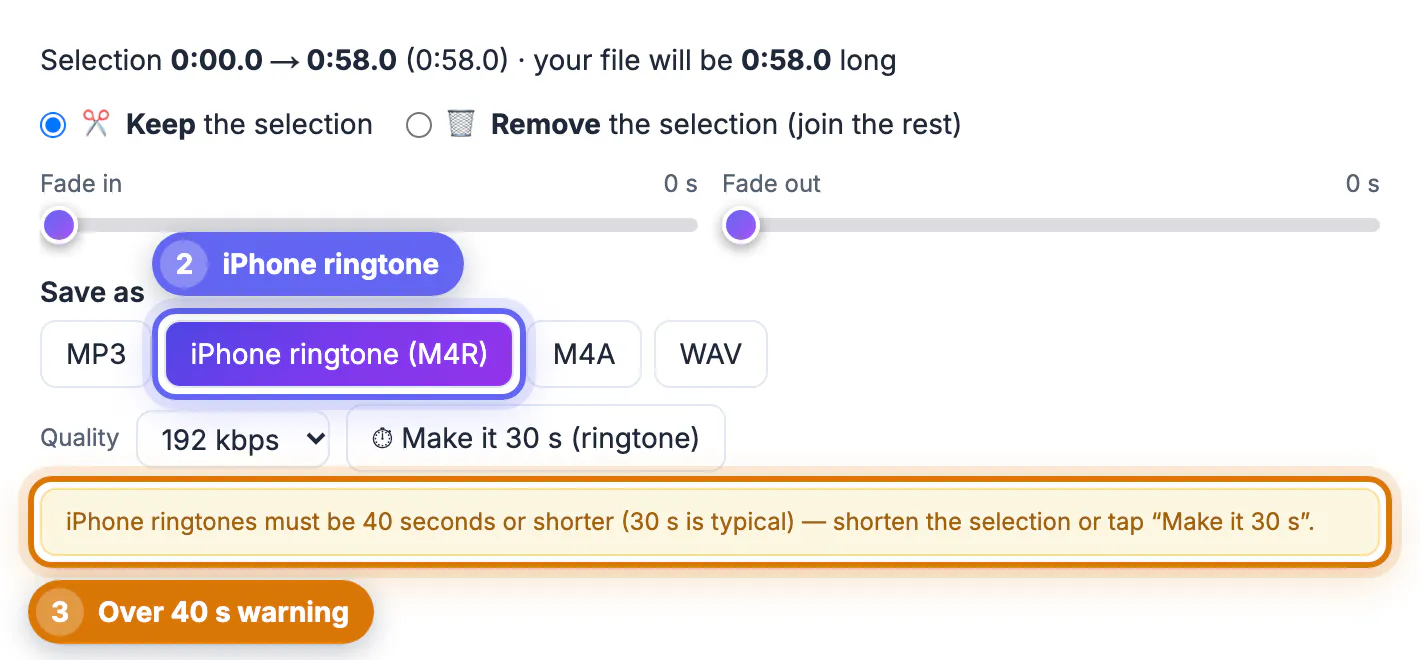
- The iPhone accepts ringtones of 40 seconds or less; the cutter shows a yellow warning when your selection is longer and you have chosen M4R
- 30 seconds is the typical length, which is why the Make it 30 s button exists; text tones work best at 5 to 10 seconds
- Android plays a normal MP3 as a ringtone, so there is no special format to worry about
- Short beats long: most calls are answered or declined within 15 to 20 seconds, so the first few seconds of the clip matter most
Quality settings apply to M4R too: 128 to 320 kbps. A phone speaker will not reveal the difference between 192 and 320 kbps, so the default 192 is fine.
Good raw material has three qualities: it starts strongly, it has a clear rhythm or melody, and it was recorded close to the microphone so there is little room echo. A 20-minute jam session, a birthday song your family sang, or a field recording of rain on a tin roof can all qualify. You only need one great half minute, so a long, loose recording is perfectly fine as a starting point.
Pick the hook: a home melody from 0:14 to 0:44
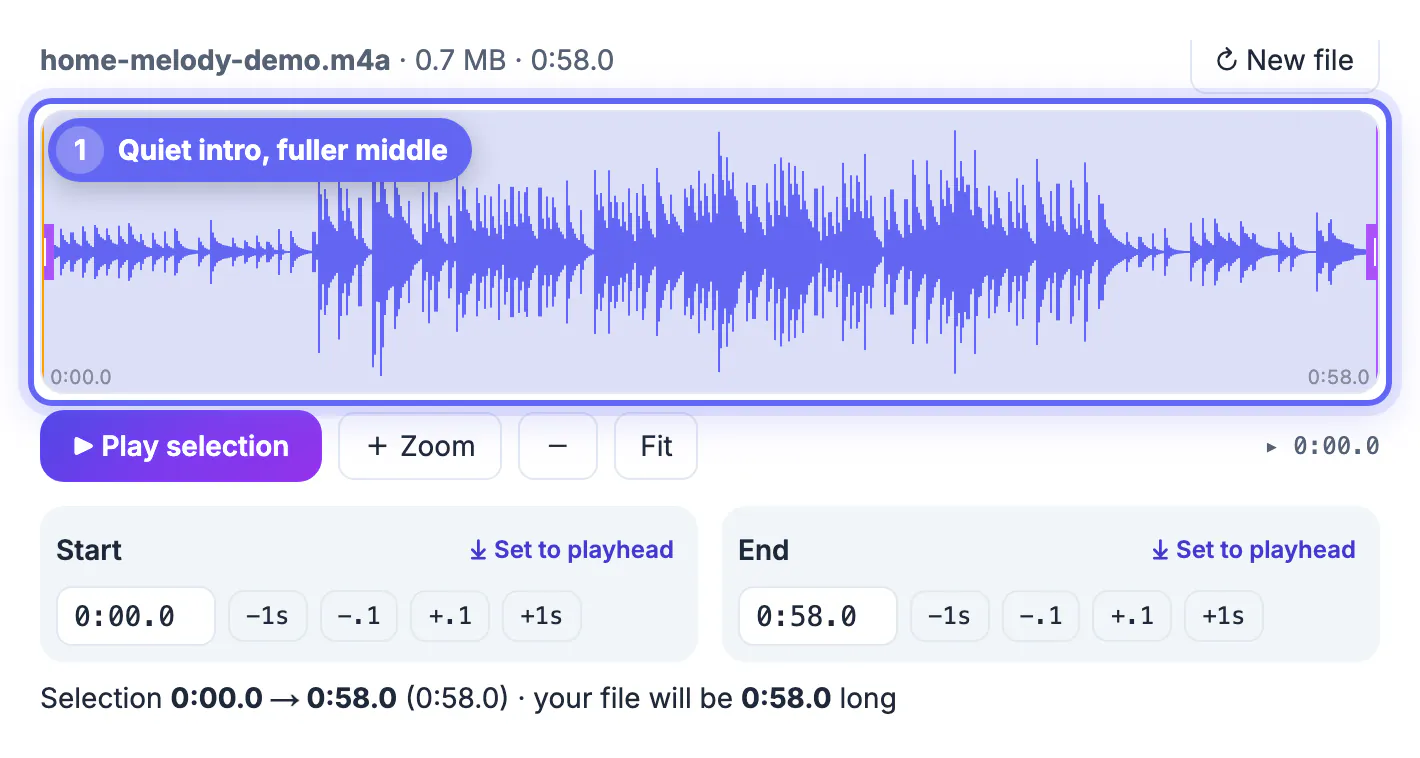
The example file, home-melody-demo.m4a, is a synthetic 58-second plucked-string melody standing in for a tune you recorded at home. Its waveform tells the story: a quiet, sparse intro for about 12 seconds, a fuller middle section, then a gentle tail.
- Choosing iPhone ringtone (M4R) while the whole 0:58.0 file was selected immediately showed the warning that ringtones must be 40 seconds or shorter
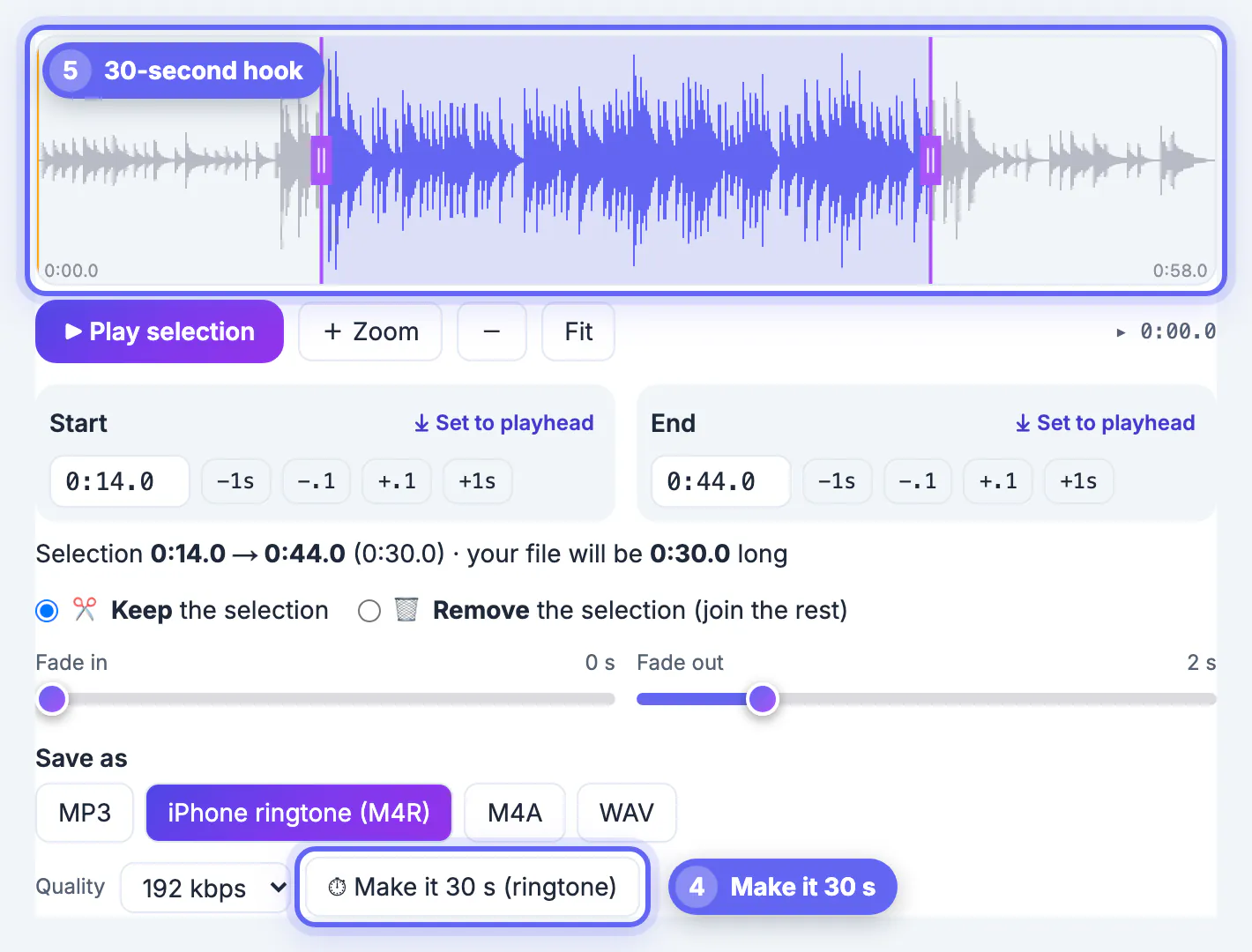
- Typing 0:14 as the start and tapping Make it 30 s set the end to 0:44.0 and added a 2-second fade out automatically
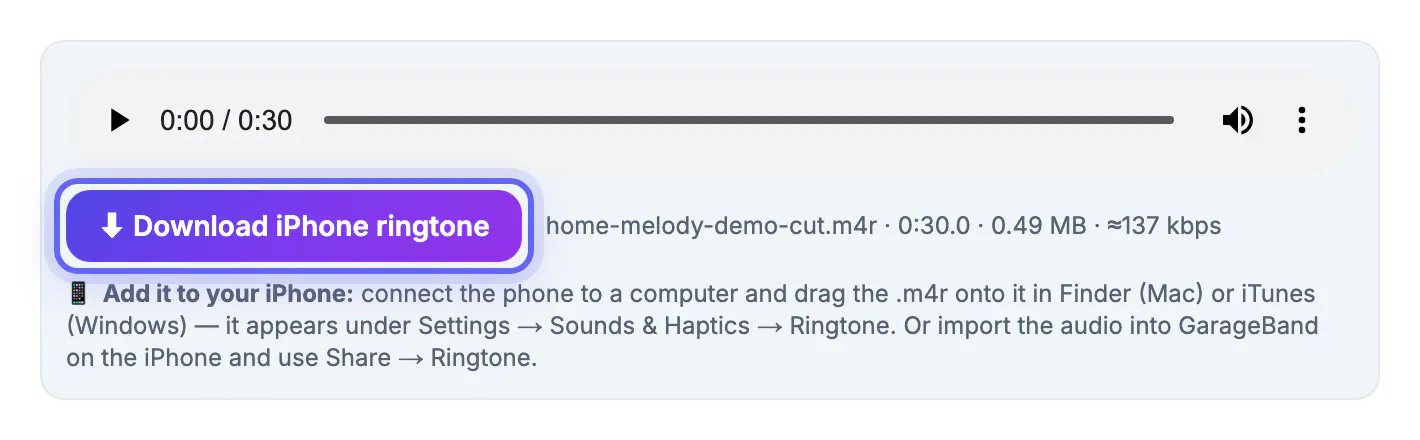
- The summary confirmed a 0:30.0 selection, and the saved file was home-melody-demo-cut.m4r at 0.49 MB
- Starting inside the fuller section means the phone rings with the recognizable part, not the quiet lead-in
Make it 30 s keeps your current start point, switches back to Keep mode if needed and only adds the fade out when you have not set one. If the hook you want starts later than 30 seconds before the end of the file, the tool moves the start earlier so the clip still fits.
Getting the ringtone onto your phone
After saving, the result panel shows a short tip for the format you chose. The steps below repeat those tips with a little more detail.
- iPhone with a computer: connect the phone, open Finder on a Mac or iTunes on Windows, and drag the .m4r file onto the device; it then appears in Settings, Sounds and Haptics, Ringtone
- iPhone without a computer: import the audio into GarageBand on the iPhone, then use Share and choose Ringtone
- Android: copy the MP3 into the phone's Ringtones folder, then pick it in Settings, Sound, Phone ringtone; menu names vary slightly by manufacturer
- Assign it to one contact instead of every call if you want to know who is calling before you look
If the ringtone sounds quiet next to the stock tones, the recording itself is quiet. Run it through the Volume Booster before cutting, or cut first and boost the 30-second clip, then save it again as M4R or MP3.
If your phone wants a different file type, the Audio Converter can help.
Sound design tips for a clip that works on a phone speaker
Phone speakers are small and loud rooms are noisy, so a ringtone has different needs from music on headphones.
- Favor mid and high notes; deep bass disappears on a phone speaker and a bass-heavy clip sounds weak
- Start with something distinctive in the first second, because that is often all you hear before you reach the phone
- Avoid a fade in on a ringtone; it wastes the most important second. A 1 to 2 second fade out is enough to end cleanly
- Pick a section that loops gracefully, since the phone repeats the clip while it keeps ringing
- Check the level: a clip that peaks near full scale will cut through a busy café, a whispery one will not
Only use audio you own or have permission to use. Your own playing, your own voice, sounds you recorded yourself and tracks released under a license that allows this kind of use are all fair game.
Step-by-step
Common mistakes to avoid
Pro tips
Frequently asked questions
How long can an iPhone ringtone be?
Up to 40 seconds. The Audio Cutter warns you when an M4R selection is longer, and Make it 30 s sets a typical 30-second clip in one tap.
Can I make an Android ringtone with this tool?
Yes. Save the clip as MP3, copy it to the phone's Ringtones folder and choose it in the sound settings.
Can I use part of a song I bought?
Buying a track usually gives you a license to listen, not to copy or redistribute it. This guide sticks to audio you recorded yourself or have explicit permission to use.
Is my recording uploaded anywhere?
No. The cut is made in your browser with ffmpeg compiled to WebAssembly, and the finished file downloads directly to your device.
Why does the ringtone sound quiet?
The source recording is probably quiet. Raise it with the Volume Booster, then save the clip again as M4R or MP3.
A great ringtone is 30 seconds of audio you own, starting on the most distinctive moment and ending with a short fade. Choose M4R for an iPhone or MP3 for Android, tap Make it 30 s from your chosen start, and install it with Finder, iTunes, GarageBand or the Android settings. Keep the original recording too; next month you may want a different section, a shorter text tone, or a louder version for a noisy workplace.
Related guides
Browse more: all video and audio guides · the Audio Cutter & Ringtone Maker