Notepad Autosave: Where Your Notes Live and What Erases Them
An online notepad with autosave writes your text into the browser's local storage on every keystroke, so a refresh, a closed tab or even a restarted computer brings the note back exactly as you left it. What it cannot survive is anything that wipes that storage: the Clear button, a cleared browsing history with site data, or a private window that has been closed. This guide explains how GrabCast's free Online Notepad saves, lists which everyday actions keep or erase a note, covers the edge cases that catch people out, such as two tabs overwriting each other, and ends with a backup routine that takes about ten seconds. No account is involved at any point, and the text never leaves your device.
📝 Try the Online Notepad tool now — freeOpen →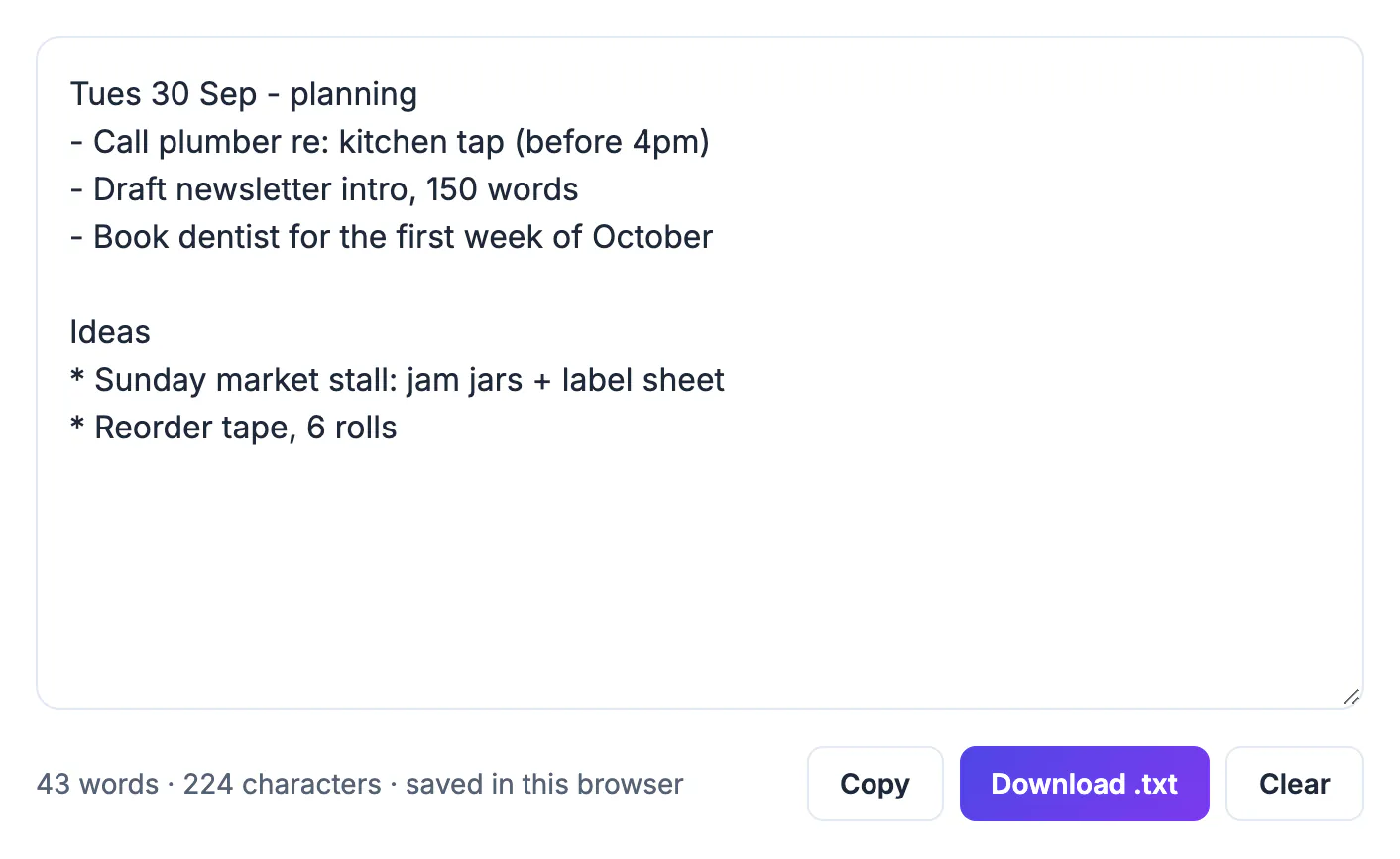
Most lost notes are not caused by a crash; they are caused by a wrong assumption. People expect a browser note to follow them to their phone the way a Google Doc does, or they run a cleanup utility that quietly empties site data, or they keep the notepad open in two tabs and type in the stale one. Local storage behaves predictably once you know its rules: it belongs to one browser profile on one device, it persists until something deliberately removes it, and it is never copied to a server. That makes it excellent for a running shopping list, a phone number jotted during a call or a paragraph you are drafting between meetings. It also means the only backup is the one you make yourself, which is why the Download .txt button matters more than it first appears.
How online notepad autosave works, keystroke by keystroke
Every time the text box changes, the page copies the entire note into your browser's local storage under a single key. There is no timer and no save interval: the write happens on the same input event that updates the counter, so the saved copy is never more than one keystroke behind what you see. When you reopen the page, the script reads that key first and fills the box before you start typing.
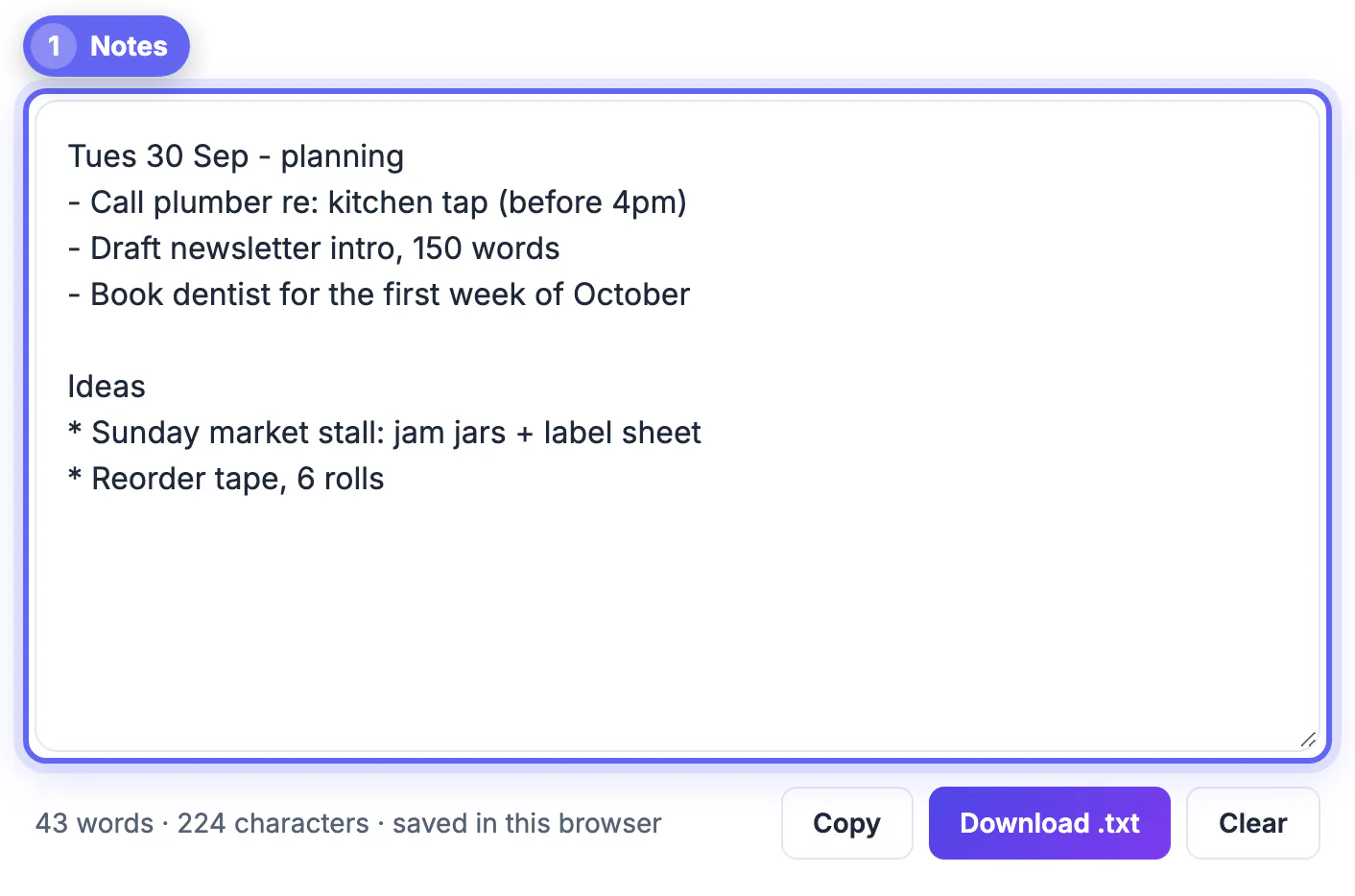
- The status line under the box shows the word count, the character count and the reminder that the note is saved in this browser.
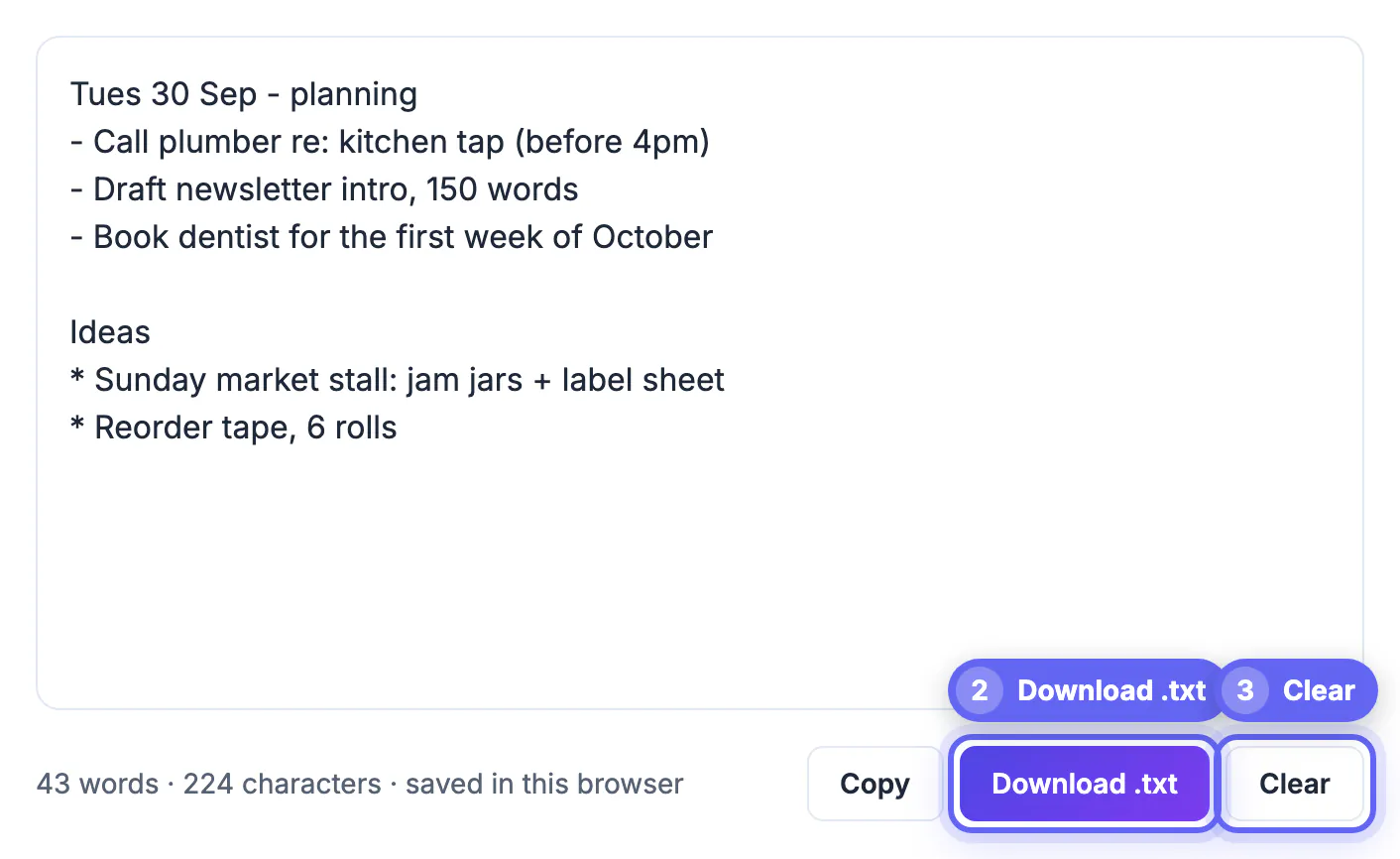
- Only one note is stored. Starting a new topic means typing below the old one, or downloading the current text and clearing the box.
- Nothing is transmitted. Local storage is a file your browser keeps on disk for each website, and GrabCast's servers never receive its contents.
- Line breaks, tabs and spacing are kept exactly, because the note is plain text rather than formatted rich text.
The word counter counts runs of characters separated by spaces, so a hyphenated term like well-known is one word and a pasted URL is one word too. Many essay portals count the same way, though some tools split hyphenated words.
What keeps an autosaved note, and what erases it
Because the note lives in site data rather than in a cloud account, the question is always whether an action touches that data.
- Kept: refreshing the page, closing the tab, quitting the browser, restarting or updating the computer, and losing Wi-Fi mid-sentence.
- Erased: pressing Clear and confirming, clearing cookies and other site data for all time or for this site, and closing a private or incognito window.
- Hidden, not erased: opening the notepad in a different browser, a different browser profile or on another device, where the local storage is separate and starts empty.
- At risk: cleanup utilities that empty browser storage, and Safari, which can remove script-written site data for sites you have not visited in about a week of browsing.
The Safari rule surprises people most. Apple's tracking prevention treats local storage as expendable when a site goes unused, so a note left untouched on a Mac or iPhone for a couple of weeks may be gone. Opening the page regularly counts as a visit, but the safer answer is a downloaded copy of anything you would miss.
Two tabs, blocked storage and other edge cases
A handful of situations behave in ways that are logical but not obvious.
- Two open tabs: each tab loads the note once and then writes its own version on every keystroke. Type in an older tab and it overwrites the newer text from the other one, so keep the notepad open in a single tab.
- Blocked storage: some strict privacy settings and extensions block local storage for all sites. The box still works, but the text will not return after a reload, so test with a quick refresh the first time you use a new browser.
- Very long notes: browsers cap local storage per site, commonly around 5 MB. A 100,000-word manuscript is roughly 600,000 characters, which normally fits, but a huge paste of log files may not.
- Shared computers: anyone who opens the same browser profile can read the note. On a library or office machine, download what you need and press Clear before you leave.
None of these involve a bug in the notepad; they are how browser storage is designed. Knowing them turns autosave from something you hope works into something you can predict.
A ten-second backup routine for anything that matters
Autosave guards against accidents in the moment. A file guards against everything else, and the notepad makes one with a single click.
- Click Download .txt to save the whole note as notes.txt in your Downloads folder; on an iPhone, Safari puts it in the Files app under Downloads.
- Rename the file with a date, such as notes-2026-09-28.txt, so a second download does not get confused with the first.
- Use Copy to paste the note into an email to yourself or a cloud document when you need it on another device today.
- Make the download a habit before clearing browser data, switching laptops or leaving a borrowed computer.
A .txt file opens in Notepad, TextEdit, Google Docs, Word and every code editor, so the backup never depends on GrabCast being available. For a running list that changes daily, a weekly download is usually plenty; for a draft you are paid to write, download at the end of every session.
If you keep files in Google Drive, the Save to Google Drive tool is a simple way to keep a copy outside the browser.
Step-by-step
Common mistakes to avoid
Pro tips
Frequently asked questions
Does the online notepad autosave without a button?
Yes. Every change is written to your browser's local storage as you type, so there is no Save button and nothing to forget. The status line says the note is saved in this browser.
Why did my autosaved note disappear?
Something cleared this site's storage: the Clear button, clearing cookies and site data, closing a private window, a cleanup tool, or Safari's removal of data for unvisited sites. A different browser or device also shows an empty box.
Is my note uploaded anywhere?
No. The text stays in local storage on your device and is never sent to GrabCast's servers. Anyone using the same browser profile can open the page and read it, though.
Can I keep several separate notes?
The notepad stores one note per browser. Keep sections under simple headings in the same box, or download each finished note as a .txt file and clear the box for the next one.
How big can an autosaved note be?
The tool sets no limit, but browsers cap local storage per site, often around 5 MB. Ordinary notes and even book-length drafts usually fit; very large pastes may not save.
Autosave in the GrabCast Online Notepad is instant and private because it writes to local storage on your own device, and that same design is why it never syncs and can be wiped by clearing site data. Use one tab, refresh once to confirm storage works, and click Download .txt for anything you would hate to lose.
Related guides
Browse more: all text and developer guides · the Online Notepad tool