Online Notepad Basics: Type, Autosave and Save a .txt
Using an online notepad takes three moves: open the page, click into the text area and type, then copy or download your text when you need it elsewhere. GrabCast's Online Notepad saves every keystroke in your browser automatically, shows a live word and character count, and exports a plain .txt file with one click, all without an account or anything to install. This beginner's walkthrough covers what each button does, where your note is actually stored, the everyday jobs a browser notepad handles better than a full note app, and the limits worth knowing on day one: there is a single note per browser, nothing syncs between devices, and clearing site data erases it. Five minutes here will save you from the one mistake that loses notes.
📝 Try the Online Notepad tool now — freeOpen →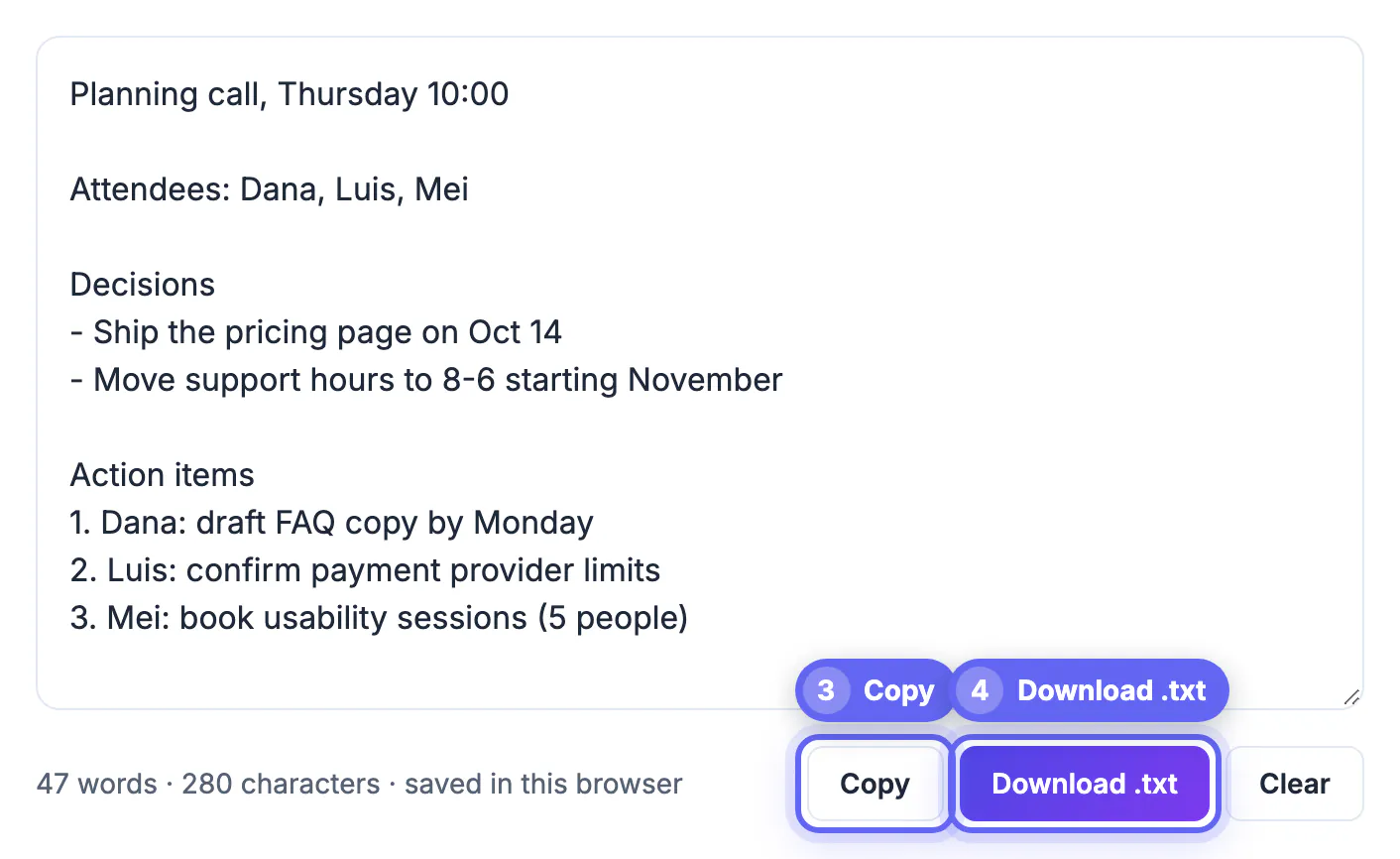
Most of the text we handle in a day is temporary: a confirmation number read over the phone, an address to paste into a form, a paragraph being reworded before it goes into an email, a checklist for the next hour. Full note apps are built for the opposite, long-term organized knowledge, so they ask you to pick a notebook, wait for sync and remember where things went. A single plain-text page that opens instantly removes all of that friction. It also strips formatting, which is quietly one of its most useful properties: paste a styled paragraph from a website and it arrives as clean characters, ready to drop into a form, a code editor or a message without stray fonts or links. Because it lives in the browser you already have open, it becomes a habit fast. The key is using it for what it is, a scratchpad, and moving anything important somewhere permanent.
What each part of the notepad does
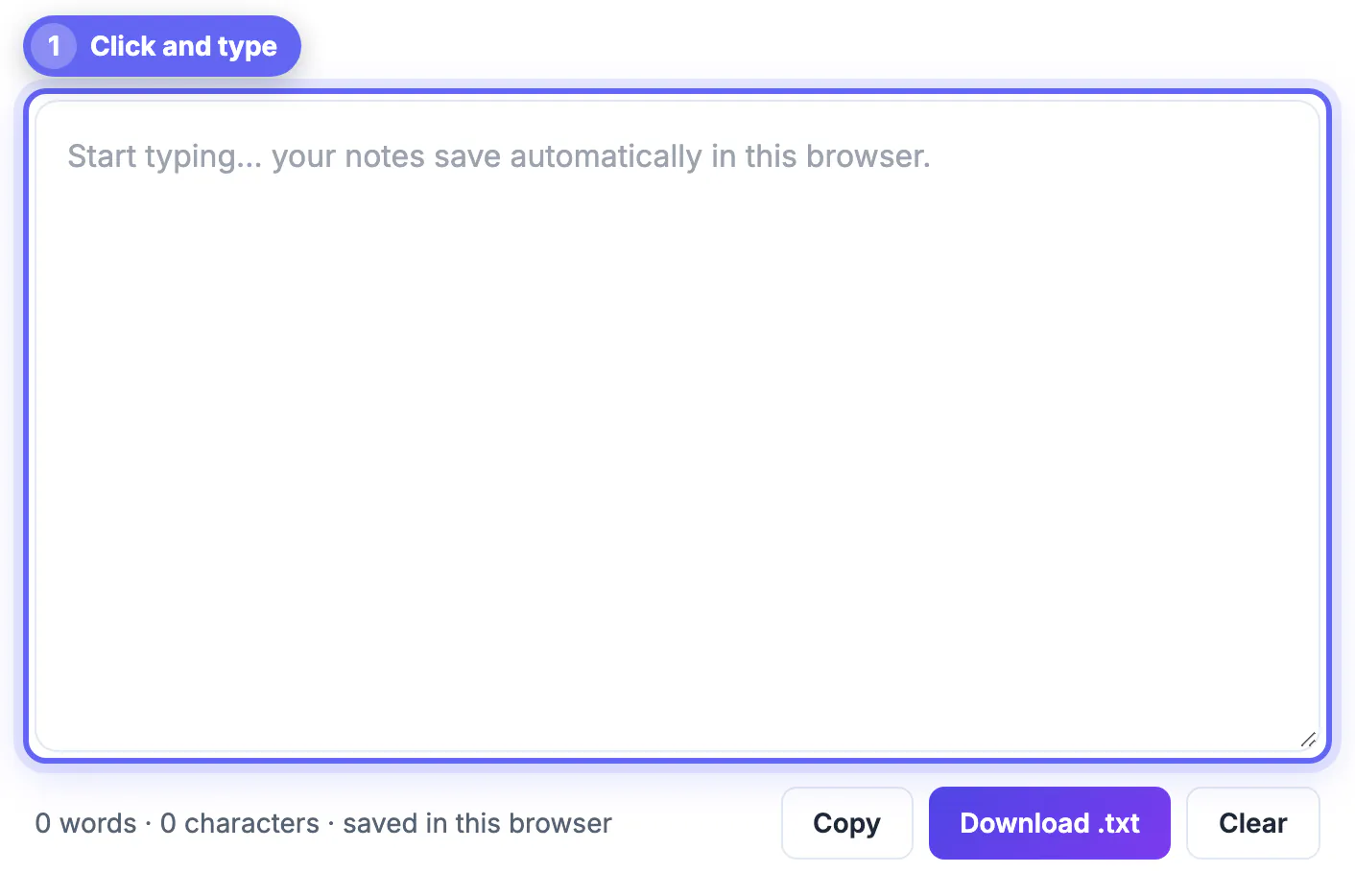
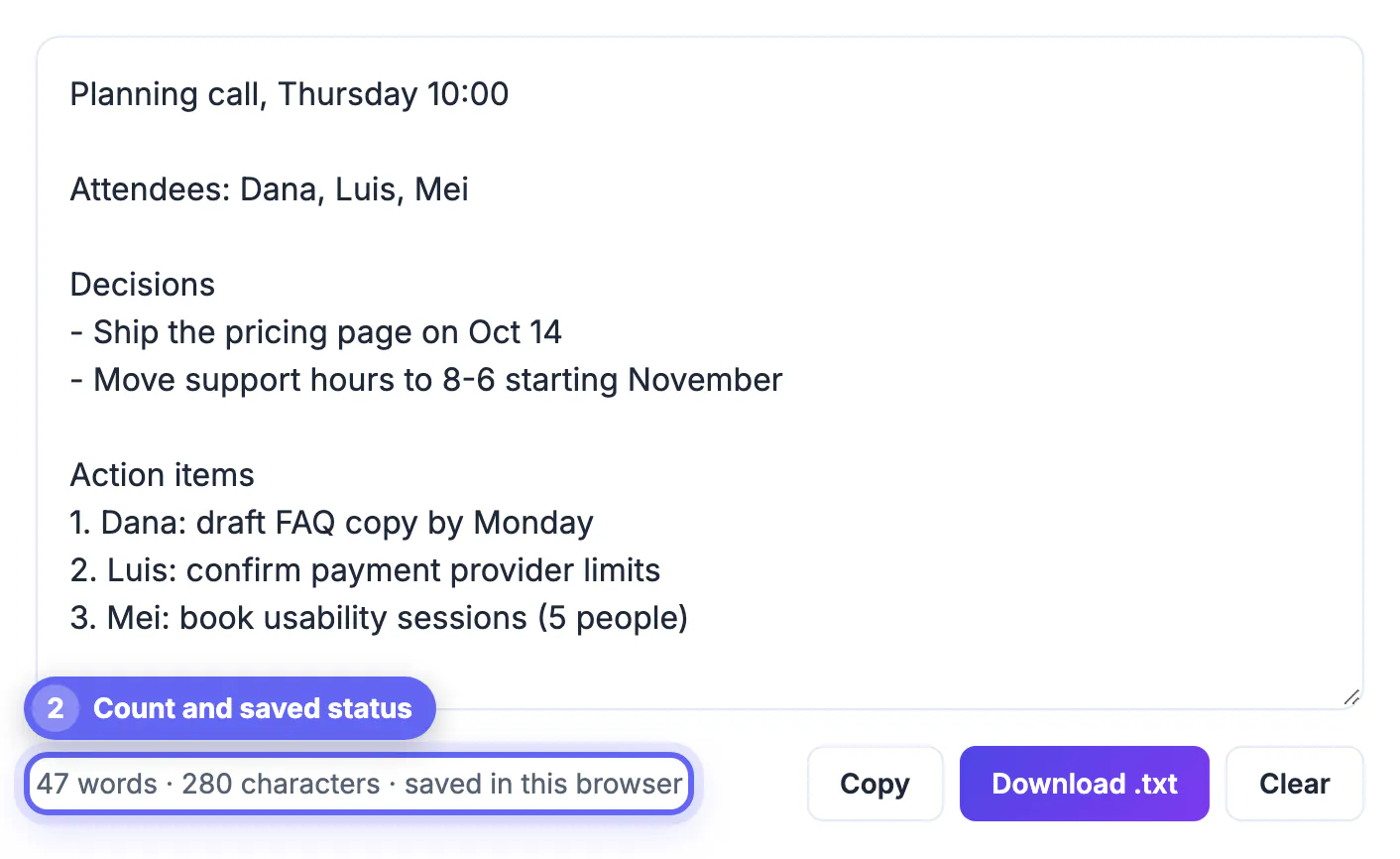
The page is intentionally sparse. There is one large text area, a status line and three buttons. Everything you type is written to your browser's local storage as you go, so there is no save button to forget. The status line under the box reads something like 142 words, 861 characters, saved in this browser, and updates with each keystroke.
The buttons each do one thing:
- Copy puts the entire note on your clipboard and briefly confirms with a Copied label.
- Download .txt saves the note as a plain-text file named notes.txt that opens in any editor on any device.
- Clear empties the note after a confirmation prompt; it cannot be undone, so download first if in doubt.
Where your note is stored, and what can erase it
Your text is kept in this browser's local storage for the GrabCast site, on your own device. It is not uploaded, it has no account attached, and nobody else can open it from another computer. That privacy has a flip side you should understand before relying on the notepad:
- It is one note per browser profile; opening the page again shows the same note, not a new one.
- A different browser, profile or device will not see it, because nothing syncs.
- Private or incognito windows discard local storage when the last private window closes.
- Clearing cookies and site data, or some cleanup utilities, will delete it.
Browsers typically allow a few megabytes of local storage per site, far more than any scratch note needs. Avoid editing the note in two tabs at once, because each tab saves its own version and the last one typed in wins.
Everyday jobs a scratch notepad does well
Formatting cleanup is the favorite. Paste text from a web page, PDF or chat and it lands as plain characters; copy it back out and it pastes cleanly into forms, spreadsheets or code without hidden styles. Drafting is the second: write a tricky email or a reply to a review in the notepad, check the count, then paste it into the real app, so a misclick never sends a half-finished message.
Short-lived capture is the third. Keep the tab pinned during calls for names, numbers and action items, then turn them into calendar entries or tickets afterward. It also works as a staging area when moving text between devices: download the .txt and open it wherever you need.
- Pin the tab so it reopens with your browser every day.
- Use the live count to size bios, captions and form fields before pasting.
- Keep one running list at the top and delete lines as you finish them.
For quick scratch work, check length with the Word Counter and strip odd spacing from pasted text with the Text Cleaner.
When to move a note out of the notepad
A scratch notepad is not an archive. Move content out when it becomes something you would be upset to lose, something you need on your phone, or something other people should edit. Download the .txt for your own files, paste it into a document or note app that syncs and backs up, or send it where it belongs. A good rule of thumb: if a note is still in the pad after a week, it has outgrown scratch status and deserves a proper home with a name, a folder and a backup.
Also skip it for secrets. Local storage is not encrypted by the page, so anyone using your browser profile could read the note. Credentials belong in a password manager, not a text box. For focused long-form writing, see the related guide on distraction-free drafting; for tracking changes between two versions of a text, a comparison tool is the better fit.
Step-by-step
Common mistakes to avoid
Pro tips
Frequently asked questions
Do I need an account to use the notepad?
No. Open the page and start typing. There is no sign-up, and your note is saved automatically in the browser you are using.
Is my note uploaded to GrabCast?
No. The note is stored in your browser's local storage on your device and is not sent to a server. That also means it does not sync to other devices.
Can I keep several separate notes?
Not currently; the notepad holds one note per browser profile. Use headings inside the note, or download each finished note as its own .txt file.
Why did my note disappear?
The usual causes are a private window that was closed, cleared site data or cookies, or opening the page in a different browser or profile. Download a .txt regularly if a note matters.
Does the notepad keep formatting like bold or links?
No. It is plain text only, which is why pasting through it is a quick way to remove formatting from copied content.
An online notepad is the quickest place to catch temporary text. Open GrabCast's Online Notepad, type or paste, and it autosaves in your browser with a live count; Copy and Download .txt get the text out when needed. Remember the rules: one note per browser, no sync, private windows and cleared site data erase it, and anything important belongs somewhere permanent.
Related guides
Browse more: all text and developer guides · the Online Notepad tool