How to Create a Brand Kit for Social Media (Free)
A brand kit for social media is a small, fixed set of choices that every post uses: a few colours, one or two fonts, your logo and your handle. It is what makes a feed look like one business rather than a collection of unrelated graphics. You do not need a designer or a paid plan to make one. This guide explains what goes into a simple social media brand kit, how to choose colours that stay readable, and how to save the kit once and apply it to any template in GrabCast's free Template Studio. The example builds a kit for a fictional candle shop, Pine & Wick, and applies it to a second post in one click.
🧩 Try Template Studio now — freeOpen →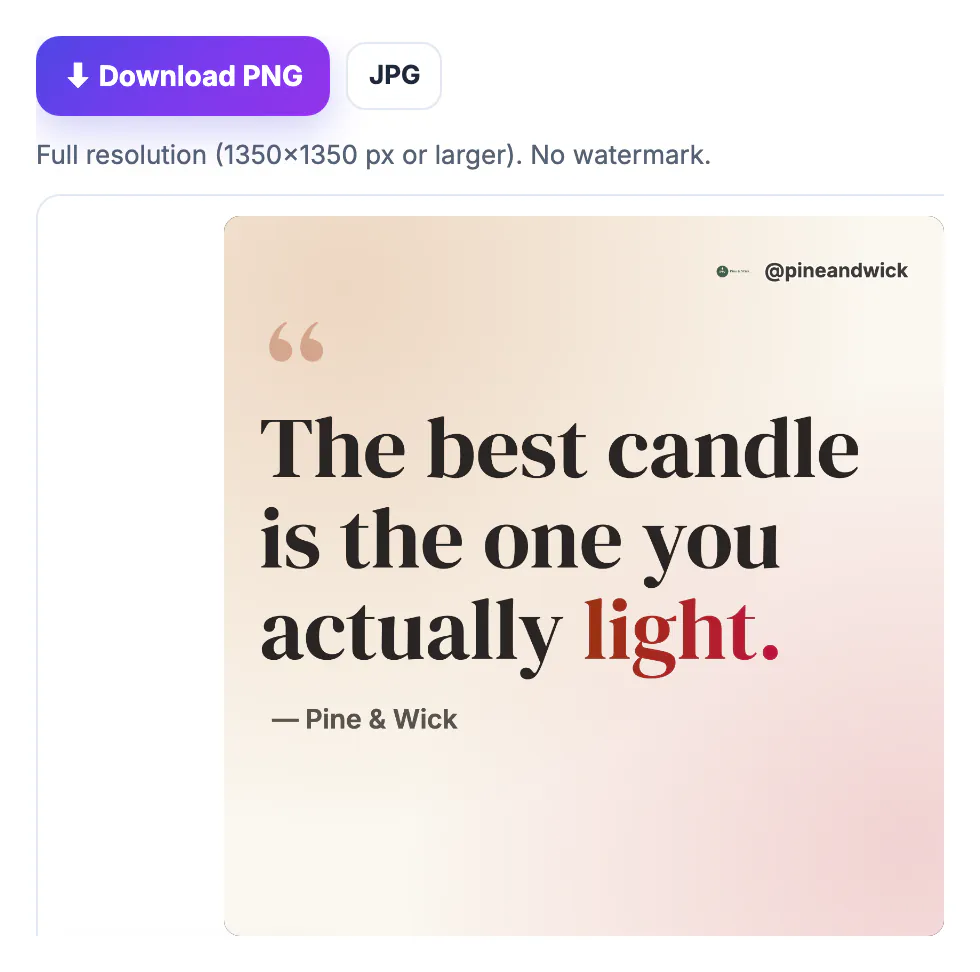
People scroll quickly. They recognise a post as yours from its colours and type long before they read the name, so the same palette and font on every post does more for recognition than a clever logo. A kit also saves time: instead of picking colours for each graphic, you apply the kit and write. And it keeps a small team consistent when more than one person makes posts. The kit does not have to be elaborate. Two or three colours, one font for headlines, a logo that reads at small sizes and one handle are enough to start; you can refine it once you see what works.
What to put in a social media brand kit
Keep the kit small enough to remember:
- Colours: a background colour, a text colour, a secondary text colour and one accent for highlights. Gradients are optional.
- Font: one headline font. A second font for body text is optional; on social graphics, one is often enough.
- Logo: a simple mark that still reads at about 40 pixels, as a PNG with a transparent background.
- Handle or name: the same @handle on every post, in the same corner.
Write the colour codes down (for example #fbf7ef for the background) so the website, print and posts match. If you have one brand colour from a logo already, GrabCast's Color Palette tool can suggest matching shades.
Check the licence of your font too. A font installed on your computer is not automatically cleared for commercial graphics. The fonts in Template Studio are released under the SIL Open Font License, which allows commercial use, so posts made with them can be used for your business, in ads and for clients.
Choose colours that stay readable
A brand colour that looks great as a swatch can be hard to read as text. Check two things:
- Contrast: text should have a contrast ratio of at least 4.5 to 1 against its background, the level the WCAG accessibility guidelines set for normal text. Template Studio shows a warning in Style & brand when the text colour falls below that.
- Accent use: keep the accent for one or two words per post, such as the key word in a headline, so it stays noticeable.
- Light and dark: decide whether your feed is light or dark and stick with it; switching every post looks random.
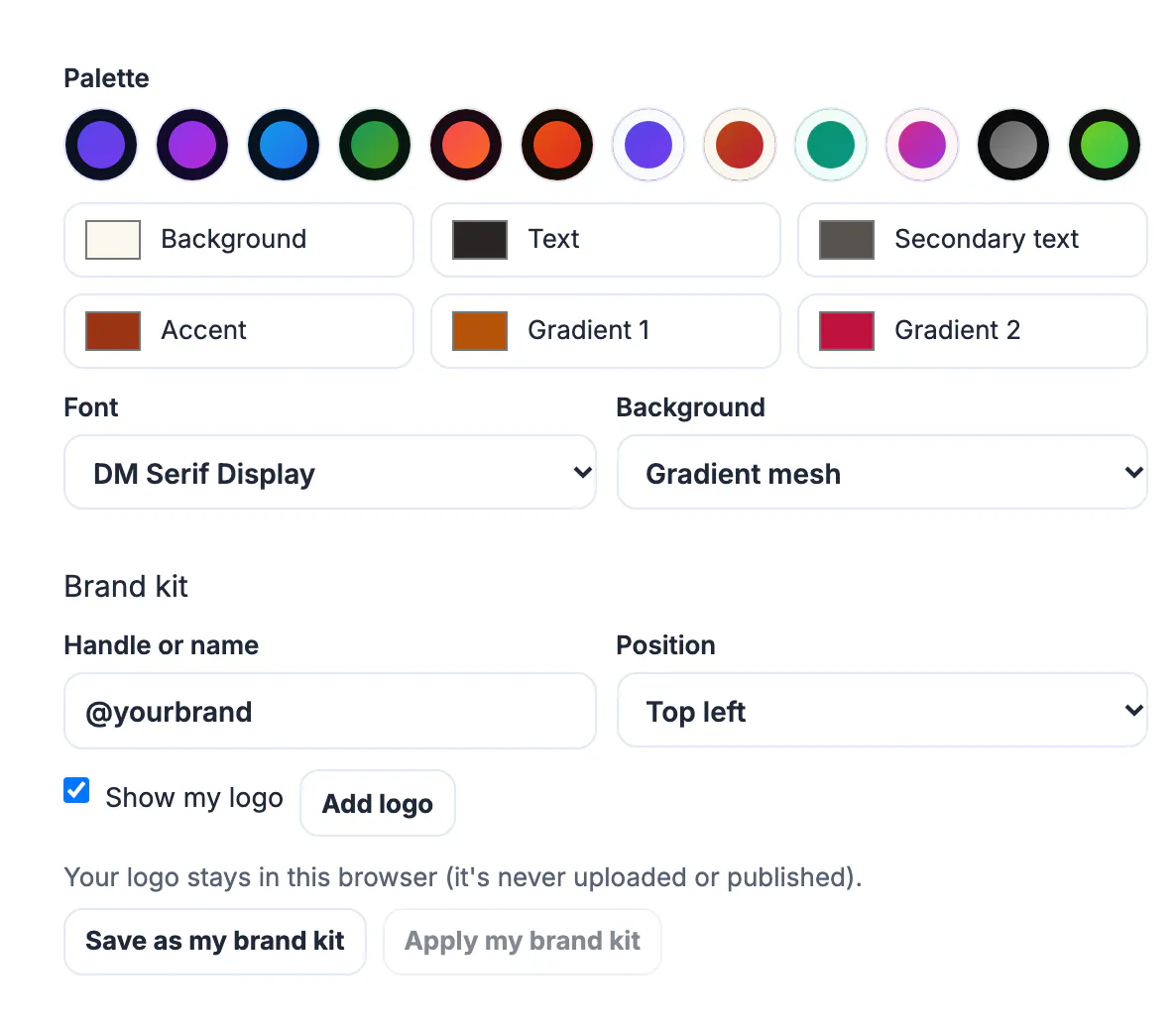
For Pine & Wick, the Cream palette gave an off-white background, near-black text and a rust accent, with DM Serif Display for headlines to suit a handmade product. You can check any pair of colours with the Color Contrast Checker.
Save your brand kit once in Template Studio
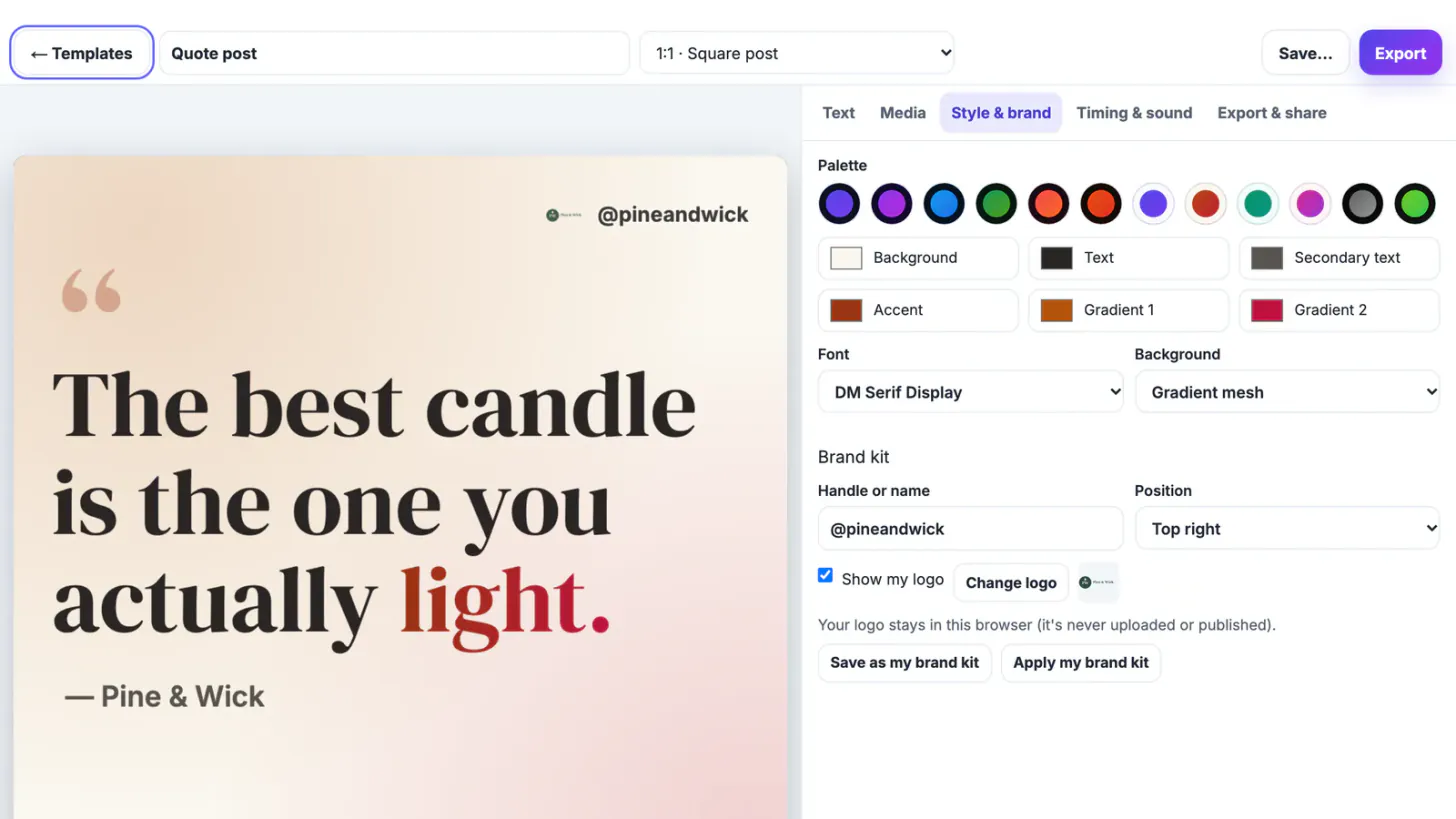
Open any template in the Template Studio and go to Style & brand.
- Pick a palette as a starting point, then adjust the six colours: background, text, secondary text, accent and the two gradient colours.
- Choose the font and the background style.
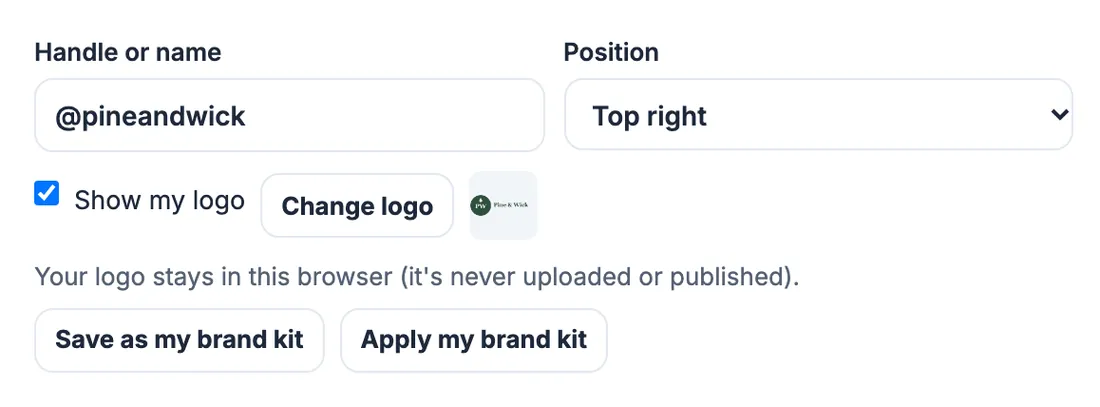
- Under Brand kit, type your handle, choose the corner (top left, top right, bottom left or bottom right), and add your logo with Add logo.
- Press Save as my brand kit.
The kit is saved in your browser, and your logo stays on your device: it is never uploaded or published. If you use several browsers, repeat the save in each, or keep the colour codes and logo file handy.
Apply the brand kit to every post and video
Open any other template, a post, a carousel, a thumbnail or a short video, go to Style & brand and press Apply my brand kit. Colours, font, handle, logo and its position change in one step; the layout and text stay as they are.
- For Pine & Wick, a quote post became The best candle is the one you actually light, in the kit's cream and rust with the logo and @pineandwick in the top right corner.
- Export as PNG or JPG for posts, a zip of slides for carousels, or an MP4 for videos, all without a watermark.
- Use the same kit when you make carousels; see the business guides for planning posts around it.
Review each design after applying the kit: a template built for a dark background may need a different background style with a light palette.
Keep a simple record of the kit outside the browser too: the hex codes, the font name, the logo file and the handle in one note. Anyone who helps with your posts, or any other tool you use for print or your website, can then match the same look without guessing the colours from a screenshot.
Step-by-step
Common mistakes to avoid
Pro tips
Frequently asked questions
What is a brand kit?
A fixed set of colours, fonts, logo and handle used on every post so your content is recognisable.
Is the Template Studio brand kit free?
Yes. Saving and applying a brand kit is free, with no account needed.
Where is my brand kit stored?
In your browser. Your logo is kept on your device and is never uploaded or published.
How many colours should a brand kit have?
Two to four is enough for social media: a background, a text colour and one accent, plus an optional secondary text colour.
Can I use the brand kit on videos too?
Yes. Apply it to any template, including short videos, feed videos, carousels and thumbnails.
A social media brand kit is a handful of decisions made once: colours that pass a contrast check, one headline font, a logo that reads small and a handle in a fixed corner. Save it in Template Studio, apply it to every template, and your posts start to look like one brand.
Related guides
Browse more: all business guides · Template Studio