How to Make a Carousel Post for Instagram or LinkedIn
A carousel post is a set of images people swipe through inside one post. Educational accounts use carousels for tips, checklists and step-by-step guides because each slide can hold one clear idea, and a reader who swipes to the end has spent real time on your post. To make a carousel post you need a plan for the slides, a consistent design, and images exported at the right size. This guide covers all three, using GrabCast's free Template Studio to design a five-slide carousel, 5 ways to cut your grocery bill, for a fictional budgeting account. It then shows how to post the slides on Instagram, and on LinkedIn, where a carousel is usually uploaded as a PDF document.
🧩 Try Template Studio now — freeOpen →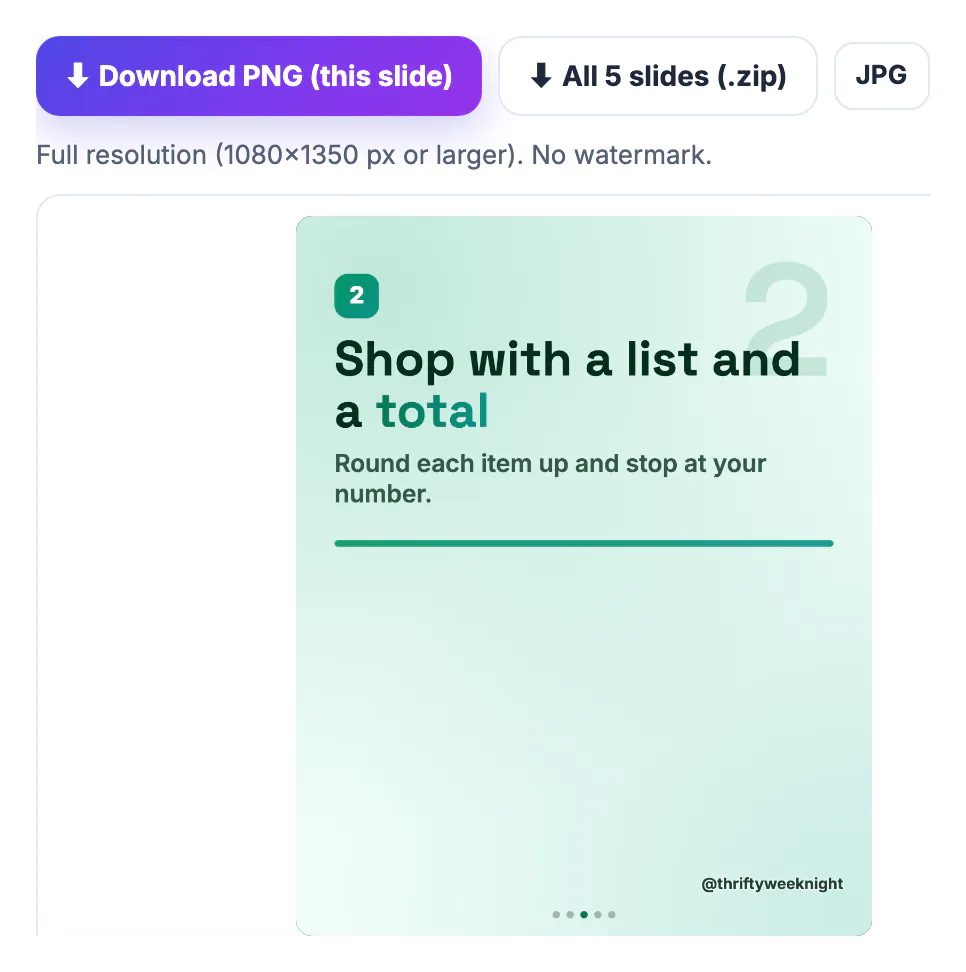
A single image has to say everything at once. A carousel can build an argument: a cover that promises something, a few slides that deliver it, and a last slide that asks for a save, a comment or a visit. That structure suits how-to content and lists especially well, because each point gets room to breathe and readers can swipe back to the one they need. Carousels also last: people save useful ones and come back to them. The cost is design time, since five slides must look like one piece. A template solves most of that by fixing the layout, the fonts and the colours across every slide.
Plan the carousel slide by slide
Write the slides as text before you design anything.
- Slide 1, the cover: a clear promise with a number or result, such as 5 ways to cut your grocery bill. It is the only slide most people see before deciding to swipe.
- Middle slides: one idea per slide, a short headline and one supporting sentence.
- Last slide: the call to action: save this, which one will you try, or read more at the link in bio.
Five to seven slides is a comfortable length for a tips carousel. At the time of writing, Instagram allows up to 20 photos or videos in one carousel, and every slide is shown at the ratio of the first, so design all slides at one size.
A quick test for the plan: read only the headlines, in order. If they tell the whole story without the smaller text, the carousel will work for people who skim, which is most people. If a headline only makes sense with its subtext, rewrite it until it stands alone.
Design the carousel post from a template
In the Template Studio, open the Carousels category. There are three structures: a 5-slide tips carousel (4:5), a myth-busting carousel (1:1) and a step-by-step carousel (4:5).
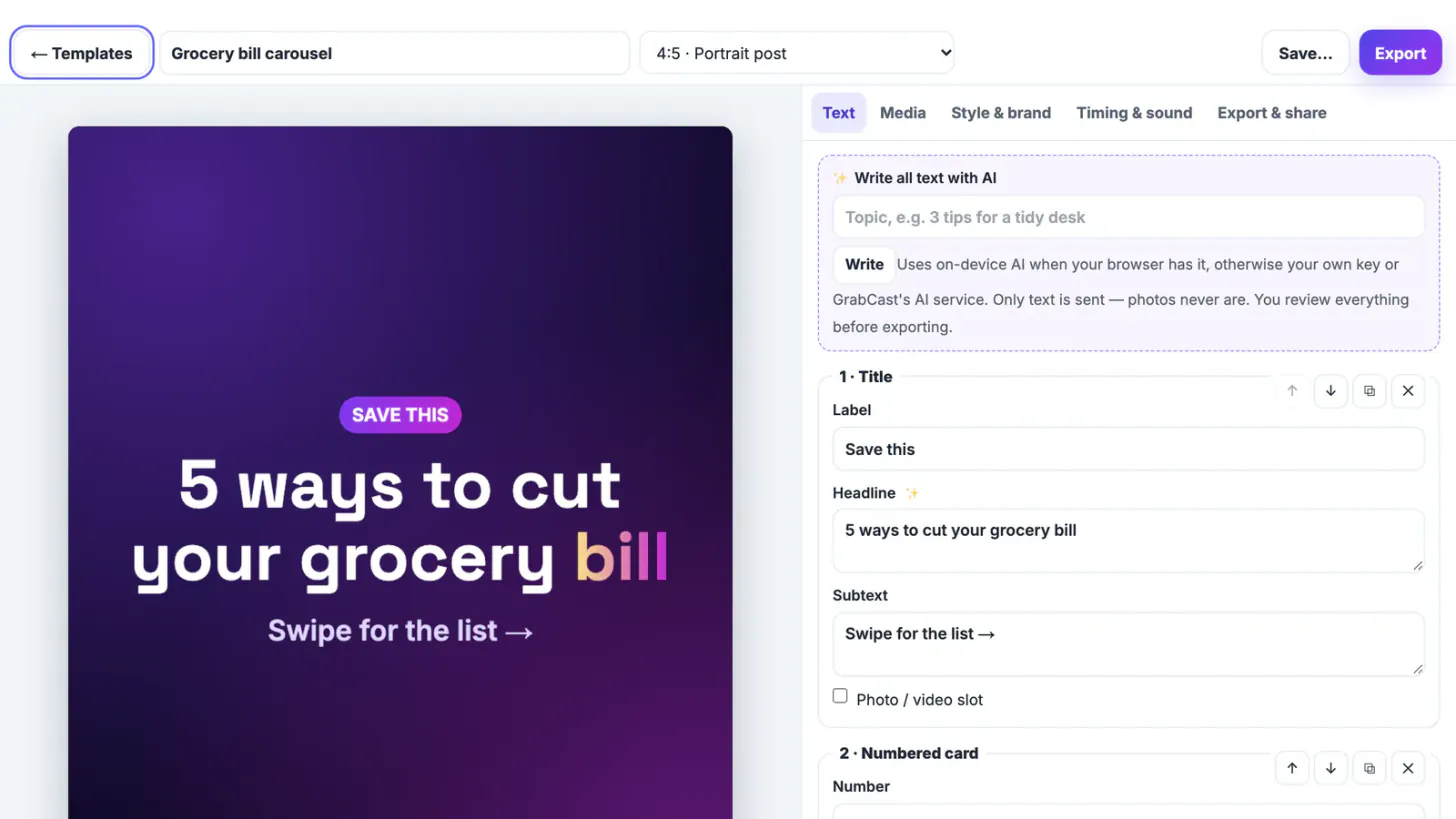
- Press Use template and fill in each slide in the Text tab: label, headline, subtext, and for numbered cards the number, name and description.
- Move, duplicate or delete slides, or add one, up to ten per carousel.
- Step through the slides with the arrows under the preview to check each one.
- In Style & brand, pick a palette or set colours and a font, and add your handle and logo; they appear on every slide.
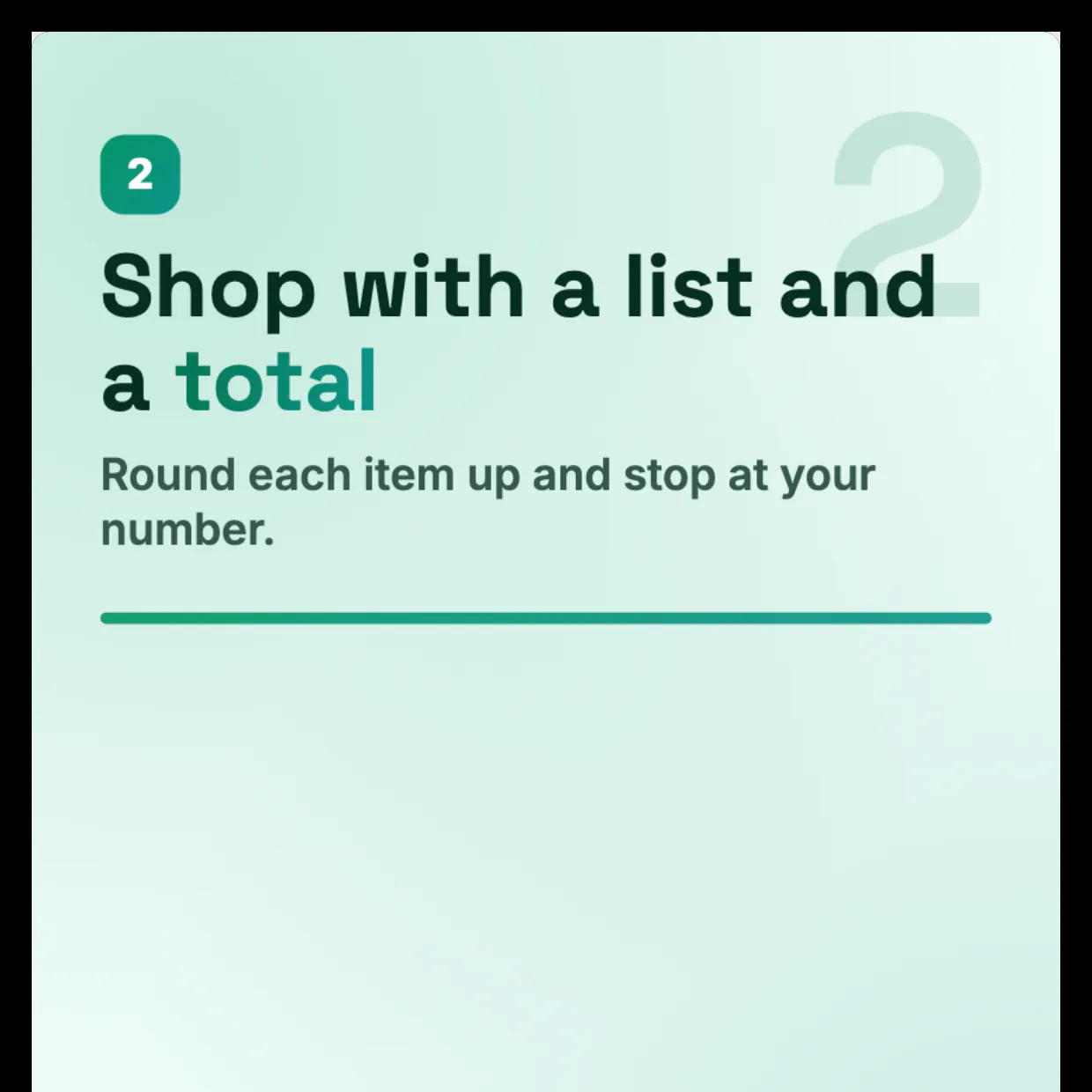
For the grocery carousel, the cover read Save this, 5 ways to cut your grocery bill, Swipe for the list; the three cards covered planning meals from what you have, shopping with a list and a total, and comparing unit prices; and the last slide asked Which one will you try this week? The Mint palette gave dark green text on a pale background, and the handle went to the bottom right so it would not touch the number badges. A contrast warning appears in Style & brand if the text colour is too close to the background.

Export every slide at full resolution
Open Export & share:
- All slides (.zip): one PNG per slide, numbered 01, 02 and so on, in order.
- Download PNG (this slide) or JPG for a single slide you want to change.
- Slides are full resolution: 1080 by 1350 pixels for 4:5 portrait and 1350 by 1350 for square, with no watermark.
Everything is drawn in your browser, so nothing is uploaded. If you want to reuse the design next month, press Download template file (.json); it contains only the text, colours and timing, and you can open it again with Open a template file.
Post the carousel on Instagram and LinkedIn
Instagram: create a new post, tap the multi-select icon, choose the slides in order (01 first), and keep the 4:5 or square crop the slides were made for. For more on sizes, see the social media image size cheat sheet.
LinkedIn: the common way to post a swipeable carousel on LinkedIn is to combine the slides into one PDF and add it as a document post. Put the PNGs into GrabCast's Images to PDF tool in slide order and download the PDF.
- Write a caption that adds context instead of repeating slide 1.
- Plan the post with the rest of your week in the Social Media Scheduler.
- Check the slides on a phone before posting; small text that looked fine on a laptop may be too small.
Step-by-step
Common mistakes to avoid
Pro tips
Frequently asked questions
What size should carousel slides be?
For Instagram, 1080 by 1350 pixels (4:5 portrait) or 1080 by 1080 (square) are common. All slides in one carousel should share the same ratio.
How many slides can a carousel have?
At the time of writing, Instagram allows up to 20 photos or videos in one carousel. Template Studio designs hold up to ten slides.
How do I post a carousel on LinkedIn?
Combine the slides into one PDF, in order, and add it as a document post. The Images to PDF tool does this in your browser.
Is there a watermark?
No. Every slide exports as a full-resolution PNG or JPG without a watermark.
Can I let AI write the slides?
Yes. Type a topic in Write all text with AI and every slide is drafted for you. Review the text before exporting; AI can be wrong.
A good carousel is planned as text and designed as one piece. Write a cover that promises something, give each slide one idea, end with one action, and let a template keep the design consistent. Export every slide at full size, then post them in order on Instagram or as a PDF on LinkedIn.
Related guides
Browse more: all image guides · Template Studio