Social Media Content Calendar: Plan a Week in One Go
A social media content calendar is simply a list of what goes out, where and when, kept in one place so nothing is written at the last minute. The fastest way to build one is a single weekly session: draft every post, check each network's rules, give it a date and time, then review the week on a calendar. GrabCast's free Social Media Scheduler does all of that in your browser, keeping drafts on your device. Connected Facebook Pages and Instagram professional accounts can publish at the planned time (in beta while Meta reviews GrabCast); without a connection, you get a reminder when a slot arrives, copy the caption and post it yourself. This guide walks through a real example, a small lavender farm planning three posts for harvest week, and shows how to decide what goes where, how many posts a small team can sustain, and how to keep the plan honest once the week starts.
📅 Try the Social Media Scheduler now — freeOpen →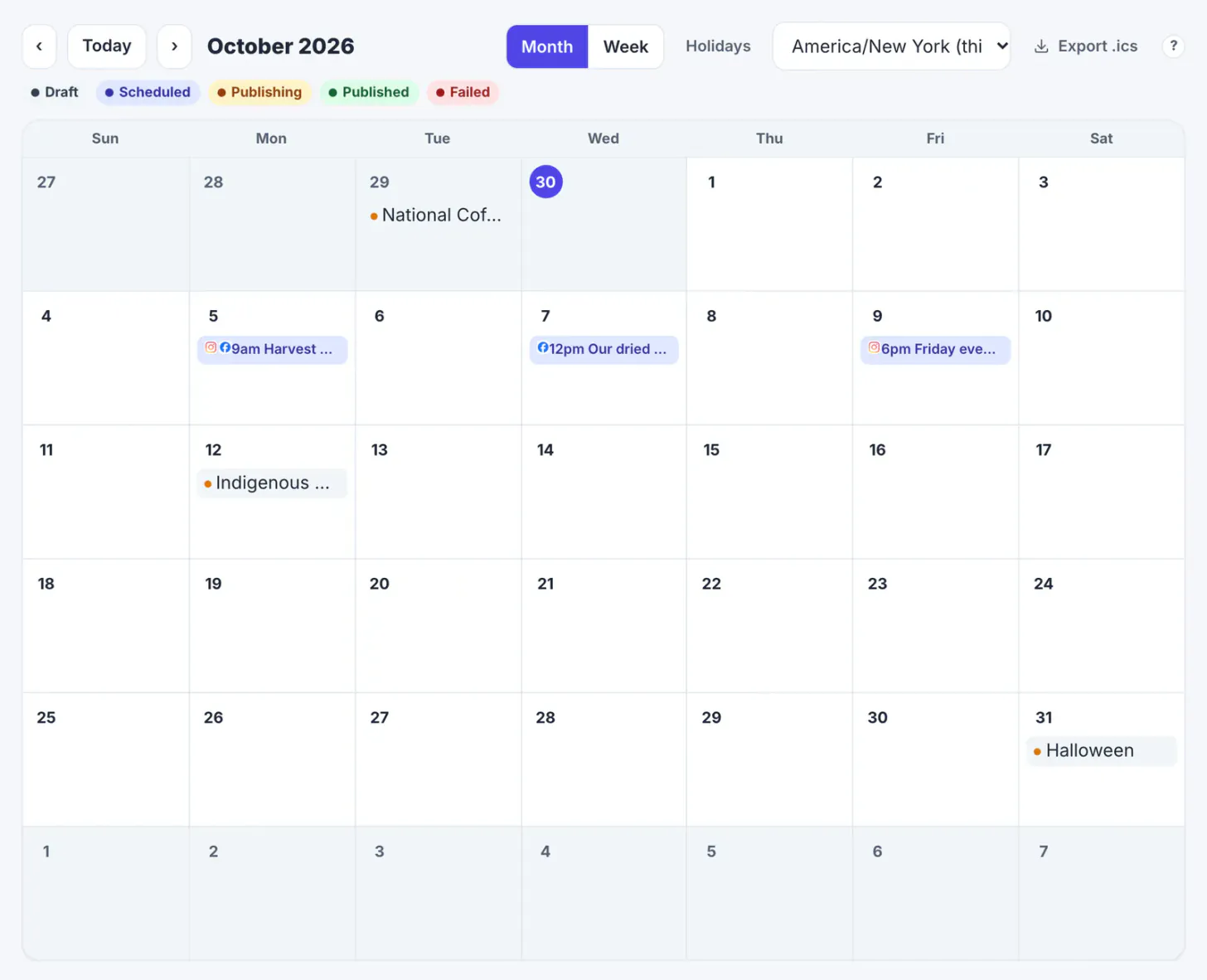
Posting when you remember produces uneven weeks: three posts on Monday, silence until Friday, and captions written on a phone in the parking lot. Batching the writing into one session changes the quality of the work. You see the whole week side by side, so you notice when two posts say the same thing or when a workshop is announced only once. You can check photos against each network's rules before the moment you need them, rather than discovering at 9 AM that Instagram will not accept a PNG. And a calendar makes the plan visible to anyone who helps, which matters for family businesses and volunteer groups where the person posting on Friday is not the person who wrote the caption on Sunday. The session itself is short. For three to five posts, an hour is plenty once the photos are chosen.
What a social media content calendar needs to hold
A useful calendar holds more than dates. For each post you want the finished caption, the networks it goes to, the post type on each network, the media file, the planned time with its time zone, and a status that tells you whether it is a draft or ready. Anything less and you end up hunting through notes on the day.
- Caption: written in full, not as a reminder like farm photo Monday
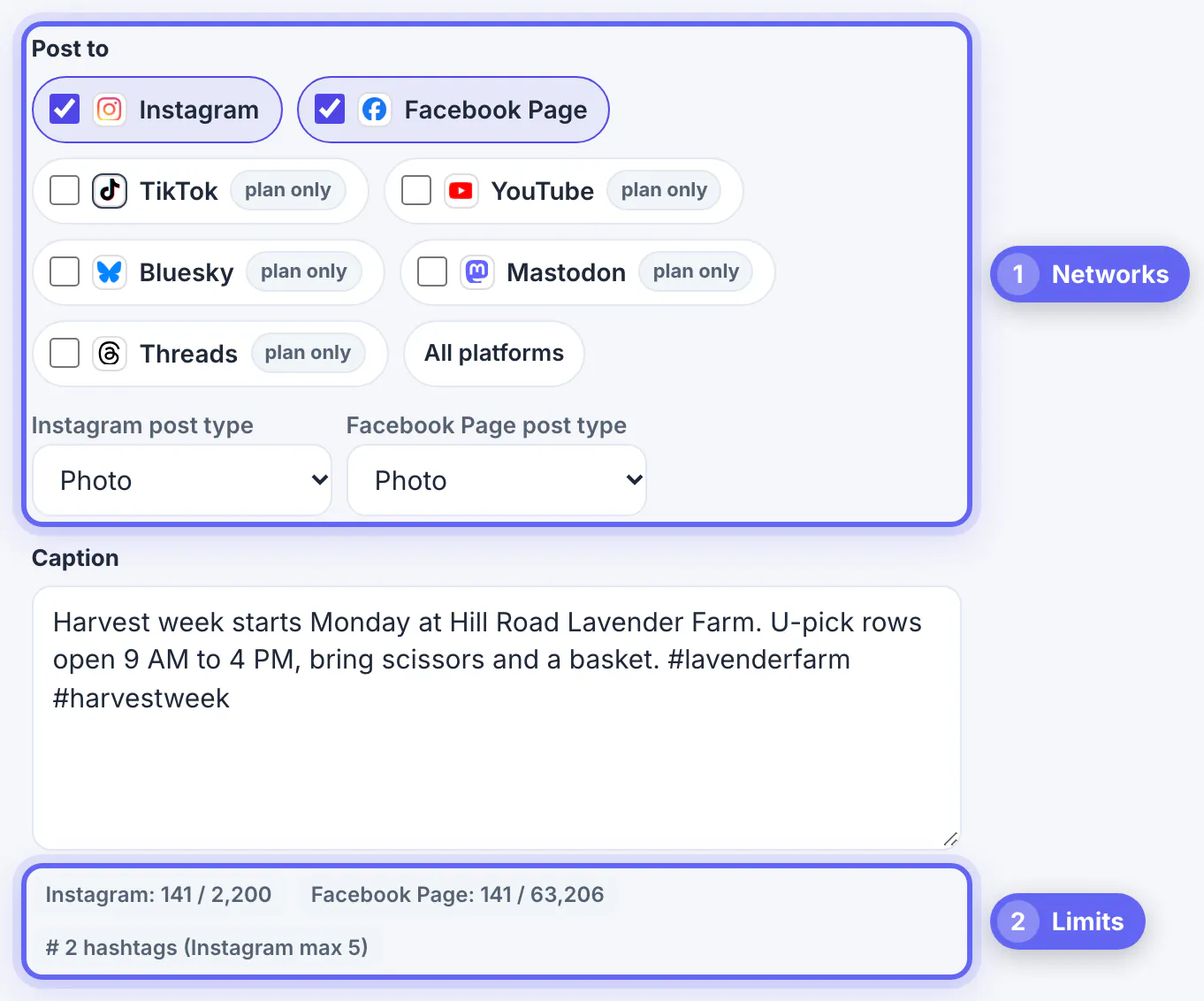
- Networks and post type: Instagram Photo and Facebook Page Photo are different posts with different rules
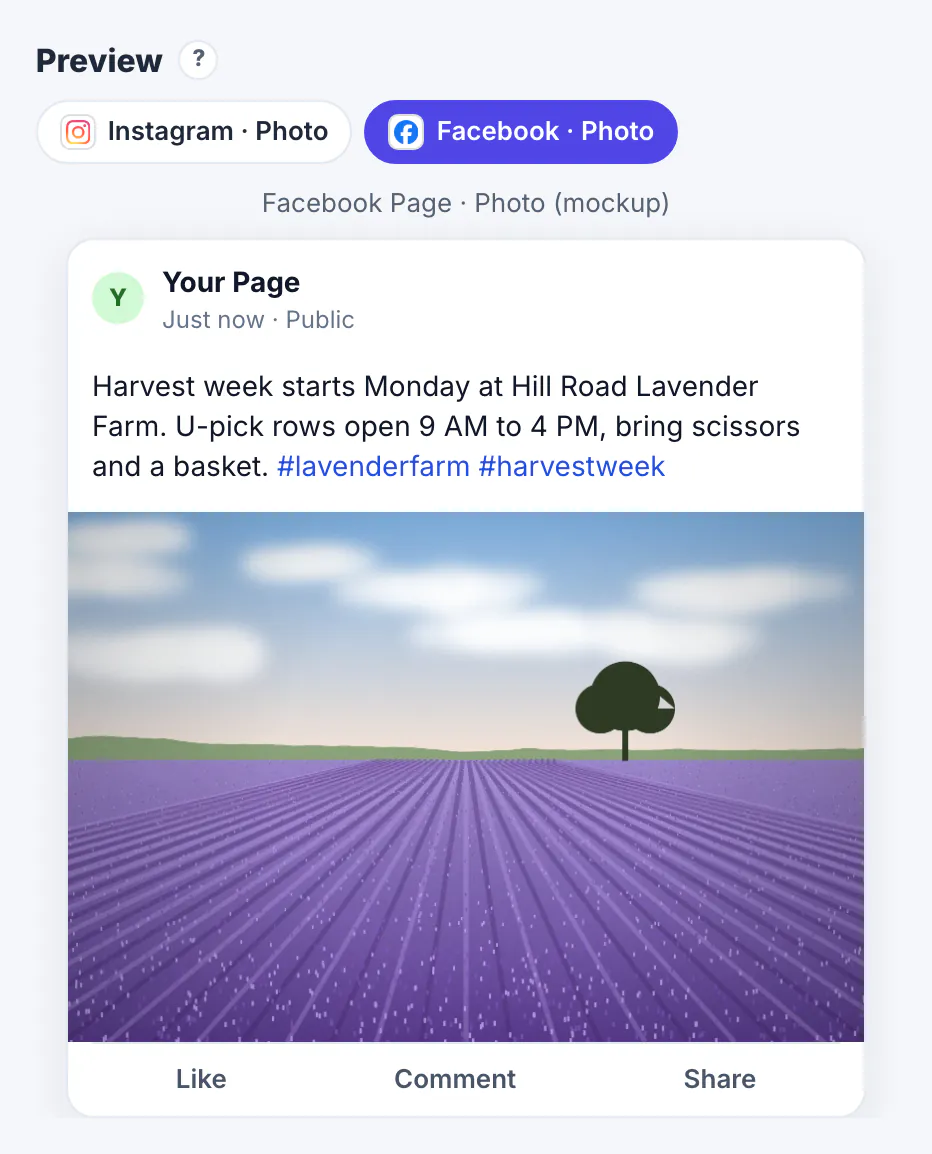
- Media: the actual file, checked for format, size and shape
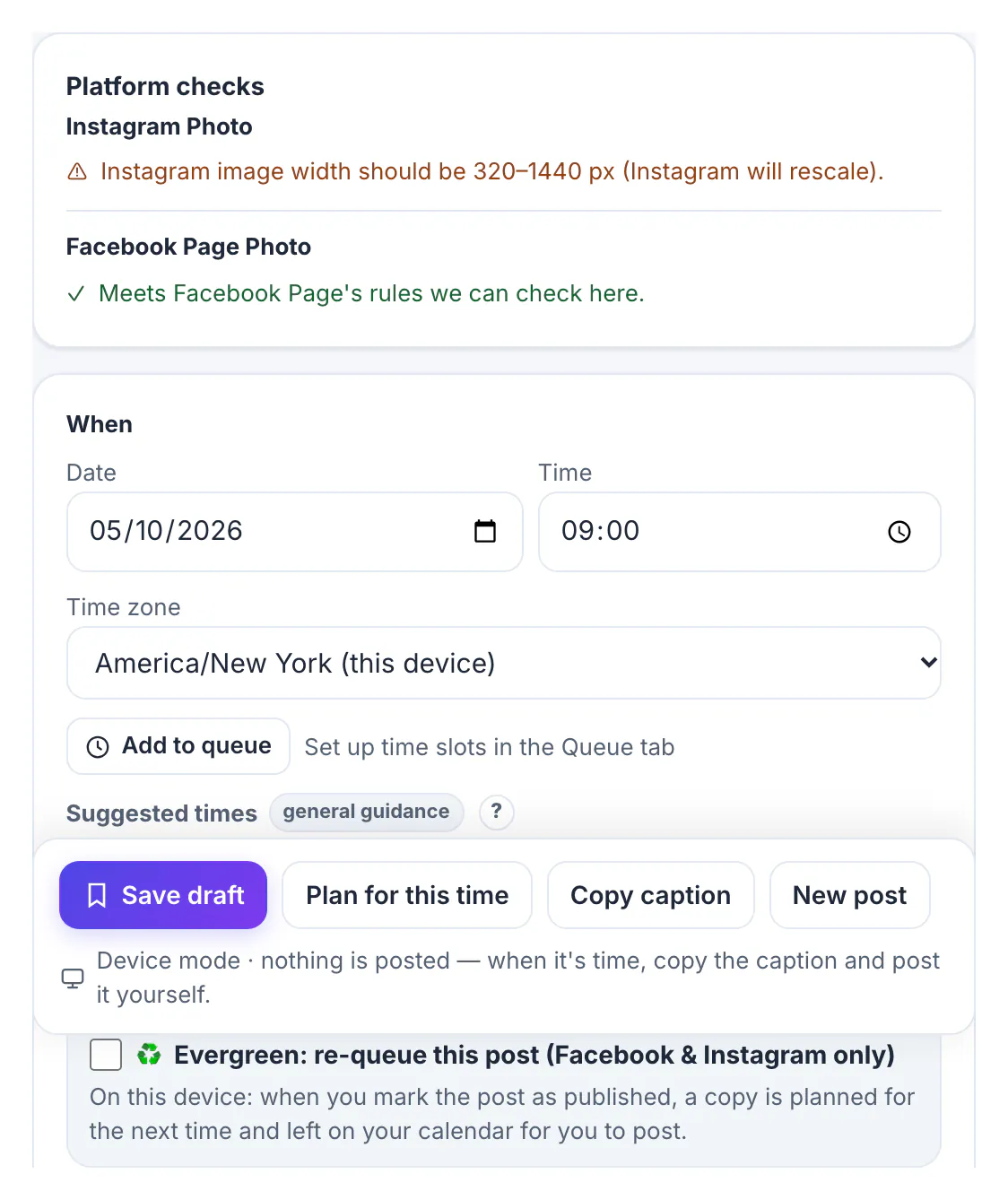
- Date, time and time zone: 9:00 AM means nothing if the helper is in another state
- Status: draft while you are still editing, planned once it has a slot
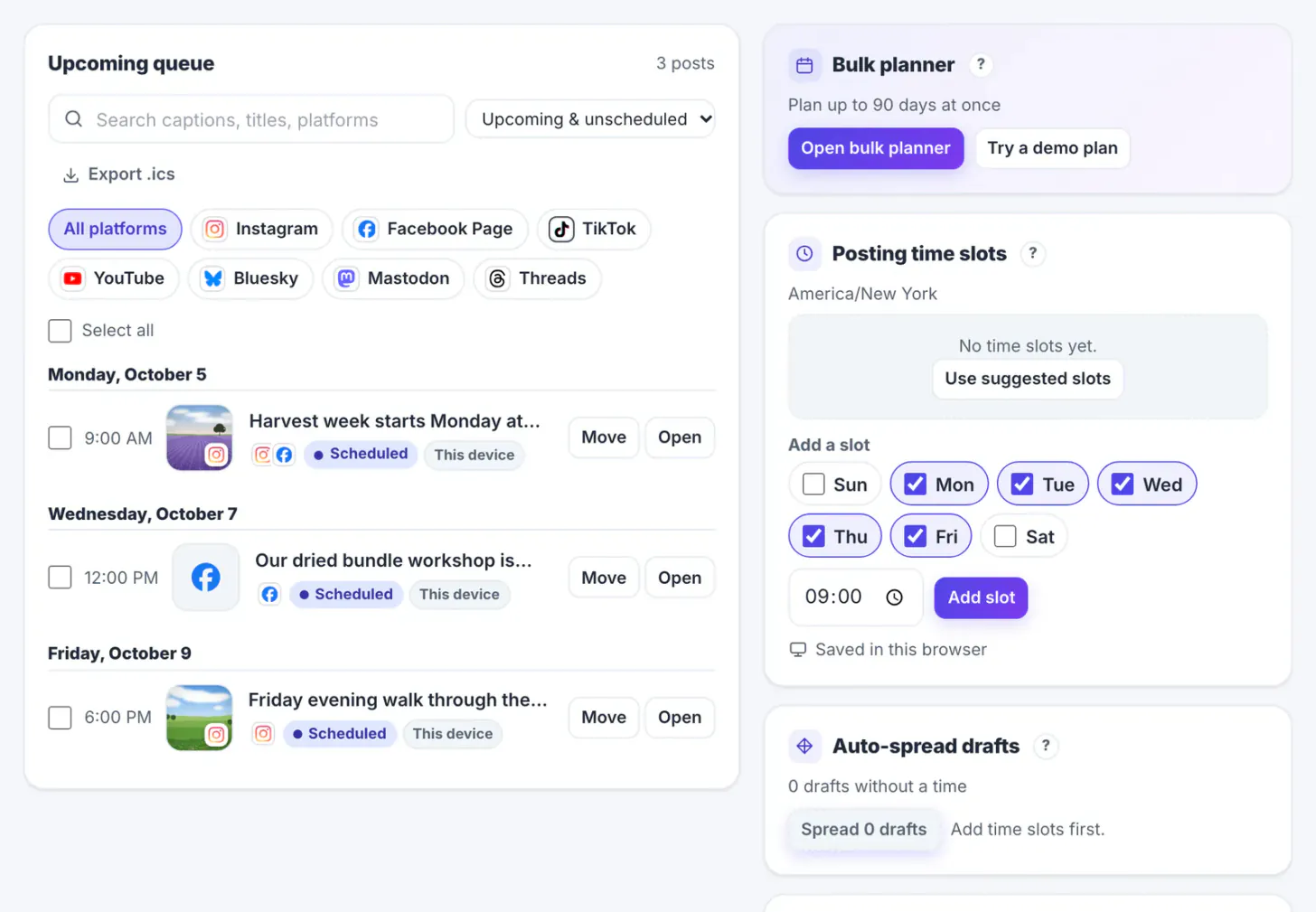
In the Scheduler each of these is a field in the Compose tab, and the Calendar tab shows the result in Month or Week view, while the Queue tab lists every upcoming post in order. The calendar also marks US holidays and popular social media days, such as Indigenous Peoples' Day or Halloween; clicking one starts a post on that day, and the Holidays toggle hides them. The farm example used three posts: a harvest week announcement on Monday for Instagram and Facebook, a workshop reminder with a booking link on Wednesday for Facebook only, and a Friday evening photo for Instagram.
Deciding how many posts and which networks
The right number is the one you can keep up for months, not the one a growth thread recommends. A small business with one person writing usually sustains two to four posts a week across its main network, plus a shared post to a second network when the content suits both. Start there and add only after four steady weeks.
- Pick one primary network where your customers already are and plan every slot for it first
- Reuse a post on a second network only when the format fits; a link post belongs on a Facebook Page, not in an Instagram caption where links are not clickable
- TikTok and YouTube are marked plan only in the Scheduler: you can draft and preview them, then upload the video in each app
- Mix post types across the week: an announcement, a useful or behind-the-scenes post, and a reminder close to any event
The farm chose Instagram as primary because visitors find it through photos, and used its Facebook Page for the workshop because local groups share events there. That split came from where bookings actually originated, not from a rule.
Choosing times without guessing
The Scheduler shows three suggested times under the date fields, drawn from general industry patterns: weekday mornings and early evenings for Instagram, weekday late mornings for Facebook, lunchtime and evenings for TikTok, and weekday afternoons for YouTube. It labels them as general guidance, which is the correct way to treat them. Your own followers may be night-shift nurses or parents free only after 8 PM.
- Start with the suggested times for the first two weeks so you have a baseline
- Pick the time zone of your audience in the Time zone menu, not just your own; a farm in Oregon selling to Portland is on Pacific time even if the helper is traveling
- Keep a regular rhythm, for example weekdays at 9 AM and 6 PM, and save those as posting time slots in the Queue tab so Add to queue fills the next free one
- After a month, compare reach in each network's own insights and move slots toward the hours that worked
The calendar refuses a time in the past and anything more than 180 days ahead, which keeps stale plans from piling up. Week view also shades commonly busy hours in green, again as general guidance rather than data about your audience.
Keeping the plan honest once the week starts
A plan only helps if someone follows it. When you plan without connecting an account, the calendar is a to-do list: nothing goes out unless a person posts it. That is a limitation, but it also removes a common failure, a scheduled post firing after plans changed. Connected Facebook and Instagram accounts publish on their own once you confirm, so the same review habits keep that plan current too.
- Open the Queue tab each morning; its upcoming list reads like a checklist with the time, networks and caption for each post
- Click Open on a post, then Copy caption, paste it into the network's app with the photo, and click Mark as published so the calendar shows what went out
- If an event moves, drag the post to the new day in Month view, or use Move with the arrow keys and Enter
- Drafts live in this browser only, so plan on the computer you will post from, and remember that clearing site data deletes them
Each planned post carries a Scheduled badge plus a This device badge in the calendar. Read that pair as planned on this computer, not as a promise that anything will publish. Posts for a connected account are published only after you tick a confirmation box when you schedule them.
Review what worked in the Social Media Analytics Dashboard, and tag links with the UTM Builder so each post's clicks stay traceable.
Step-by-step
Common mistakes to avoid
Pro tips
Frequently asked questions
Does the Scheduler publish my posts automatically?
It can for Facebook Pages and Instagram professional accounts you connect; account connections are in beta while Meta reviews GrabCast. TikTok, YouTube, Bluesky, Mastodon and Threads show plan only for now. Without a connection, drafts and planned times stay on your device and you post them yourself when reminded.
Where are my planned posts stored?
Posts planned without an account stay in your browser's storage on the device you used: they are not uploaded to GrabCast, do not sync to your phone, and are deleted if you clear this site's data. Posts for a connected account are saved with that account so they can publish.
Can I plan posts for TikTok and YouTube?
Yes, both are available as plan only. You can write the caption or description, add a YouTube title, preview the layout and place the post on the calendar, then upload the video in each app.
What time zone does the calendar use?
The one selected in the Time zone menu, which starts at your device's zone. Change it to your audience's zone and all dates, times and suggestions follow it.
How far ahead can I plan?
Up to 180 days. Times in the past are flagged, so pick a future slot before clicking Plan for this time.
A weekly content calendar turns posting from a daily scramble into one focused hour. Write every caption, check each photo against the network's rules, give each post a time in your audience's zone and review the week in Month view. Connect Facebook or Instagram to publish automatically, or keep the plan on your device and use the Queue tab as the daily checklist, and adjust times after a month of real results.
Related guides
Browse more: all business guides · the Social Media Scheduler