How to Schedule Instagram Posts (Free, Step by Step)
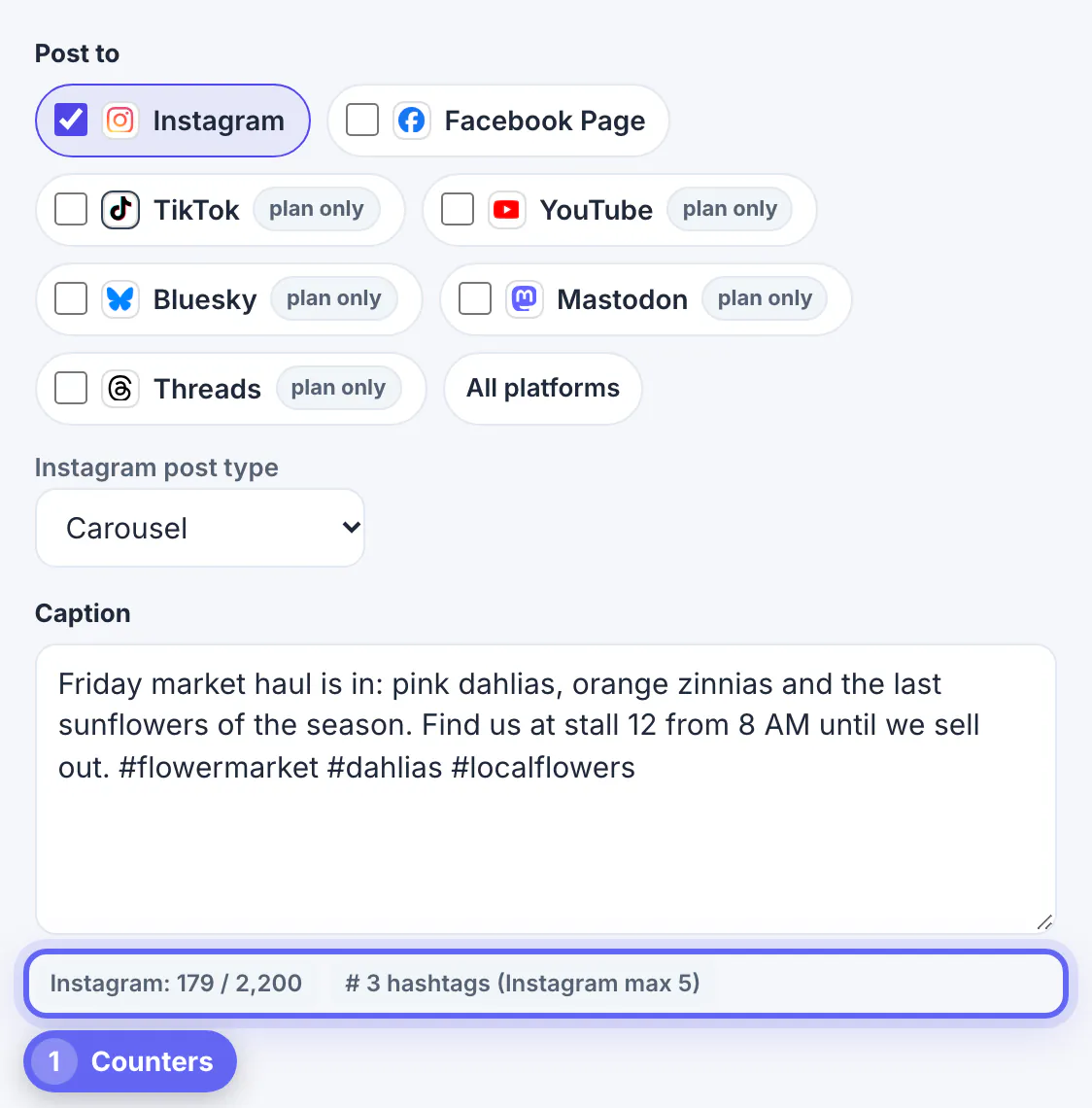
You can schedule Instagram posts in three ways: inside the Instagram app for professional accounts, in Meta Business Suite, or with a scheduler that plans several networks at once. All three need the same preparation, and that is where most scheduled posts fail: a PNG instead of a JPEG, a photo that is too tall for the feed, a caption over the hashtag limit. This guide walks through scheduling Instagram posts with GrabCast's free Social Media Scheduler, which checks every photo and caption against Instagram's publishing rules before the post is planned, and explains when the native options are the better choice. The example is a fictional florist, Juniper Lane Flowers, planning a three-photo carousel for a Friday market.
📅 Try the Social Media Scheduler now — freeOpen →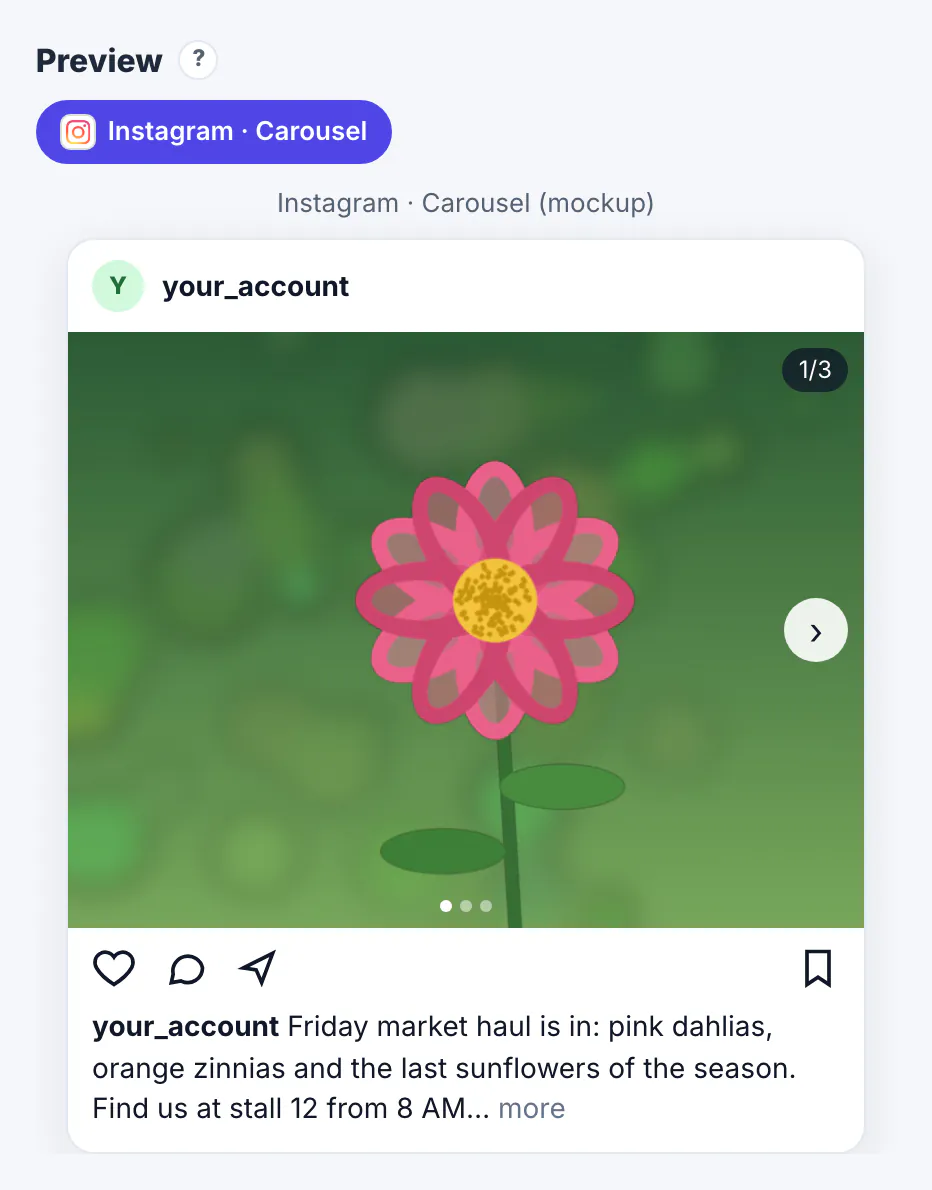
Posting live ties your best content to whenever you happen to have a free minute, which is rarely when your followers are scrolling. Scheduling separates the two jobs: you write and check posts in one focused session, then they go out at the hours your audience is active. It also catches problems while there is time to fix them. Instagram's publishing rules are strict about image format, shape and size, and discovering an error at 7 AM on launch day means a rushed crop on a phone. A plan also makes gaps and repeats visible: three product posts in a row, or nothing between Tuesday and Sunday. Finally, a scheduled week survives a busy week. The florist in this guide spends Sunday evening planning, then spends Friday at the market instead of on her phone.
Your options to schedule Instagram posts
Pick the route that matches how many networks you run and how much checking you want.
- Instagram app: professional accounts (Business or Creator) can schedule a post from the advanced settings before sharing. Simple, but one post and one network at a time.
- Meta Business Suite: plans Instagram and Facebook together from a computer, with a content calendar. Tied to Meta's two networks.
- A multi-network scheduler: one composer for Instagram, Facebook, TikTok, YouTube, Threads and Bluesky, with previews, time slots and a calendar.
GrabCast's scheduler is 100 percent free with no plans to upgrade to. With an Instagram professional account connected, it publishes at the planned time after you tick a confirmation box; account connections are in beta while Meta reviews GrabCast, so check the Accounts page for the current status. Without a connected account it still does everything else: it keeps drafts on your device, reminds you when a post is due and copies the caption so you can post it yourself in the app.
The rules a scheduled Instagram post must pass
Instagram's publishing interface is stricter than the app's own uploader. The scheduler runs these checks in your browser as soon as you add a photo or video, and offers one-click fixes where it can.
- Photos must be JPEG. PNG and WebP files need converting, and the check offers Convert to JPEG.
- Feed photos must be between 4:5 portrait and 1.91:1 landscape. Anything taller, such as a 9:16 phone screenshot, gets a Crop to 4:5 fix.
- Photos up to 8 MB, ideally 320 to 1,440 pixels wide; wider images are rescaled by Instagram.
- Reels must be MP4 or MOV between 3 seconds and 15 minutes, with 9:16 recommended.
- Captions up to 2,200 characters and, at the time of writing, at most 5 hashtags per post, a cap Instagram announced in December 2025.
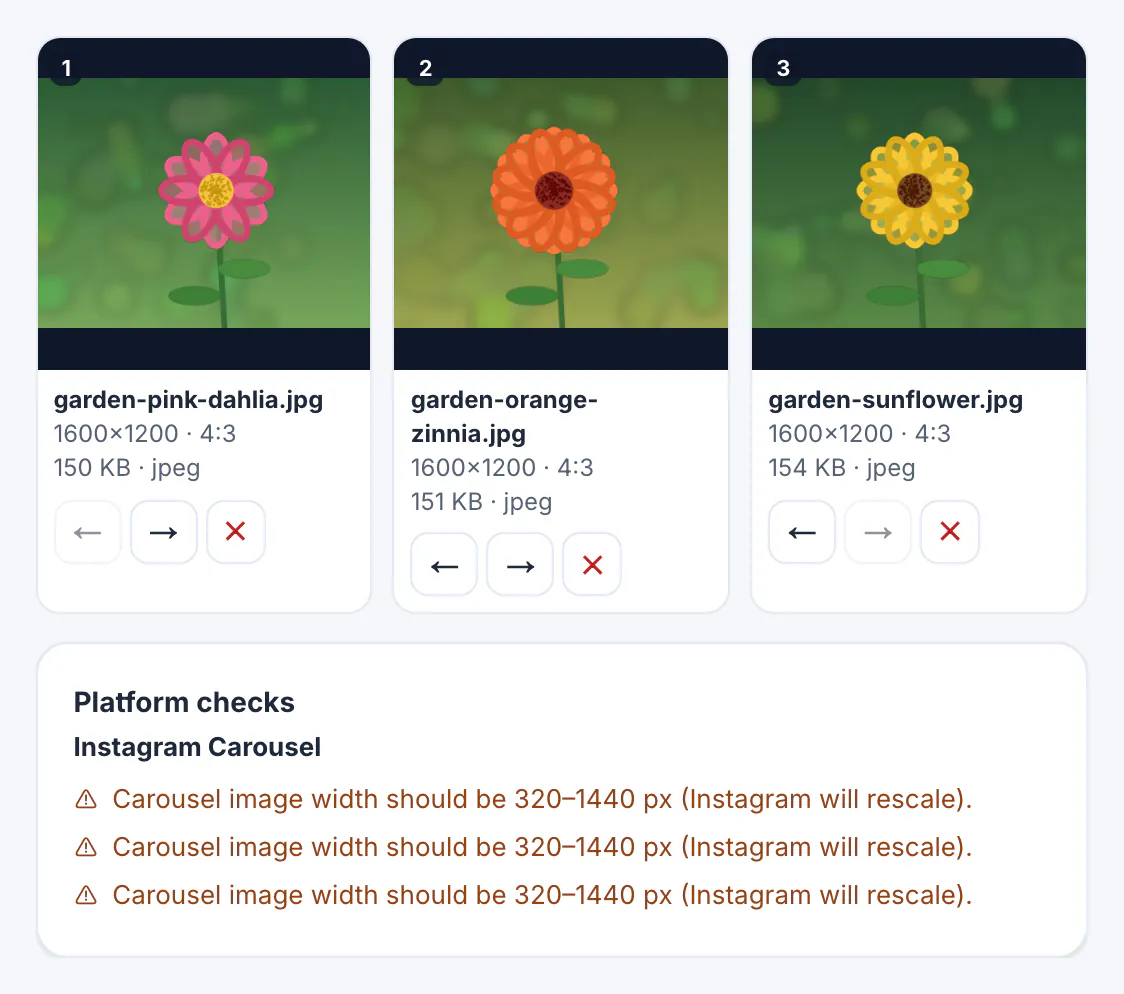
The florist's three photos were 1,600-pixel-wide JPEGs in a 4:3 shape, so format and shape passed, and the check only warned that Instagram would rescale each one to its 320 to 1,440 pixel range. A warning, not an error: the post could still be planned. If you prefer to fix images yourself first, cropping to 4:5 and the image sizes cheat sheet cover the shapes that work.
Carousels, Reels and Stories: what changes
Choose the post type in the Instagram post type menu under the network list. Each type has its own checks and preview.
- Carousel: several photos in one swipeable post. Every image passes the same JPEG and aspect checks, and the order in the media list is the order people swipe.
- Reel: one vertical video. A horizontal clip still posts, but the check warns that 9:16 works best and links to a crop tool.
- Story: a photo or a video up to 60 seconds. Stories disappear after 24 hours, so schedule them for the day they matter.
- Photo: a single image, the simplest option for announcements.
A carousel is usually the strongest choice for how-to and before-and-after content because each swipe is another chance to earn a save. The florist used three photos in the order dahlia, zinnia, sunflower so the preview opened on the brightest bloom.
Pick the time and keep the week visible
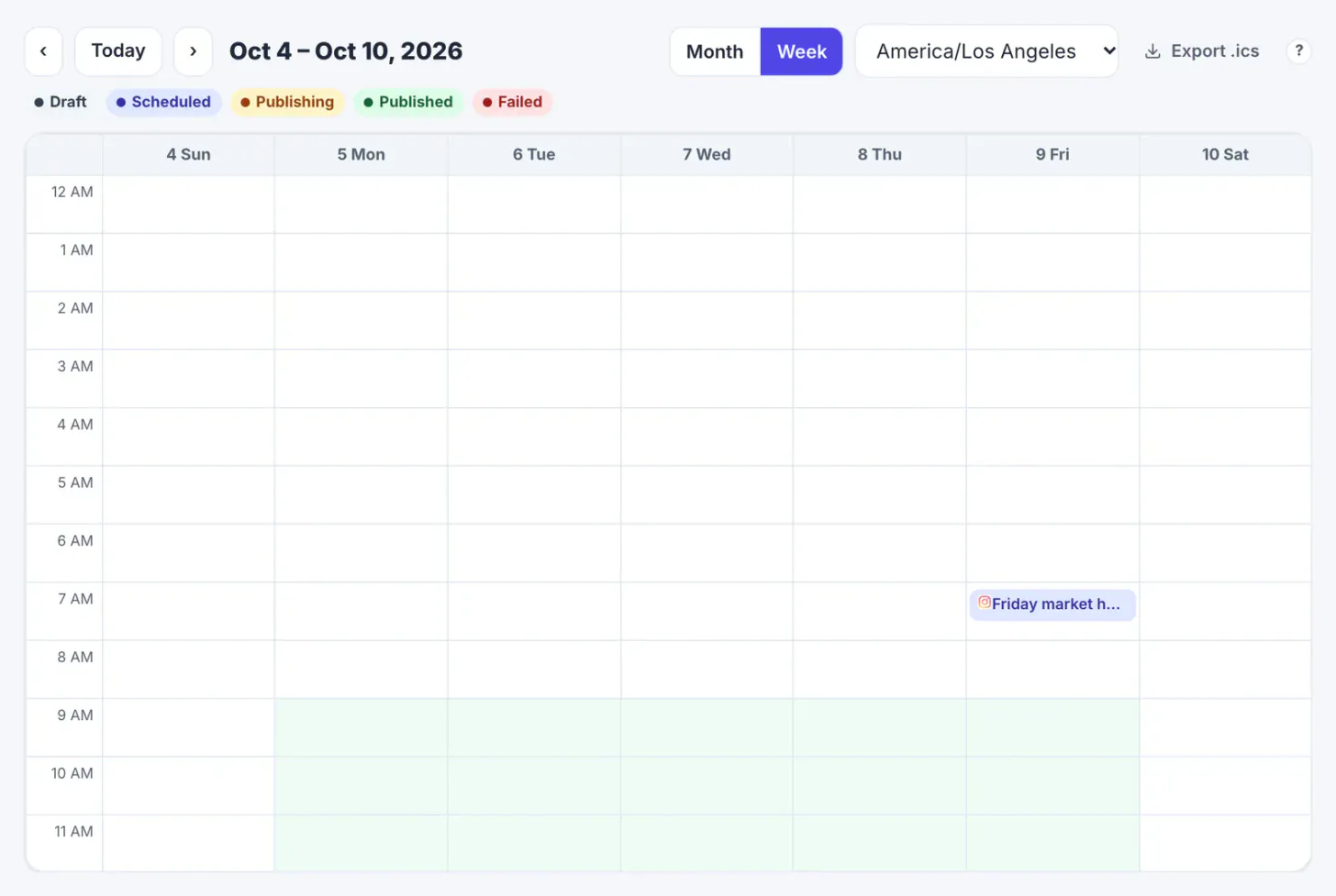
Under When, set the date, time and time zone. The time zone menu defaults to this device, but choose your audience's zone if it differs, for example Pacific time for customers in Portland while you plan from New York.
- Suggested times under the date fields are general guidance for each network, marked as such; replace them with your own best hours once you have data.
- Add to queue drops the post into the next free time slot you set up in the Queue tab, which keeps a steady rhythm without choosing times by hand.
- Plan for this time puts the post on the calendar. Month and Week views show the whole plan, you can drag a post to another day, and the Queue tab lists everything that is coming up.
- Export .ics adds your planned posts to Google, Apple or Outlook Calendar with a 10-minute alarm.
To find the hours that suit your own followers rather than a generic chart, drop your Instagram exports on the Social Media Analytics Dashboard, which shows a weekday and hour heatmap of your own engagement.
Step-by-step
Common mistakes to avoid
Pro tips
Frequently asked questions
Can I schedule Instagram posts for free?
Yes. Instagram's own app and Meta Business Suite schedule for free, and GrabCast's scheduler is free with no paid plans. It publishes for connected professional accounts and reminds you to post yourself otherwise.
Do I need a business account to schedule Instagram posts?
Publishing through a scheduler needs an Instagram professional account (Business or Creator). A personal account can still plan posts and get reminders, then post manually.
Why does my scheduled Instagram photo fail?
The usual causes are a PNG or WebP file instead of JPEG, an aspect ratio outside 4:5 to 1.91:1, or a file over 8 MB. The scheduler checks all three before you plan the post.
Can I schedule Instagram carousels and Reels?
Yes. Choose Carousel or Reel as the post type. Carousel photos are checked one by one, and Reels are checked for format, length and shape.
How many hashtags can I use on a scheduled post?
At the time of writing Instagram allows at most 5 hashtags per post or Reel, counting the caption and comments. The counter warns when you go over.
Scheduling Instagram posts is mostly preparation: JPEG photos in the right shape, a caption within the limits, and a time that matches your followers. Do that in one weekly session, let the checks catch format and aspect problems before posting day, and use the calendar to keep the week balanced. Connect a professional account to publish automatically, or keep the reminders and post yourself.
Related guides
Browse more: all business guides · the Social Media Scheduler