How to Turn a Blog Post Into a Carousel Post
To turn a blog post into a carousel, you pull out its main points, give each one a slide with a short headline and one supporting line, add a cover that promises what the swipe delivers, and end with a slide that tells people what to do next. The hard part is cutting, not designing. This guide takes a short winter bike-care post from a fictional repair shop and turns it into a seven-slide carousel with the Carousel from text tool in GrabCast's free Scheduler: the text is split into slides on your device, you edit every slide, and the images, alt text and caption land in the composer as a draft.
📅 Try the Social Media Scheduler now — freeOpen →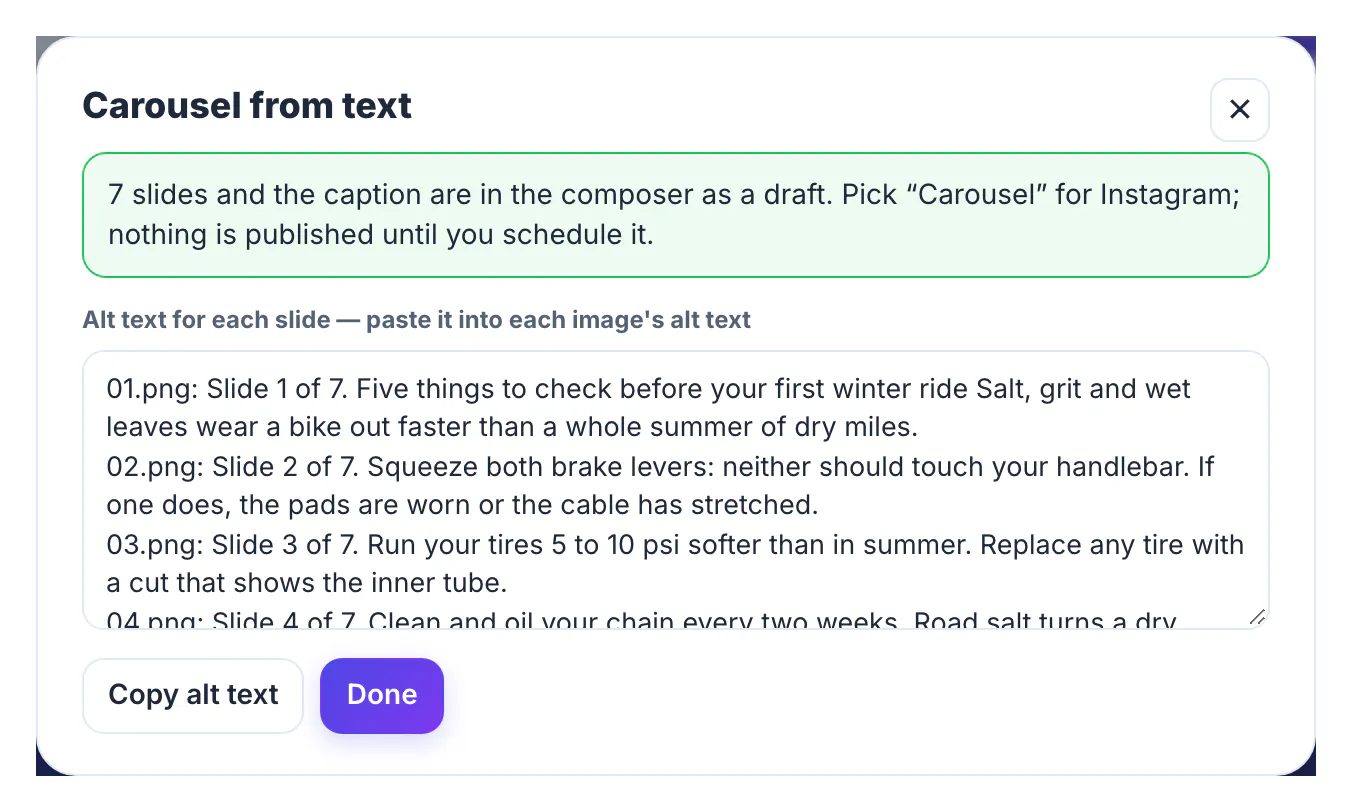
A blog post answers a question for people who search; a carousel answers it for people who scroll. The same five tips that take three minutes to read on a website can be swiped through in thirty seconds on Instagram or LinkedIn, and each slide can be saved and shared. Turning existing posts into carousels also means you are not inventing new content every week: the research is done, you are only reformatting it. What doesn't work is pasting paragraphs onto slides. Each slide should carry one idea in a few words, readable on a phone without zooming, so a good conversion throws away most of the words and keeps the structure.
Pick a post that already has a list inside
Posts built around steps, tips, mistakes or a checklist convert best, because the structure is already there. Look for:
- A clear promise in the title, such as Five things to check before your first winter ride.
- One point per paragraph, each starting with a short, concrete sentence.
- Numbers and specifics: 5 to 10 psi softer, at least 200 lumens, every two weeks.
- A natural next step at the end, such as booking a service or saving the post.
Opinion essays and long stories are harder: they have one argument rather than separable points. For those, write the five points yourself first, then turn that list into slides.
How to turn a blog post into a carousel, slide by slide
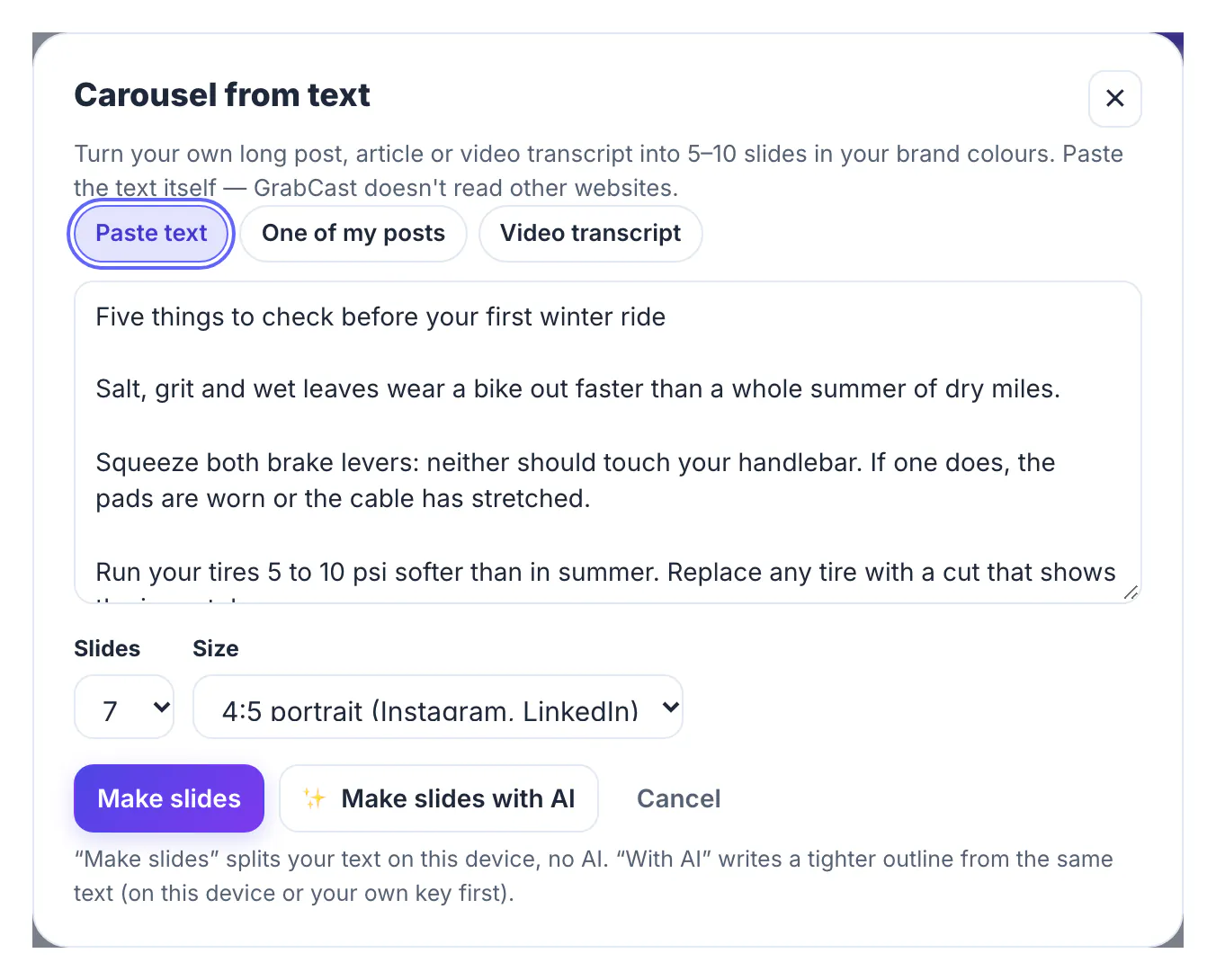
In the Scheduler, open Library → Carousel from text and paste the article itself. Links are refused on purpose: the tool never reads other websites, so you paste only text you own. You can also pick one of your own GrabCast posts or a video transcript from your device.
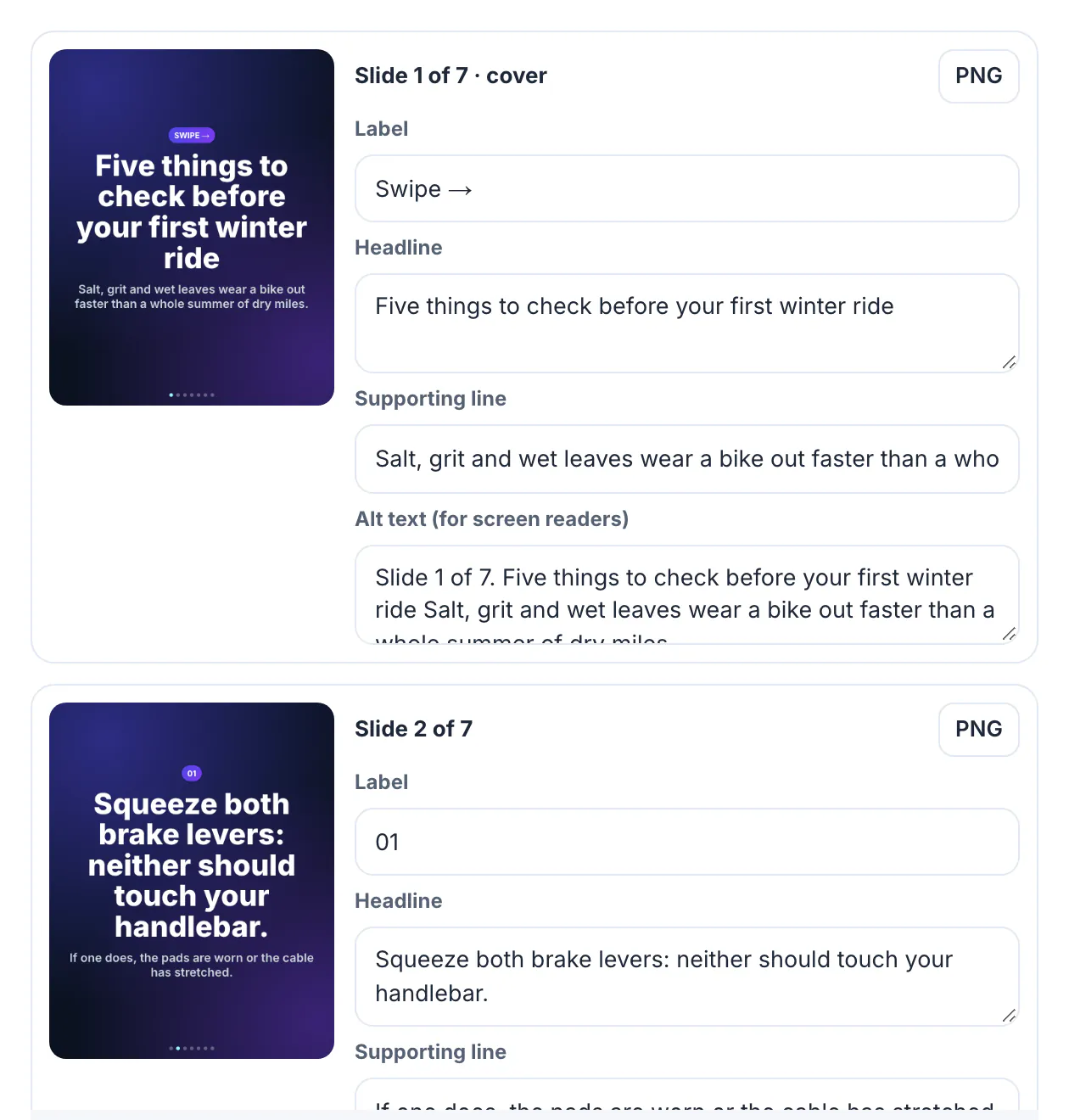
Choose 5 to 10 slides and a size, 4:5 portrait for Instagram and LinkedIn or 1:1 square, then press Make slides. The text is split on your device without AI: the title becomes the cover, the first short sentence its subtitle, each point a slide with a label, headline and supporting line, and an end card closes it. For the bike post, seven slides came out: the cover, one slide each for brakes, tires, chain, lights and a saddle-bag repair kit, and the end card.
Make slides with AI is the alternative when your text is less structured. It writes a tighter outline from the same text, on your device or with your own AI key first, and labels the result as AI-generated so you review it.
Edit the slides so each one reads in two seconds
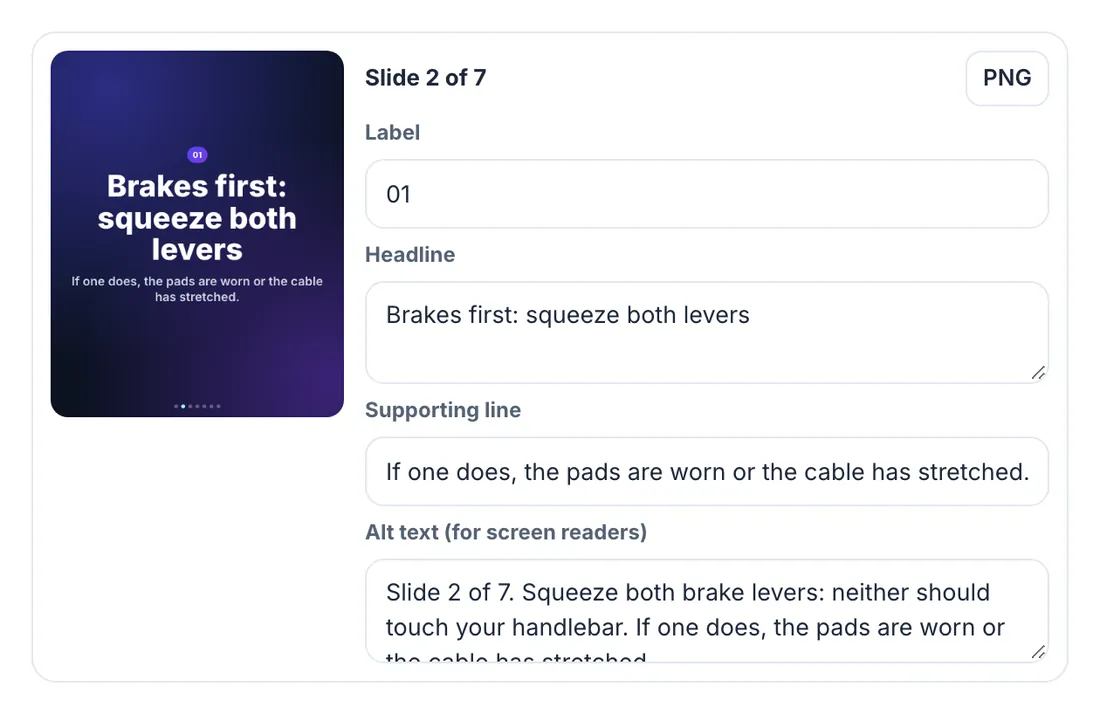
Every slide has editable fields next to its preview: label, headline, supporting line and alt text, and the preview redraws as you type. Rules of thumb that work on a phone screen:
- Headlines of about six to eight words. Squeeze both brake levers: neither should touch your handlebar became Brakes first: squeeze both levers.
- One supporting line, not a paragraph; move detail to the caption.
- Keep the numbers; they are what people save carousels for.
- Make the cover promise a count and a benefit, and make the end card ask for one action.
Slides use your brand colours when you have saved a brand kit in Template Studio. For fully designed layouts with photos, the free carousel templates are the better starting point; Carousel from text is for turning words into clean text slides quickly.
Export, add alt text and schedule it
Download each slide as a PNG, or everything as a ZIP with the slides, an alt-text.txt and a caption.txt. Or press Add as a draft: the slide images and a caption go into the composer, nothing is published, and the dialog lists alt text for every slide, from Slide 1 of 7 onwards, to paste into each image.
- In the composer, choose Carousel for Instagram or a multi-photo post for Facebook.
- Paste each slide's alt text into its image, so screen-reader users get the same tips.
- Tighten the caption, add a link to the full blog post where the network allows links, and pick a time.
- For LinkedIn, combine the PNGs into one PDF with Images to PDF and upload it as a document post.
At the time of writing, Instagram's app allows up to 20 images in a carousel, while posts published through Instagram's API, including GrabCast's, take 2 to 10. Seven slides fit both.
Step-by-step
Common mistakes to avoid
Pro tips
Frequently asked questions
Can I turn a blog post into a carousel for free?
Yes. Carousel from text in GrabCast's Scheduler splits your pasted text into 5 to 10 slides on your device, and you can export PNGs, a ZIP or a draft without a watermark.
Can I paste a link to the blog post instead of the text?
No. The tool never fetches other websites, so paste the article text itself or pick one of your own GrabCast posts.
Is AI used to write the slides?
Not by default. Make slides splits the text without AI. Make slides with AI is optional, runs on your device or with your own key first, and marks its outline as AI-generated.
How many slides can an Instagram carousel have?
At the time of writing, up to 20 in Instagram's app and 2 to 10 when published through Instagram's API, which includes GrabCast.
How do I post the carousel on LinkedIn?
Combine the slide images into one PDF and upload it as a document post, or post the images as a multi-image update.
Turning a blog post into a carousel is mostly editing: pick a post with a list inside, split it into one idea per slide, cut every headline to a few words, add alt text and a clear last slide. The research is already done; the carousel just lets scrollers find it.
Related guides
Browse more: all business guides · the Social Media Scheduler