How to Manage Social Media Comments by Priority
To manage social media comments well, you need to see the ones that matter first: a customer with a safety problem, a complaint that could escalate, a buyer asking for a price. Scrolling each network's notifications in the order they arrived buries those under emoji reactions and spam. This guide shows a simple system: label every comment, work through them by priority, answer repeat questions with saved replies you still edit, and teach the labels when they are wrong. The example is a fictional bakery with seven fresh comments on Facebook and Instagram, sorted in the Inbox of GrabCast's free Scheduler, where labels are worked out in your browser and nothing is ever sent or hidden automatically.
📅 Try the Social Media Scheduler now — freeOpen →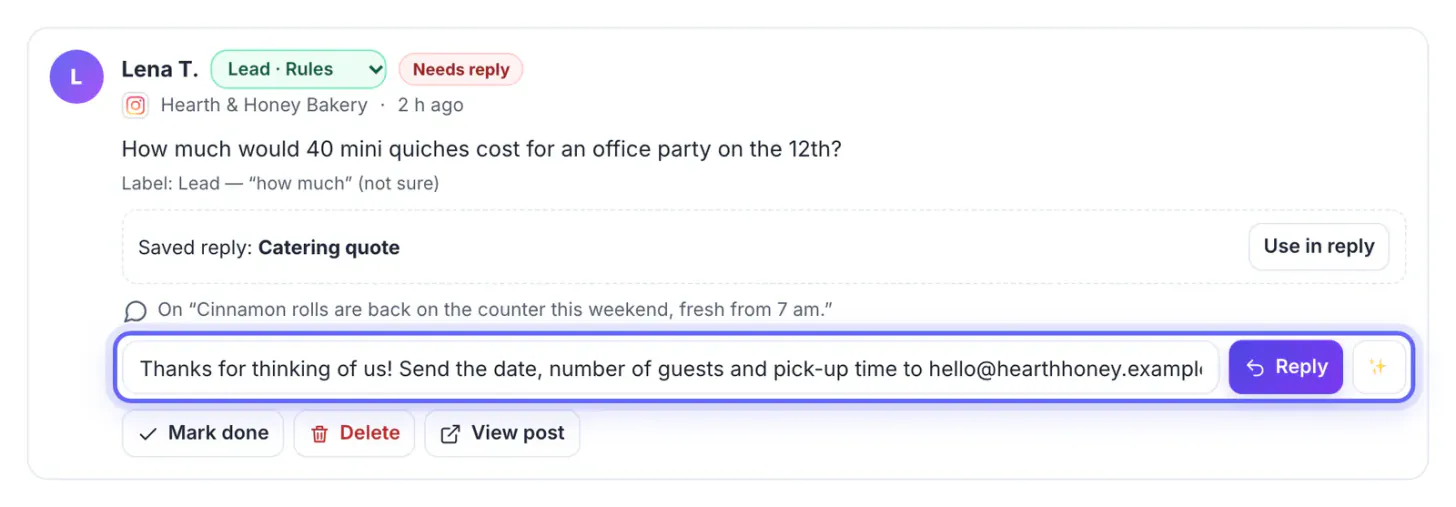
Replying to everything within minutes is not realistic for a small team, and it isn't necessary. What hurts is answering the easy praise first while an allergy report or a refund request waits a day. Comments also carry sales: a question about catering prices is a lead, and it goes cold if nobody answers before the weekend. A labelled inbox changes the job from reading everything to working down a list. The labels do not need to be perfect; they need to be good enough to put the urgent and money-related comments at the top and to make spam easy to hide. People make the final call on every reply.
Seven labels that cover most comments
Keep the categories few and practical. The Scheduler's Inbox uses seven, in this priority order:
- Urgent: safety, allergies, fraud, refunds, orders that never arrived, anything legal.
- Complaint: disappointment, broken products, rude service, cancellations.
- Lead: prices, quotes, bookings, availability, shipping to a place, wholesale.
- Question: anything that asks something and needs an answer.
- Other: comments that don't fit, often friendly chat.
- Praise: thanks and compliments; reply when you can, but they can wait.
- Spam: scams, link drops, follow-for-follow, repeated text.
Each label comes from simple rules that run in your browser: keywords such as refund or allergic, links, phone numbers, emoji and repeated text. Every label says where it came from (Rules, AI or your team) and why, for example Label: Lead, “how much”.
How to manage social media comments by priority
The Inbox collects comments on the posts you published with GrabCast from Facebook, Instagram, YouTube, Threads, Bluesky and Mastodon. They are read live from each network; GrabCast only remembers which ones you marked done and the labels your team set. You need to be signed in and have accounts connected whose network gives comment access; Facebook and Instagram connections are in beta while Meta reviews GrabCast.
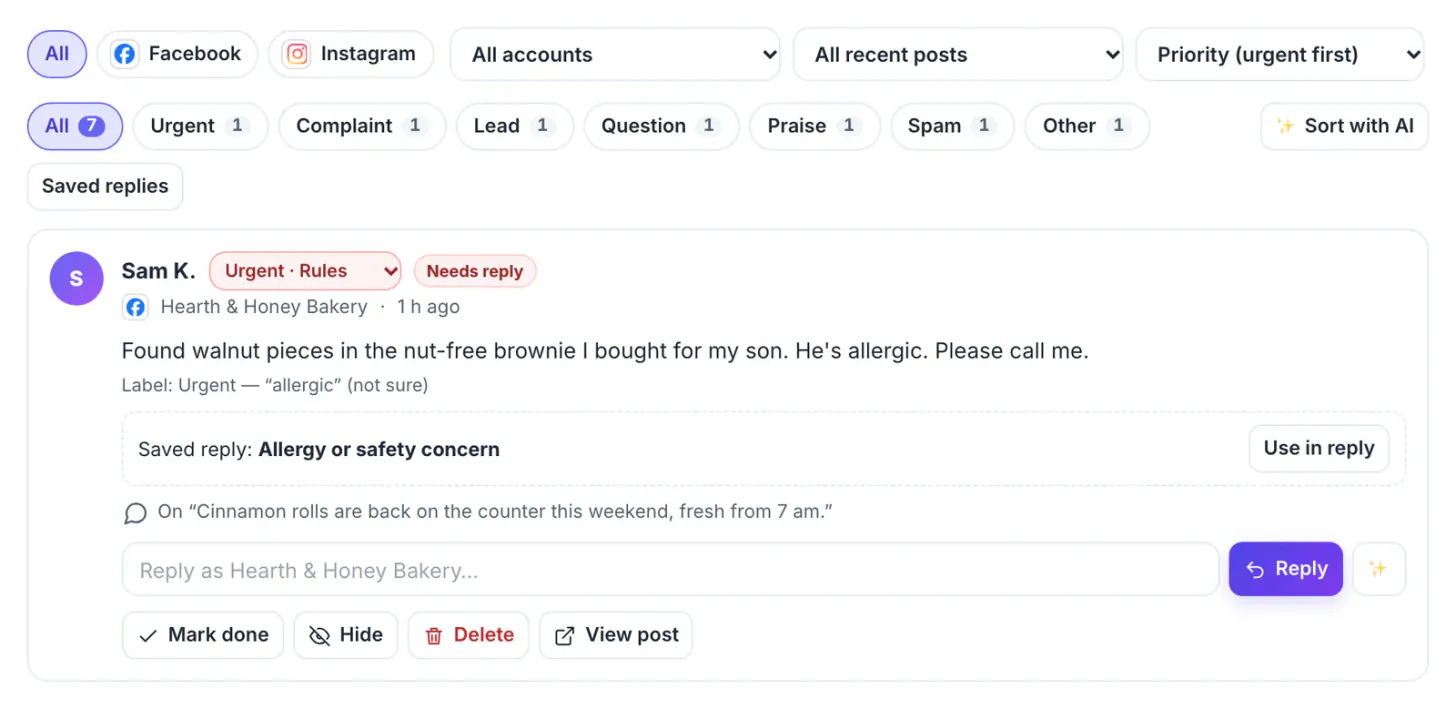
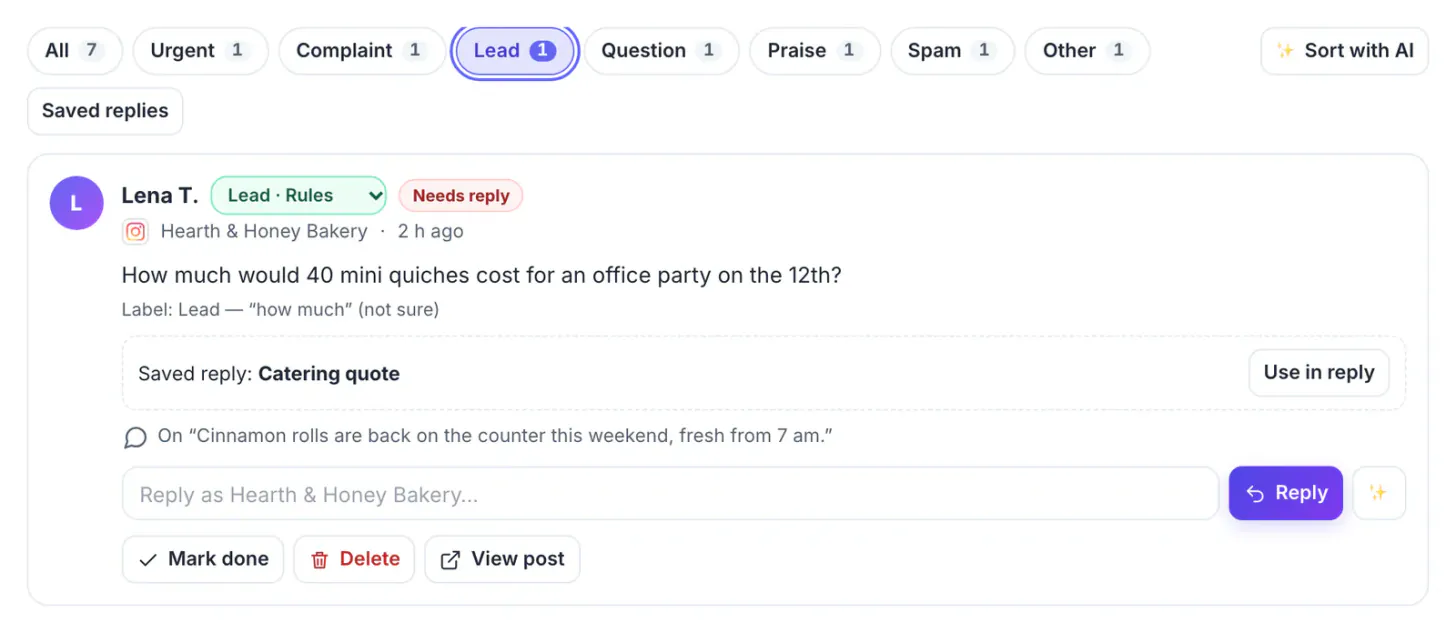
Choose Priority (urgent first) in the sort menu. In the bakery example the order became: Sam's report of walnut pieces in a nut-free brownie (Urgent), a complaint about stale croissants, Lena's question about 40 mini quiches for an office party (Lead), a Sunday opening-hours question, a grandmother's-loaf memory (Other), praise for the cinnamon rolls and, last, a WhatsApp money scam (Spam).
- Click a label chip, such as Lead, to work through one kind of comment at a time.
- Spam on Facebook gets a Hide it suggestion; you click it yourself. Where a network doesn't let GrabCast hide comments, the card says so.
- Mark done clears a comment from the open list without replying, useful for praise you've liked in the app.
Uncertain comments can go through Sort with AI, which sends only those comments, without names, to an AI on your device or to your own AI key. It never uses GrabCast's server AI, because comments are other people's personal data.
Answer faster with saved replies you still edit
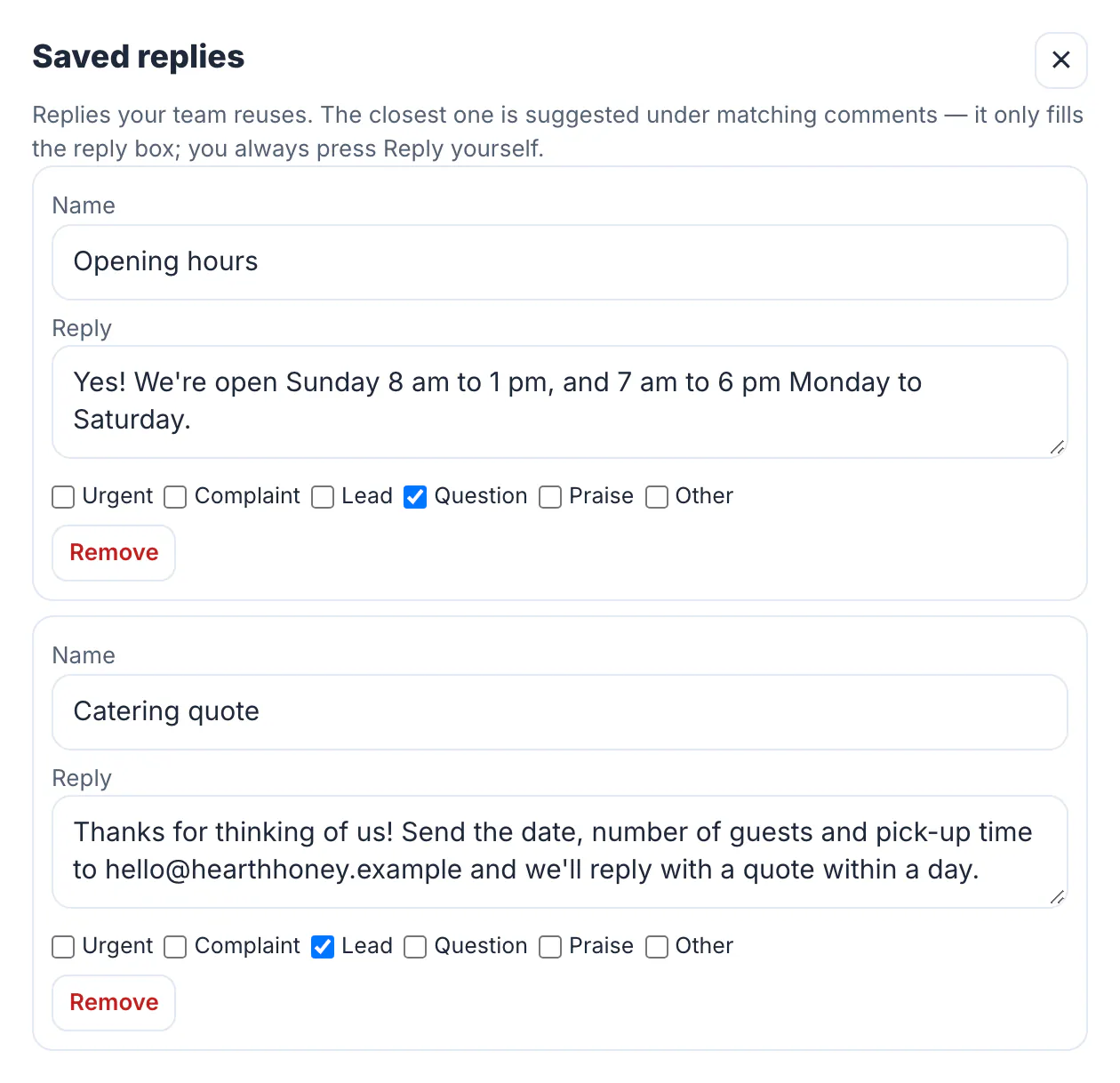
Most questions repeat. Save the answers once, tag each saved reply with the labels it answers, and the Inbox suggests the closest one under matching comments. For the bakery, three saved replies cover a lot of ground:
- Opening hours (Question): Sunday 8 am to 1 pm, weekdays 7 am to 6 pm.
- Catering quote (Lead): send the date, number of guests and pick-up time to the shop's email for a quote within a day.
- Allergy or safety concern (Urgent): an apology and a request for a phone number by direct message, so a manager can call.
Use in reply only fills the reply box. You change the details, add the person's name and press Reply yourself. That matters most for urgent comments: a saved reply is a starting point, not a response to a safety issue. For public review sites rather than social comments, the guide to replying to reviews with AI covers tone in more depth.
Teach the labels and share the work
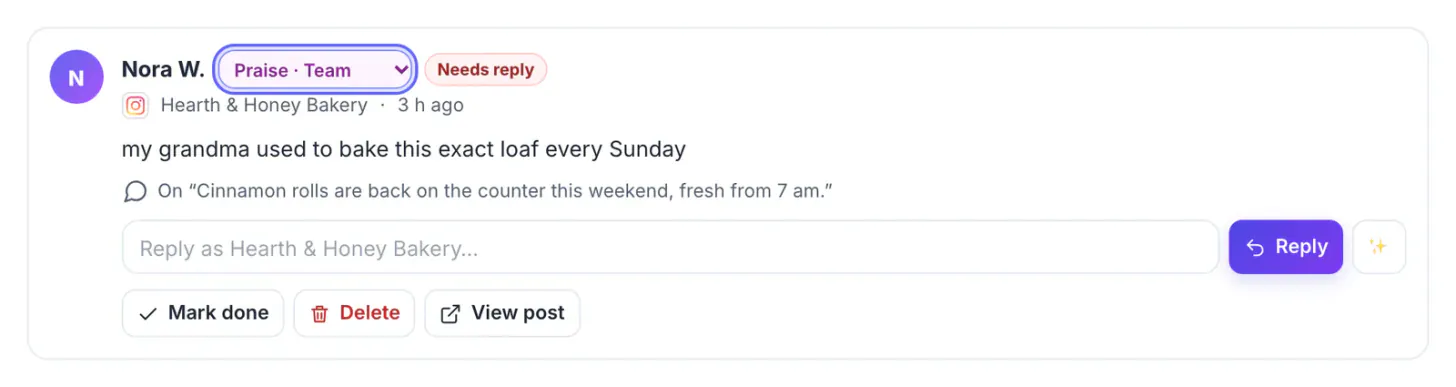
Rules miss context. In the example, Nora's comment about her grandmother baking the same loaf was labelled Other; changing it to Praise from its drop-down marks it as set by your team. The workspace learns from hashed words of corrected comments, never the comment text, so similar comments lean the right way next time.
- Agree who checks Urgent and Complaint first each morning and after lunch.
- Give Leads to whoever handles sales, with a same-day reply target.
- Review saved replies monthly and delete the ones nobody uses.
- Hide or delete spam, but never delete a genuine complaint because it is uncomfortable.
Viewers in a shared workspace see labels read-only; people who can reply can also correct labels and edit saved replies. To post the content that earns those comments in the first place, see repurposing one video into more posts.
Step-by-step
Common mistakes to avoid
Pro tips
Frequently asked questions
Does GrabCast reply to or hide comments automatically?
No. Labels and saved-reply suggestions only prepare the work. Every reply is sent and every comment hidden by a person clicking the button.
Which networks' comments appear in the Inbox?
Comments on posts you published with GrabCast on Facebook, Instagram, YouTube, Threads, Bluesky and Mastodon, for connected accounts whose network gives comment access.
Are comments stored on GrabCast's servers?
They are read live from each network. GrabCast stores which comments were marked done, labels your team set and hashed words from corrected comments, not the comment text.
Is AI used to label comments?
Rules in your browser label them by default. The optional Sort with AI sends only unsure comments, without names, to an AI on your device or your own key, never to GrabCast's server AI.
Can a team share saved replies?
Yes. Saved replies belong to the workspace, and people who can reply can add, edit and tag them with the labels they answer.
Managing social media comments is easier when the inbox is sorted for you: urgent and money-related comments first, spam last. Label with simple rules, answer repeat questions with saved replies you edit, correct labels when they are wrong, and keep a person on every reply.
Related guides
Browse more: all business guides · the Social Media Scheduler