How to Schedule TikTok Videos: Native and Free Options
To schedule TikTok videos you have two practical routes. TikTok's own upload page on the web has a Schedule option for accounts that qualify, and a planner such as GrabCast's free Social Media Scheduler lets you prepare the video, caption and timing alongside your other networks, check the file against TikTok's rules, and get a reminder or a calendar alarm when it is time to post. This guide covers both, including the limits of TikTok's native scheduler at the time of writing, the file checks that save a failed upload, and a simple weekly routine. The example is a fictional cooking account planning a 12-second basil tip for a Tuesday evening.
📅 Try the Social Media Scheduler now — freeOpen →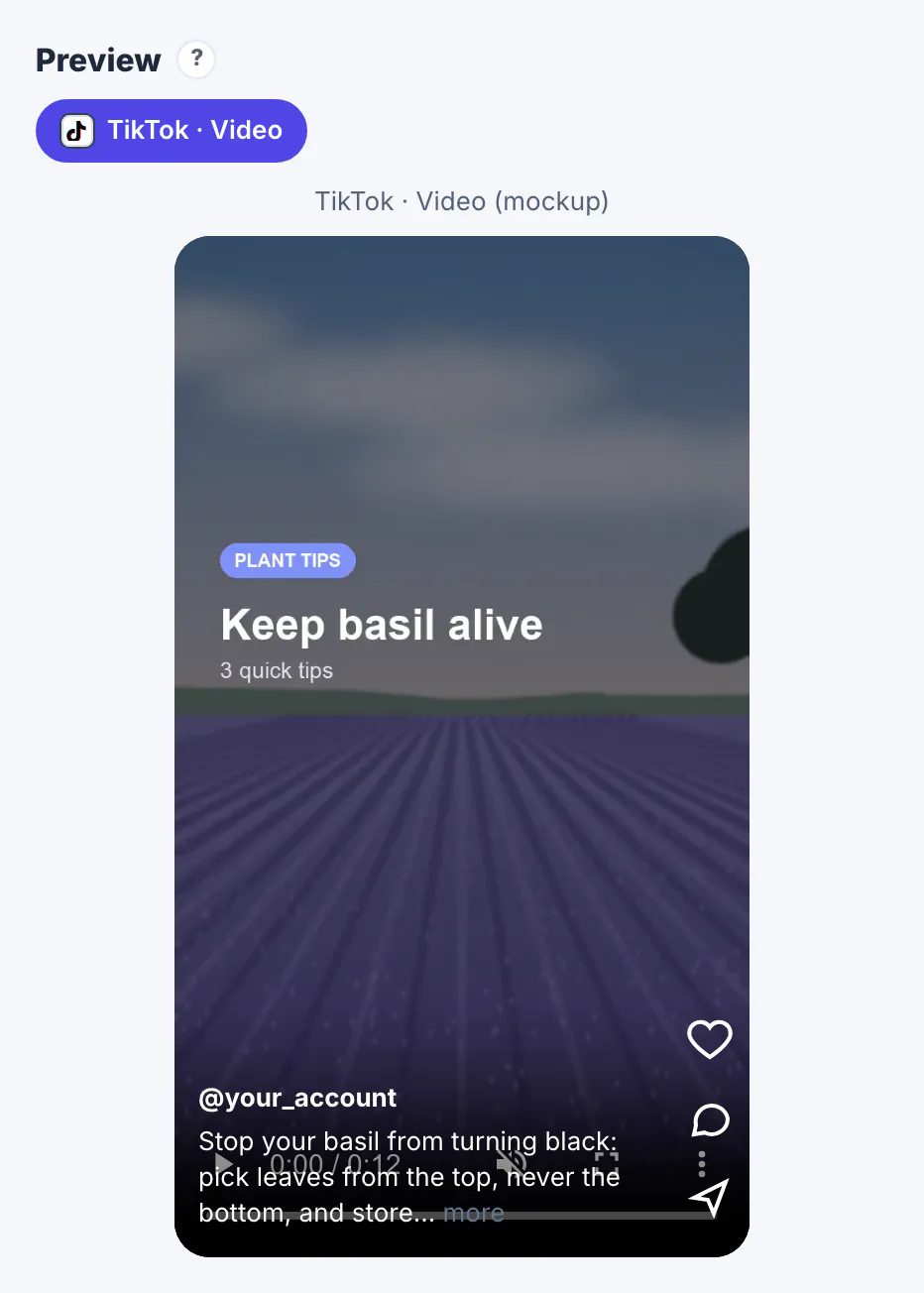
TikTok rewards consistency more than any single post. Accounts that post on a steady rhythm build a habit in their viewers and give the recommendation system a regular stream of videos to test. That is hard to keep up if every video is edited, captioned and posted in one late-night rush. Planning splits the work: film and edit in batches, write captions while the idea is fresh, and pick posting times from your own analytics rather than whenever the export finished. Planning also exposes problems early, such as a horizontal clip that will show with black bars, or a caption that relies on a trend that will be stale by Friday. And if you post the same video to Reels and Shorts, one plan keeps the three versions and their captions side by side.
How to schedule TikTok videos with TikTok's own scheduler
On a computer, open TikTok Studio, upload the video, and look for the Schedule option next to Post. At the time of writing TikTok's help pages describe a window of about 15 minutes to 10 days ahead, and the option depends on the account type and region, so check TikTok's current help page if you do not see it.
- Good for: one video at a time, sounds from TikTok's library, and features that only exist inside TikTok.
- Limits: a short scheduling window, one network, and no view of the rest of your content plan.
- The mobile app focuses on posting now or saving a draft, so most people schedule from the web.
If your plan fits inside ten days and you only post on TikTok, the native scheduler is enough. If you plan a month ahead or post the same clip on several platforms, use a planner for the calendar and checks, then upload in TikTok when the reminder fires.
Plan TikTok videos in the free Social Media Scheduler
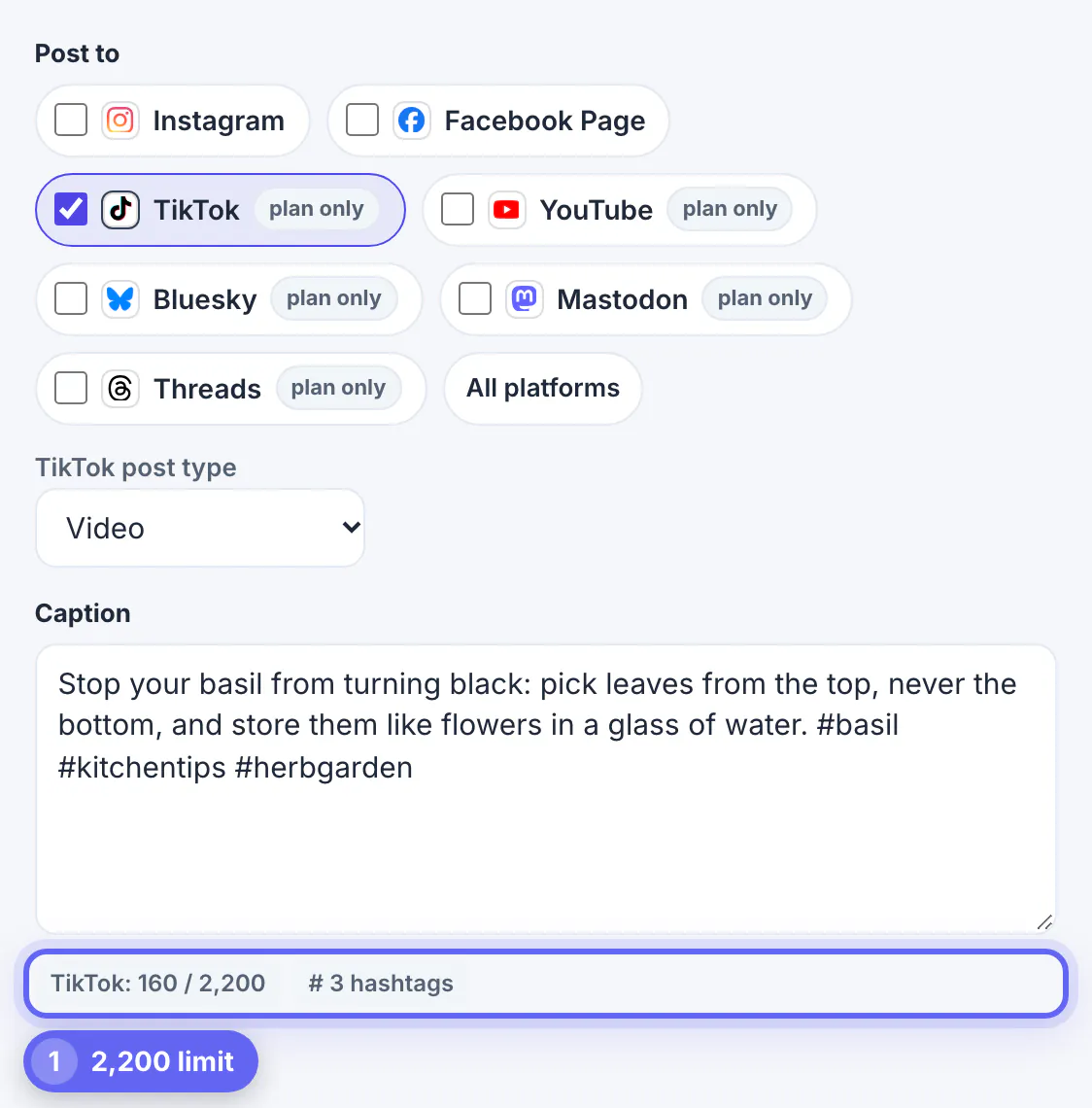
In the Social Media Scheduler, tick TikTok under Post to. TikTok currently shows a plan only badge, which means GrabCast prepares and times the post and you publish it in TikTok; direct TikTok publishing follows after TikTok's app review.
- Post type: Video or Photo carousel.
- Caption: the counter shows the 2,200-character limit TikTok uses for video captions.
- Media: drop the MP4 or MOV. The file stays on your device.
- Preview: a TikTok-style mockup shows where the caption sits over the video.
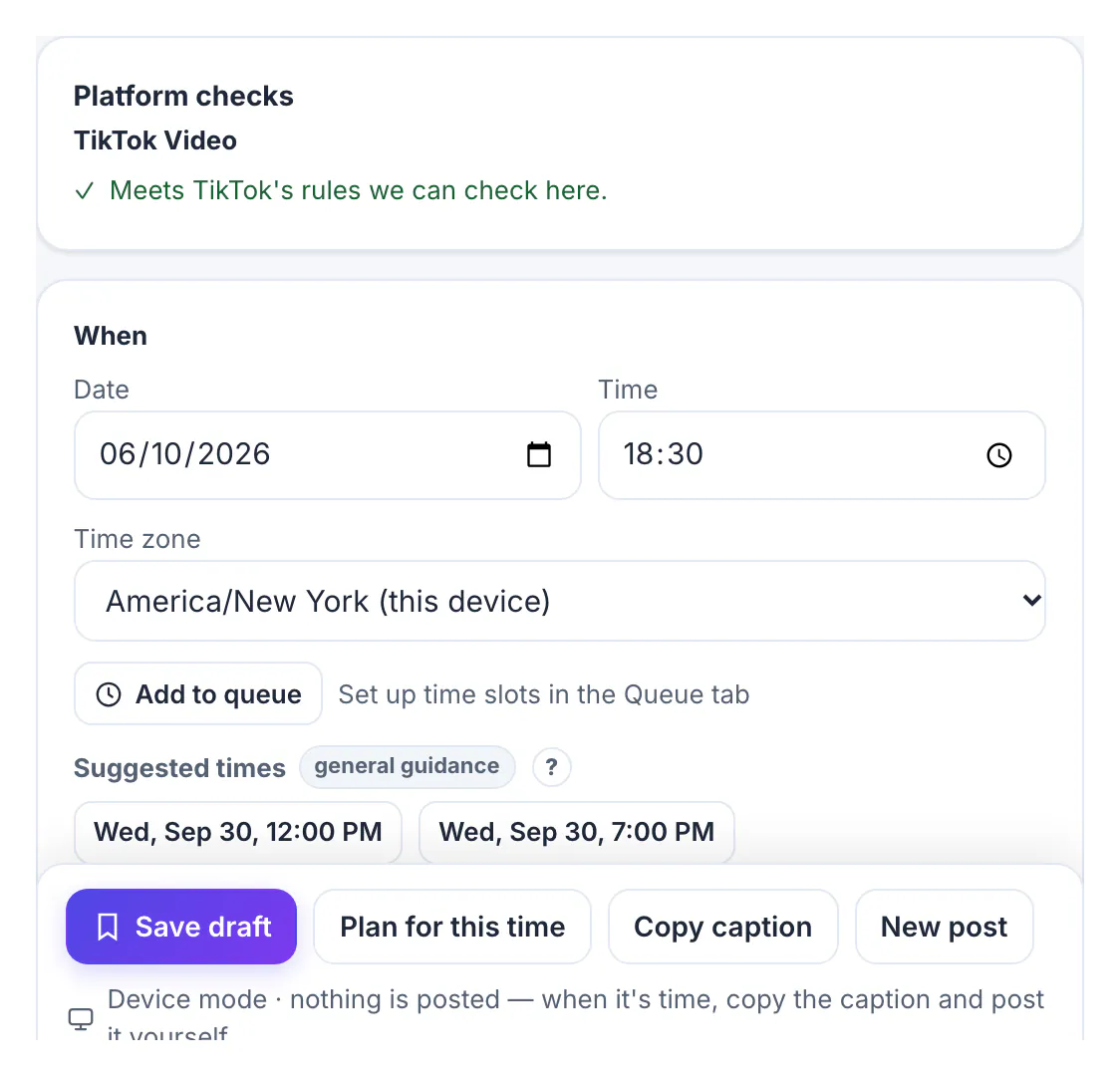
- When: date, time and time zone, plus Add to queue for your regular slots.
Click Plan for this time and the video lands on the calendar with the caption, ready to copy when you post.
File checks that prevent a failed TikTok upload
The scheduler checks the video in your browser against the rules TikTok publishes for its posting interface. Most failed uploads come from one of these.
- Format: MP4, WebM or MOV.
- Length: videos posted through TikTok's API can run up to 10 minutes; your account's own limit may be lower.
- Size: 360 to 4,096 pixels on each side and 23 to 60 frames per second.
- Shape: vertical 9:16 fills the screen; the check warns about other shapes and links to a crop tool.
The basil clip was a 720 by 1,280 vertical MP4 at 12 seconds, so the check read Meets TikTok's rules we can check here. A horizontal clip would have triggered the 9:16 warning; the Shorts Maker reframes wide footage to 9:16 with an optional blurred background.
Make sure you actually post on time
A plan only works if the video goes out. When TikTok is plan only, use one or more of these nudges.
- Reminders: turn them on in the scheduler and your browser shows a notification when a post is due, while a GrabCast tab is open.
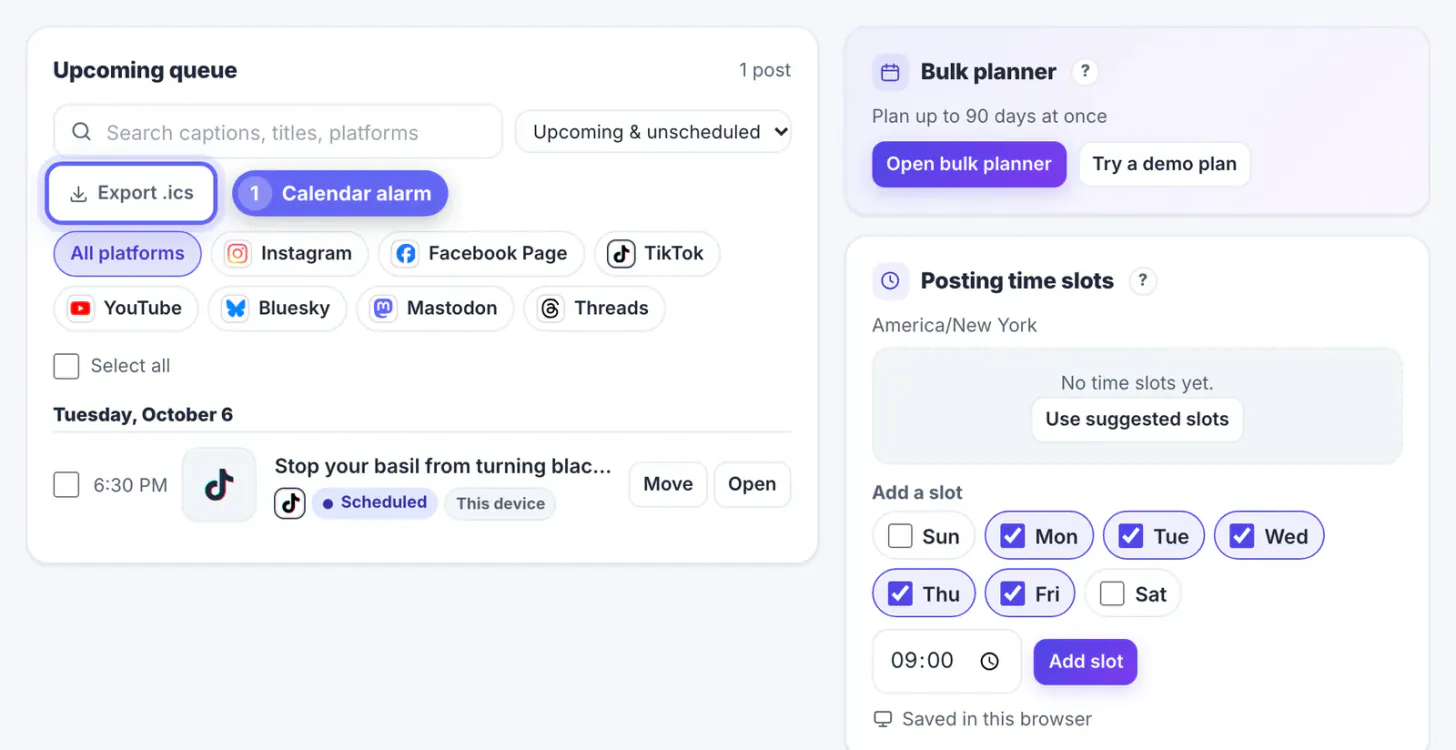
- Calendar alarm: Export .ics from the Calendar adds every planned post to Google, Apple or Outlook Calendar with a 10-minute alarm.
- Queue tab: its upcoming list reads like a checklist with time, networks and caption, and can be filtered by platform.
- Mark as published after posting, so the calendar shows what really went out.
Another option is to open TikTok Studio when the reminder fires and use its own Schedule button for a time later that day, which combines a long-range plan with TikTok's short native window. The business guides hub has more on building the weekly plan.
Step-by-step
Common mistakes to avoid
Pro tips
Frequently asked questions
Can you schedule TikTok videos for free?
Yes. TikTok's web upload page has a Schedule option for eligible accounts, and GrabCast's scheduler plans TikTok videos for free with checks, previews and reminders.
How far ahead can I schedule on TikTok?
TikTok's native scheduler is described as about 15 minutes to 10 days ahead at the time of writing. A planner lets you place videos months ahead and reminds you when to upload.
Why does GrabCast show plan only for TikTok?
TikTok reviews every app before it may publish for the public. Until GrabCast's review is complete you plan in GrabCast and post in TikTok; the badge disappears when direct publishing is available.
Can I add TikTok sounds to a scheduled video?
Sounds from TikTok's library are added inside TikTok. Add them during the final upload, or use audio you own in the video file itself.
What video format does TikTok accept?
MP4, WebM or MOV, 360 to 4,096 pixels per side and 23 to 60 frames per second. Vertical 9:16 fills the screen best.
Scheduling TikTok videos is about rhythm, not tricks. Use TikTok's own scheduler for short windows, plan further ahead in a calendar that checks the file and shows the week, and set a reminder or calendar alarm for every plan only post. Batch the filming, check the format before posting day, and let your analytics, not a generic chart, choose the times.
Related guides
Browse more: all business guides · the Social Media Scheduler