How to Translate Subtitles Into Multiple Languages at Once
To translate subtitles into multiple languages, you translate the text of every cue while keeping its start and end times exactly as they are, then check that each language still fits on screen and can be read in time. Doing that one language at a time in a chat window is slow and tends to merge or split lines, which breaks the timing. This guide uses a 20-second bike-repair tip with six English subtitles and turns it into Spanish, French, German, Portuguese and Japanese in one run with GrabCast's free Multilingual Subtitles tool, then shows what to review and how the files end up on YouTube.
🌐 Try Multilingual Subtitles now — freeOpen →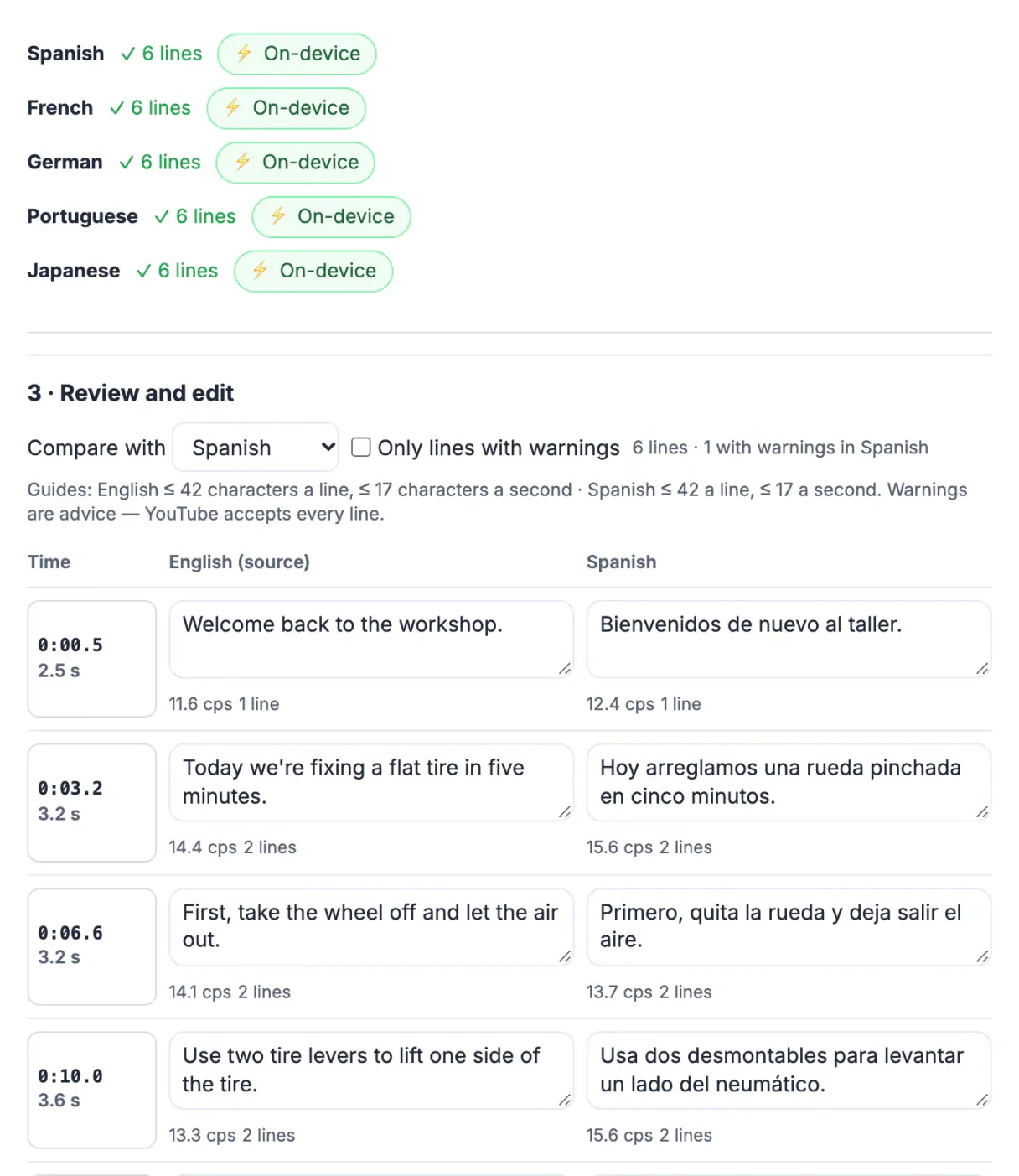
A short tutorial in English reaches English speakers. The same video with Spanish, Portuguese and German subtitles can be followed by a far wider audience, and a subtitle file is much cheaper to produce than a dubbed voice-over. Subtitles also help viewers who watch with the sound off and people who are more comfortable reading their own language. There is a catch: languages differ in length and density. German lines tend to run longer than English, Japanese packs more meaning into each character and is read at a different pace, and right-to-left scripts need care with punctuation. A good workflow checks each language against its own guide rather than assuming the English timing is fine everywhere.
Start with a clean source subtitle file
Every translation inherits the mistakes of the source, so fix the English first. You need an SRT or VTT file with correct words and sensible cue breaks, or the video itself.
- Already have subtitles? Drop the SRT or VTT file into Multilingual Subtitles, or paste the text.
- Only have the video? Drop it and press Transcribe. Whisper writes the source subtitles on your device; the model downloads once (41 to 250 MB depending on the size you pick) and is cached.
- Keep cues short: one idea per subtitle, at most two lines. A long English cue becomes an even longer German one.
The example file, flat-tire-fix.srt, has six cues over 21 seconds, from Welcome back to the workshop. to Put in the new tube, pump it up, and you're done.
Translate subtitles into many languages in one run
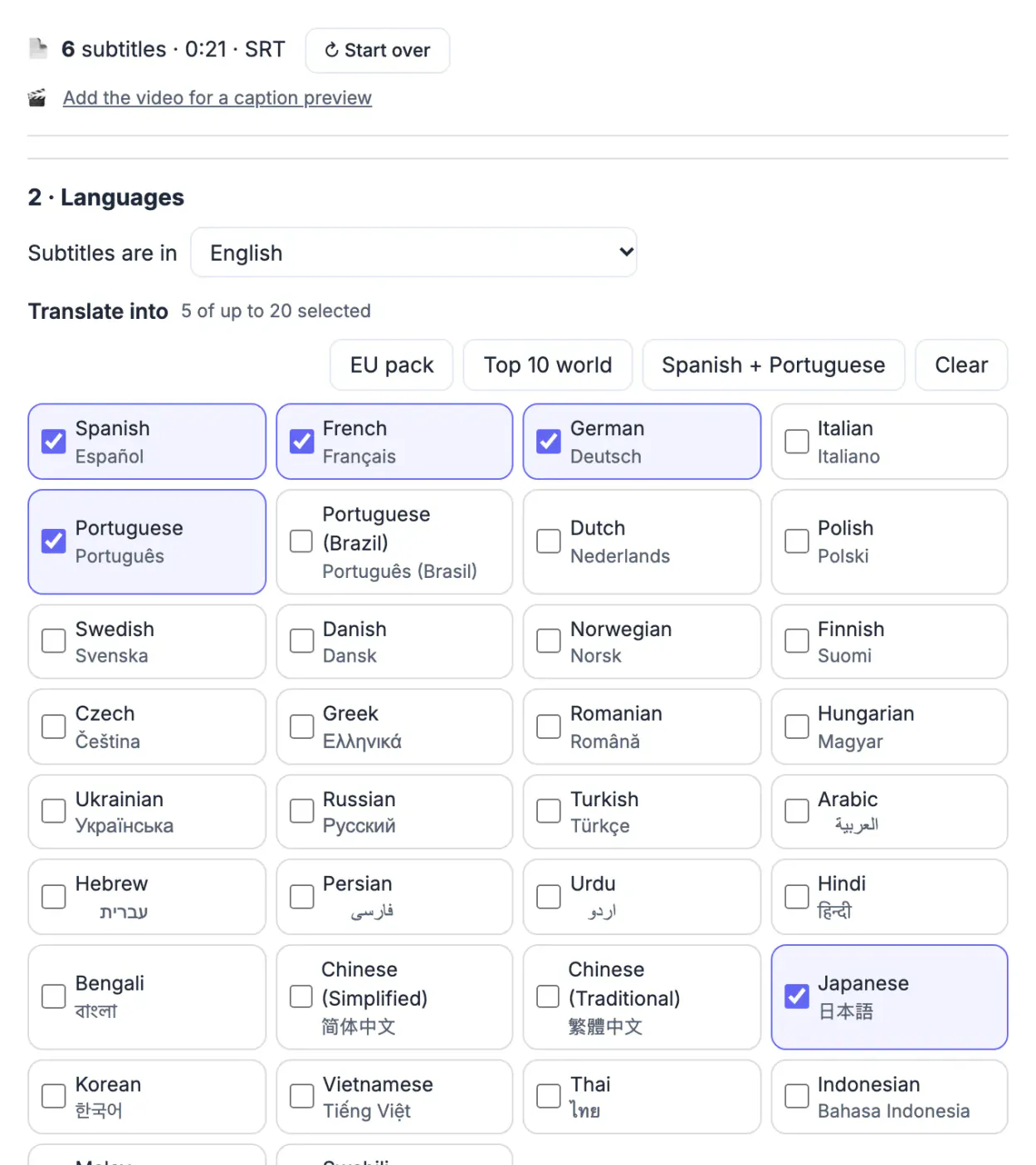
Pick the languages, up to 20 per run. Presets cover common packs such as the EU pack, the top 10 world languages or Spanish + Portuguese, or tick languages one by one. The example used Spanish, French, German, Portuguese and Japanese.
Press Translate. Each subtitle is translated on its own and keeps its number, so every language gets exactly the same cues with the same start and end times as the source. A chip next to each language shows which engine did the work:
- On-device: Chrome's built-in translator where your browser has it; nothing leaves your computer.
- An on-device model you downloaded, or your own free AI key, sent straight from your browser to that provider.
- Otherwise GrabCast's free AI with a daily cap.
Screenshots in this guide used Chrome's translator interface with translations prepared for the example, so the lines you see are the real tool pipeline and its checks, not a quality benchmark of any engine. Machine translation is a first draft: names, jokes and technical terms need a human pass.
Review line length and reading speed per language
The review grid shows the source next to one language at a time, with a switch to compare with any other. Every line is checked against a guide for its language: about 42 characters a line and 17 characters a second for most languages, 16 characters a line for Chinese and Korean and 13 for Japanese.
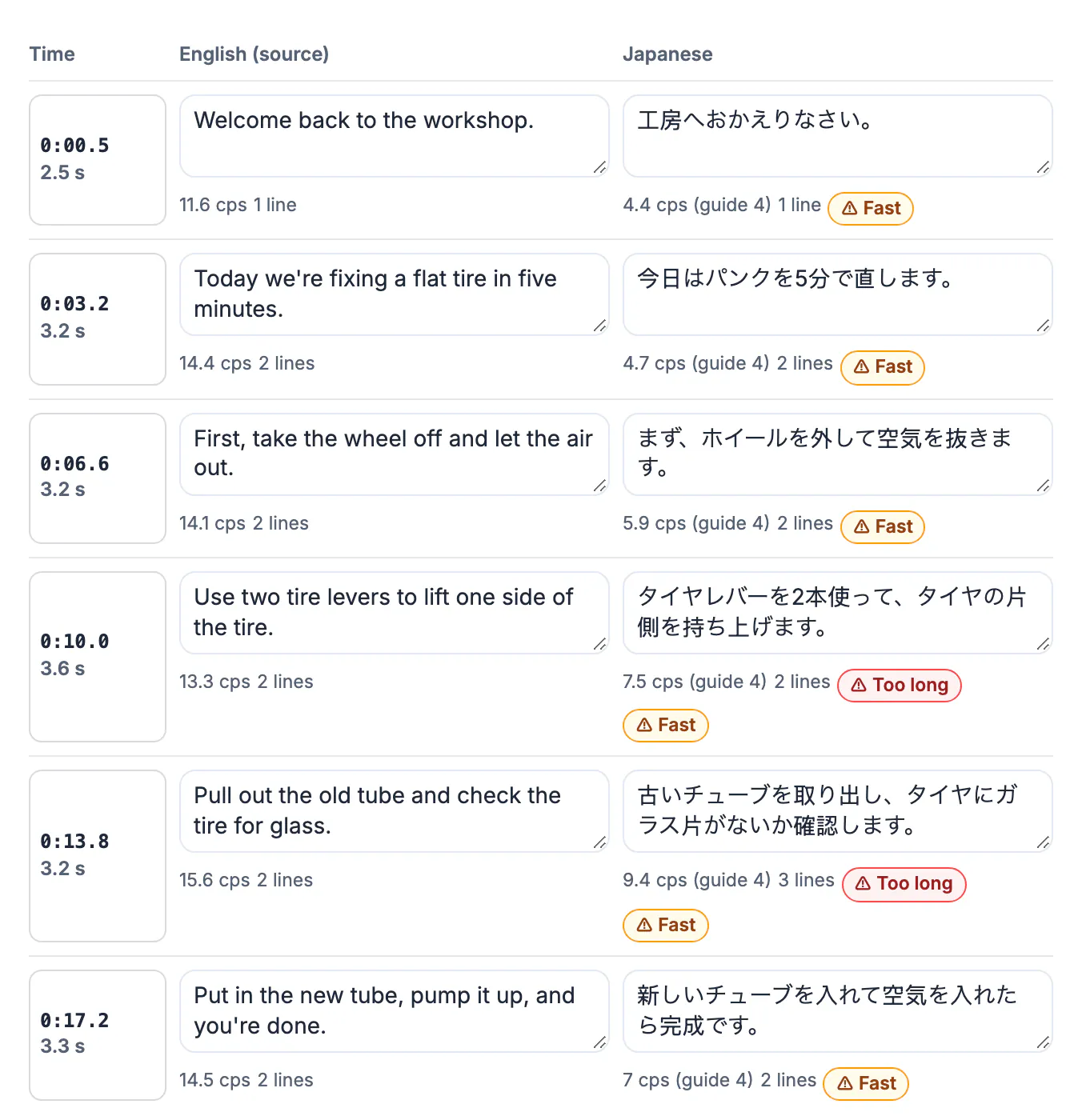
Spanish passed with a single warning. Japanese was a different story: every line was flagged Fast against the Japanese reading-speed guide of 4 characters a second, and the two longest lines were flagged Too long. That is typical for dense scripts, and the fixes are editorial:
- Shorten the translation: drop filler words and keep the instruction.
- Use Give fast subtitles more time, which extends a subtitle's end into the pause after it; start times never move.
- Split a long source cue in the English file and translate again, so every language benefits.
Arabic, Hebrew, Persian and Urdu are handled right to left, and Thai is broken between words found by your browser. Warnings are advice; YouTube accepts every line, but viewers will thank you for readable ones.
Download the files or send them to YouTube
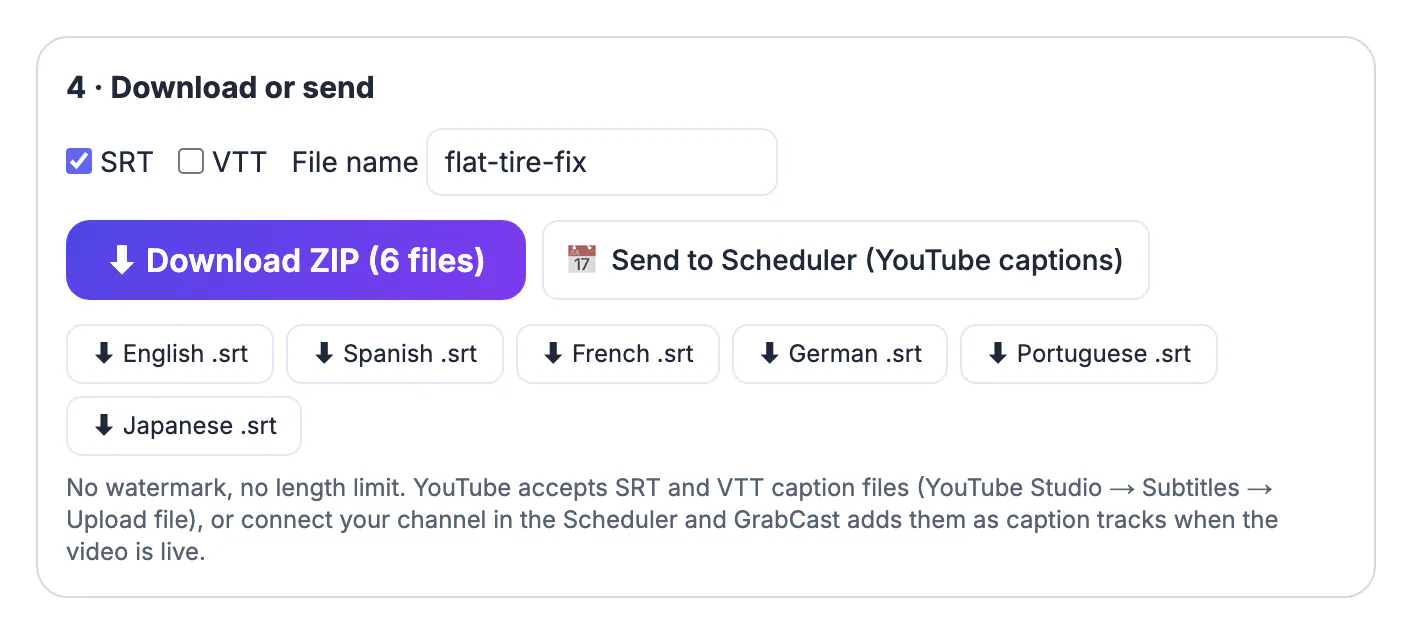
Choose SRT, VTT or both, and download one ZIP with a file per language named like flat-tire-fix.es.srt, a pattern YouTube and most players recognise. Each language can also be downloaded on its own.
- On YouTube, open YouTube Studio, choose the video, go to Subtitles and upload each file with its language.
- Or press Send to Scheduler. If your YouTube channel is connected in GrabCast's free Scheduler, it uploads one caption track per language after YouTube has processed the video, optionally as drafts, and shows how many tracks today's quota allows.
- Track names say auto-translated by default, so viewers know a machine did the first draft.
No watermark and no length limit. For a single document or one subtitle file in one language, the AI Translator is quicker; to make subtitles in the video's own language, see auto-generating subtitles from any video.
Step-by-step
Common mistakes to avoid
Pro tips
Frequently asked questions
Does translating subtitles change their timing?
No. Each cue is translated on its own and keeps its start and end time. The only optional change is extending a fast subtitle's end into the pause after it.
How many languages can I translate at once?
Up to 20 per run, picked one by one or from presets such as the EU pack or the top 10 world languages.
Is my video uploaded to translate the subtitles?
No. Transcription runs on your device. Only the subtitle text goes to a translation service when Chrome's on-device translator isn't available, and nothing reaches GrabCast unless you send the pack to the Scheduler.
Why are my Japanese subtitles flagged as too fast?
Japanese is read at fewer characters per second than English, so the guide in the review grid is stricter. Shorten the line or give the subtitle more time.
Can the subtitles be added to YouTube automatically?
Yes, for your own channel when it is connected in the Scheduler. Otherwise download the ZIP and upload each file in YouTube Studio under Subtitles.
Translating subtitles into multiple languages is quick once the source is clean: translate cue by cue so the timing never moves, review each language against its own line and speed guide, and publish the files with language codes. Let a native speaker check the first few videos, and your subtitles will read as well as they sound.
Related guides
Browse more: all video and audio guides · Multilingual Subtitles