Use a Scientific Calculator Online: Trig, Logs, Powers
Using a scientific calculator online comes down to three habits: check the angle mode before any trig, type the whole expression with parentheses, and read back how the calculator understood it. The most common wrong answer in homework help forums is sin(30) = −0.988, which is what you get when the calculator is set to radians instead of degrees. This guide walks through the keys that matter, from DEG and RAD to log, ln, xʸ, n! and %, with examples you can type and check yourself.
🧮 Try Scientific Calculator now — freeOpen →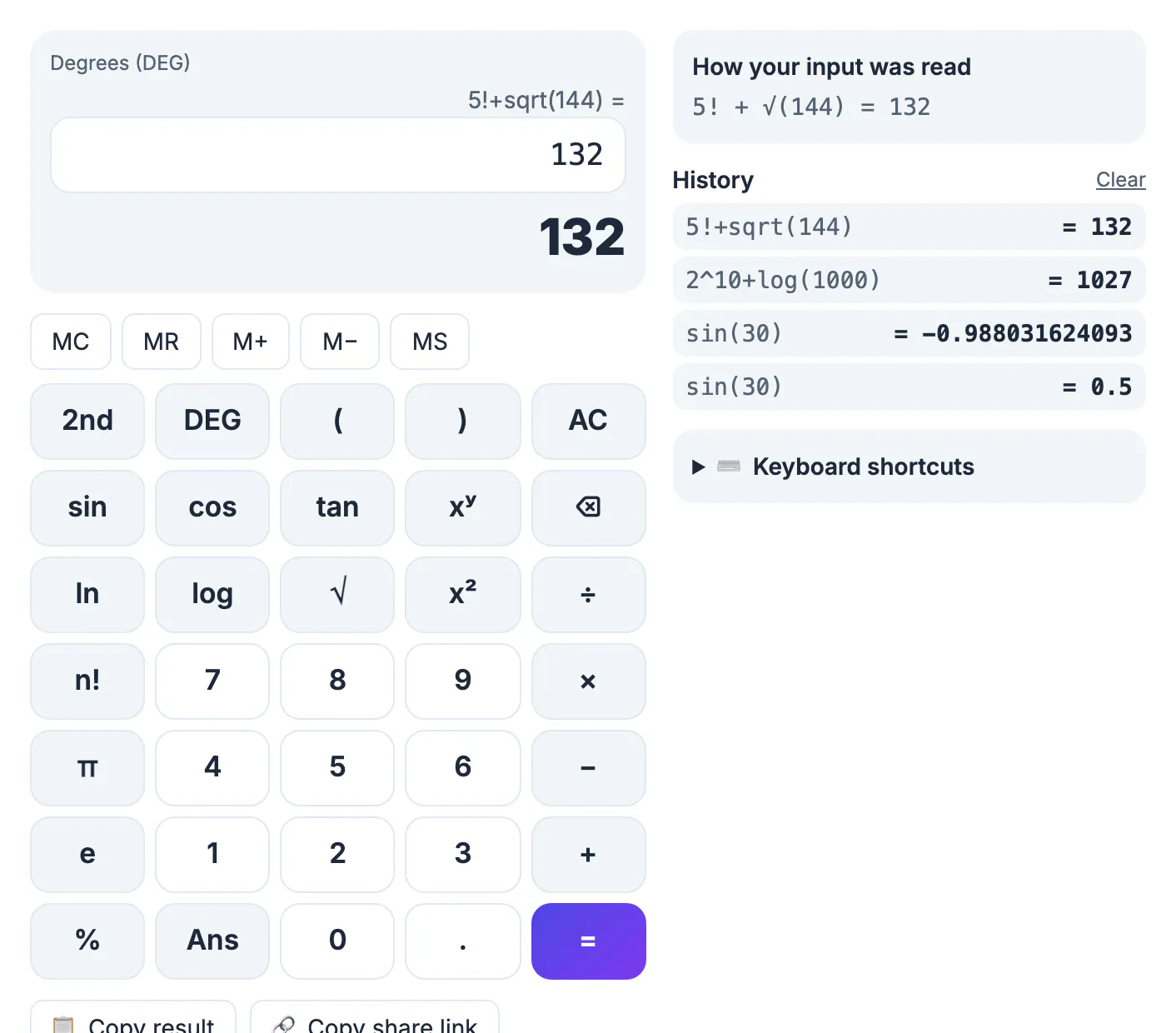
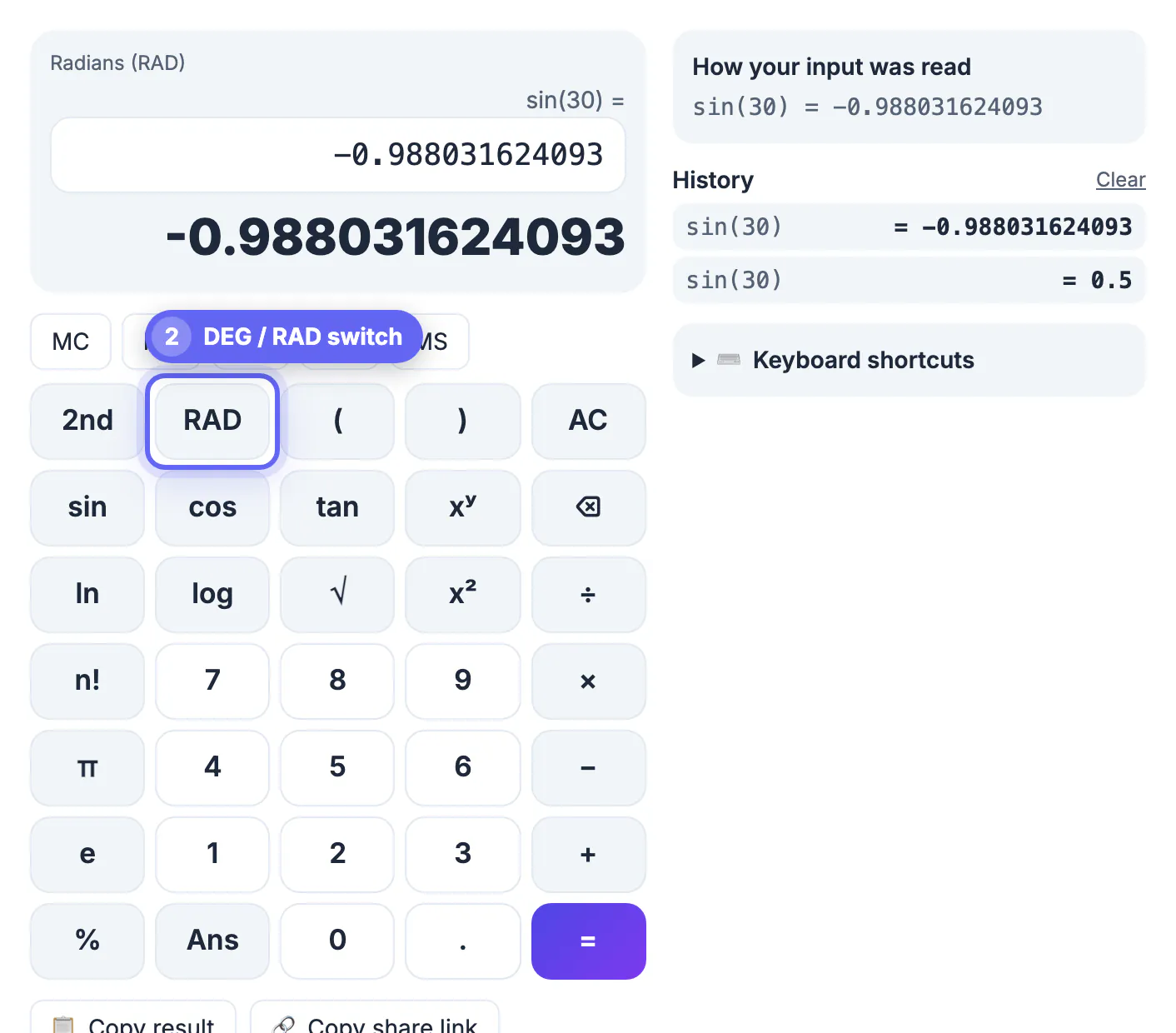
A scientific calculator never tells you that you asked the wrong question. Type sin(30) in radian mode and you get a precise, confident −0.988031624093 that has nothing to do with a 30-degree angle. Mix up log (base 10) and ln (base e) and a pH or decibel problem is off by a factor of 2.3. Forget that powers bind tighter than a leading minus and −2^2 comes out as −4, not 4. Knowing how the tool reads your input is worth more than knowing where every button sits, because the mistakes are silent and the display looks equally sure either way.
Degrees or radians: check this before any trig
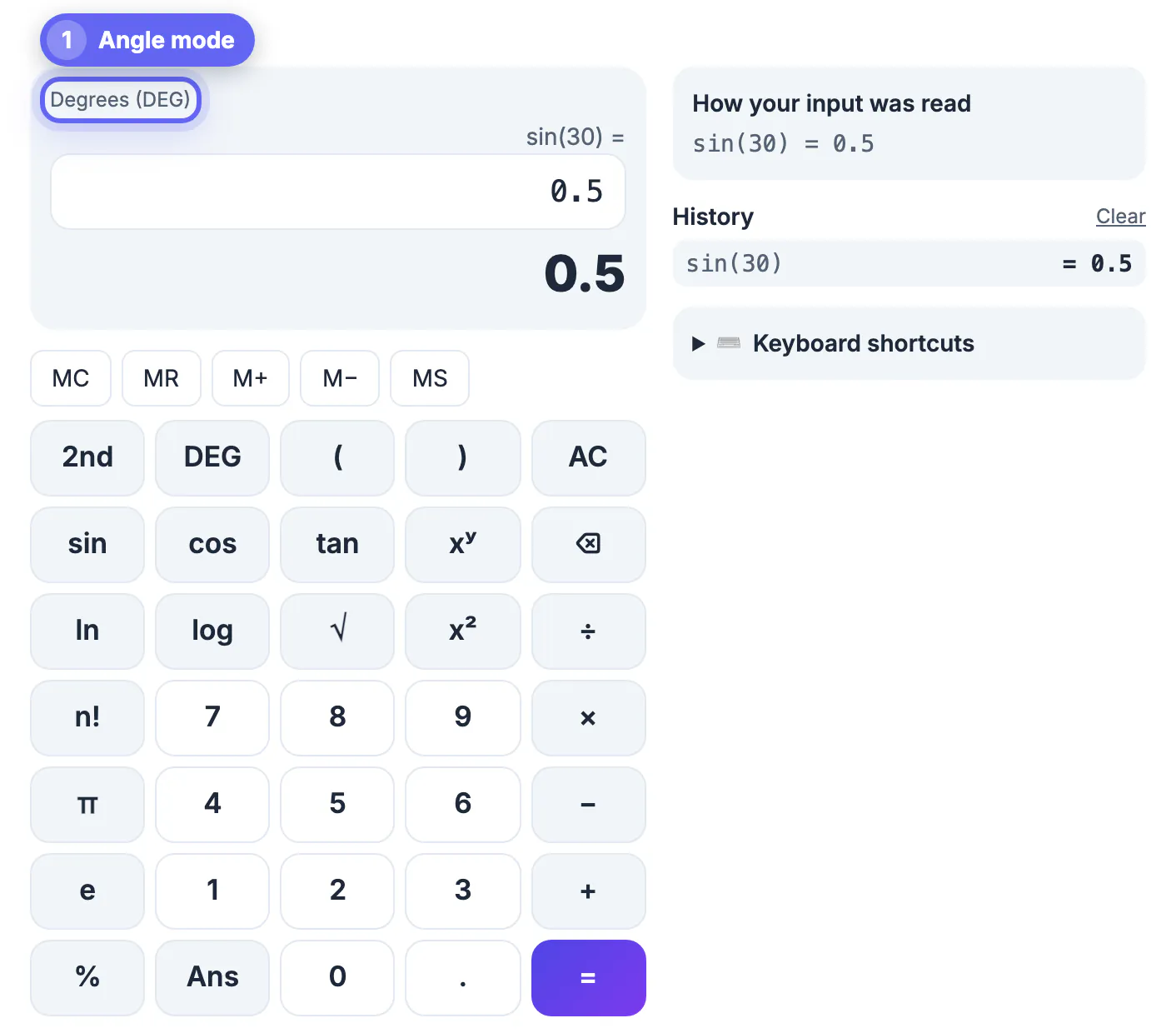
The label above the display reads Degrees (DEG) or Radians (RAD), and the key in the second position of the top row shows the same setting. Tap that key to switch; the choice is remembered on this device the next time you open the page.
- Use DEG for triangles, slopes, bearings, roof pitch and most school geometry: sin(30) = 0.5, cos(60) = 0.5, tan(45) = 1.
- Use RAD for calculus, physics with angular velocity, and any formula that already contains π, such as sin(π/6) = 0.5.
- The setting also controls the inverse functions. Press 2nd to turn sin into sin⁻¹, and sin⁻¹(0.5) returns 30 in DEG or 0.523598775598 in RAD.
In degree mode the calculator returns exact values at the special angles: sin(180) is 0 rather than a tiny rounding error, and tan(90) is reported as undefined instead of an enormous number.
Powers, roots, log and ln
The xʸ key inserts the ^ symbol, so 2^10 means two to the tenth power, 1024. The x² key adds ^2, and √ opens a square root that you close with a parenthesis. With 2nd pressed, the same keys give ʸ√x for other roots, x³ for cubes and ∛ for cube roots.
- log is base 10: log(1000) = 3, because 10³ = 1000. With 2nd it becomes 10ˣ.
- ln is the natural log, base e: ln(e) = 1. With 2nd it becomes eˣ.
- Powers are evaluated right to left, so 2^3^2 = 2^9 = 512, not 64.
- A leading minus applies after the power: −2^2 = −4. Type (−2)^2 if you mean 4.
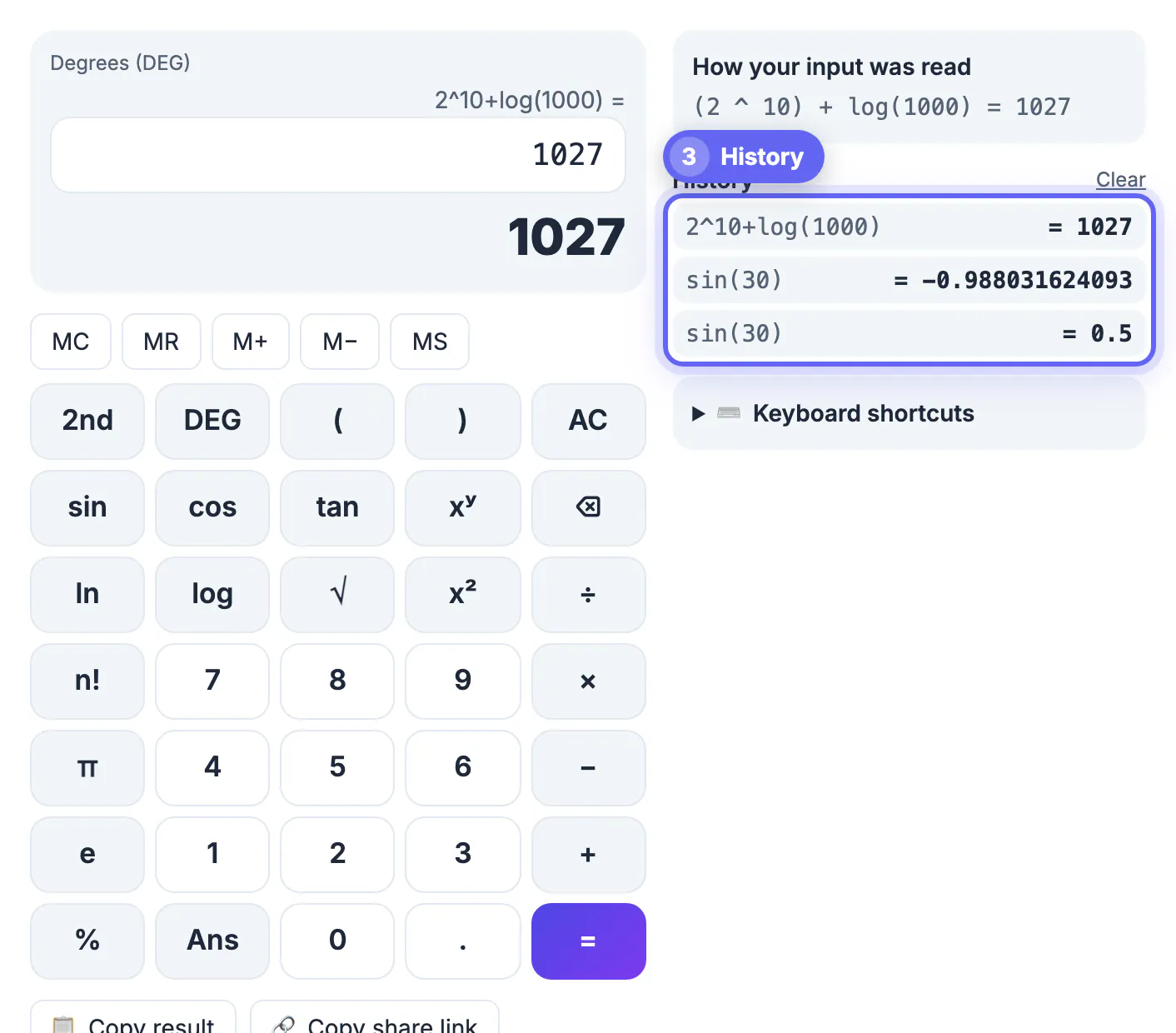
Put together, 2^10+log(1000) is 1024 + 3 = 1027. The How your input was read panel shows it as (2 ^ 10) + log(1000) = 1027, which confirms the calculator added the two pieces rather than raising 10 to something larger.
Factorials, percent, π and e
The n! key applies to the number just before it: 5! = 5 × 4 × 3 × 2 × 1 = 120. Factorials of non-integers use the gamma function, so 0.5! returns √π ÷ 2, about 0.886. The π and e keys insert the constants, and implicit multiplication works: 2π means 2 × π and 3(4+1) means 15.
Percent follows the rule most handheld calculators and search engines use. On its own, 20% is 0.2. After a plus or minus it is taken of the number before it, so 50 + 10% = 55 and 80 − 25% = 60, while 200 × 15% = 30. For very large or small numbers, a capital E means times ten to the power: 1.5E3 = 1500. A lowercase e is always Euler's number, 2.71828.
Reading the calculator's result panel
Three places on screen tell you what happened. The big display shows the answer, with the expression you typed just above it. The How your input was read panel rewrites your input with explicit brackets and symbols, for example 5! + √(144) = 132, so you can see whether 144 ended up inside the root. If you forget closing parentheses, they are added at the end and the panel says how many.
The History list keeps your recent results on this device. Tap the expression on the left to load it back into the box, or the result on the right to insert that number into your current line. Clear empties the list. Results show up to 12 significant digits, which hides binary noise, so 0.1 + 0.2 displays as 0.3.
Memory keys, Ans and keyboard shortcuts
MS stores the current result, M+ and M− add it to or subtract it from memory, MR inserts the stored value, and MC clears it. The memory value appears as M = … above the display while it is set. Ans inserts the last answer, which is handy for chained work such as a result you then divide by 4.
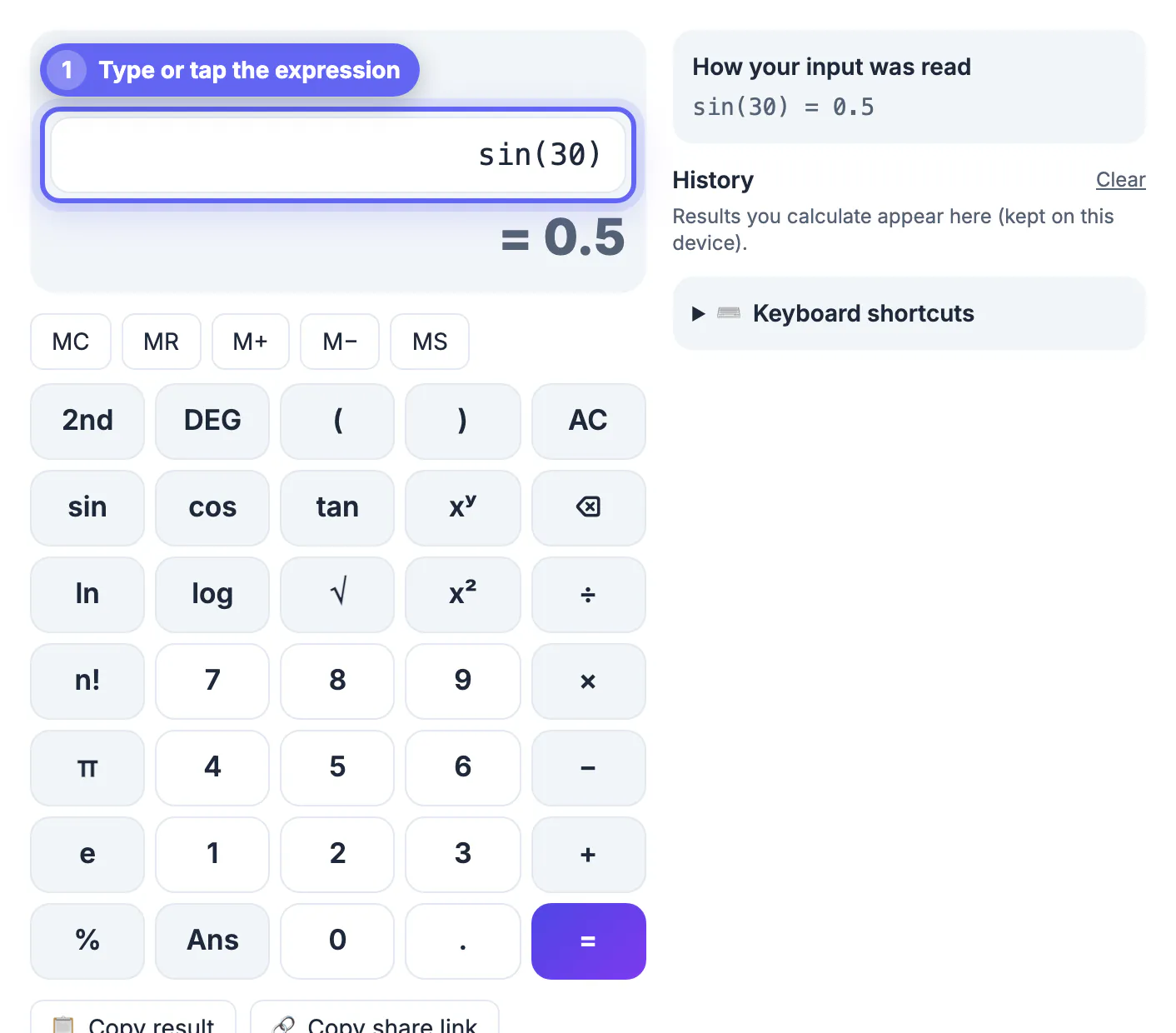
On a laptop you can type directly into the expression box. Enter or = evaluates, Esc clears and Backspace deletes. Outside the box, single letters work as shortcuts: s, c and t for sin, cos and tan, l for ln, g for log, r for √, p for π and a for Ans. The Keyboard shortcuts panel lists them if you forget. Copy result puts the answer on your clipboard, and Copy share link saves the expression and angle mode in a link you can send to a classmate.
For specific jobs, the Fraction Calculator and Standard Deviation Calculator have their own layouts.
Step-by-step
Common mistakes to avoid
Pro tips
Frequently asked questions
Why does my calculator say sin(30) is −0.988?
It is in radian mode, so it is working out the sine of 30 radians. Switch to DEG and sin(30) returns 0.5.
What is the difference between log and ln?
log is base 10 and ln is base e (about 2.718). log(1000) = 3 and ln(e) = 1. Press 2nd to get the inverses, 10ˣ and eˣ.
How do I type a power or a root?
Use xʸ for any power (2^10 = 1024), x² for squares and √ for square roots. Press 2nd for x³, the cube root ∛ and the y-th root ʸ√x.
How do I calculate a factorial?
Type the number and press n!. For example 5!+sqrt(144) returns 132, because 5! is 120 and √144 is 12.
Is my calculation history saved?
Yes, recent results stay in the History list on this device until you press Clear. Nothing is sent to a server; the math runs in your browser.
Check DEG or RAD before any trig, type complete expressions with parentheses, and glance at How your input was read before trusting the result. Those three habits catch nearly every silent error a scientific calculator can produce, and the history list makes it easy to rerun a line with one number changed.
Related guides
Browse more: all calculator guides · Scientific Calculator