How to Mock Up a Tweet Screenshot
Sharing a post as an image is everywhere, and knowing how to mock up a tweet screenshot cleanly makes the difference between a crisp, readable graphic and a blurry, awkwardly cropped one. Whether you are quoting a post in a slide, resharing it to another platform, or featuring it on a page, a well-presented screenshot looks intentional and holds attention. This guide covers cropping a post screenshot tightly, keeping the text sharp, adding a clean backdrop, and sizing it for where it will be shared. The free GrabCast Screenshot Beautifier handles the framing and background in your browser, so you can turn a raw capture into a polished, social-ready image in a couple of minutes.
🖼️ Try Screenshot Beautifier now — freeOpen →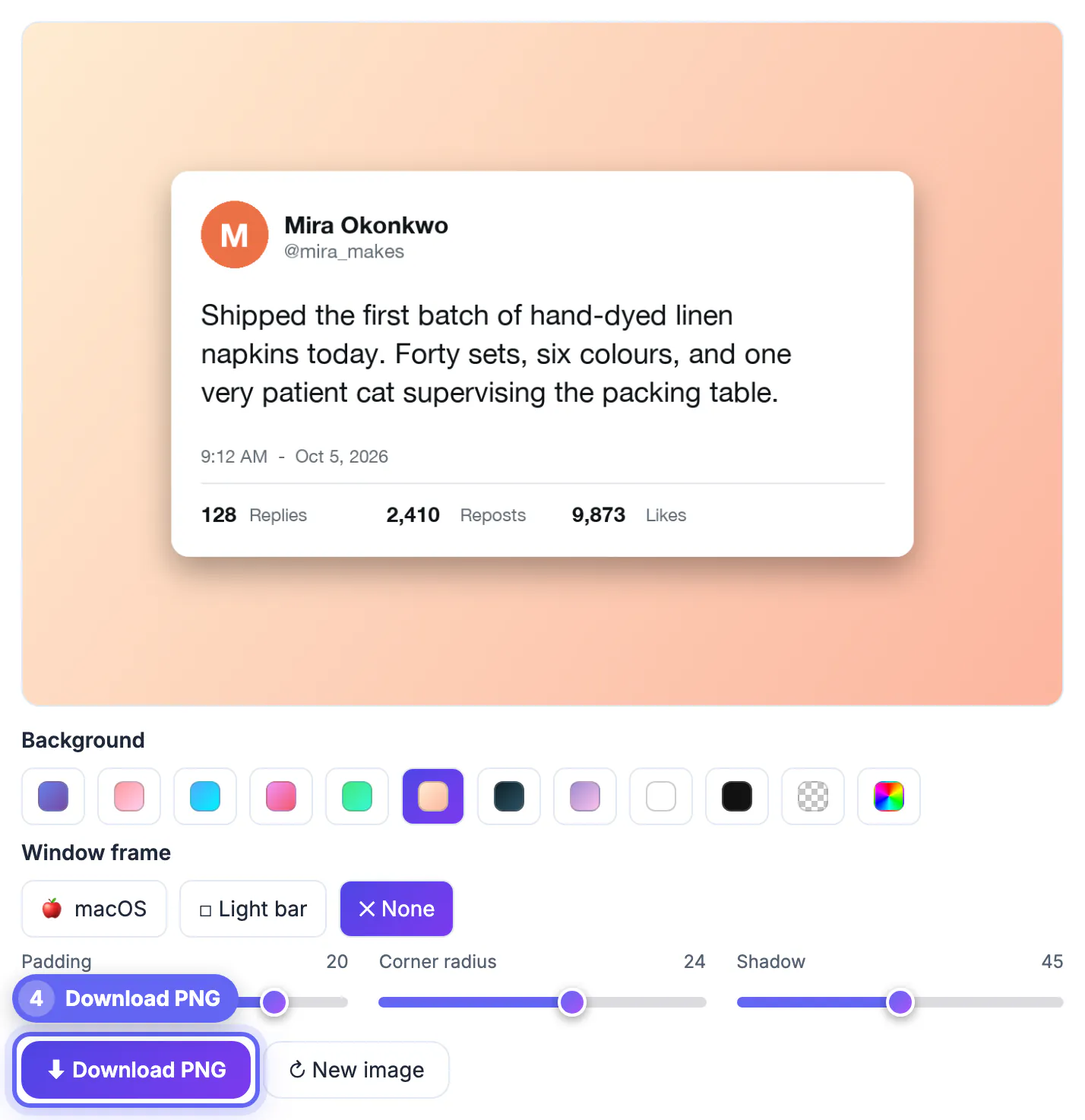
On social media and in presentations, the image is the message, and a sloppy screenshot quietly undermines whatever you are sharing. A capture with random surrounding clutter, uneven cropping, or soft text signals low effort and gets scrolled past, while a clean, well-framed post looks credible and invites engagement. Presentation also affects readability: if the text is too small or the image is compressed into mush, the whole point of sharing the post is lost. Because screenshots of posts are so common, a polished one stands out simply by being clear and deliberate. The effort required is minimal, a tight crop, a tidy background, and the right export size, but the payoff in how professional and shareable the result looks is substantial, especially when you post frequently.
Capture and crop tightly
Start with a clean grab of the post, then crop away everything that is not part of it. Surrounding interface, other posts, and stray buttons all distract from the content you actually want to feature.
- Include the post, author, and handle, and little else.
- Crop out unrelated interface and neighboring posts.
- Keep the edges straight so the result looks deliberate.
How to mock up a tweet screenshot cleanly
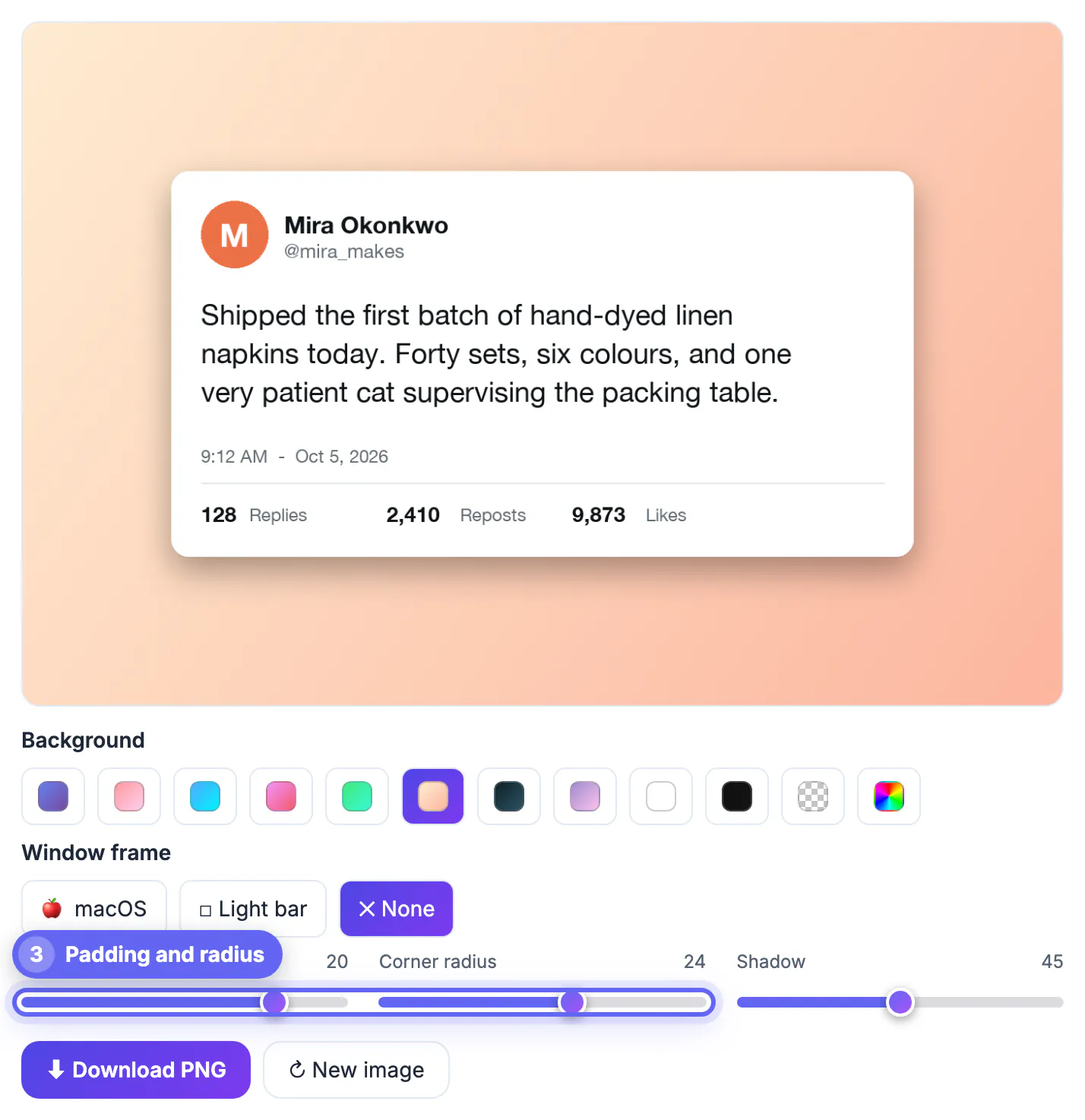
Load the cropped capture into the tool and set it on a clean background with a little padding, so the post sits as a distinct card rather than a bare rectangle. A subtle color or gradient behind it adds polish without stealing focus.
Keep any framing understated. The post itself is the subject, so the presentation should make it easy to read and pleasant to look at, not decorated to the point of distraction.
Keep the text sharp
Readability is everything with a text post. Start from a high-resolution capture and avoid scaling it up, which turns crisp text into a blur. Export at a size that keeps the words clearly legible on the screens where it will be seen.
If the text is small in the original, capture at a higher zoom rather than enlarging the image afterward, so the letters stay sharp.
Match the backdrop to light or dark mode
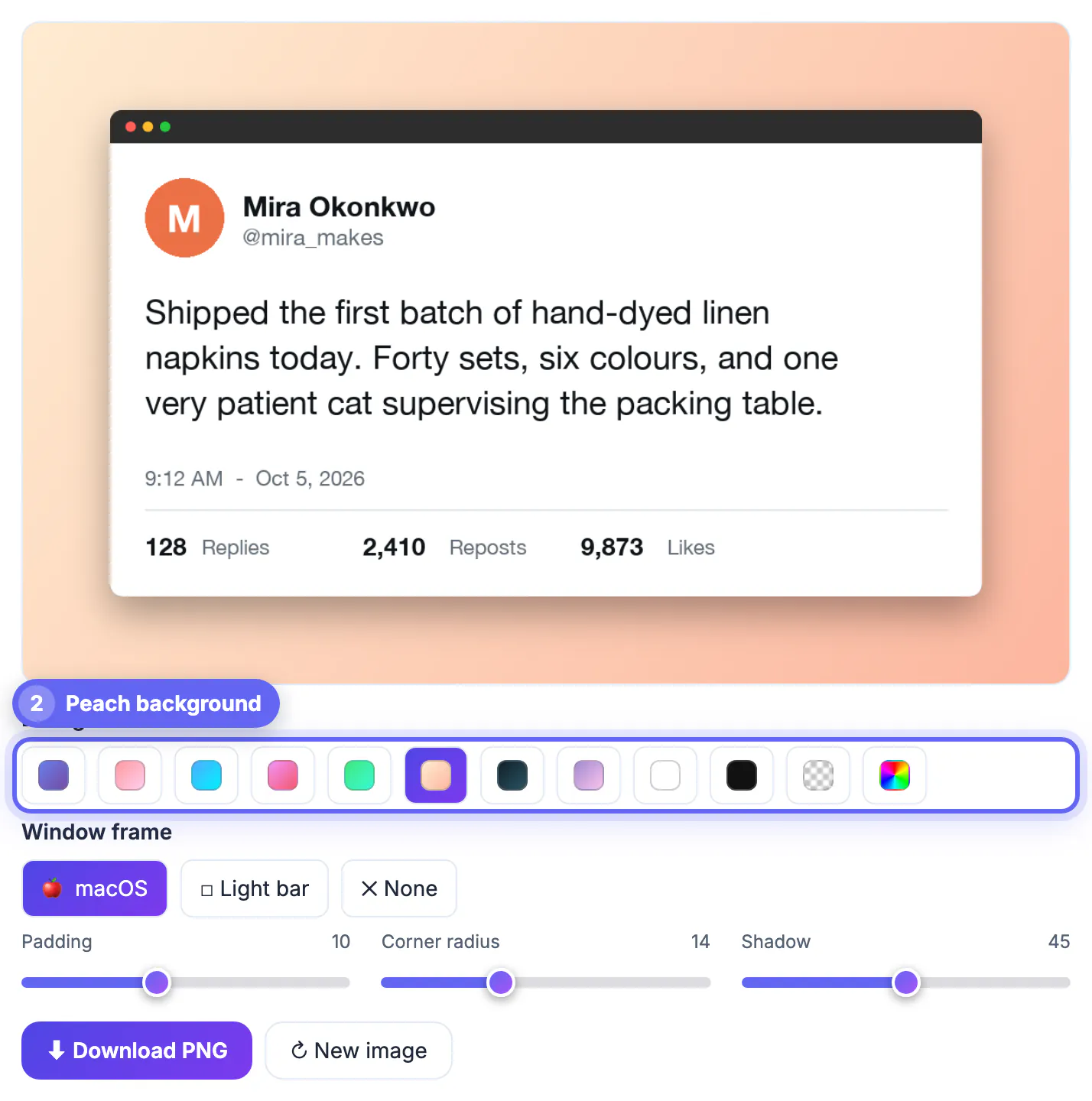
A post is captured in whatever theme the app was using, and the backdrop should work with that theme rather than against it. The beautifier gives you eight gradients (royal, sunset, ocean, candy, mint, peach, night and violet), plain white, plain black, a transparent checkerboard option and a color picker for an exact brand hex.
- Dark-mode posts: on black the card edge vanishes; a mid-tone gradient such as royal or ocean keeps the outline visible.
- Light-mode posts: on white the card only separates through its shadow, while pastel gradients like peach or violet give a soft edge without clashing with blue links and handles.
- Frame choice: a post is not a desktop window, so None or the understated Light bar usually looks more natural than the dark macOS title bar with red, yellow and green dots.
- Slides with their own color: pick the checkerboard swatch; the surround exports fully transparent while the shadow stays.
The tool does not blur or redact anything, so crop out reply counts, other people's handles or DMs you do not have permission to show before loading the image. And present posts as they were written: editing the wording of someone else's post and sharing it as a real screenshot misleads readers.
Size it for the destination
Different platforms and slides favor different shapes. A square or portrait image suits many feeds, while a slide may want something wider. Choose the aspect ratio and dimensions that fit where the image is going.
Exporting to the right size means the post displays fully and sharply instead of being cropped or downscaled by the platform.
Respect permissions and accuracy
A post mock-up is a quotation of someone else's words. Credit the author, link the original where you can, and never edit the text, name or numbers, since a modified image can mislead readers and harm the person quoted. For commercial use or ads, ask permission from the account holder.
- Capture the real post rather than retyping it.
- Keep the handle and date visible so context is clear.
- Consider blurring other users' names in replies.
- Delete the image if the author removes the post and asks you to.
To prepare the capture, crop out tabs, edges and clutter first, then finish in the Screenshot Beautifier.
Dark mode, light mode and contrast
If your slide background is dark, a dark-mode capture blends in and may look like a floating block of text. Add generous padding and a contrasting backdrop so the card edge is visible. Check the finished image on a phone, because small text that looks fine on a laptop can become unreadable in a feed.
Step-by-step
Common mistakes to avoid
Pro tips
Frequently asked questions
How do I keep a tweet screenshot sharp?
Start from a high-resolution capture and avoid scaling it up. Capture at a higher zoom instead of enlarging afterward, and export at a readable size.
Should I crop out the rest of the screen?
Yes. Crop tightly to the post, author, and handle. Removing surrounding interface and other posts makes the result look clean and deliberate.
What size should I export for social?
Match the platform. Square or portrait suits many feeds, while slides often want a wider shape, so pick the ratio the destination displays best.
Do I need editing software?
No. The GrabCast Screenshot Beautifier adds the background, padding, frame and shadow to a post screenshot in your browser; crop it first and resize the PNG afterward if a platform needs exact dimensions.
Which window frame suits a post screenshot?
Usually None or Light bar. The macOS option adds a dark title bar with colored window dots, which suggests a desktop app rather than a social post. Pair a subtle frame with a moderate shadow so the post reads as a clean card.
A clean tweet screenshot comes down to a tight crop, sharp text, a subtle background, and the right export size. Capture at a high zoom, trim to just the post, present it as a distinct card, and match the dimensions to where it is going. The effort is minimal and the result looks far more shareable and credible.
Related guides
Browse more: all image guides · Screenshot Beautifier