Hide Personal Info in a Screenshot Before You Share It
To hide personal info in a screenshot, paint an opaque box over every name, email address, phone number, street address, account or card digit and order number, then share the newly saved file, not the original capture. A solid box is safer than blur for text, because letters have predictable shapes that software can sometimes rebuild from a soft smear. GrabCast's Blur & Pixelate Image does this in your browser with no upload.
🙈 Try Blur & Pixelate Image now — freeOpen →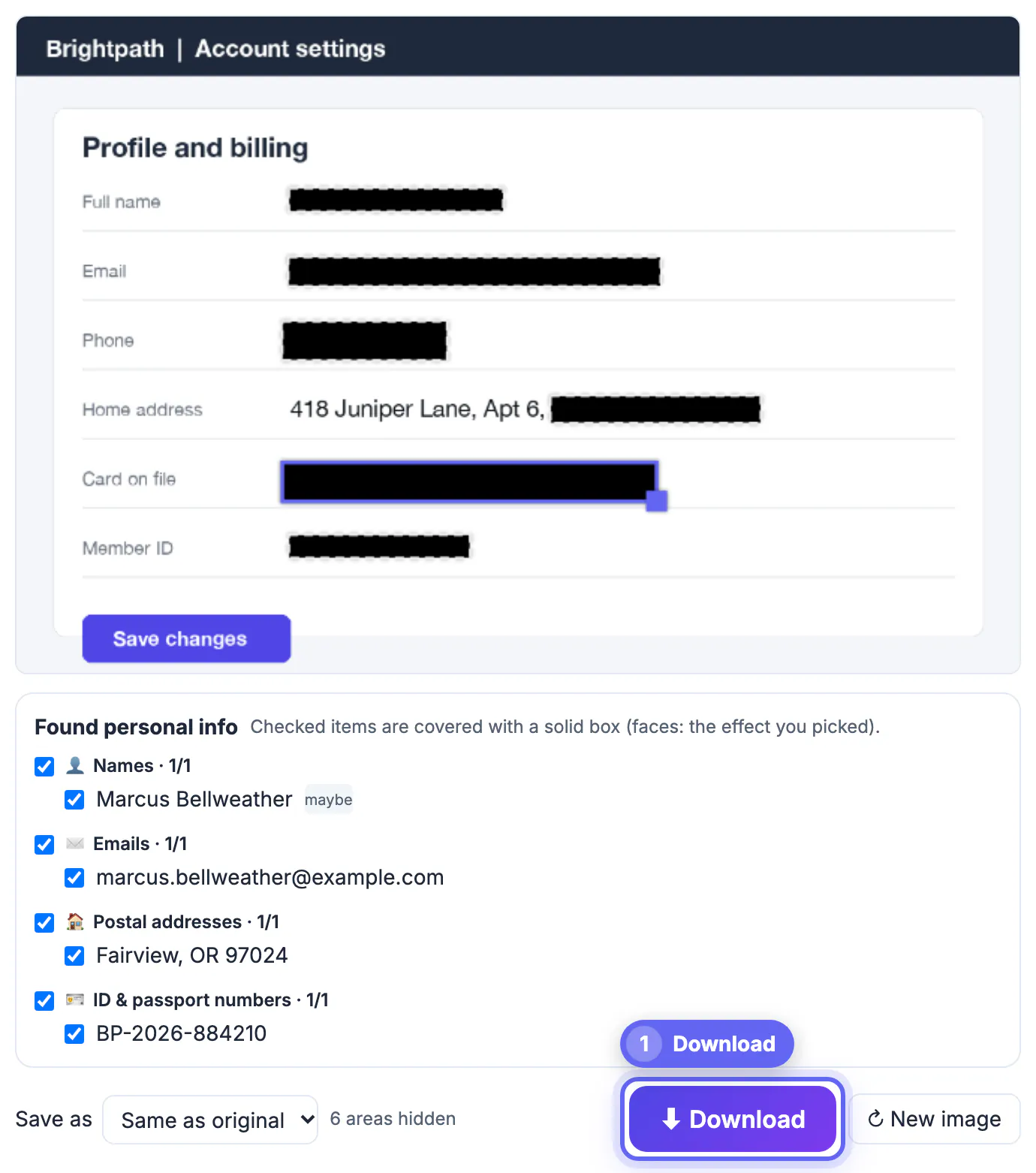
A support chat, a bank transfer confirmation, a group-chat joke or a bug report goes out in seconds, and the capture holds everything on the screen at that moment. People post an order confirmation to complain about a late parcel and publish their home address; they share a banking error with a forum and show the last digits of an account plus their full name. Scammers collect exactly these fragments, because a name, an email and an order number together are enough to write a convincing fake support message. Ninety seconds of redaction removes that risk.
What to hide in a screenshot before it leaves your phone
Go through the capture top to bottom and cover anything that identifies you, the other person or an account. A practical list, roughly in order of how often it slips through:
- Full names, usernames and profile pictures, including the small avatar in a chat header.
- Email addresses and phone numbers, which are often in the To and From lines, signatures and contact cards.
- Street addresses, ZIP codes and delivery notes on shipping pages and ride-share receipts.
- Order, ticket, booking and tracking numbers; with your name, they let a stranger pose as you to customer service.
- Card and account digits, IBANs, routing numbers and balances, even when only the last four show.
- QR codes and barcodes on boarding passes, tickets and parcel labels, which can be scanned straight from the shared picture.
- One-time codes, password-reset links and invite URLs that still work for a while after you share them.
When in doubt, cover it. Nobody reading a complaint about a delayed package needs to see the tracking number to understand the problem.
Why a solid box beats blur for text
Blur and pixelation are fine for faces in casual pictures, but text is different. Screen fonts render every character the same way each time, so a lightly pixelated line of digits can be compared against pixelated versions of every possible number until one matches; published tools such as Unredacter have demonstrated this on mosaic-hidden text. A smooth blur over a short number is similarly risky. An opaque box replaces the pixels, so there is nothing to compare.
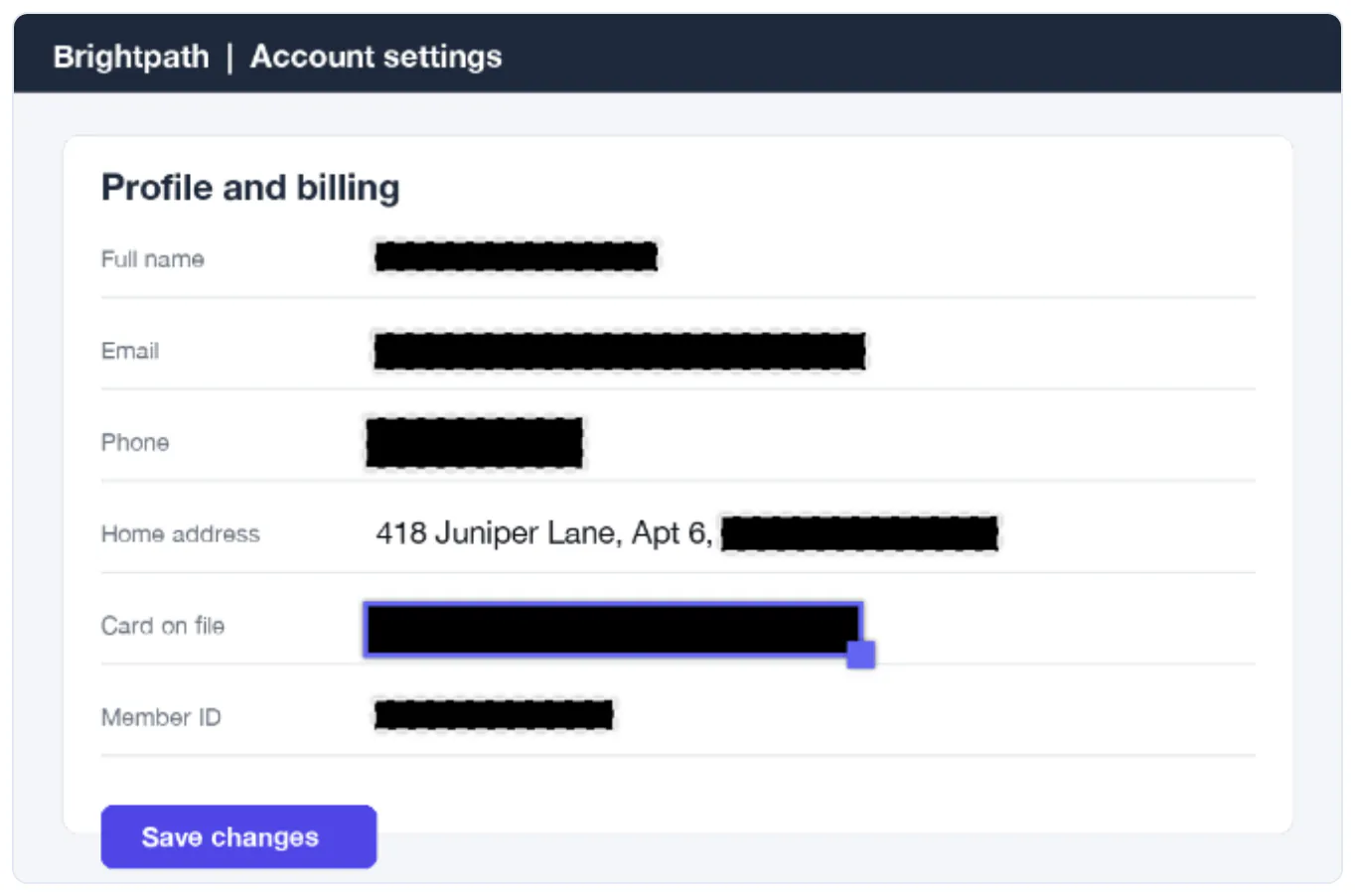
- Use Solid box for card and account numbers, codes, addresses and anything legal or financial; the tool itself shows this reminder under the canvas.
- Pick a box color that matches the app background, such as white on a light chat, for a neater look; black reads clearly as intentional.
- Keep pixelation for things where the look matters more than the content, such as a busy background or a thumbnail.
- Cover the whole line, including the label, if the length of a name or email would itself give it away.
One more trap: the markup or highlighter pen built into many phones is semi-transparent. Turn the brightness up on the shared picture and the text underneath reappears. Always use a fully opaque fill.
Redact a screenshot step by step in the browser
Open Blur & Pixelate Image and drop the PNG or JPG capture onto it. Screenshots are usually PNG, and the tool keeps that format unless you choose JPG or WebP, so the text around your boxes stays sharp. Then:
- Click Solid box and choose the color. Keep the rectangle shape, which fits lines of text better than the ellipse.
- Drag a box over each detail. Click a box to select it, drag to move it, pull its corner to resize, and press Delete to remove one you placed wrongly.
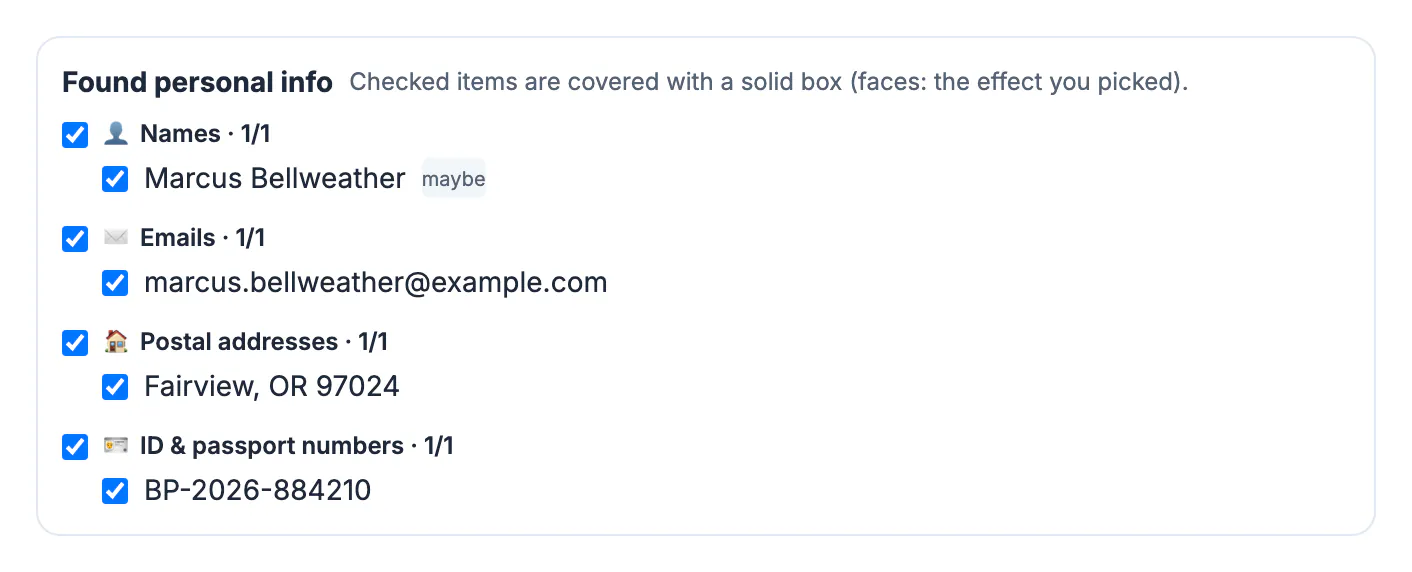
- Use the counter below the canvas, for example 7 areas hidden, to make sure it matches the items on your checklist.
- Download. The saved file keeps the full pixel size, gets -hidden added to its name, and carries no EXIF metadata because it is redrawn from scratch.
Everything runs locally in the tab, which matters when the capture shows a bank app or a medical portal. It handles one screenshot at a time; for a thread of ten captures, repeat the steps for each or stitch them first.
The checklist of things people forget
Most leaks do not come from the main content but from the edges of the screen. Before you press share, zoom in and check:
- Notifications and banners that slid in at the moment of capture, showing a message preview or a sender name.
- The status bar: carrier name, a location arrow, or a second SIM label can hint at where you are.
- Browser tabs and the address bar, which can show your email inbox, an internal company URL or a search you would rather keep private.
- Autocomplete suggestions and a half-typed reply in the message box.
- Reflections in a photo inside the chat, and the other person’s details, not just yours.
- Hidden data: a phone screenshot rarely has GPS, but a picture you pasted into the chat might, so remove metadata before sharing originals.
If a detail is at the edge, cropping may be cleaner than covering it; Crop Image trims tabs and status bars in one pass. Then read the final version once more as if you were a stranger trying to contact, impersonate or locate you.
Photos can carry hidden details too; the Metadata Remover strips them before you share.
Step-by-step
Common mistakes to avoid
Pro tips
Frequently asked questions
What is the safest way to hide text in a screenshot?
Cover it with a fully opaque box, then save a new file. Solid fills replace the pixels, while blur and pixelation keep a pattern that can sometimes be matched or partly rebuilt, especially for numbers and short words in standard screen fonts.
Can someone remove the black box from my screenshot?
Not from a flattened picture file like the one this tool saves; the covered pixels are gone. The risk comes from editors that keep edits as a separate layer, such as some PDF markup tools, or from sharing the original by mistake.
Is blurring a phone number enough?
Usually not. Phone numbers use ten digits from a small set of shapes, which makes them one of the easiest things to guess from a weak blur. Use a solid box instead.
Does the tool upload my screenshot?
No. Blur & Pixelate Image opens and edits the picture inside your browser and saves the result to your device. Nothing is sent to a server, which suits captures of banking, health or work apps.
Do screenshots contain location data?
Phone screenshots normally have little metadata, but pictures you attach or forward can include GPS tags. The redacted file this tool saves carries no EXIF data, and the Metadata Remover can clean other originals.
Treat every screenshot as public once you send it. Box, do not blur, anything textual: names, contact details, addresses, digits and codes. Then sweep the edges for notifications, tabs and suggestions, and share only the redacted copy saved from your browser.
Related guides
Browse more: all image guides · Blur & Pixelate Image