How to Frame a Mobile App Screenshot
A raw phone screenshot looks unfinished on its own, and learning how to frame a mobile app screenshot instantly makes it look professional. Wrapping the screen in a realistic device frame, adding a clean background, and setting the right dimensions turns a bare capture into an image ready for an app store listing, a pitch deck, a portfolio, or a landing page. This guide walks through framing a screenshot properly: choosing a device frame, setting a background, and exporting at the correct size for where the image will live. The free GrabCast Screenshot Beautifier does this in your browser, so you can drop in a capture and get a polished, framed result in minutes without design software.
🖼️ Try Screenshot Beautifier now — freeOpen →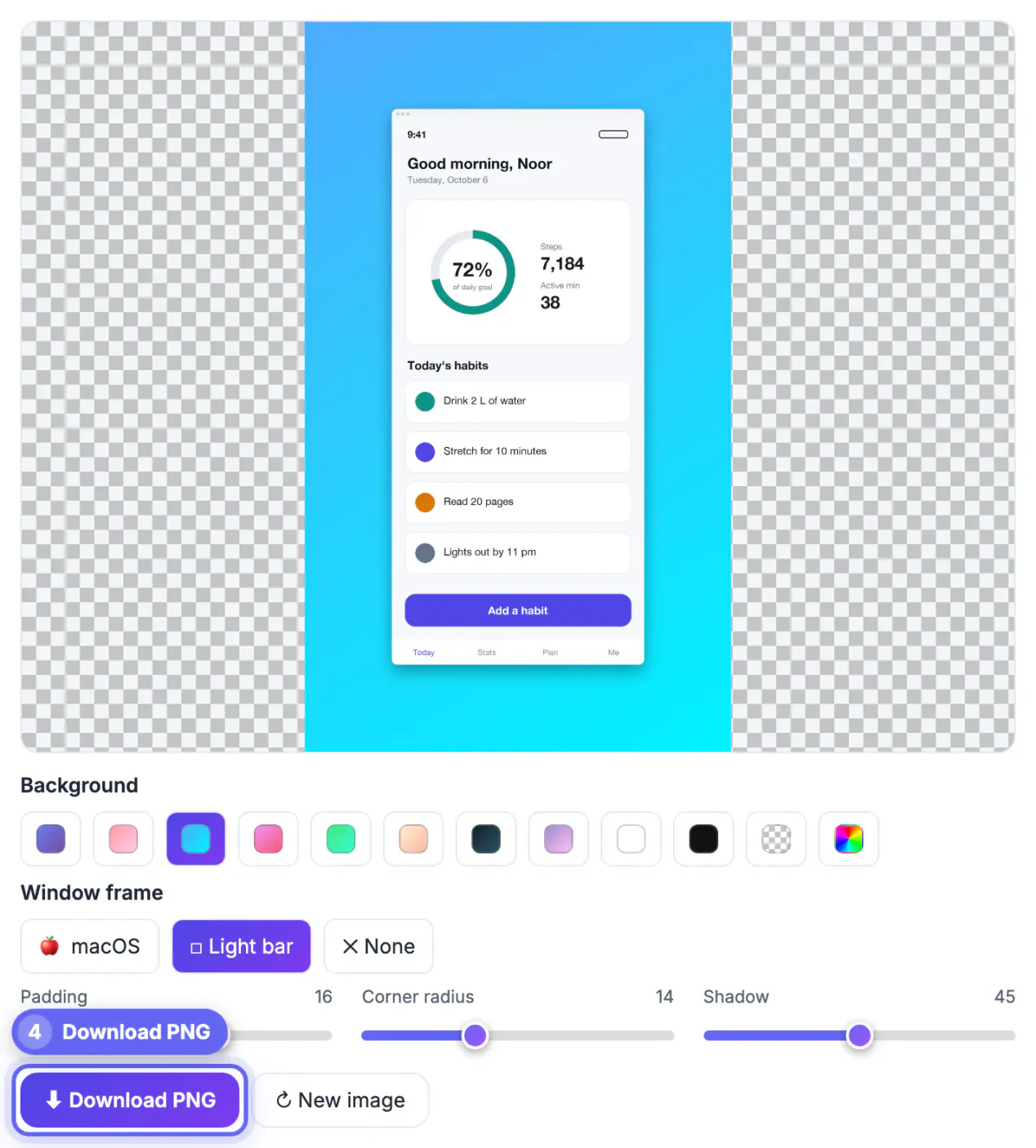
Context is what makes a screenshot believable. A bare app screen floating on a slide could be anything, but the same screen inside a recognizable phone frame instantly reads as a real, tappable product. That framing signals professionalism and helps viewers picture the app in their own hands, which is exactly what you want in a store listing or a sales deck. A clean background and correct proportions reinforce the effect, while a raw, oddly cropped screenshot undercuts even a great app by looking careless. Framing is a small step with an outsized impact on perceived quality, and because it takes only a moment with the right tool, there is little reason to ever share an unframed app screenshot in a context where impressions matter.
Start with a clean capture
A good frame cannot rescue a messy screenshot, so capture carefully first. Use a full-resolution screen grab with the content you want on display and no clutter in the status bar.
- Capture at the device's native resolution for sharpness.
- Show a real, representative screen of the app.
- Tidy the status bar and remove any personal information.
How to frame a mobile app screenshot
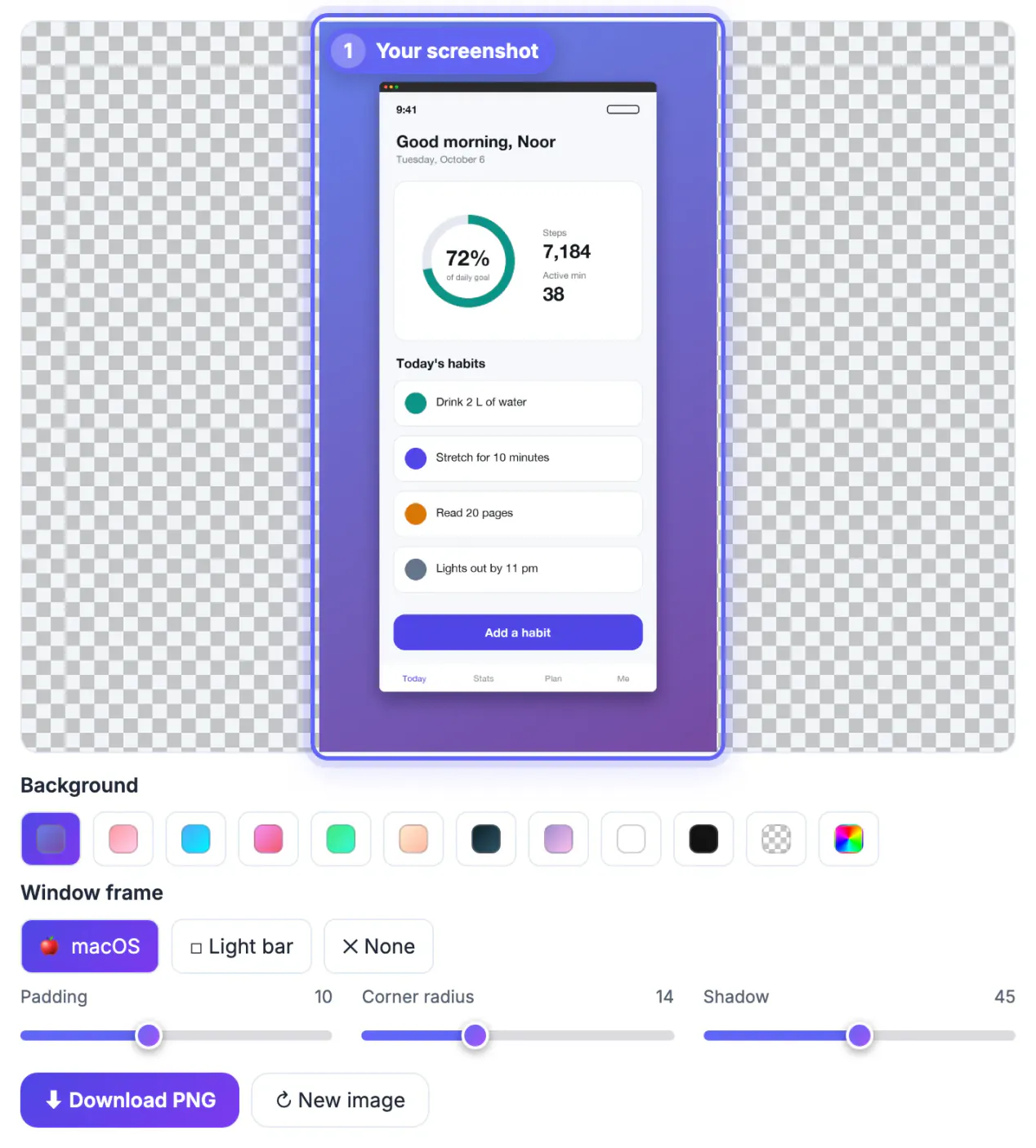
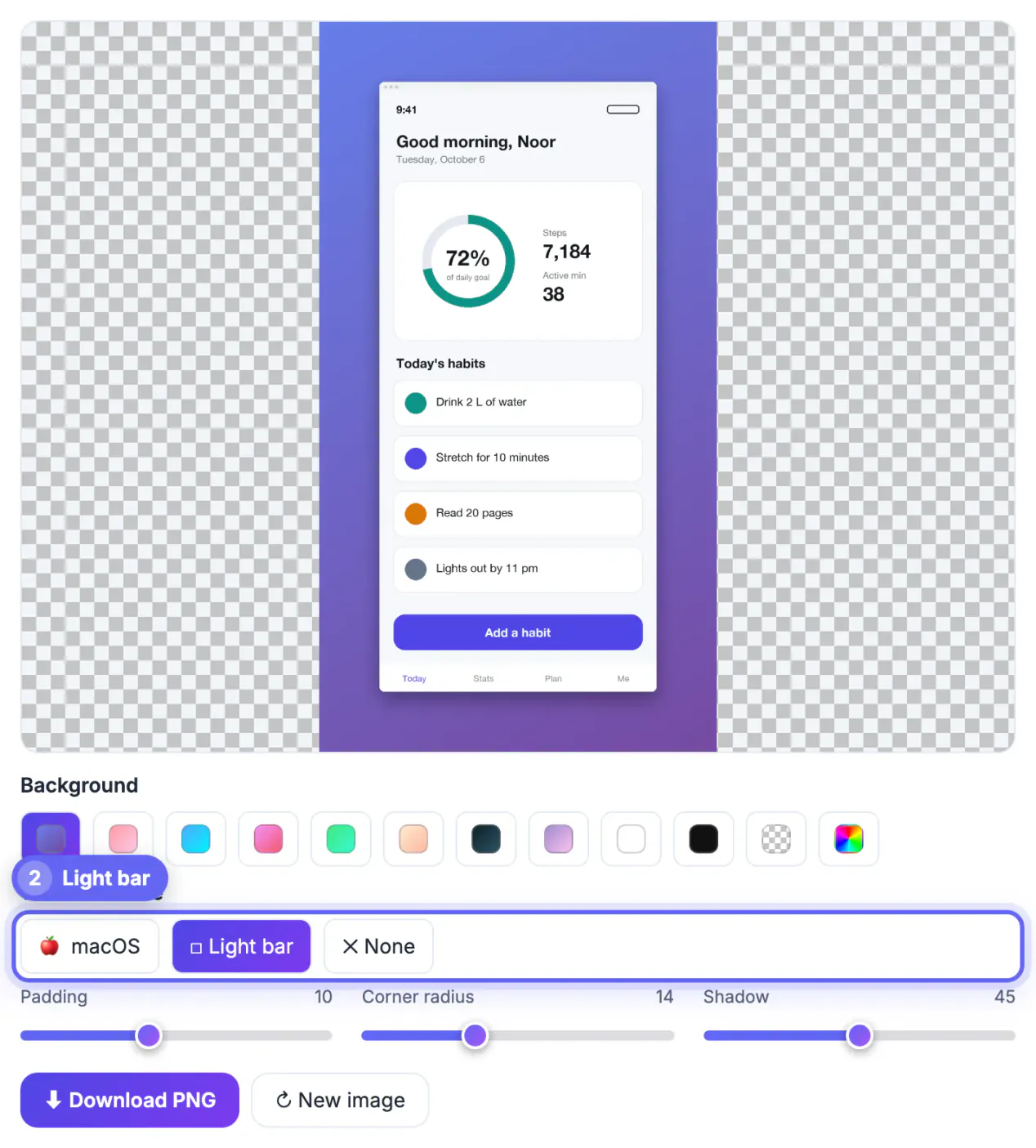
Load the screenshot into the tool and choose a window frame: macOS, Light bar or None, with rounded corners and a soft shadow. The Screenshot Beautifier does not include phone device frames, so if you want a realistic iPhone or Android bezel, add it with a device mockup template.
Make sure the frame suits the audience: an iPhone frame for an iOS listing, an Android frame where that fits. The frame should feel natural, not like a mismatched border stuck around the image.
Set a background and spacing
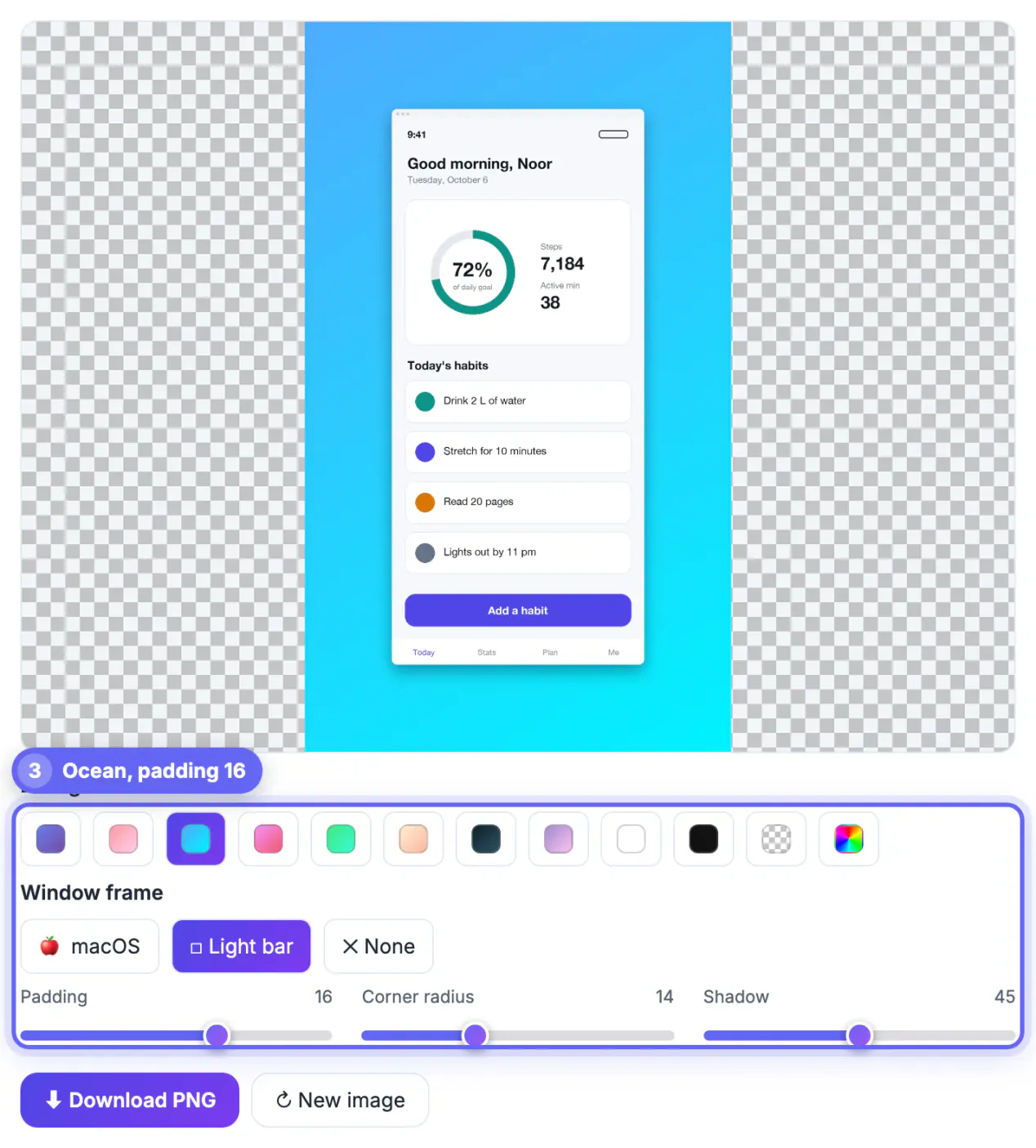
A framed device still needs somewhere to sit. Add a clean background, a solid color, a soft gradient, or a subtle scene, and give the device a little padding so it does not touch the edges.
Keep the background simple so attention stays on the app. The goal is to present the screen, not to compete with it, so restraint reads as more polished than a busy backdrop.
Why tall phone captures come out smaller
The Screenshot Beautifier scales every capture so its longest side is at most 1,500 pixels before framing. On a phone screenshot that side is the height, so a 1179 × 2556 iPhone capture becomes roughly 692 × 1500. Padding is also measured against that longest side: the default 10% adds about 150 pixels on every edge, and with the macOS bar the finished PNG lands near 992 × 1826.
- Decks, portfolios and landing pages: that output is sharp enough and keeps the file light.
- App Store and Google Play listings: the stores validate exact pixel dimensions (Apple's 6.9-inch iPhone slot accepts sizes such as 1290 × 2796), so prepare store uploads separately at the required size instead of upscaling the beautified PNG.
- Padding feels wider on portrait shots: because it is a percentage of the height, try 4–6% for a snug card, or keep it higher when the image must sit inside a square post.
- Corner radius is in pixels, up to 40: values around 30–40 echo the rounded display corners of current phones.
- Frame set to None is the right choice when you will drop the PNG into a phone bezel template, since a desktop title bar looks odd inside a device.
Export at the right size
Different destinations want different dimensions. App stores specify exact pixel sizes, social posts favor particular aspect ratios, and a deck or site may need something else again.
Export at the size the destination requires so the image stays crisp and is not awkwardly cropped or scaled. Getting the dimensions right is the final step that separates a professional asset from one that looks slightly off wherever it lands.
Store and portfolio dimensions to plan for
Frame the screenshot for the place it will be shown. Each store and portfolio platform has preferred ratios, and starting from the right canvas avoids cropping later.
- Apple App Store screenshots commonly use sizes such as 1290 by 2796 for large iPhones.
- Google Play accepts phone screenshots between 320 and 3840 pixels, with a maximum 2:1 ratio.
- Portfolio and case-study pages usually work best at 1600 pixels wide.
- Presentation slides need a 16:9 canvas with the phone centred.
After framing, resize the final image to the exact pixels, and use cropping out status bars and clutter before you start if the capture has distractions.
Keeping private data out of the frame
Screens often show names, balances or notifications. Blur or replace them before you publish, and prefer demo accounts with sample data. Hiding personal info in a screenshot explains how to do it so the information cannot be recovered.
Step-by-step
Common mistakes to avoid
Pro tips
Frequently asked questions
Why add a device frame to a screenshot?
A frame gives the screen context, so it reads as a real, tappable product. It looks far more professional than a bare capture in a listing or deck.
Which device frame should I use?
Match the platform your audience expects: an iPhone frame for iOS listings, an Android frame where that fits. A mismatched frame looks off. The GrabCast beautifier only draws window-style frames, so apply a phone bezel with a mockup template.
What size should I export at?
Match the destination. App stores specify exact pixel sizes, and social posts favor certain ratios, so export at the required dimensions to stay crisp.
Do I need design software?
No. The GrabCast Screenshot Beautifier frames and backgrounds a screenshot in your browser, so you get a polished image without any design tools.
Does the Screenshot Beautifier add an iPhone or Android bezel?
No. It offers a macOS title bar, a Light bar or no frame, plus a background, padding, rounded corners and a shadow. For a phone bezel, choose None, download the PNG and place it in a device mockup template.
Framing a mobile app screenshot turns a bare capture into a professional asset. Start with a clean, full-resolution screen, wrap it in a matching device frame, add a simple background with padding, and export at the size your destination needs. It takes minutes and dramatically raises how polished your app looks everywhere it appears.
Related guides
Browse more: all image guides · Screenshot Beautifier