How to Anonymize a PDF Before You Share It
To anonymize a PDF, you remove every detail that could identify a person, check that the removed text is really gone, and keep the parts the reader actually needs. It comes up constantly: a complaint file sent to an ombudsman, an example contract shared with a new colleague, a medical letter used in a training session, a support ticket forwarded to a vendor. Drawing black rectangles in a PDF viewer is not enough, because the words usually stay underneath. This guide walks through a two-page housing complaint case file for a fictional tenant: an automatic scan for personal info, a manual pass for what the scan misses, true redaction and a verification step, all in your browser. The last section covers screenshots and photos.
⬛ Try Redact PDF now — freeOpen →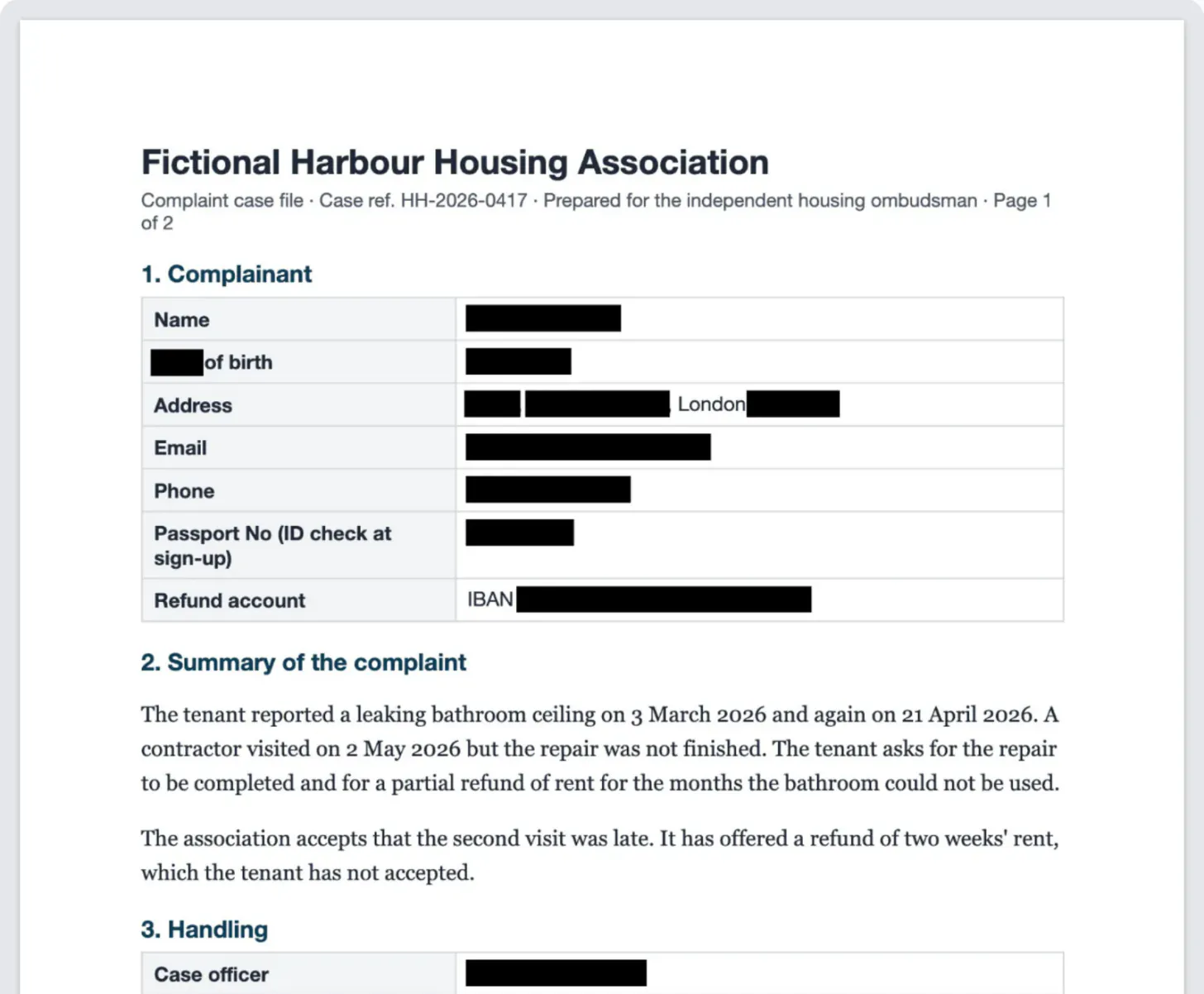
People are identifiable through far more than their name: an email address, a phone number, a street address, a date of birth, a bank account, a passport number, even an IP address in a log line. Under the GDPR, data that has been truly anonymized is no longer personal data, while data where a name was only swapped for a code is pseudonymized and still counts. So the goal is not to make the document look anonymous; it is to make re-identification impractical. That means catching the details scattered through tables and footers, removing them from the file itself rather than covering them, and stripping metadata such as the author field. A careful manual review stays part of the job, because no scanner knows your context.
What counts as personal information in a document
Before you start, list what must go and what must stay. For a typical case file:
- Direct identifiers: names, email addresses, phone numbers, postal addresses, ID and passport numbers, account numbers and IBANs.
- Indirect identifiers: a date of birth, a flat number, an employer, an IP address, a unique job title. Combined, they can point to one person.
- Keep: what the reader needs to understand the case, such as the complaint, the dates of events, amounts and the case reference.
Staff names are a judgement call. An ombudsman may need to know which officer handled a case; a training handout usually doesn't.
Find personal info automatically, then add what it misses
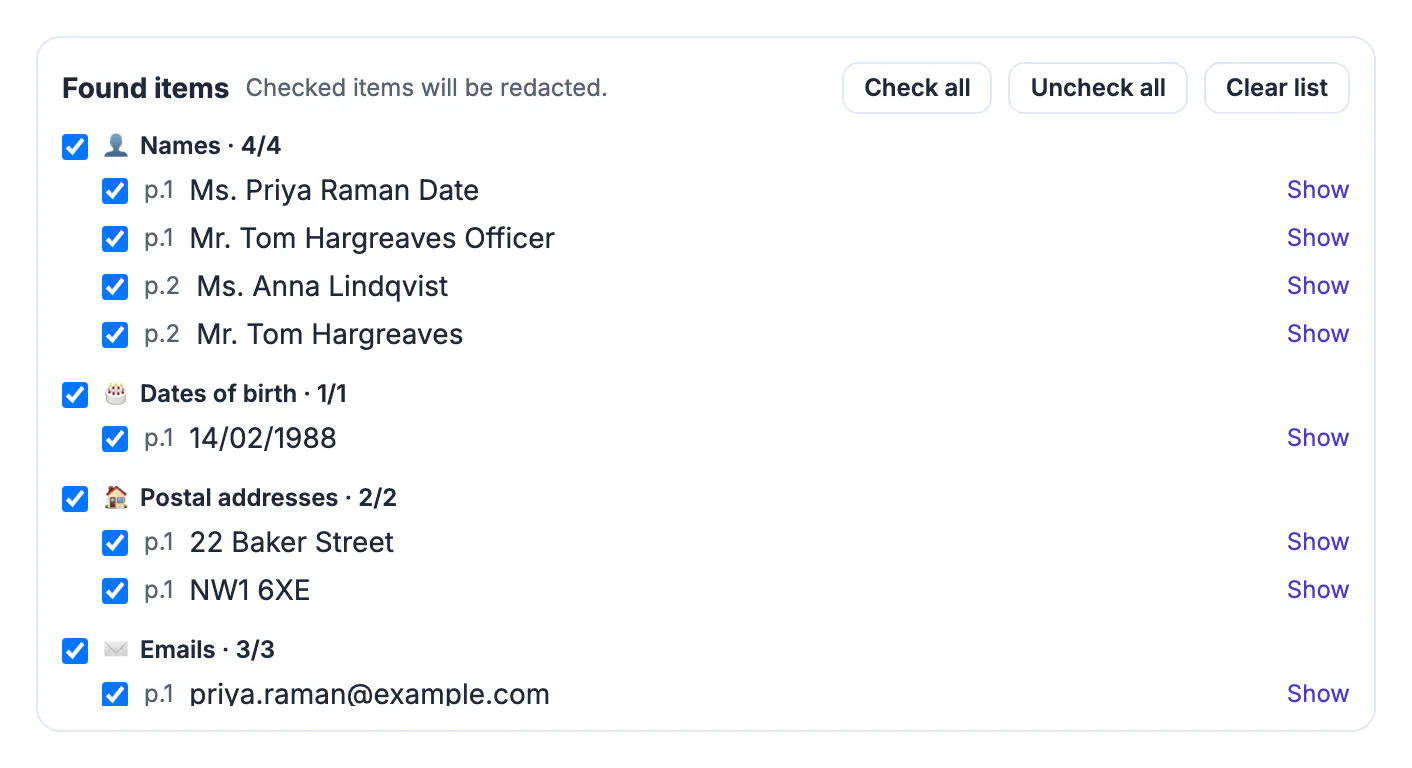
Open Redact PDF and drop the PDF. As soon as the pages load, the tool scans the text layer for personal info and lists every find by category with a checkbox: names, emails, phone numbers, postal addresses, dates of birth, IBANs and account numbers, card numbers, ID and passport numbers, VAT and tax IDs, IP addresses, keys and private links. Other dates and links are listed but not marked, because they are usually part of the story.
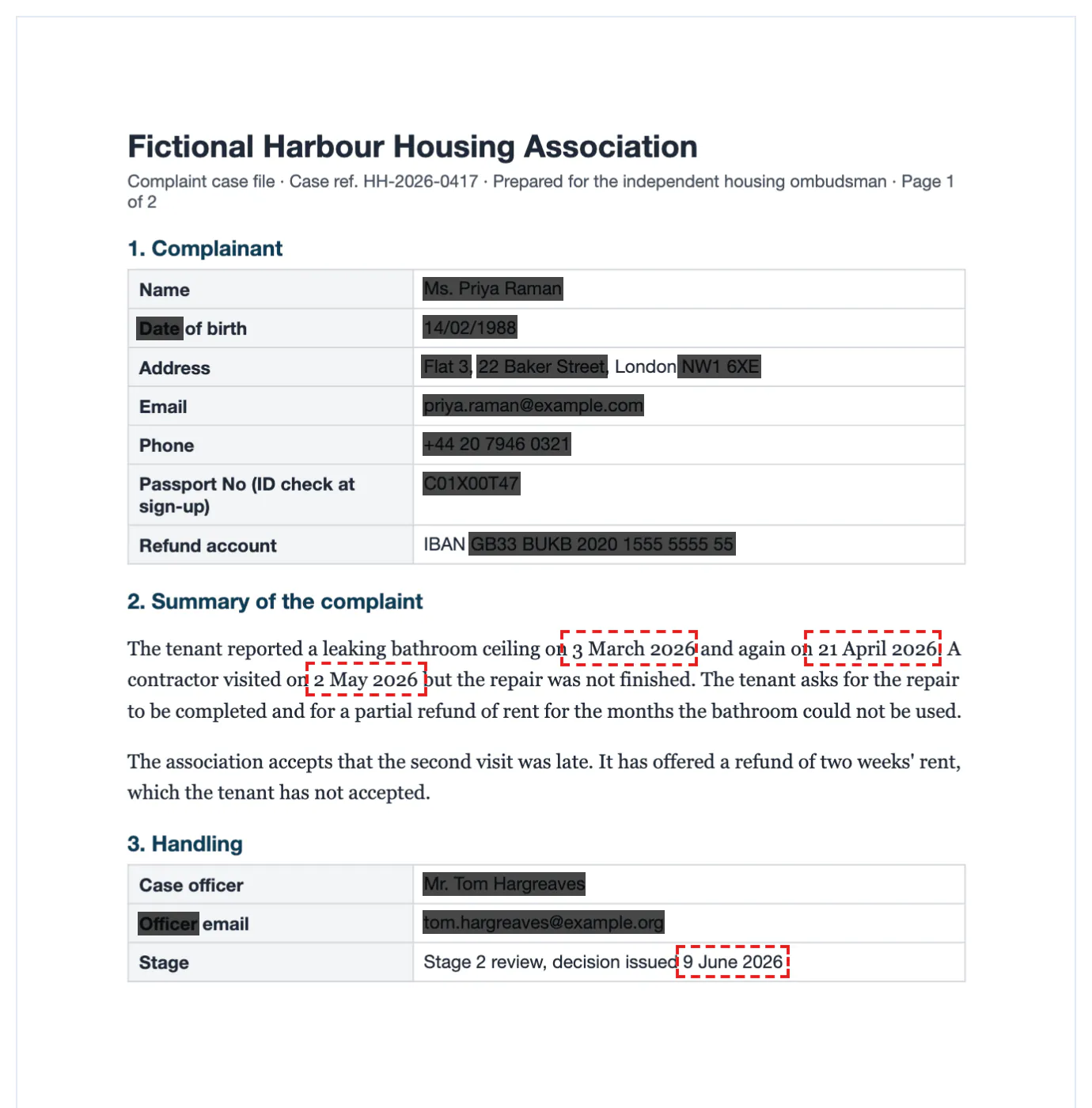
On the fictional case file the scan marked four names, the date of birth, the street and postcode, the email addresses, the phone number and the IBAN, and outlined the complaint dates without marking them. It also showed its limits, which is why you read the list rather than trust it:
- The passport number C01X00T47 was missed, because its label sat in a different table cell from the number.
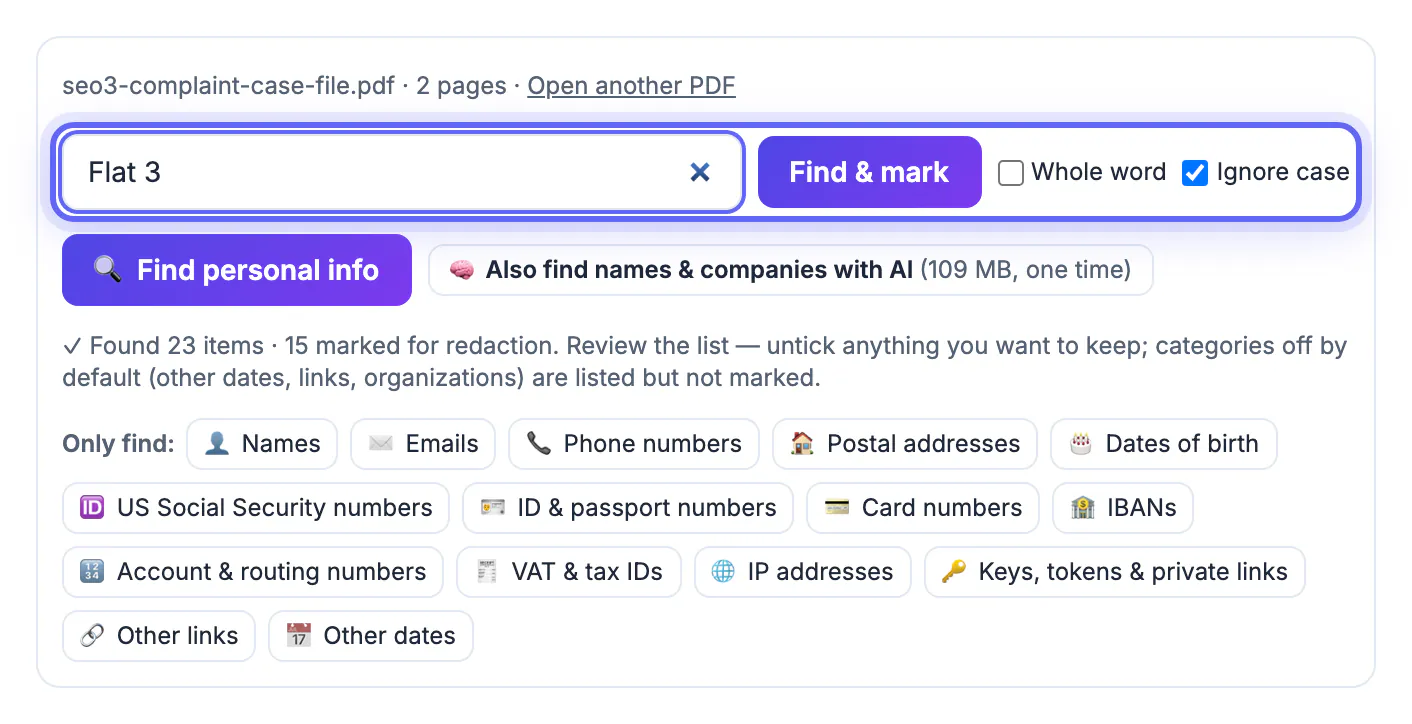
- The address was only partly caught: the street and postcode were marked, Flat 3 was not.
- Two name boxes ran one word into the next table cell, so a table label was covered too. Harmless, but worth noticing.
Type anything missing into Find & mark, or drag a box by hand for photos, signatures and handwriting. Scanned pages without a text layer get a Read scanned pages (OCR) button, and an optional AI model (109 MB, downloaded only when you click) can add names and company names the rules don't recognise.
Redact for real and verify the result
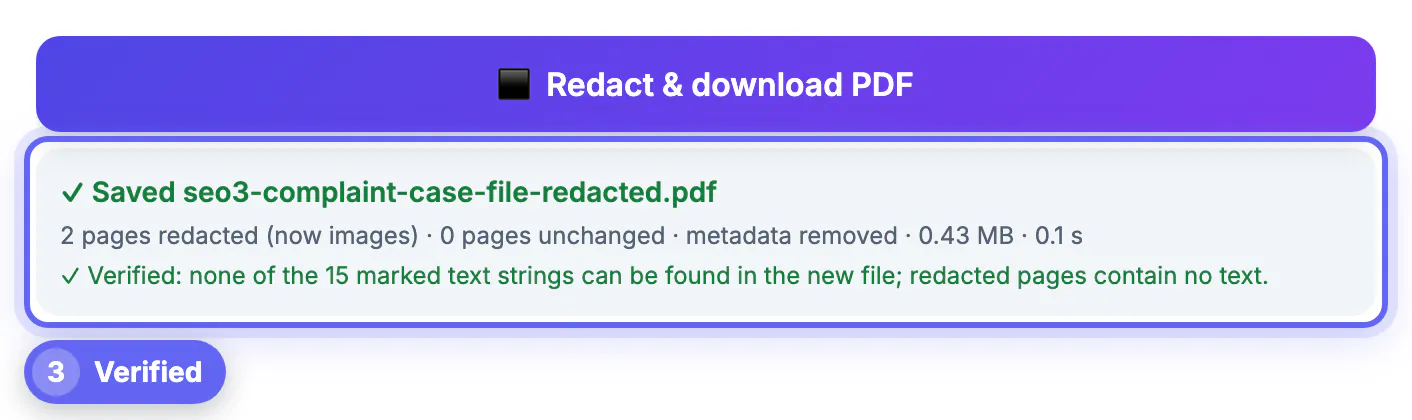
Press Redact & download PDF. Every page with a box is rebuilt as an image with the boxes burned into the pixels, so the text, fonts and hidden layers of that page are not copied into the new file. Pages without boxes are copied unchanged and stay searchable. The new PDF also drops the title, author, keywords, XMP metadata, bookmarks and attachments of the original.
Then the tool opens its own output and searches it for every marked string. For the case file it reported both pages redacted, metadata removed, and a Verified line: none of the marked text strings can be found in the new file. Do your own spot check too: open the result, press Ctrl+F or ⌘F and search for the person's surname and email.
Two trade-offs to know. Redacted pages are images, so their remaining text can't be selected until you run OCR on the result, and files can grow because pages are saved at 150, 200 or 300 DPI. Password-protected PDFs must be unlocked first, and files are limited to 200 pages.
Anonymize screenshots and photos too
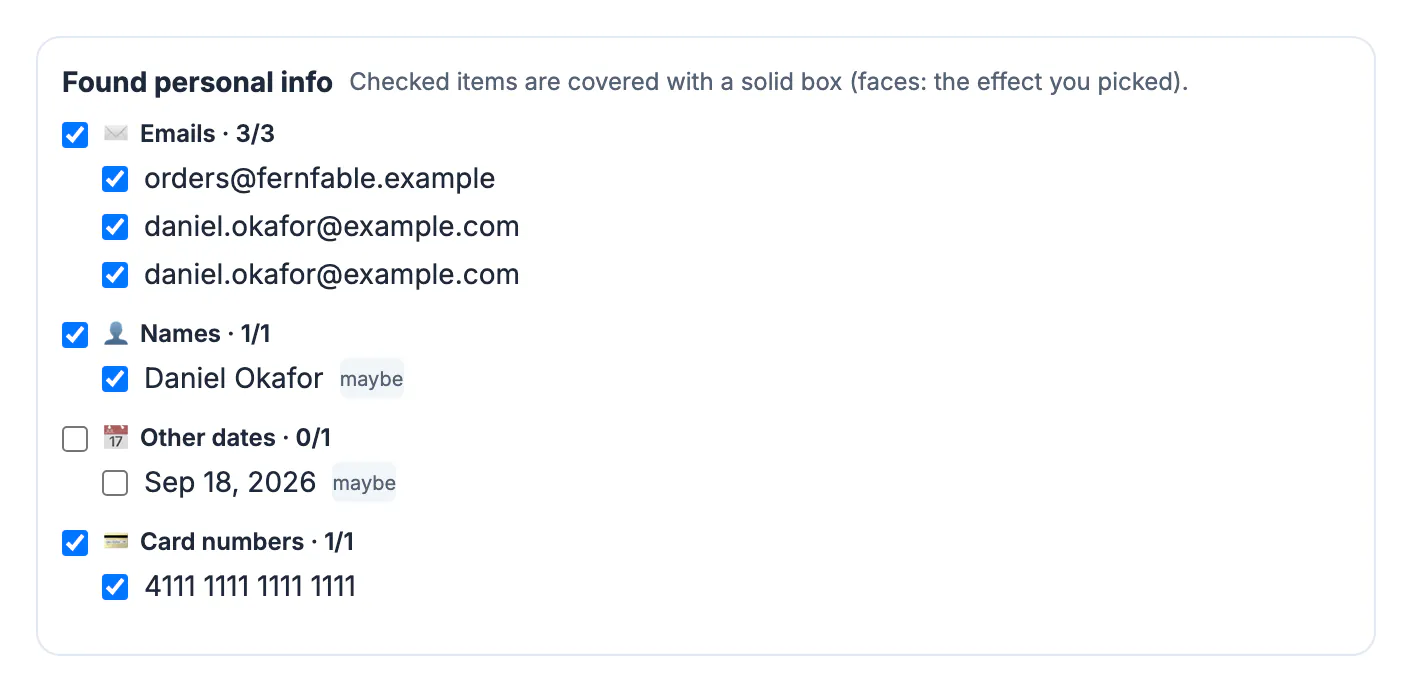
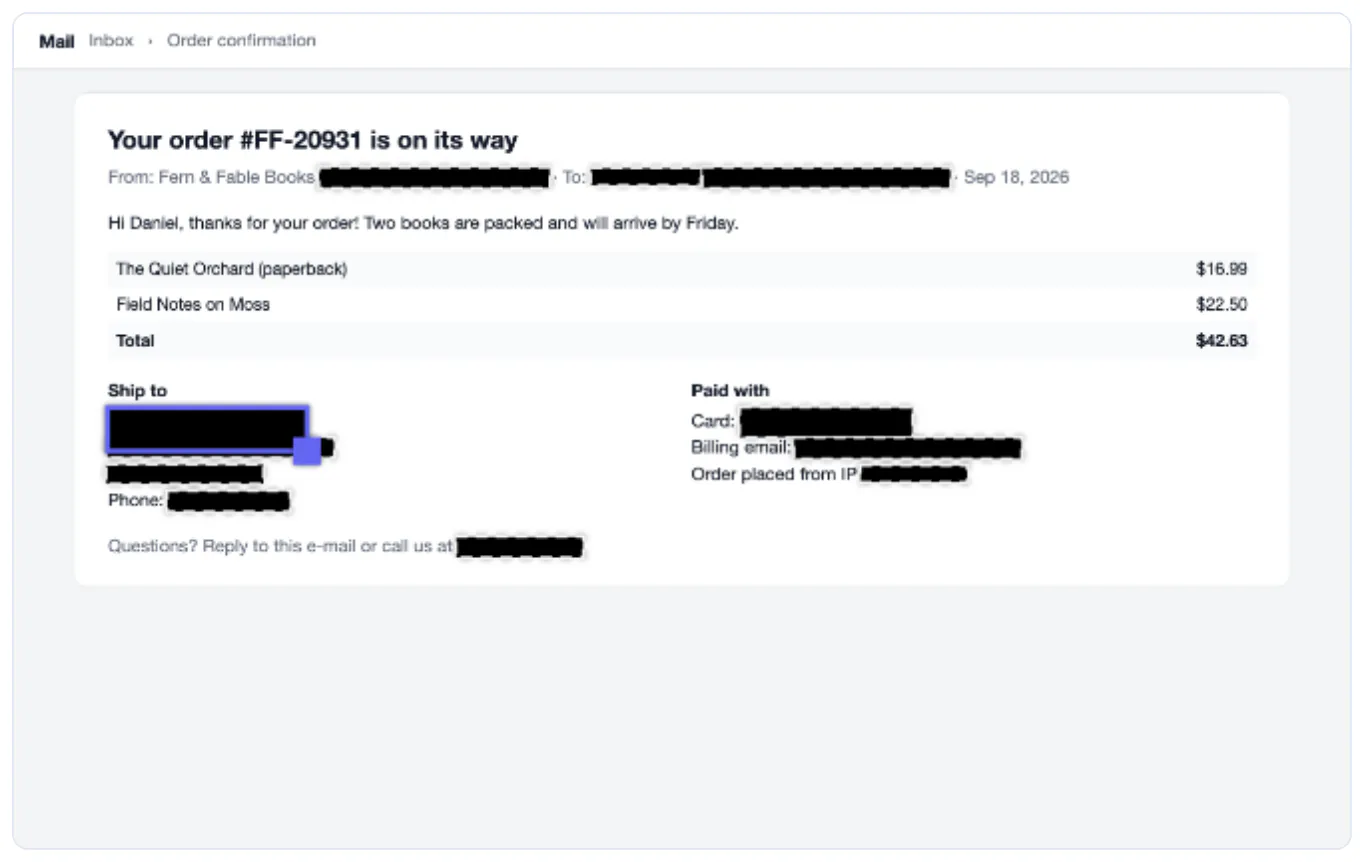
Case files often come with attachments: a screenshot of an order email, a photo of a letter. In Blur & Pixelate Image, Find personal info runs OCR on the image on your device and lists what it recognises. On a fictional order-confirmation email it found three email addresses, the customer's name in the To line, the shipping address, two phone numbers, the test card number and an IP address, and covered each with a solid box.
It did not cover the name under Ship to, which had no label next to it, so a box was dragged over it by hand. Use Solid box rather than blur for text, because light blur and large pixels can sometimes be partly reversed. The download is redrawn from pixels, so EXIF data such as GPS location is not included. For a single screenshot the older guide on hiding personal info in a screenshot covers placement and file formats in more detail.
Step-by-step
Common mistakes to avoid
Pro tips
Frequently asked questions
What is the difference between anonymizing and redacting a PDF?
Redacting removes chosen text. Anonymizing is the goal: removing every detail, direct or indirect, that could identify a person, which usually takes an automatic scan, a manual pass and a check of the result.
Is the PDF uploaded to anonymize it?
No. The pages are read, scanned and rebuilt in your browser with PDF.js and pdf-lib. The optional AI name model is downloaded to your device only if you click it.
Will the automatic scan find everything?
No scanner does. In our example it missed a passport number whose label sat in another table cell and part of an address. Always read the list and add what is missing.
Can someone recover the text under the black boxes?
Not from the redacted pages. They are saved as images with the boxes in the pixels, and the tool checks that none of the marked strings remain in the file.
Does anonymizing make a document GDPR-compliant?
It helps, but compliance depends on your purpose and context. Truly anonymized data falls outside the GDPR; pseudonymized data does not. Ask your data protection officer when in doubt.
Anonymizing a PDF is a short routine: decide what must go, let the scanner find the obvious details, add what it misses, redact for real and verify. Treat screenshots and attachments the same way, and keep the original safe. Ten careful minutes protect a person who never agreed to be in the file you are sharing.
Related guides
Browse more: all PDF guides · Redact PDF