Verification Code via Temp Email: Fast, Reliable Steps
To receive a verification code without exposing your main account, open a temp email inbox first, paste its name into the form, then request the code and copy it from the page within a minute or two. The order matters because most one-time codes die after 5 to 15 minutes. This walkthrough uses GrabCast's free tool and covers the timing, what the automatic digit detector does and where it can pick the wrong number, why a message sometimes never shows up, and the accounts where you should not use a throwaway at all.
🔢 Try the Temporary Email tool now — freeOpen →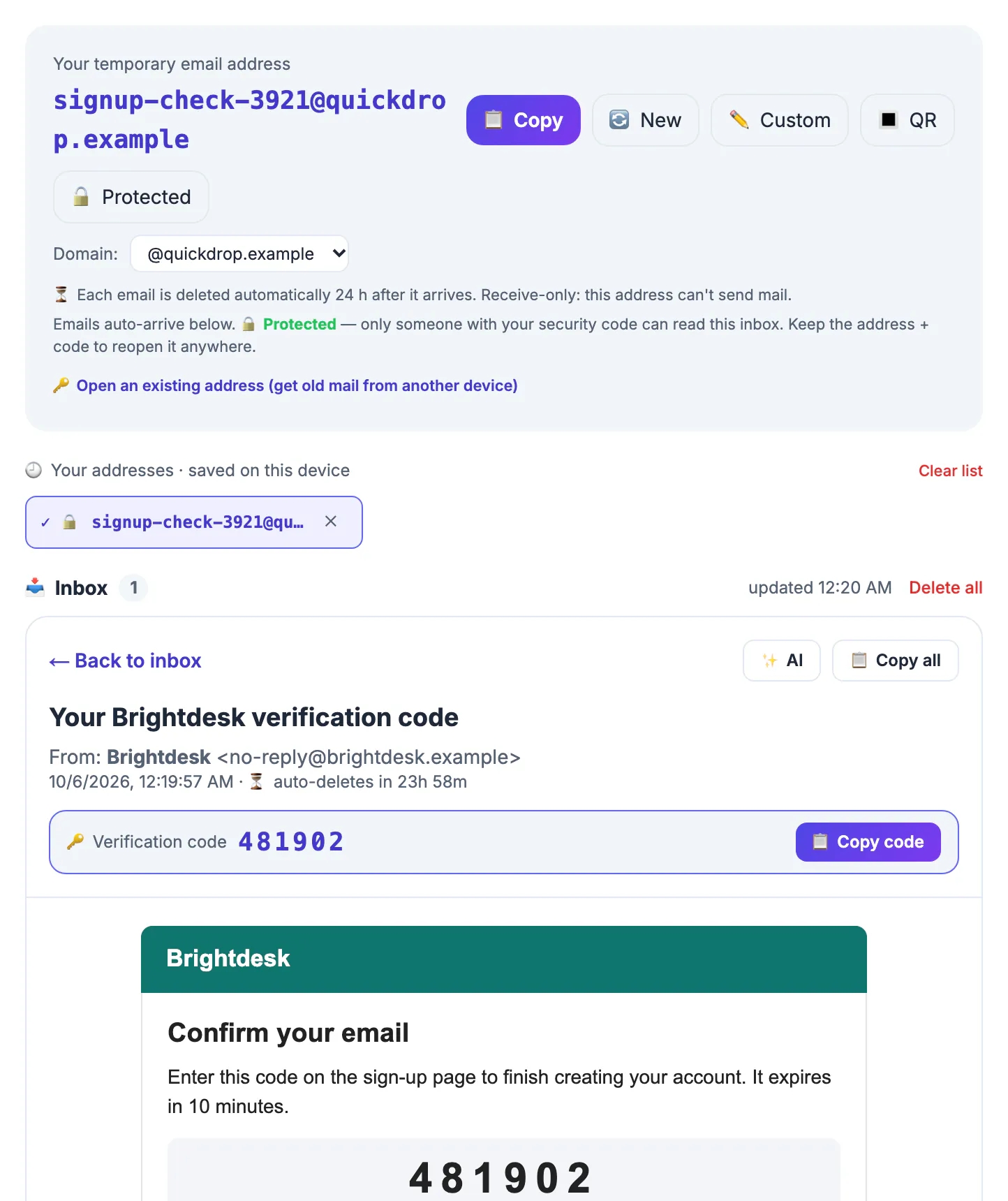
Most failed attempts are not delivery problems; they are timing problems. People request the digits, then go hunting for a throwaway, then paste an expired string and conclude the service is broken. Setting up the receiving side first turns a frustrating five-minute loop into a thirty-second task, and it keeps your personal account out of yet another marketing database.
Set up the temp email tab before requesting anything
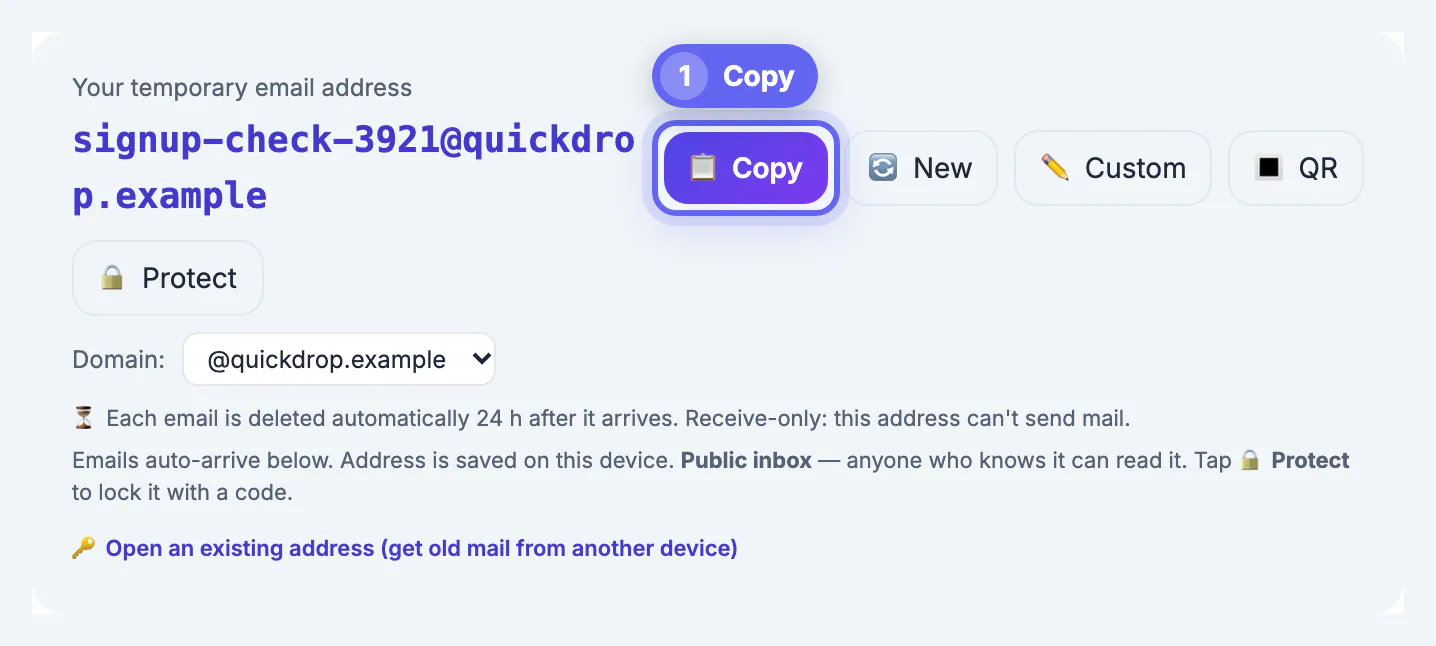
Open the tool in its own browser tab and leave it visible. A random name such as luckyraven4m9zt@inbox.grabcast.click appears at the top, generated on your device. Press Copy rather than retyping it; the five random characters at the end are exactly where a typo would slip in. Paste it into the sign-up form in the other tab.
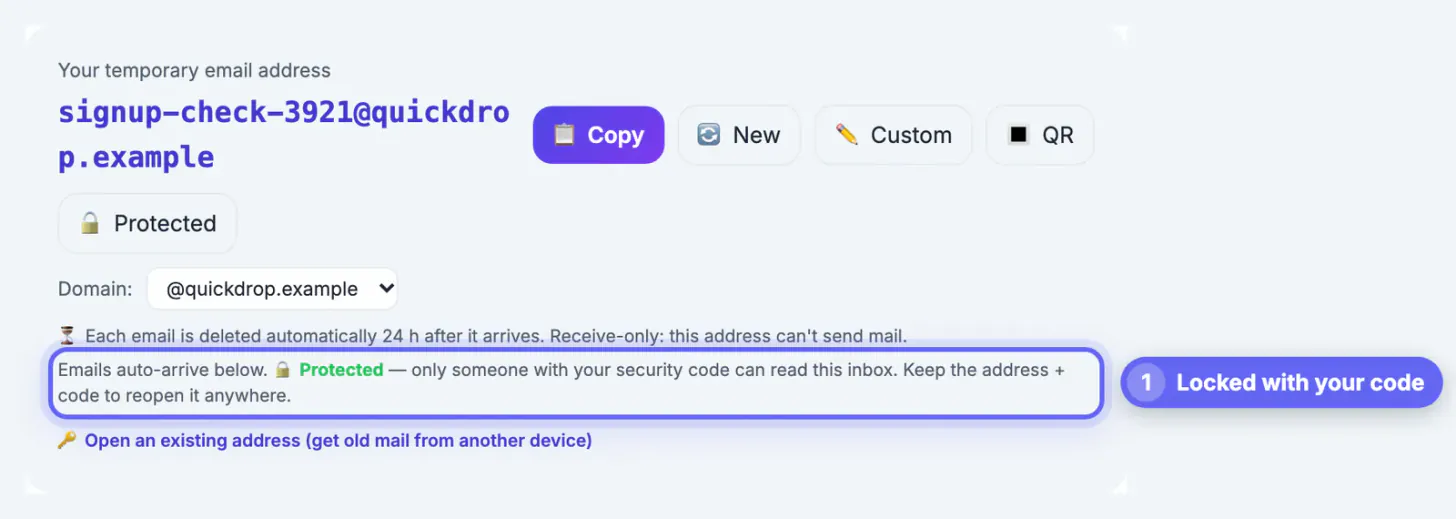
If the one-time number unlocks something you care about, press Protect before you trigger it and set a security code of at least four characters. An unprotected mailbox answers anyone who asks for that exact name, so for the few minutes the digits are valid, someone who saw the string over your shoulder or in a screenshot could read them too. With protection on, the server refuses to show the messages without your code.
Receive the message and copy the right digits
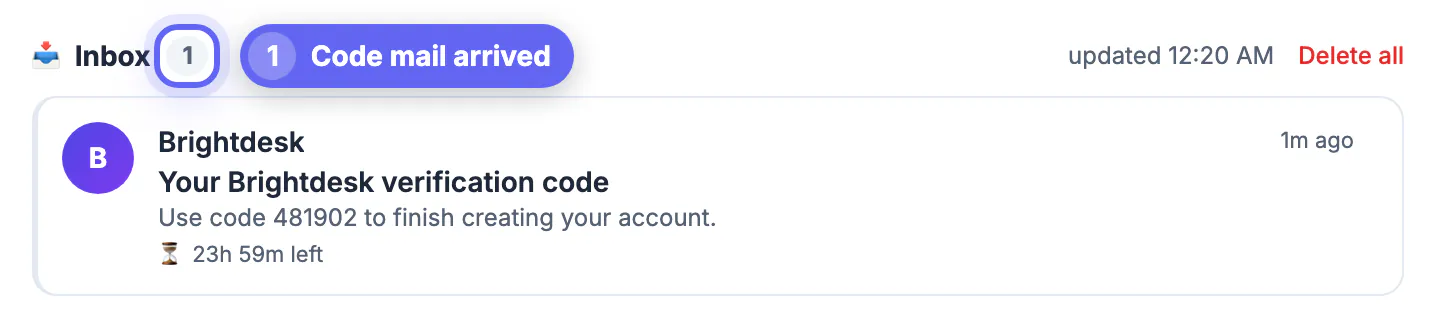
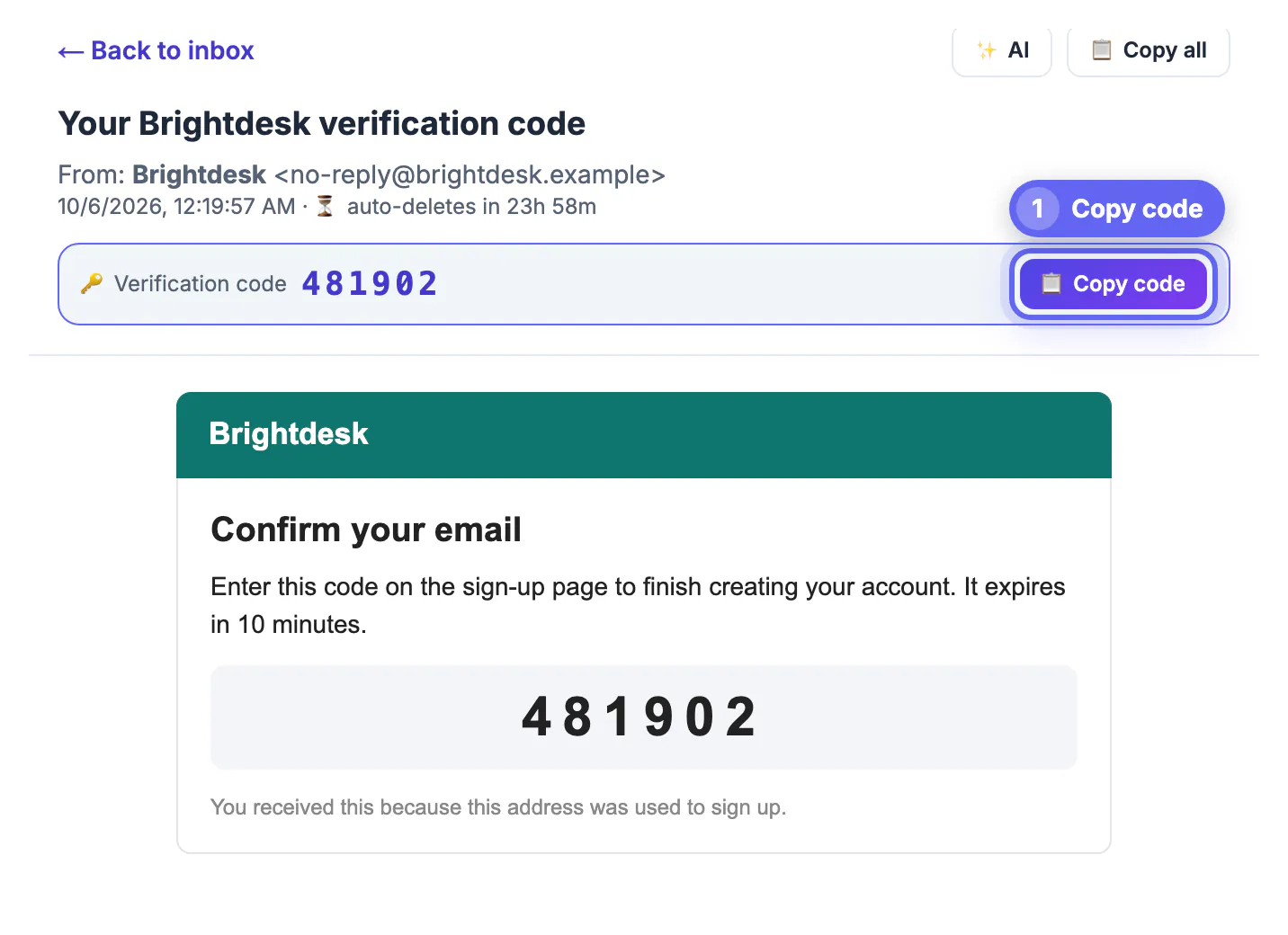
Now press the site's Send or Verify button. The tool checks for new mail every 12 seconds while the tab is in view, so most messages show up within half a minute. Open the message and look for the highlighted Verification code bar with a Copy code button. It appears when the page spots a likely one-time value.
The detector follows a simple priority list. First it looks for a 4 to 8 character letters-and-digits token with at least one digit, sitting just after words like code, verification, OTP, one-time, passcode, PIN or security. If that fails it takes the first standalone six-digit number, then any 4 to 8 digit number, then a short mixed token. That catches the vast majority of sign-up messages, but it can occasionally grab an order number, a year or a support ticket ID instead.
- Glance at the message body and confirm the highlighted value matches the one the sender labels as your code.
- For magic-link messages there is no number; click the button inside the message instead.
- Copy all grabs the full plain text if you need a long token or a backup key.
When the verification message never arrives
Give it a full two minutes before assuming anything. Some services queue transactional mail and send in batches. If the counter stays empty, work through the likely causes in order rather than hammering Resend, which many sites rate-limit and may temporarily lock after three to five attempts.
- Typo in the form: compare the pasted string with the one at the top of the tool, character by character.
- Paused checking: after about 30 minutes open, the page stops polling and shows a tap-to-resume link; tap it.
- Hidden tab: the page deliberately skips checks while its tab sits in the background, so bring it to the front.
- Domain refused: some services decline throwaway domains, often at the form itself; that is their policy, and the honest answer is to use a real account or an alias you control.
- Expired digits: if more than the stated window has passed, request a fresh one and use only the newest message.
Accounts that deserve a permanent inbox
A throwaway is the wrong receiver whenever the one-time number protects something you will need again. Messages on the shared GrabCast domain are deleted about 24 hours after arrival, and there is no password reset for the mailbox itself. If you later forget your password on that site, the reset message goes to a mailbox you can no longer rely on, and you may lose the account.
Use your real, long-term account for online banking, brokerage, government and tax portals, health providers, your employer or school, domain registrars, password managers, and any service that holds payment details or your files. For login security on those accounts, prefer an authenticator app over emailed digits. Keep throwaways for low-stakes gates: a PDF download, a forum you want to browse once, a coupon you may never use, or a trial of a free tool you are evaluating.
For accounts you plan to keep, create a unique password with the Password Generator, and see how to remember strong passwords without reusing them.
Step-by-step
Common mistakes to avoid
Pro tips
Frequently asked questions
How fast do verification messages arrive?
Usually within seconds of the sender dispatching them. The tool checks every 12 seconds, so expect to see it within half a minute; give slow senders up to two minutes.
Why did the Copy code button pick the wrong number?
The detector guesses from keywords and number patterns. When a message also contains order numbers or dates it can miss; read the message and copy the right value manually.
Can someone else read my code?
On an unprotected mailbox, anyone who knows the exact name can. Set a security code with Protect before requesting the message to lock it.
Can I use a throwaway for two-factor login codes?
Not for anything important. Messages vanish after about a day and the mailbox has no recovery, so you could be locked out. Use an authenticator app or your main account.
What if the site says my address is invalid?
Many sites block known throwaway domains on purpose. Use your real account or a private alias rather than trying to slip past the check.
Open and protect the throwaway before you request anything, copy the value the page highlights only after checking it against the message, troubleshoot calmly instead of spamming Resend, and never route codes for accounts you must keep to a mailbox that empties itself in a day.
Related guides
Browse more: all all guides · the Temporary Email tool