Video Converter Compared: Movavi, HandBrake, Browser
Choosing a video converter is mostly about volume and control. A free browser converter is the fastest start for a few files, HandBrake is a free desktop tool with deep encoding settings, and a paid app such as Movavi Video Converter aims at people who convert many files regularly and want a simple offline interface. This comparison looks at the three by job: one MOV to MP4 file, a folder of mixed files and a repeating weekly task. We have not tested Movavi hands-on, so everything about it comes from the vendor's own pages, and prices and trial terms change, so check them before you buy. Disclosure: some links below are affiliate links, and GrabCast may earn a commission at no extra cost to you.
🔄 Try the Video Converter now — freeOpen →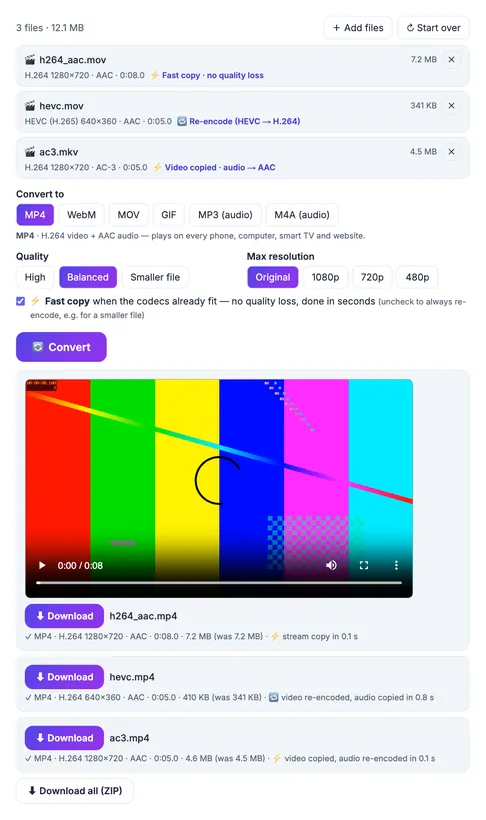
Converting video sounds simple, but there are two very different jobs hiding behind it. One is a container swap, such as MOV to MP4, where the video and audio streams can be copied untouched in seconds with no quality loss. The other is a true re-encode, where every frame is processed again, which takes time and trades size against quality. A tool that is excellent at the second job may be overkill for the first. Knowing which job you have saves you from installing heavy software for a task a browser tab finishes in seconds, and also from fighting a browser tool with a folder of fifty large files.
One file, one format: use a browser converter
For an occasional MOV, MKV or WebM file, the browser route wins on convenience. The GrabCast Video Converter reads the file, shows its codecs and tells you whether the conversion will be a fast copy or a re-encode, with nothing to install and no upload. It suits phone clips, screen recordings and files you need in MP4 today.
If your file is H.264 in a MOV container, see Convert MOV to MP4 Without Re-encoding, where the change takes seconds and quality stays identical.
HandBrake: free, powerful and a little fiddly
HandBrake is a free, open-source desktop transcoder for Windows, Mac and Linux. It offers presets, fine control over codecs, bitrate and resolution, queued jobs and subtitle handling. It is a strong answer when you want control and do not want to pay.
- Strengths: free, many presets, detailed encoding options, batch queue.
- Weak spots: the settings can overwhelm beginners, and it re-encodes rather than doing a quick container copy for simple swaps.
- Good fit: people who want to shrink large files with careful quality settings and do not mind learning the interface.
Movavi Video Converter: what the vendor says
Movavi describes its Video Converter as a desktop app for Windows and Mac, aimed at converting between common formats such as MP4, MOV and AVI, with an interface designed to be simple. It offers a free trial with limits, so check the current terms on the download page before you plan around it. We have not tested it, so judge its speed and output quality on your own files.
The appeal is convenience for repeat work: an offline app you open, drop files into and set a target format, without learning encoder jargon.
Movavi Video Converter is a paid desktop app for Windows and Mac for converting video between formats. It suits regular batch conversion and offline work. Try the free options first, then test the trial on a few of your own files and check the current price and limits.
Partner code PTNAFFDIS011026ALLAFS15 takes 15% off Movavi 1-year licenses until November 15, 2026.
See Movavi plans →Batch jobs, privacy and when each tool breaks down
Volume is where the differences show. A browser converter handles a handful of files comfortably, but a folder of fifty four-gigabyte videos strains memory and patience, which is when a desktop queue makes sense, whether HandBrake or a paid app. Privacy points the other way: a browser converter keeps files on your device, but so do the desktop tools, so compare cloud features if you use any.
- A few files, occasionally: browser converter.
- Large re-encodes with careful settings: HandBrake.
- Regular batches and a simple offline interface: consider a paid converter after a trial.
If the goal is a smaller file rather than a new format, the Video Compressor is the more direct tool.
Step-by-step
Common mistakes to avoid
Pro tips
Frequently asked questions
Is HandBrake better than Movavi Video Converter?
HandBrake is free and gives deeper control but has a steeper learning curve. Movavi is paid and aims at simplicity. Pick based on how much control you want, and test both on your own files.
Does Movavi Video Converter have a free trial?
Its page describes a free download with trial limits. Terms change, so read the current download page before relying on it.
Can I convert MOV to MP4 without losing quality?
Often yes, when the MOV holds H.264 video, because the streams can be copied into an MP4 without re-encoding. HEVC clips may need a re-encode for wide compatibility.
Do I need to install software to convert video?
Not for occasional files. A browser converter such as the GrabCast Video Converter works in a tab with nothing to install.
Which video converter is best for beginners?
A browser converter is the easiest start, and a simple desktop app suits repeat work. Beginners should avoid heavy encoder settings until they need them.
Use a free browser converter for occasional files, HandBrake if you want free deep control, and consider a paid converter such as Movavi only for regular batch work after testing its trial on your own footage.
Related guides
Browse more: all video and audio guides · the Video Converter