Capture Groups in Regex: Extract Data From Messy Text
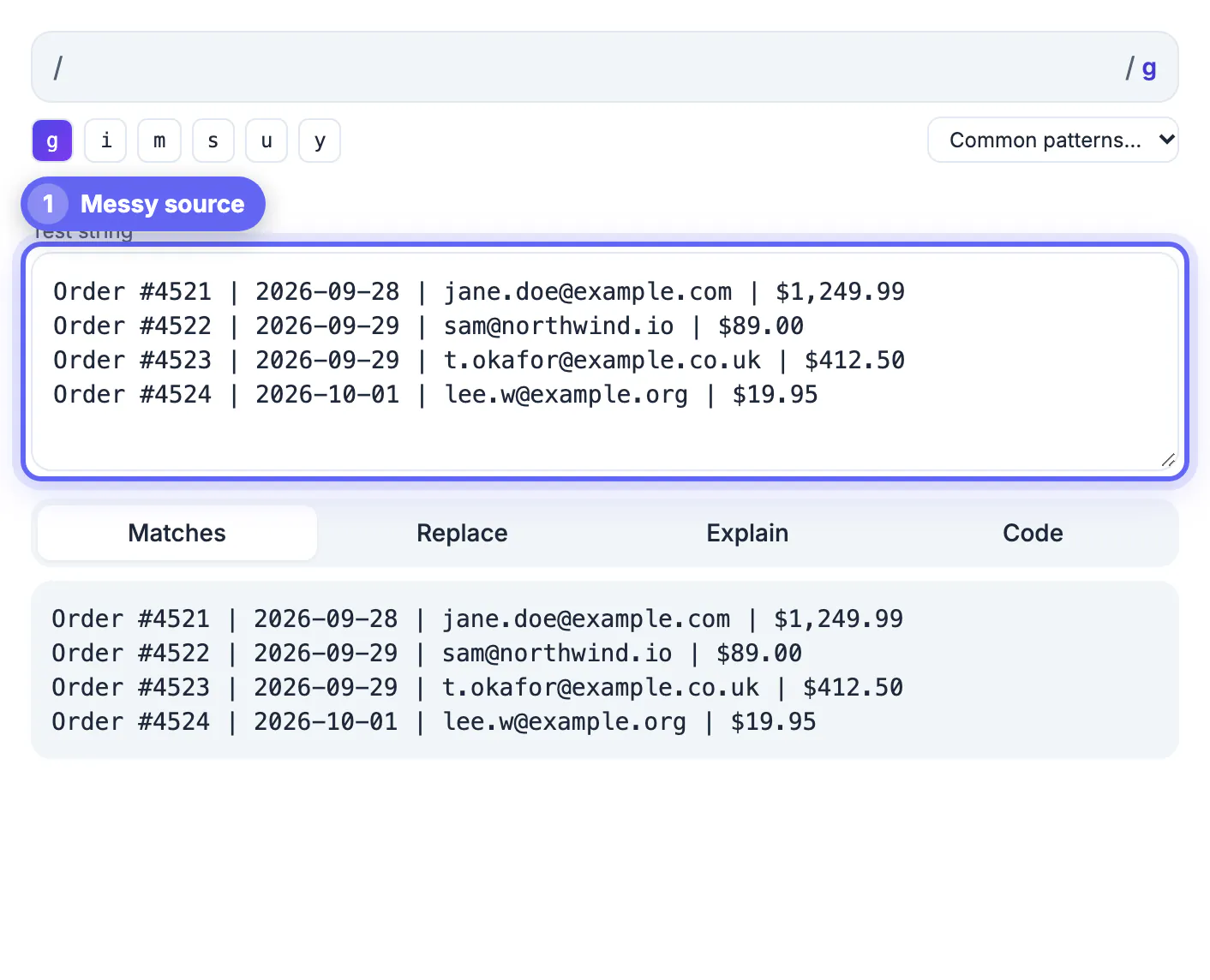
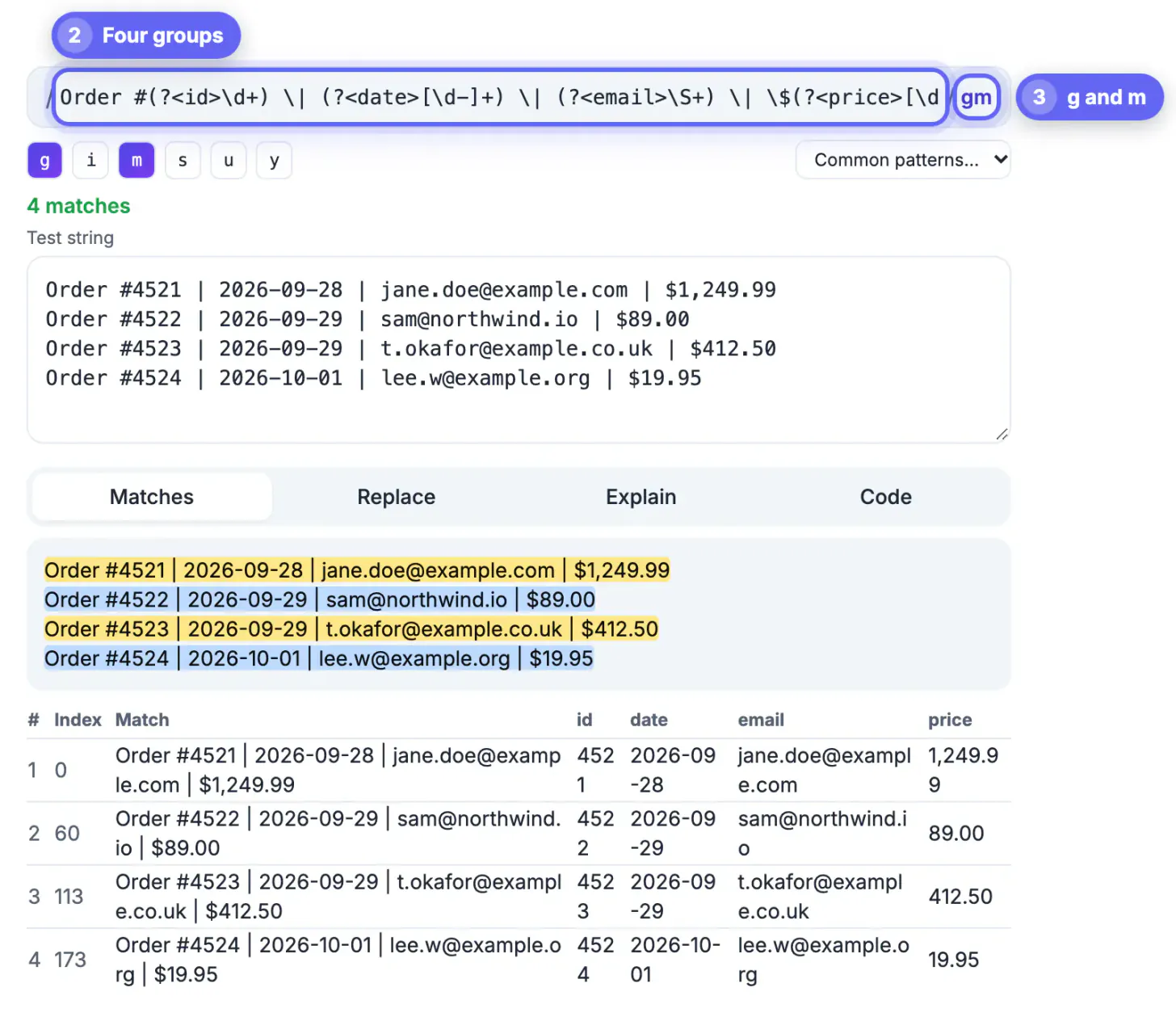
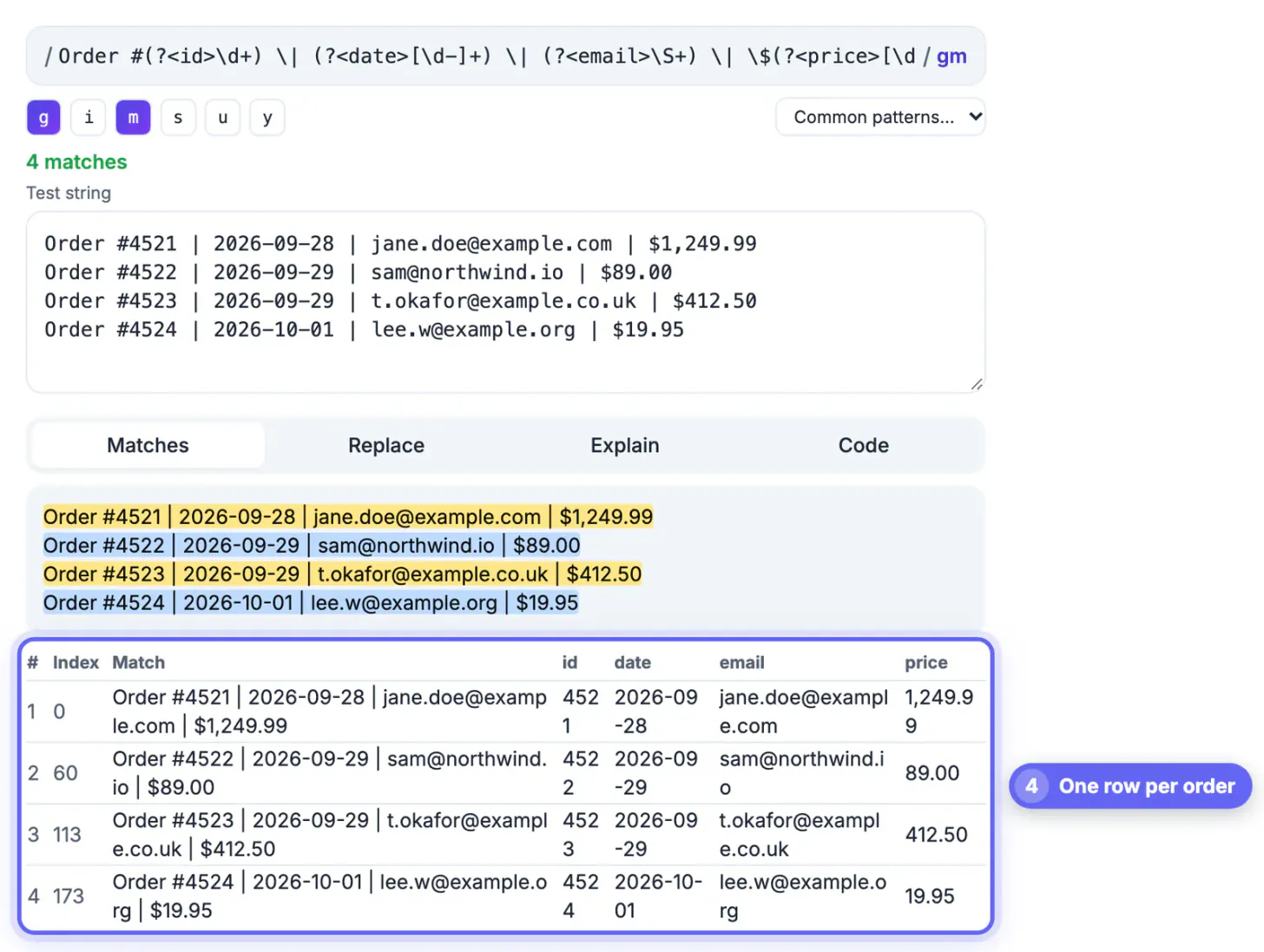
Capture groups are the parentheses in a regex that save part of each match, so one pattern can pull the order number, date, customer email and price out of hundreds of messy lines at once. Paste the source into GrabCast's Regex Tester, wrap each field you want in a group, and the match table shows every field in its own column; the Replace tab then rewrites each line into CSV you can open in Excel or Google Sheets. This guide works through a realistic example taken from shipping notifications, explains numbered and named groups, shows how to reformat dates and prices while extracting, and covers moving the same extraction into Python or JavaScript when the job becomes a script. It also marks the limits, such as nested HTML, where a proper parser is the better tool.
🧪 Try the Regex Tester tool now — freeOpen →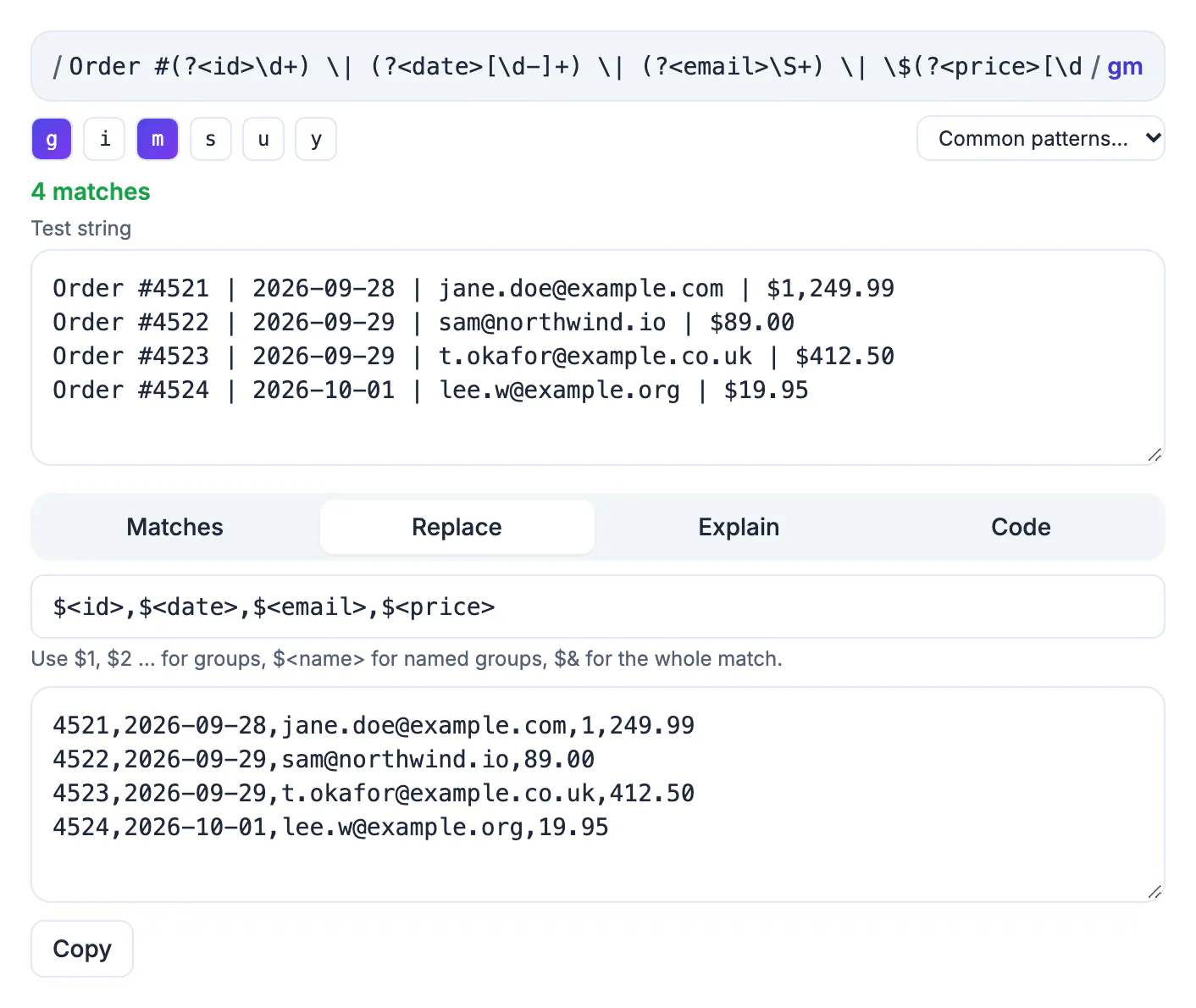
Semi-structured text is everywhere: order emails, bank exports pasted as plain lines, server logs, OCR output from receipts, chat transcripts. Copying fields by hand is slow and error prone, and a full parser is overkill for a one-off job. Capture groups sit in the middle. One pattern describes the shape of a line, the groups mark the fields, and the engine does the copying. When the pattern is wrong, the match table shows exactly which lines and fields failed, which is far easier to audit than a spreadsheet full of hand-typed values. A typical batch of 200 order confirmations takes an afternoon to copy manually and about ten minutes with a tested pattern, including the time spent checking the table for gaps.
Numbered and named capture groups
Every pair of parentheses creates a numbered group. In (\d{4})-(\d{2})-(\d{2}), the year, month and day become $1, $2 and $3. Named groups add a label: (?<year>\d{4}) can be referenced as $<year>, and the tool's match table uses the names as column headers.
- Use (?:...) for grouping that should not be captured, such as an optional ZIP+4 suffix, so your column numbers stay stable.
- Hover a highlighted match to see a tooltip listing every group value for that match.
- An optional group that did not participate shows as an empty-set symbol, which quickly reveals lines missing a field.
- Named groups survive edits: adding a new group in the middle renumbers $2 and $3, but $<month> still points to the month.
Worked example: pull order data out of shipping emails
Take the tool's own sample line: Order #4521 shipped 2026-09-28 to Jane Doe (jane.doe@example.com, 415-555-0132). One pattern captures all five fields: Order #(\d+) shipped (\d{4}-\d{2}-\d{2}) to ([^(]+?) \(([^,]+), ([\d-]+)\).
- [^(]+? captures the name lazily up to the opening parenthesis, which works for middle initials and hyphenated surnames.
- [^,]+ grabs the email up to the comma instead of attempting a full email grammar.
- For dollar amounts, \$(\d{1,3}(?:,\d{3})*\.\d{2}) captures 1,249.99 from Refund of $1,249.99; strip the commas in the spreadsheet.
- Turn on the g flag so the table lists every order in the pasted batch, not just the first one.
Turn matches into CSV with the Replace tab
The match table is for checking; the Replace tab is for output. Anchor the pattern with ^ and $, enable the m flag, and use a replacement like $1,$2,$3,$4,$5. Every matching line becomes a comma-separated row, ready to paste into a .csv file or straight into the CSV to JSON converter.
- Lines that do not match pass through unchanged, so scan the output or filter it in the spreadsheet before trusting the totals.
- Names or addresses that contain commas break columns; use a tab or semicolon between fields in the replacement and choose that delimiter when importing.
- Reformat while extracting: the default replacement $<month>/$<day>/$<year> turns 2026-09-28 into the US style 09/28/2026.
- $& inserts the whole match, useful for adding a marker column showing what was captured.
If the extracted data ends up as JSON, the JSON Formatter makes it readable and checks the syntax.
Move the extraction into Python or JavaScript
Once a manual paste becomes a weekly job, script it. The Code tab writes the same pattern as JavaScript, Python and PHP snippets.
- Python's findall returns a list of tuples, one tuple of group values per match, which drops straight into csv.writer.
- In JavaScript, matchAll with the g flag yields match objects whose groups property holds named captures.
- PHP's preg_match_all fills an array with every group across all matches.
- Know the limits: regex cannot reliably parse nested structures like HTML or JSON, the match table lists the first 500 rows, and counting stops at 5,000 matches.
Step-by-step
Common mistakes to avoid
Pro tips
Frequently asked questions
What is the difference between a capture group and a non-capturing group?
A capture group, written with plain parentheses, saves the matched text so you can use it as $1 or by name. A non-capturing group, written (?:...), only groups tokens for alternation or quantifiers and saves nothing.
How do I use a named group in the replacement?
Type a dollar sign, then the group name wrapped in angle brackets, exactly as the Replace tab's default example does when it rewrites ISO dates into month, day and year order. Numbered references such as $1 work alongside named ones.
Can I export the match table directly as CSV?
Not as a file. Use the Replace tab with a comma-separated replacement such as $1,$2,$3, then copy the output into a .csv file or a spreadsheet.
Why are some lines missing from my results?
Their format differs from the pattern, often an extra space, a missing field or a different date style. Paste one missing line alone into the test box and relax the pattern until it matches.
Does the tool upload the text I extract from?
No. Matching and replacing run in your browser in a Web Worker, so customer emails and logs stay on your machine.
Wrap each field in a group, check every column in the match table, then let the Replace tab write the CSV. Name your groups, prefer negated classes over greedy dots, and watch for lines that pass through unmatched. When the job repeats, copy the Python or JavaScript snippet from the Code tab.
Related guides
Browse more: all text and developer guides · the Regex Tester tool