Remove Extra Spaces and Line Breaks From Pasted Text
To remove extra spaces and line breaks from pasted text without mashing everything into one block, you need two separate fixes. First collapse doubled gaps into single ones and trim the edges of each row. Then join the hard-wrapped rows inside each paragraph while keeping the blank gap between paragraphs. This guide uses a short events-team email as the example: it starts at 388 characters over 15 rows and ends as 7 tidy rows with every paragraph intact.
🧽 Try Text Cleaner now — freeOpen →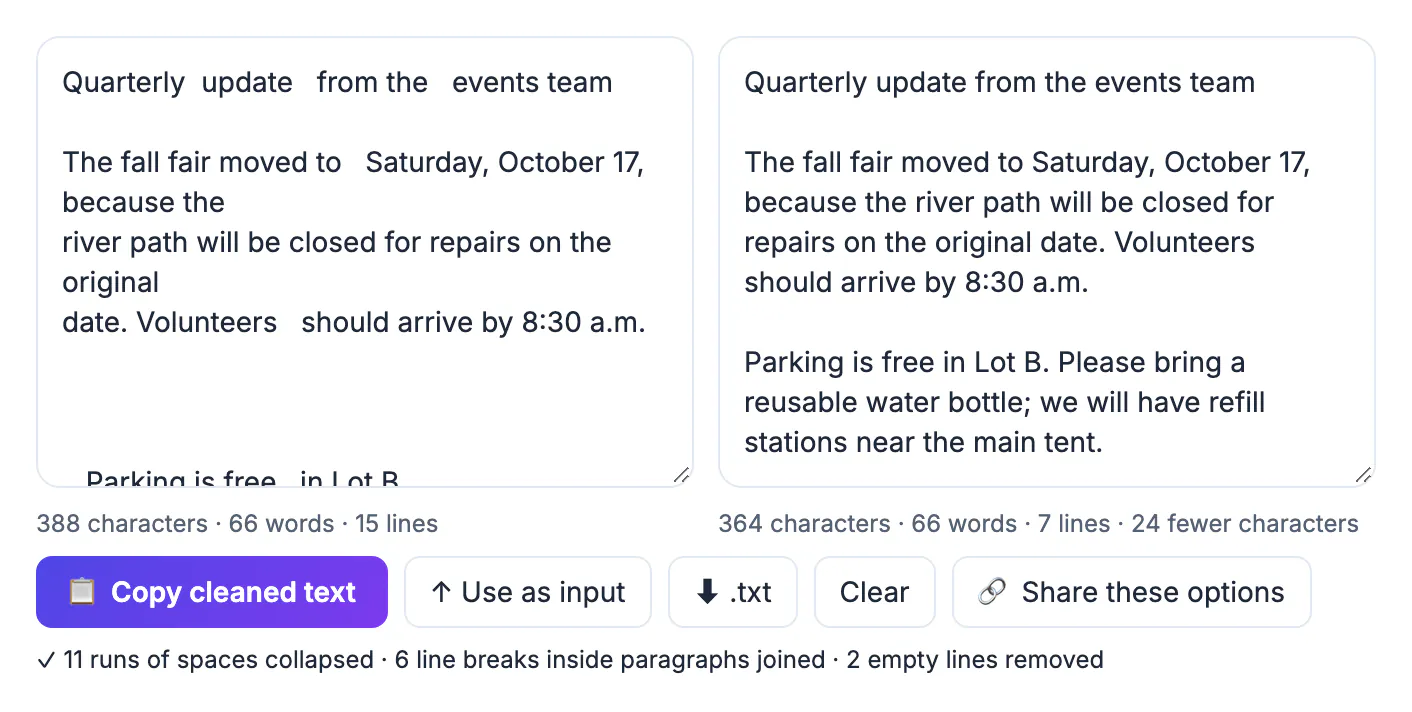
Plain-text emails are often wrapped at a fixed width, so every row ends in a hard return. PDFs store text as positioned rows too, and copying keeps those breaks. Web pages and word processors add non-breaking spaces, doubled spaces after periods and stray blank rows. Pasted into a document, a form or a CMS, the result has ragged right edges and gaps that are slow to fix by hand, one Backspace at a time.
Start with the Remove extra spaces preset
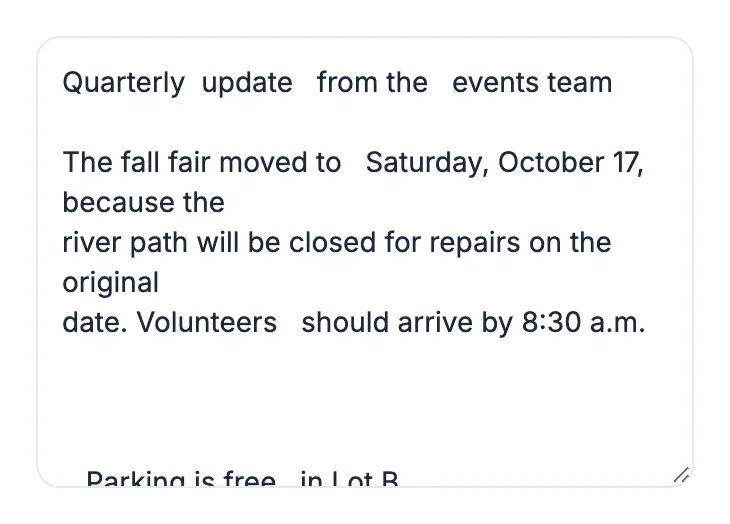
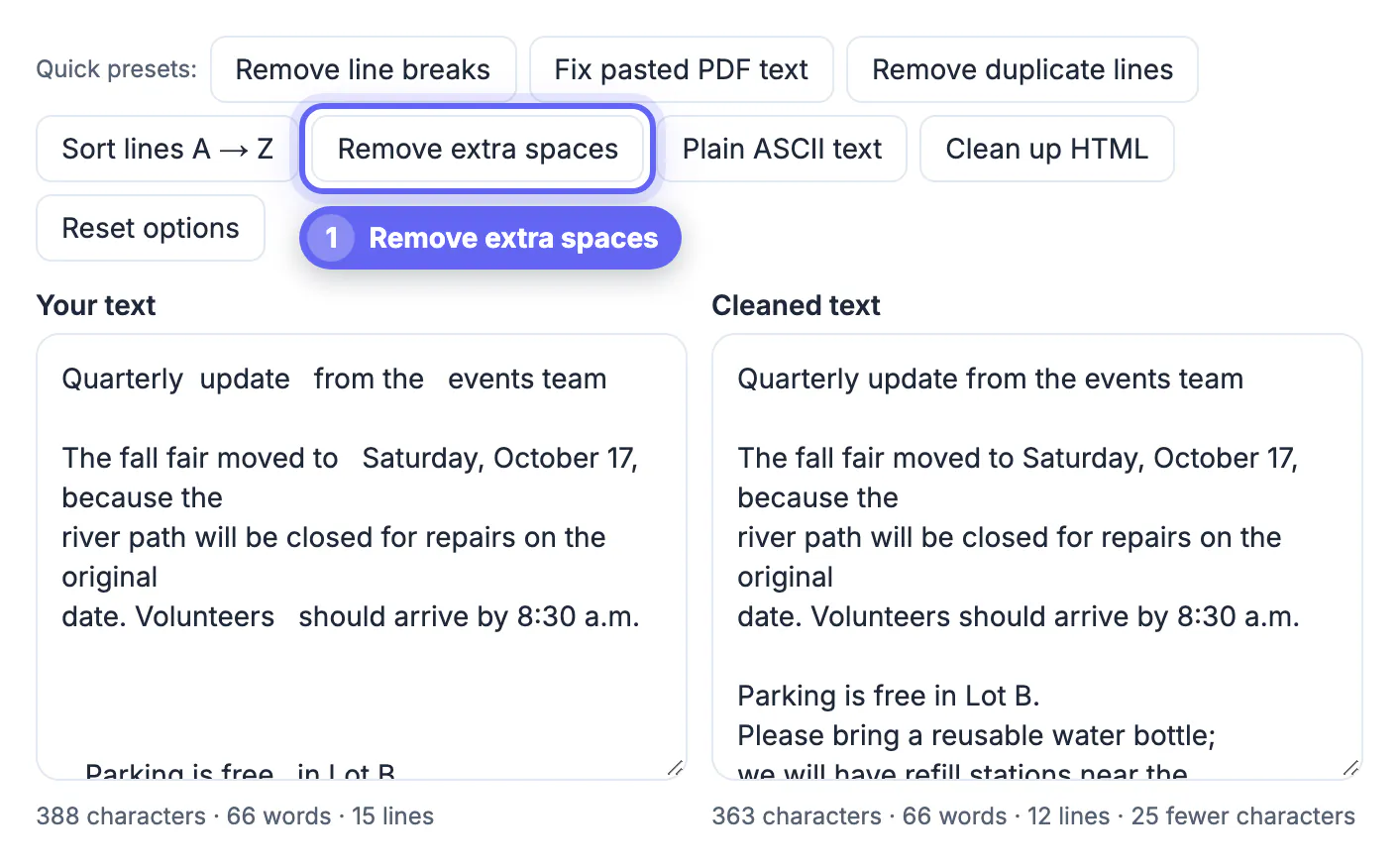
Paste into Your text on the GrabCast Text Cleaner. The counter under the box shows the starting point; the example email reads 388 characters, 66 words, 15 lines. Then click the Remove extra spaces preset.
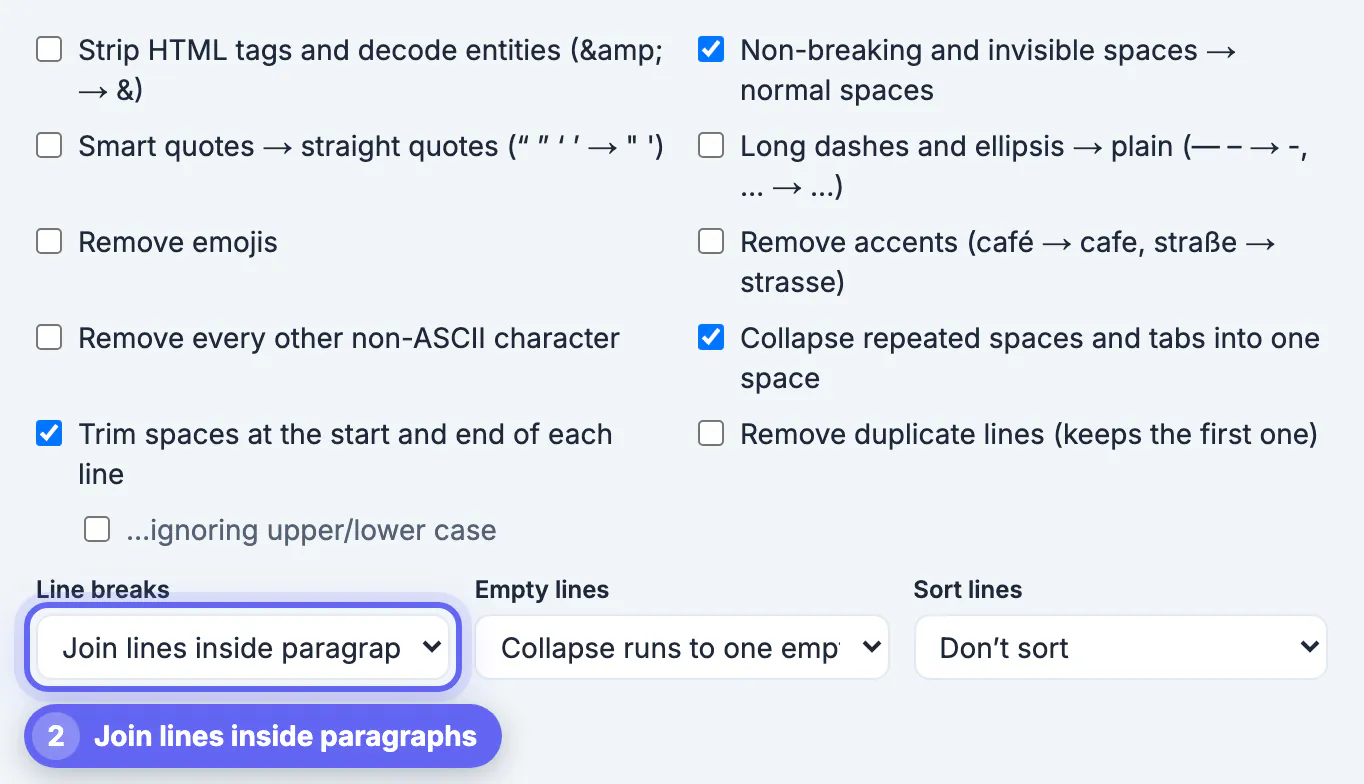
That preset ticks three cleanup steps: Collapse repeated spaces and tabs into one space, Trim spaces at the start and end of each line and Non-breaking and invisible spaces → normal spaces. It also sets Empty lines to Collapse runs to one empty line. In the example that brought the text down to 363 characters and 12 rows, 25 fewer characters, with the word count unchanged at 66.
Join hard-wrapped rows without losing paragraphs
Spaces fixed, the email still breaks mid-sentence: because the ends one row and river path starts the next. Open the Line breaks menu and choose Join lines inside paragraphs (fix PDF / email text). It joins rows that belong to the same paragraph but keeps blank-row gaps, so each paragraph stays separate. A word split by a hyphen at the end of a row is joined back together too.
The summary under the result lists what changed. For the example: 11 runs of spaces collapsed, 6 line breaks inside paragraphs joined, 2 empty lines removed, leaving 364 characters across 7 rows.
The menu has two other choices. Keep line breaks leaves the structure alone, and Remove all line breaks (one paragraph) flattens everything into a single block, which is what the Remove line breaks preset uses. Use the one-paragraph option only for short snippets such as a product description or a meta tag.
Which preset for which mess
- Fix pasted PDF text: joins rows inside paragraphs, shrinks repeated gaps, fixes invisible characters and collapses blank rows. It is the one-click version of the two steps above.
- Remove extra spaces: only spacing and blank rows; the row structure stays as it is. Good for lists and addresses.
- Remove line breaks: everything on one row.
- Clean up HTML: for text copied out of page source or a rich-text editor.
- Plain ASCII text: straightens quotes and dashes, removes accents and emojis, and drops any other non-ASCII character, for systems that only accept basic characters.
Every preset simply ticks boxes under Cleanup steps (run top to bottom), so you can adjust them afterwards. Reset options clears them.
Fix capitalization in the same pass with the Case Converter.
Invisible spaces that break search and spreadsheets
Some gaps look normal but are not ordinary ones. Non-breaking characters from web pages and Word, thin gaps and zero-width characters make a search for a name fail, stop a spreadsheet from recognizing a number, or break a line of code. The Non-breaking and invisible spaces step turns the visible ones into normal spaces and deletes zero-width characters and byte-order marks. If a value that looks right still will not match, run it through this step first. A quick test: paste the value into the tool on its own and check whether the character count is higher than the number of letters you can see. A difference points to hidden characters, and the summary line tells you how many were fixed.
Copy, reuse or save the cleaned result
Copy cleaned text puts the result on your clipboard. Use as input moves it into the left box so you can run a second pass, for example sorting afterwards. The .txt button downloads a file, Clear empties both boxes, and Share these options creates a link that stores only your settings, never the text, so a colleague can clean their copy of the same email the same way. The text itself never leaves your browser.
Step-by-step
Common mistakes to avoid
Pro tips
Frequently asked questions
How do I remove line breaks but keep paragraphs?
Set Line breaks to Join lines inside paragraphs. It joins rows within each paragraph and keeps the blank row between paragraphs.
How do I replace double spaces with single spaces?
Tick Collapse repeated spaces and tabs into one space, or click the Remove extra spaces preset, which also trims each row and fixes invisible spaces.
Why does text copied from a PDF have line breaks everywhere?
PDFs store text as positioned rows, not flowing paragraphs, so copying keeps a break at the end of every row. Joining rows inside paragraphs repairs it.
Will cleaning change my words?
No. Spacing and breaks change, but the words stay the same; in the example the count stayed at 66 words before and after.
Is the pasted text sent anywhere?
No. Cleaning happens in your browser, and the share link stores only the options you chose.
Collapse the spaces first, then join rows inside paragraphs rather than deleting every break. Two settings turn a ragged pasted email into clean paragraphs you can drop into a document, form or CMS, and the summary line tells you exactly what changed.
Related guides
Browse more: all text and developer guides · Text Cleaner