Add a Window Frame to a Code Image (Free)
Adding a window frame to a code image is what turns a flat snippet into a screenshot that looks like it came from a polished editor. The frame gives the code a title bar, rounded corners and breathing room, so it reads as a finished object rather than pasted text. This guide shows how to add a window frame quickly and get every detail right. Whether you are dressing up a snippet for a blog, a slide or a release note, the frame is the small touch that makes people take the code seriously.
💻 Try Code to Image now — freeOpen →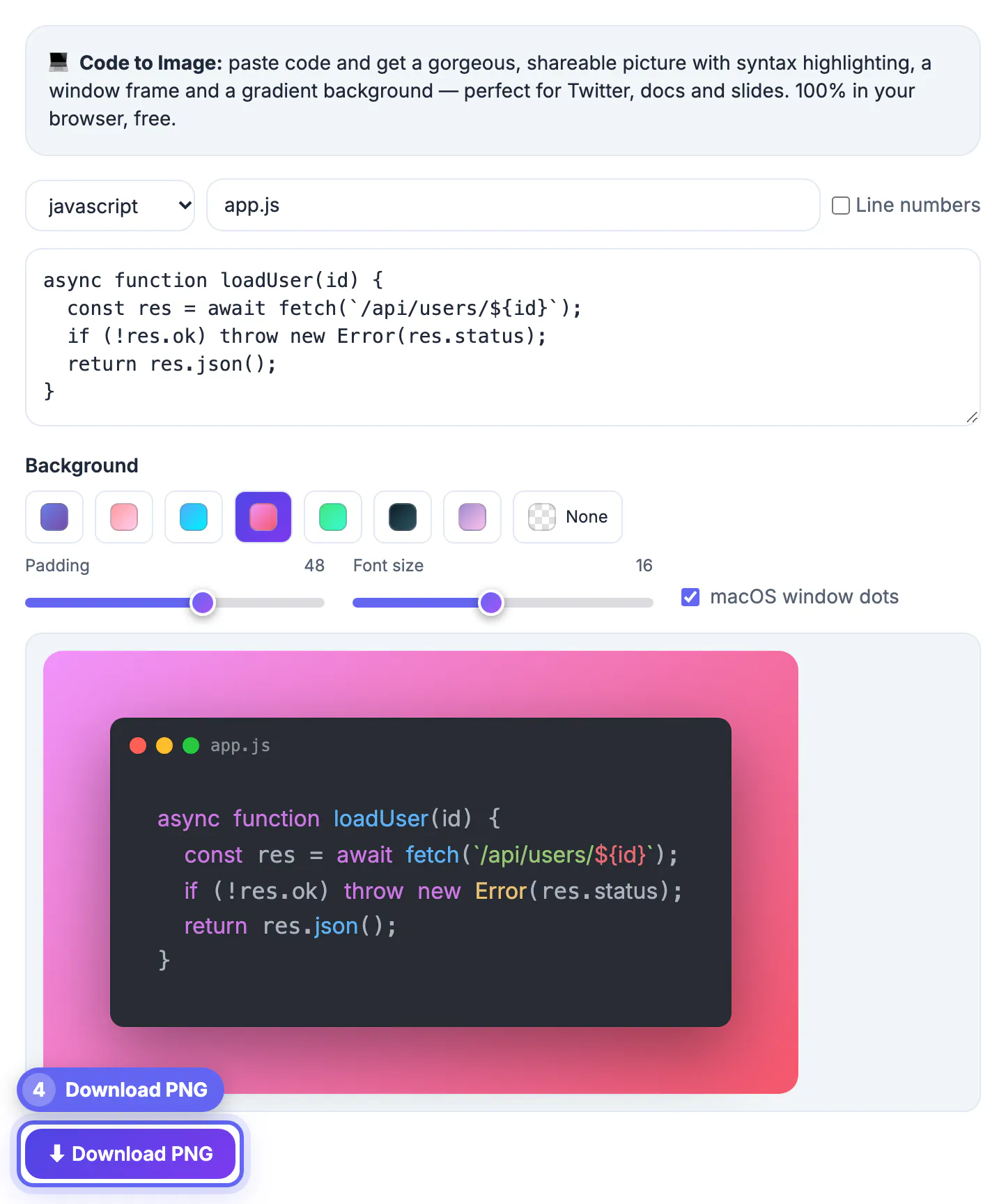
A bare block of highlighted code floats awkwardly on a slide or a blog post with nothing to anchor it. A window frame borrows the visual language people already know from their editor and terminal, so the image reads instantly as code. The title bar and traffic-light dots signal a real application window, the padding stops the text from touching the edges, and the rounded corners soften a hard rectangle. The result feels intentional and professional, which matters when the image is the first thing a reader notices. A framed image also travels well: it holds its shape when embedded, shared or resized, so the effort you put in once keeps paying off across every place the snippet lands.
Add a window frame in a few clicks
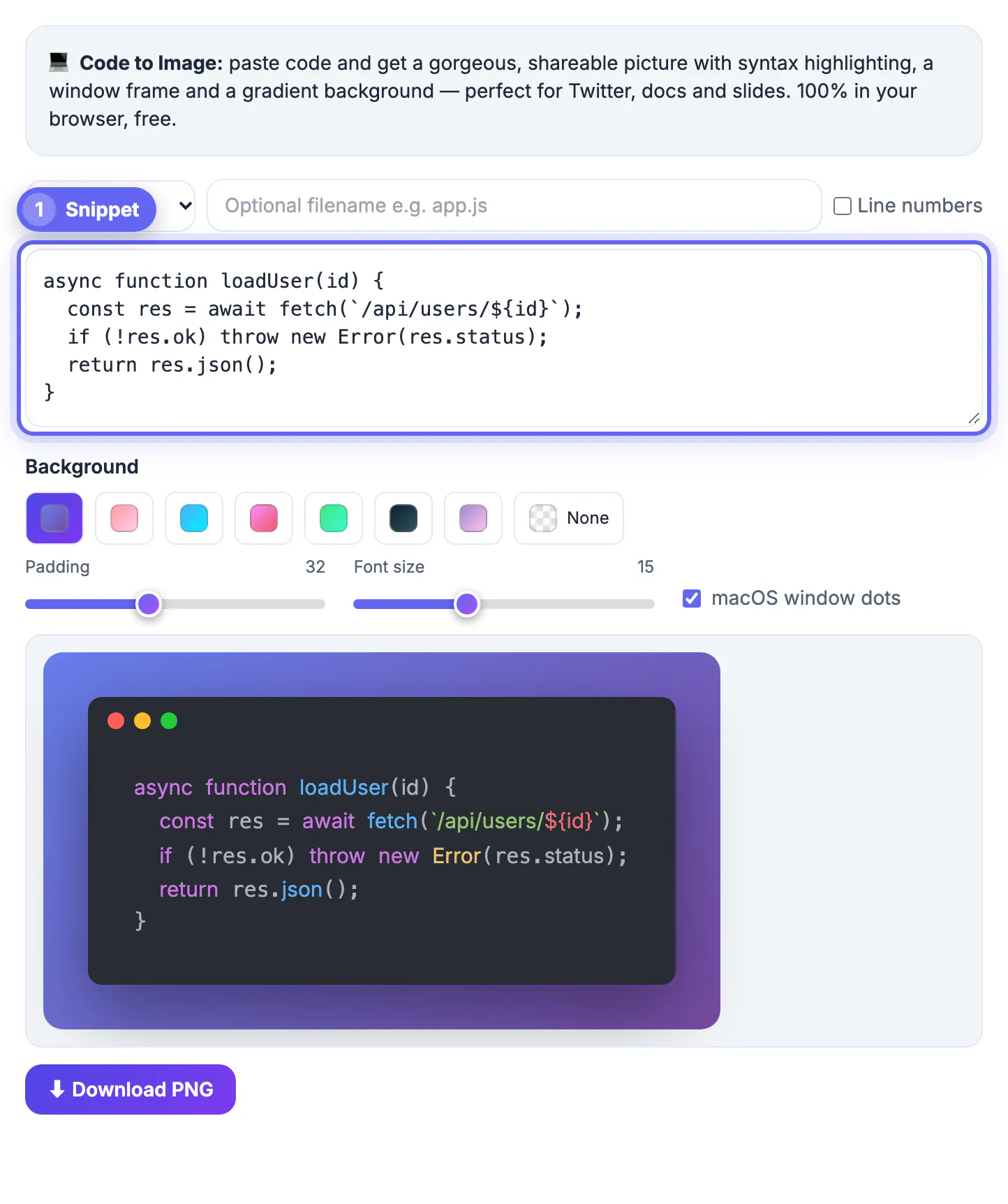
Paste your snippet into the editor. The tool renders the code inside a dark mock window with Atom One Dark syntax colors and lets you tune the details before you export.
- Choose the language, or leave Auto-detect on, and turn Line numbers on or off
- Add or hide the traffic-light dots in the corner
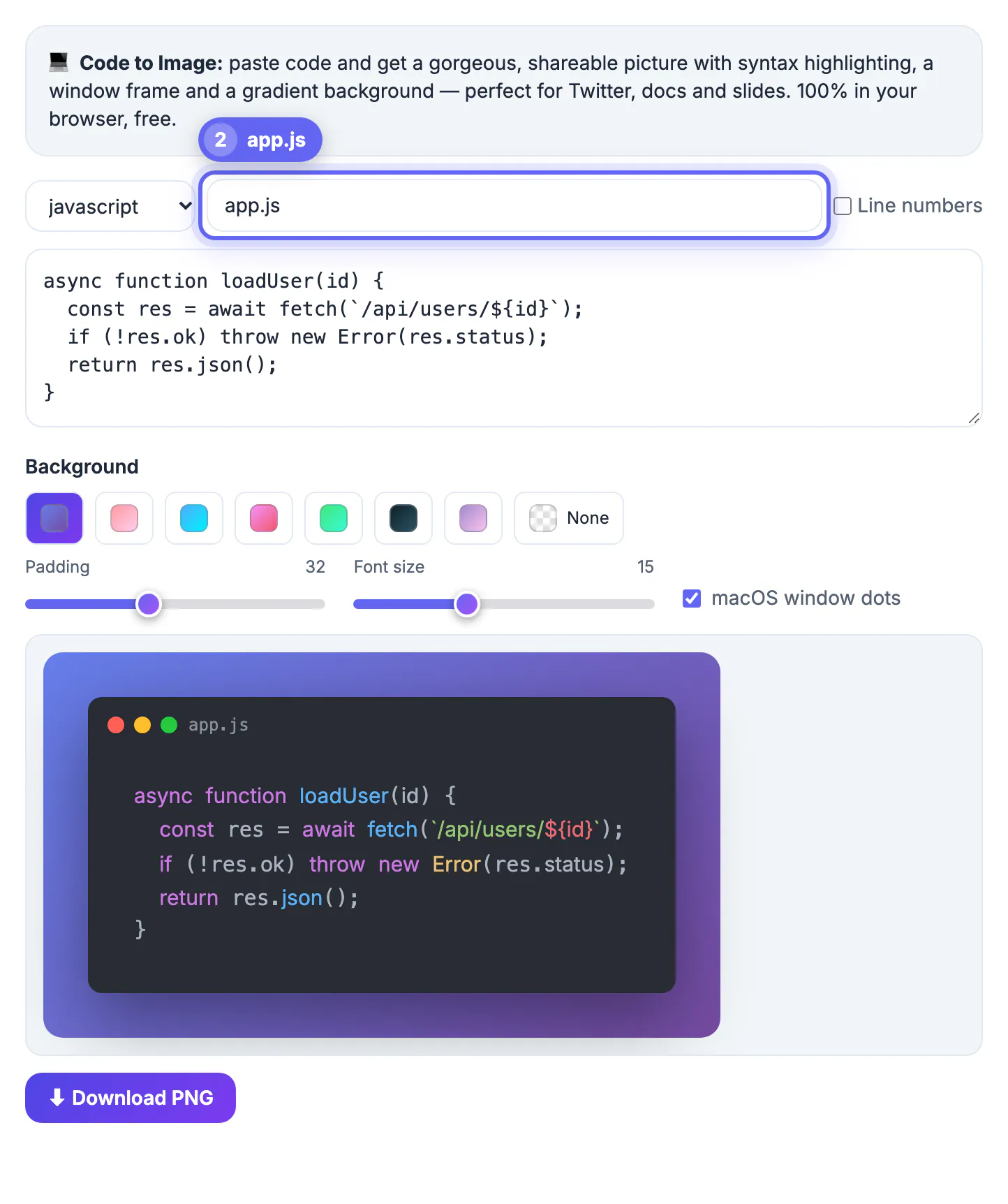
- Type an optional title such as a file name into the bar
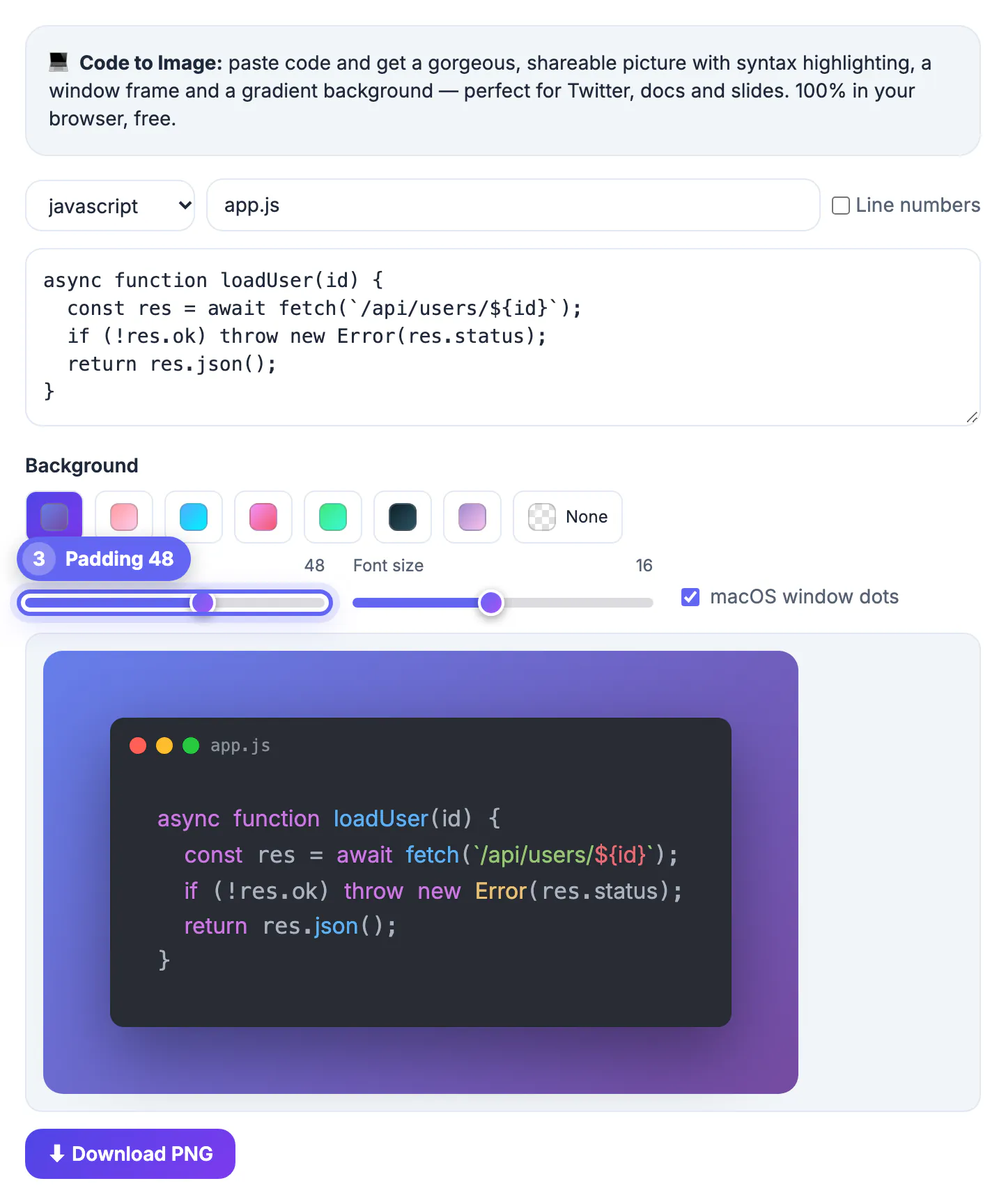
- Set the outer padding so the frame has room to breathe
Choose padding, radius and background
The space around the frame is as important as the frame itself. A generous margin against a soft gradient keeps the image from feeling cramped and makes it drop cleanly onto any background.
The window already has rounded corners, so focus on the padding and font size. Match the background to where the image will live, a muted tone for docs or a bold gradient for social.
Set a title bar that adds context
The title bar is a free place to add meaning. A file name like app.py or a short label tells the reader what they are looking at before they read a single line of code.
- Use the real file name so the snippet feels grounded
- Keep the label short so it fits without truncation
- Leave it blank for a clean, generic window
Export at the right size
Once the frame looks right, export a high-resolution PNG. A crisp image survives being scaled down in a blog or a slide, while a low-resolution one turns fuzzy.
For retina displays, export at two times scale so text stays sharp. Keep a transparent or matching background if you plan to place the frame on your own colored canvas.
Match light and dark chrome to the setting
The window chrome sets the mood before anyone reads a line. Dark chrome suits terminal output and low-light slide decks, while light chrome feels at home in bright documentation and product pages.
Whichever you pick, keep the syntax theme and the chrome in the same family so the image reads as one coherent object rather than two clashing halves. A dark editor theme inside light chrome, or the reverse, usually looks like a mistake.
A repeatable recipe for framed code images
Once you settle on a look, treat it as a template you can reproduce in seconds. Consistency is what makes a series of images feel professional.
- Lock the chrome style, padding and corner radius
- Reuse the same background gradient across the set
- Keep the font and syntax theme identical every time
- Save these choices so the next image matches without fiddling
Frame sizes for blogs, slides and social posts
Different destinations reward different proportions. A wide frame fits a blog column or a presentation slide, while a squarer one occupies more of a phone feed.
- Documentation and articles: about 1200 pixels wide so text stays sharp on large displays.
- Slides: a 16:9 frame with generous padding so nothing is trimmed by projector overscan.
- Social posts: near-square, with the longest line comfortably inside the safe area.
For a social-specific walkthrough, see sharing code on Twitter as an image, and when you need to hide secrets before posting, hide personal info in a screenshot covers a safe way to blur them.
Accessibility and alt text for framed code
A framed code image is still a picture, so screen reader users need the content in text. Write alt text that states the language and what the code does, and put the full snippet in a nearby caption, details block or linked repository.
- Alt text: Python function that sorts a list of orders by date.
- Keep colour contrast high between code and window background.
- Do not rely on colour alone to show errors or highlighted lines.
Step-by-step
Common mistakes to avoid
Pro tips
Frequently asked questions
What is a window frame on a code image?
It is a mock application window drawn around your code, with a title bar, corner dots and padding, so the snippet looks like a real editor screenshot.
Do I need design software to add one?
No. The browser tool renders the frame for you, so you only paste code, adjust a few settings and export.
Can I turn the traffic-light dots off?
Yes. The dots are optional, so you can hide them for a plainer window or keep them for a familiar editor look.
What size should I export?
Export at two times scale for retina screens so the text stays crisp when the image is resized in a post or slide.
Should I use light or dark window chrome?
Match it to where the image lives: dark chrome for terminals and dark slides, light chrome for bright docs, and keep the syntax theme in the same family.
A window frame turns a plain snippet into a polished screenshot, and adding one takes only a few settings before you export.
Related guides
Browse more: all text and developer guides · Code to Image