Cut a Cough Out of a Recording and Keep the Rest Intact
To cut a cough out of a recording, open it in GrabCast's Audio Cutter, switch to Remove the selection, mark the cough from just before it starts to just after it ends, and save. The tool joins the two halves with a 30-millisecond crossfade so there is no click, and your 46-second take comes back 2.2 seconds shorter without anything else changing.
✂️ Try the Audio Cutter & Ringtone Maker now — freeOpen →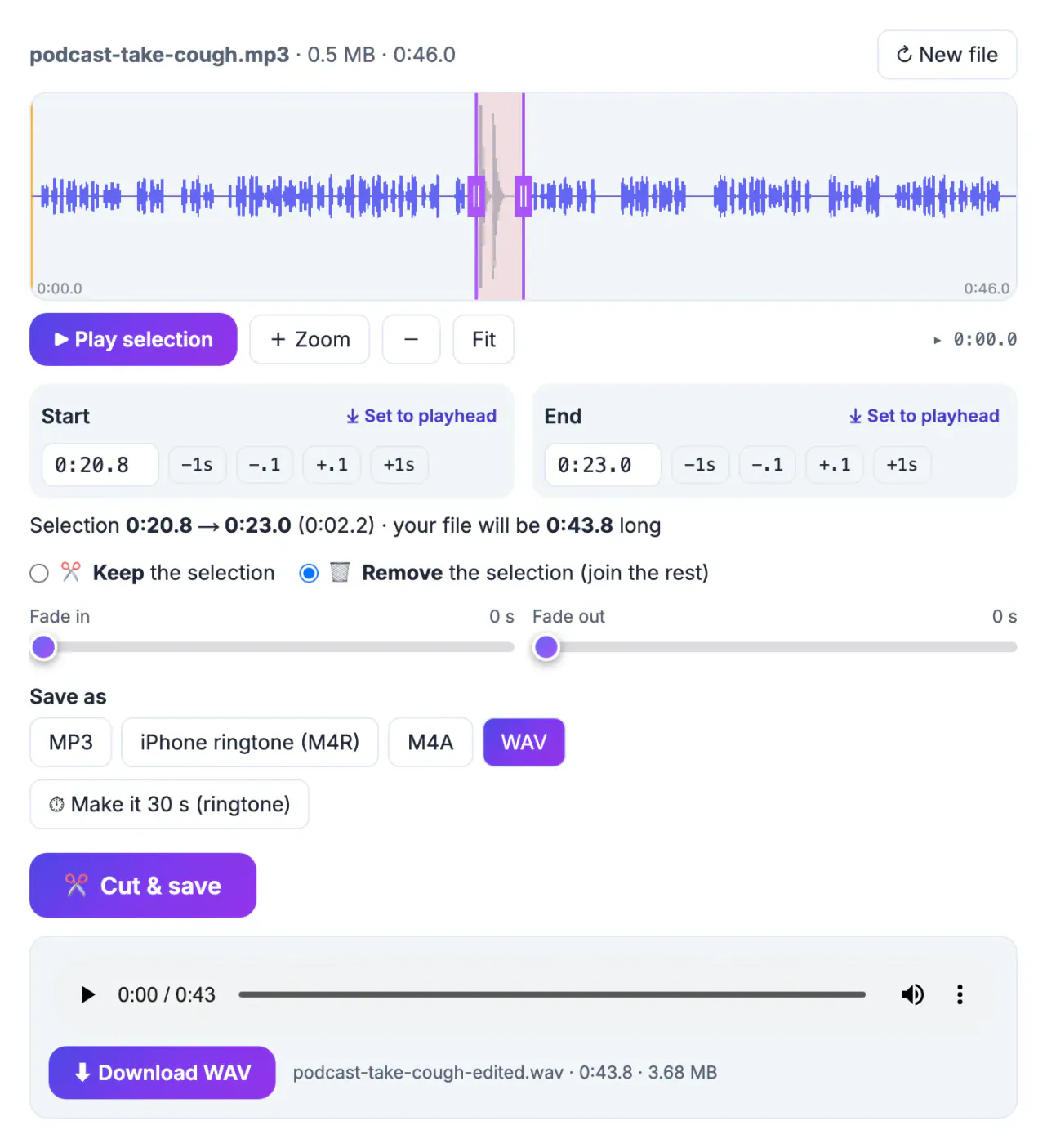
A cough, a sneeze, a dropped mug or a phone buzz in the middle of an otherwise good take is the kind of thing listeners remember, and it usually happens in the best run-through. Re-recording costs time and energy you may not get back, especially for a lecture, an interview or a one-off moment. Removing a two-second noise is a surgical edit: nothing before or after it is touched, and as long as the cut sits in natural pauses, nobody hears the join. Keep mode would force you to export two pieces and stitch them together; Remove mode does it in one step.
Find the cough on the waveform
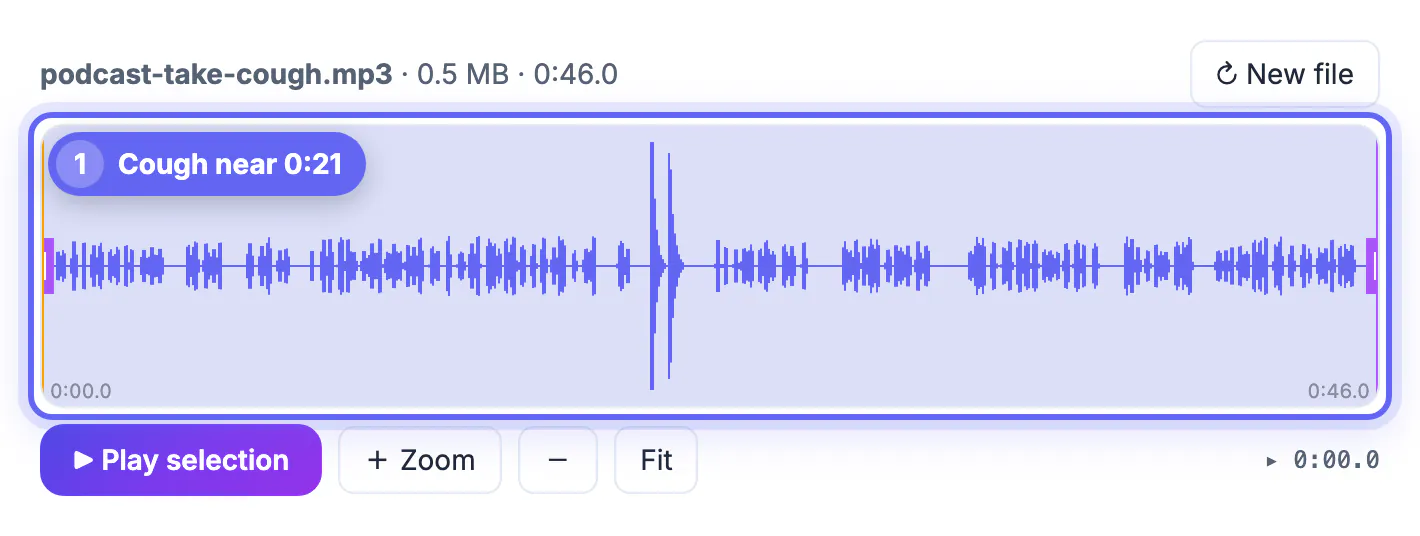
Most unwanted noises are easy to spot once you know what they look like. The example uses podcast-take-cough.mp3, a synthetic 46-second take with speech-like audio and a loud two-part cough just after 0:21.
- A cough or sneeze shows up as a tall, dense spike that stands out from the evenly sized peaks of normal speech
- A door slam or dropped object is a very thin, very tall line; a chair creak is a small, irregular bump in a pause
- Click on the waveform near the spike to move the playhead there, then press play to confirm by ear
- Use Zoom two or three times so the screen covers ten seconds or so; the gaps before and after the noise become obvious flat lines
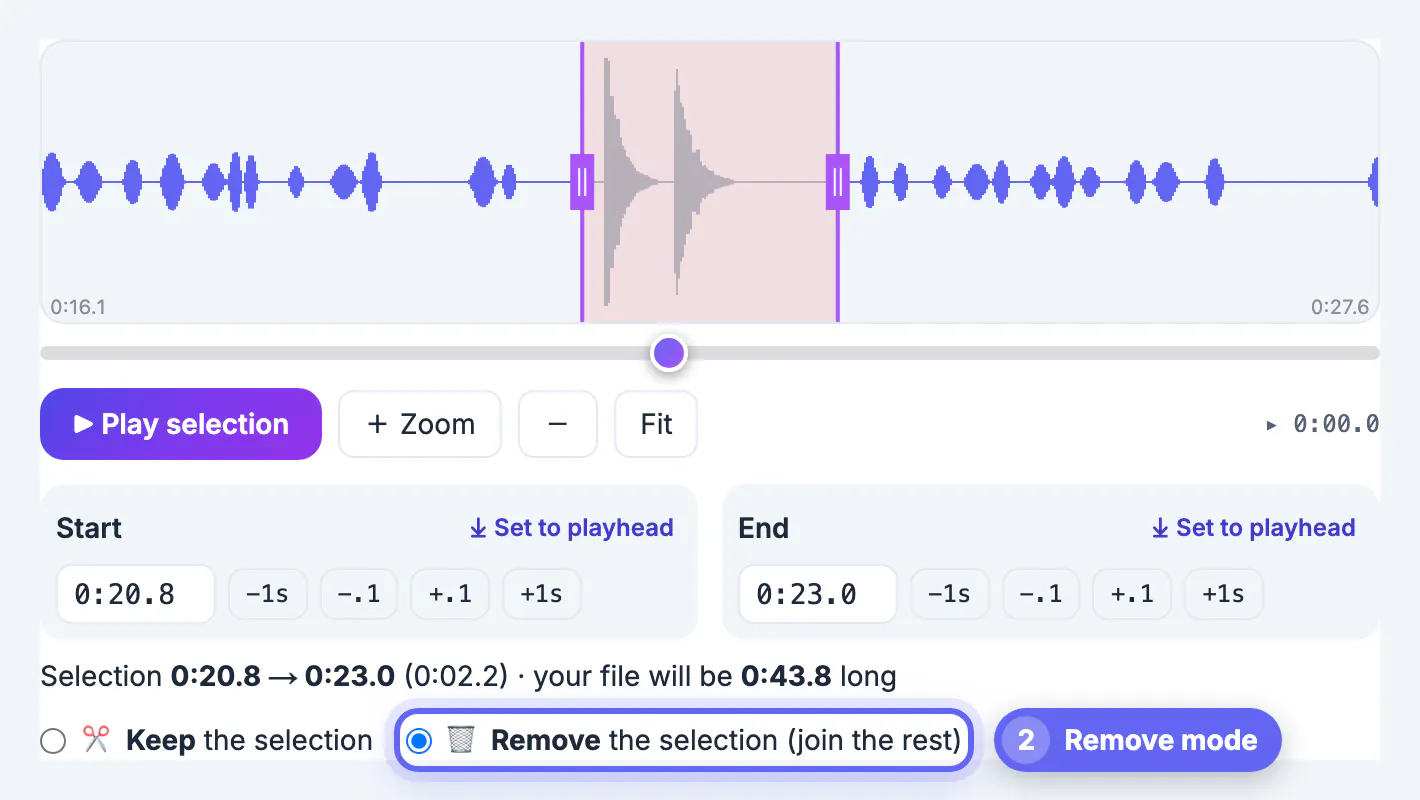
In the example, zooming in showed the cough as two decaying bursts between 0:21 and about 0:22.2, with speech stopping at roughly 0:20.6 and resuming at 0:23.2. Those quiet stretches on both sides are where the cut should go.
Real recordings are messier than a test file. A speaker often clears their throat, apologizes and repeats the sentence, which means the unwanted stretch is longer than the cough itself. Listen from a few seconds before the noise to a few seconds after it and decide where the good material resumes; removing the apology and the repeated start along with the cough usually sounds far more natural than keeping them.
Cut the cough out with Remove mode
Remove mode flips the meaning of the selection: the highlighted part turns red and is thrown away, and everything else is kept.
- Choose Remove the selection (join the rest) under the time boxes
- Type the start and end of the noise, here 0:20.8 and 0:23.0
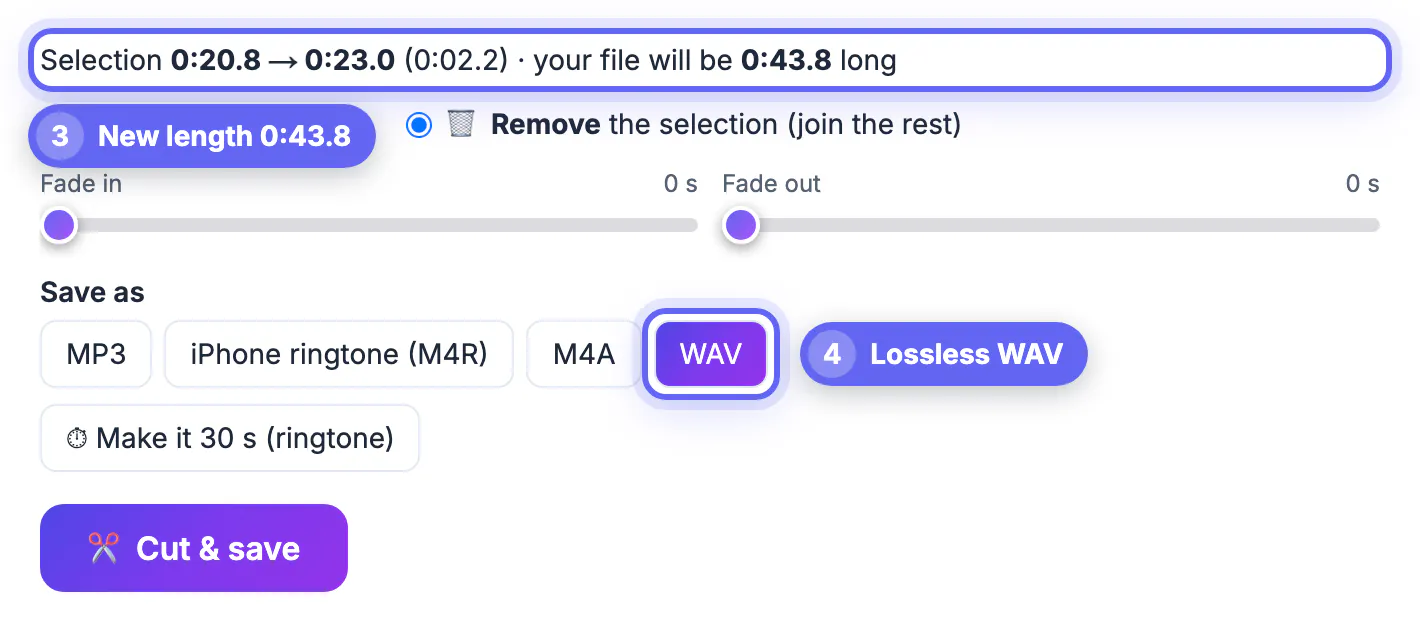
- Check the summary line: it reads Selection 0:20.8 to 0:23.0 (0:02.2) and says the file will be 0:43.8 long
- Press Play selection: in Remove mode the preview starts three seconds before the cut and jumps over it, so you hear the join before saving
- If a breath or half-word survives, nudge the start or end by 0.1 second and listen again
The two remaining parts are joined with a 30 ms crossfade. That is too short to smear a word but long enough to prevent the click you get when two waveforms are butted together at different levels.
Save as WAV if you are still editing
The right output depends on what happens next to the file.
- If the take goes back into an editor for music, mixing or more cuts, save WAV: it is lossless 16-bit audio, so no quality is lost at this step
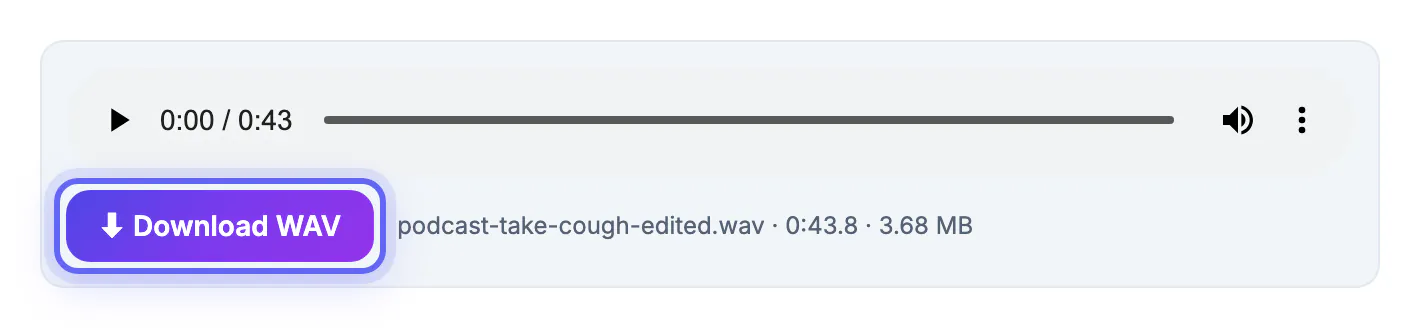
- In the example the WAV came out as podcast-take-cough-edited.wav, 0:43.8 long and 3.68 MB
- If the file is finished and only needs to be shared, MP3 or M4A at 192 kbps is a good balance of size and quality
- Leave the fade sliders at zero for a mid-file cut; fades apply to the very start and end of the output, not to the join
- The edited file gets an -edited suffix, so the original recording stays safe on your device
Sample rate and mono or stereo stay the same as the source, and basic tags are normally carried over, so the edited take drops back into your project without surprises.
When one cut is not enough
Remove mode handles one region per pass. For recordings with several problems, work in rounds rather than trying to do everything at once.
- Fix the loudest problem first, save, then load the edited file and remove the next one
- Work from the end of the file toward the start, so the times you noted for earlier problems do not shift
- Write down the times of each noise while listening once through; five noises at known times take a few minutes to fix
- If a noise overlaps a word, cutting it will also cut the word; a retake or a transcript-based editor is the better tool there
- Constant background hum is not a cut job at all; the Voice Recorder's noise reduction or a dedicated editor handles it better
Every save re-encodes a compressed file, so chaining several MP3 edits slowly adds artifacts. Saving intermediate rounds as WAV and only exporting MP3 at the very end avoids that.
If a hum or hiss runs under the whole recording, the Audio Noise Reduction tool handles that better than cutting.
Step-by-step
Common mistakes to avoid
Pro tips
Frequently asked questions
Will people hear where I cut?
Usually not, if the cut sits in natural pauses. The Audio Cutter joins the two parts with a 30 ms crossfade to avoid a click.
Can I remove several noises at once?
Remove mode takes out one region per save. Save, load the edited file and repeat for the next noise, working from the end of the file backward.
Does removing a part change the rest of the audio?
The remaining audio is re-encoded once in the format you choose. As WAV it is lossless; as MP3 or M4A at 192 kbps or higher the change is hard to hear.
Can I preview the edit before saving?
Yes. In Remove mode, Play selection starts three seconds before the cut and skips over the red region, so you hear the join.
Is my recording uploaded?
No. The waveform and the edit are both processed in your browser, and the edited file downloads straight to your device.
One cough should not cost you a whole take. Zoom in, select the noise from pause to pause, use Remove mode and save WAV if you are still editing. The 30 ms crossfade hides the join, and the rest of your recording stays exactly as it was. For takes with several noises, repeat the process from the end of the file backward and export the final MP3 only once.
Related guides
Browse more: all video and audio guides · the Audio Cutter & Ringtone Maker