How to Make Jump Cuts in a Talking-Head Video
A jump cut in a talking-head video is a cut inside a continuous shot: the camera does not move, but the pauses, false starts and repeated sentences between the good takes are removed, so the speaker seems to jump slightly between sentences. It is the standard edit for YouTube tutorials, vlogs and course videos because it keeps the pace up without reshooting. Making jump cuts by hand means finding every restart and silence on a timeline. This guide does it from the transcript instead: GrabCast's free Text-Based Video Editor finds the retakes and long pauses for you, shows what it will cut, and exports the tightened video in your browser. The example is a 30-second drawing lesson with two false starts and several long pauses.
📝 Try the Text-Based Video Editor now — freeOpen →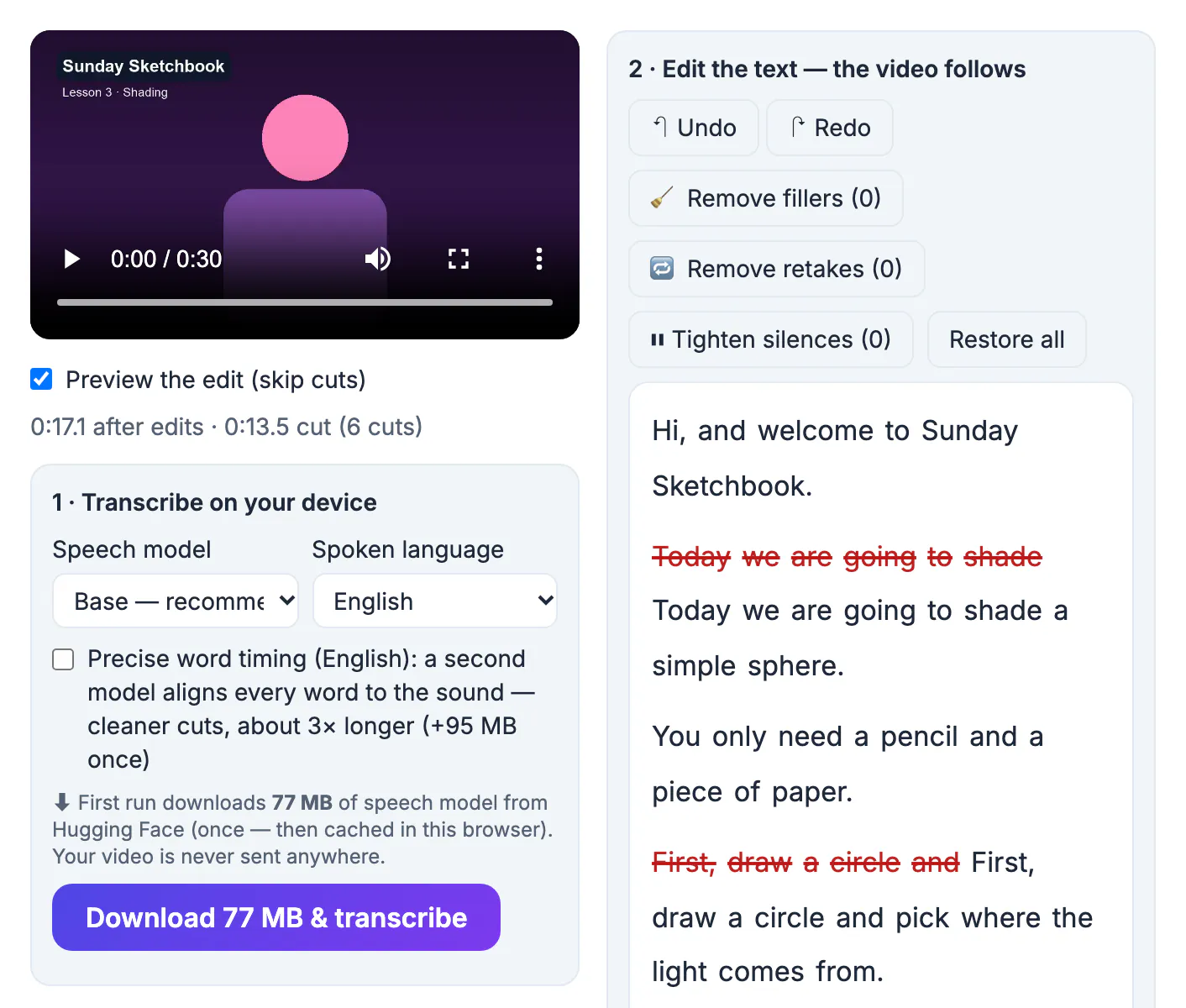
Most people do not speak in finished paragraphs. They pause to think, start a sentence, stop and start again. Live, that sounds normal; in a recording, it doubles the length of the useful part. Jump cuts remove the waiting and keep the energy of a person talking to camera. Viewers of tutorials and vlogs are used to them. They look wrong in two cases: when the speaker's head moves a lot between takes, so every cut is a visible jolt, and when a cut removes the natural breath before an important point, so the video feels breathless. The fix for both is the same: shorten pauses instead of deleting them completely, and review each cut before exporting.
Find retakes and false starts automatically
A retake is a sentence you started and then said again. In the Text-Based Video Editor, transcribe the video and press Remove retakes. It looks for three patterns:
- A sentence that stops and is then repeated from the start: First, draw a circle and ... First, draw a circle and pick where the light comes from.
- Two neighbouring sentences that share most of their words.
- The same three or more words said twice within a few words.
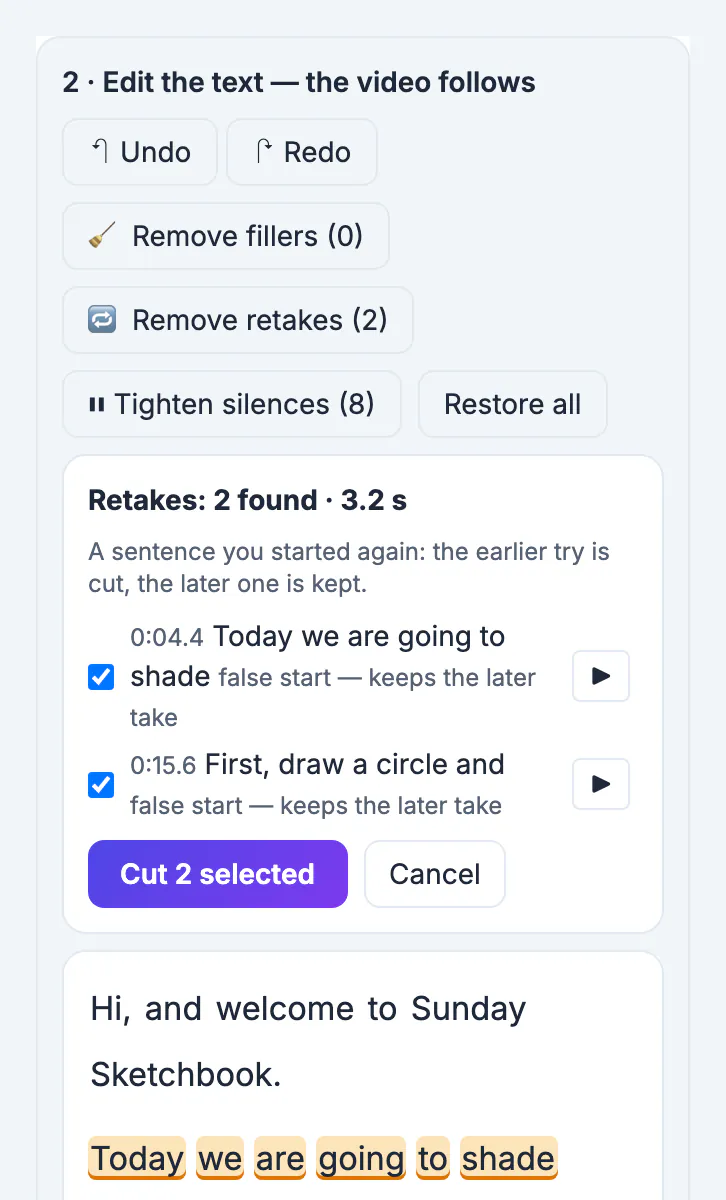
In each case the earlier attempt is suggested for removal and the later take is kept, because the last take is usually the one you meant. Detection is most reliable when you restart the whole sentence after a mistake, rather than picking up from the middle, because the repeated opening words are what the editor matches. If you tend to say sorry or wait before a restart, those words are separate and easy to delete by hand. In the drawing lesson the list showed 2 found, 3.2 seconds: Today we are going to shade at 0:04.4 and First, draw a circle and at 0:15.6, each marked false start, keeps the later take. As with every suggestion, nothing is cut until you press Cut.
Shorten long pauses instead of deleting them
Removing every silence makes speech sound rushed. Tighten silences works differently: pauses longer than a threshold become a pause of the length you choose.
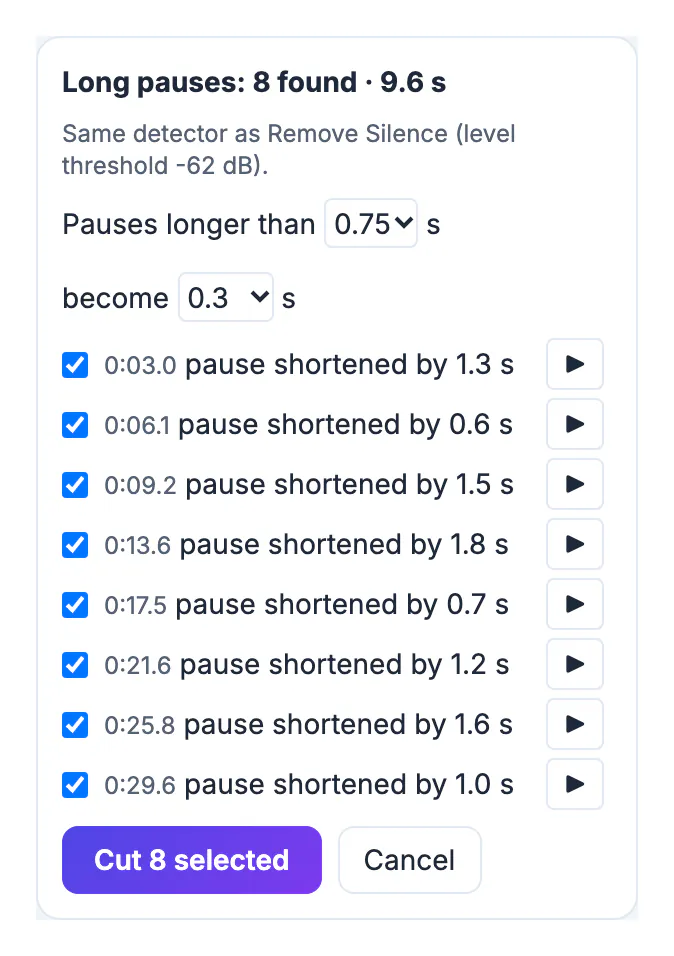
- Pauses longer than: 0.5, 0.75, 1, 1.5 or 2 seconds.
- Become: the length to keep, 0.3 seconds by default, so every sentence still has a small breath.
- Each pause is listed with its time, how much it will be shortened and a play button.
The lesson had eight pauses over 0.75 seconds, 9.6 seconds in total, the longest shortened by 1.8 seconds. The detector is the same one used by GrabCast's Remove Silence tool for audio, which is handy when you only have a voice recording.
Review the cut before you export
After both passes, read and watch the result once.
- The length line shows the new running time; the lesson went from 0:30.6 to 0:17.1, with 13.5 seconds removed.
- Struck-through words mark every cut; play across each one with Preview the edit (skip cuts) ticked.
- If a cut feels abrupt, restore it with Delete or Undo, or choose a longer pause to keep.
- Check that the kept take really is the better one; occasionally the first attempt was clearer.
Cuts closer than 80 milliseconds apart are merged so the video never shows a one-frame flash between them, and each join gets a short audio crossfade.
Make jump cuts look intentional
A few habits make jump cuts feel like a style rather than a patch:
- Frame the shot the same way for the whole recording and keep your head roughly centred.
- Pause for a second and look at the lens before a retake; it gives the editor a clean gap to cut in.
- Vary the rhythm: not every sentence needs the shortest possible pause.
- Cover a jolt you cannot avoid with a caption change, a zoom in a later editor, or a cutaway to the object you are talking about.
- For vertical versions, reframe after cutting; see short clips from a long video.
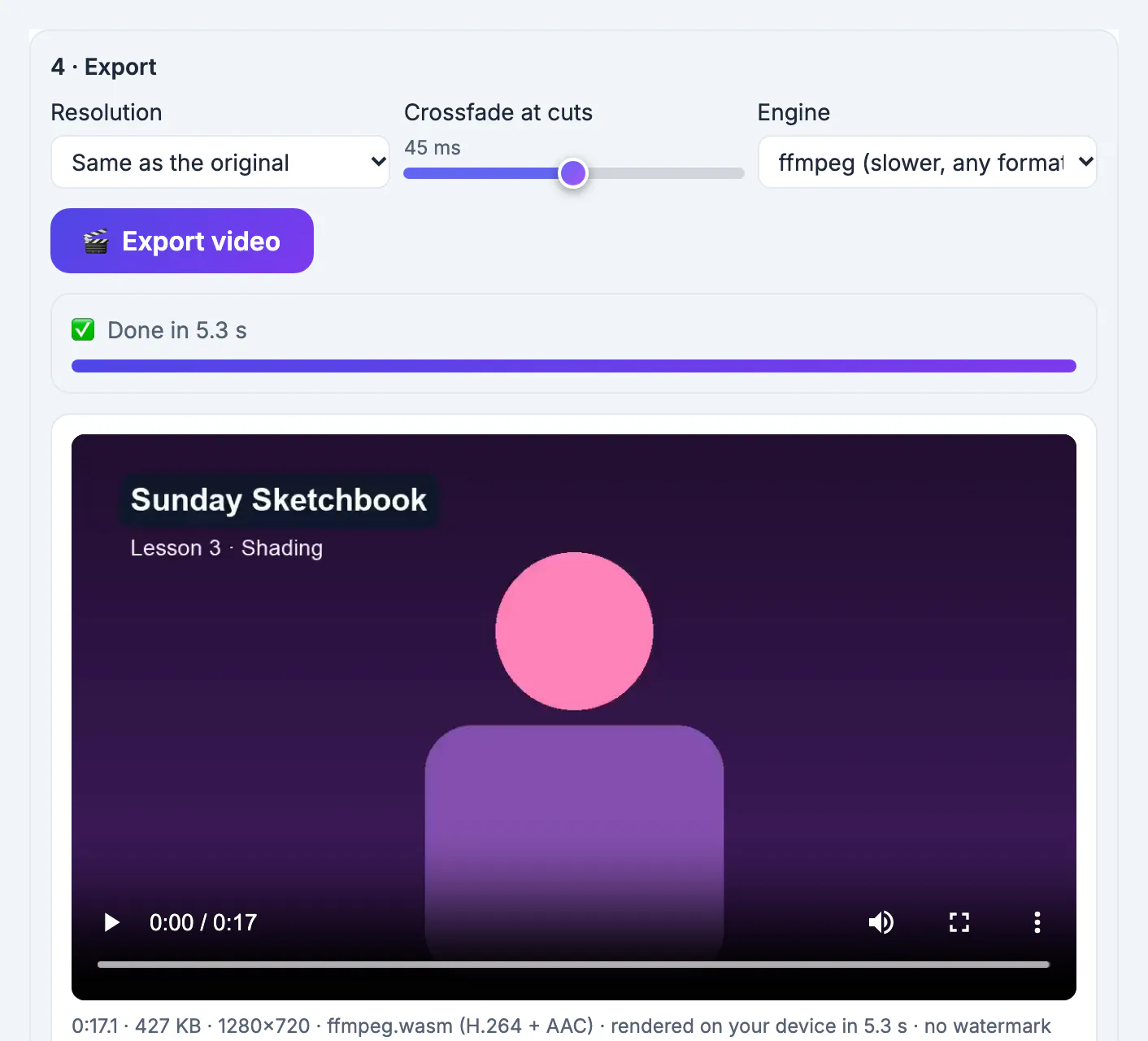
Export renders the MP4 in your browser with no watermark. The 17-second example rendered in about five seconds. To add captions to the tightened video, the same editor can burn them in; this caption guide covers placement for each app.
Step-by-step
Common mistakes to avoid
Pro tips
Frequently asked questions
What is a jump cut?
A cut inside one continuous shot that removes the time between two moments, so the subject appears to jump slightly. In talking videos it removes pauses and false starts.
Can I make jump cuts automatically?
Yes. Remove retakes finds false starts and Tighten silences shortens long pauses. Both show a review list before anything is cut.
Does removing silence make the video sound unnatural?
Not if you shorten pauses instead of deleting them. Keeping about 0.3 seconds between sentences sounds natural to most viewers.
Is the video uploaded?
No. Everything from transcription to export runs in your browser. Only the speech model and libraries are downloaded once.
Which formats can I edit?
Common formats such as MP4, MOV and WebM, and audio files too. The export is an MP4.
Jump cuts keep a talking-head video moving by removing retakes and waiting time. Let the editor find false starts and long pauses, shorten pauses rather than deleting them, review every cut, and export. You keep control of each cut, and the video never leaves your device.
Related guides
Browse more: all video and audio guides · the Text-Based Video Editor