How to Pause Scheduled Social Media Posts in a Crisis
To pause scheduled social media posts, you stop publishing for every account at once, leave a note saying why, and later decide what happens to the posts whose time passed while you were paused. It is the step people forget when something goes wrong: a tragedy in the news, a power cut that closes the shop, a product recall, a hacked account. A cheerful promotion going out at the worst moment can do more harm than the event itself. This guide shows when to pause, how to do it with the Pause publishing control in GrabCast's free Scheduler, what it does and doesn't stop, and how to resume cleanly. The example is a fictional bakery with five posts queued for the week.
📅 Try the Social Media Scheduler now — freeOpen →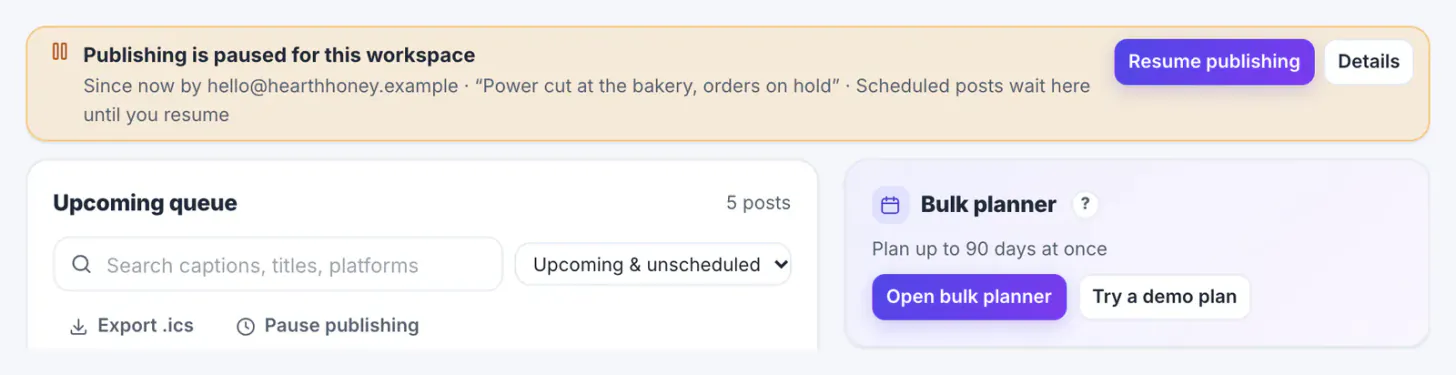
Scheduling is how small teams stay consistent, but a queue has no idea what is happening in the world. Posts planned a week ago keep going out while you are busy dealing with the problem. Deleting them one by one is slow, easy to get wrong across several networks and loses the work. A pause keeps every post in the queue and simply stops publishing until you decide. It also gives a team one clear state: everyone sees that publishing is paused, who paused it and why, so nobody schedules a new post into the silence by accident.
When to pause scheduled social media posts
Pause first and decide later when:
- Breaking news or a tragedy makes planned jokes, sales or upbeat posts look careless.
- Your business can't deliver what the posts promise: a closure, an outage, a sold-out product, a recall.
- An account may be compromised or a password was shared by mistake; pause just that account.
- You are in a public dispute or a complaint is going viral and every post will be read in that light.
- Legal or compliance review is needed before a campaign continues.
A pause is not a statement. If people expect to hear from you, write one clear post by hand and pin it. The pause only stops the automated ones.
How to pause scheduled posts in the Scheduler
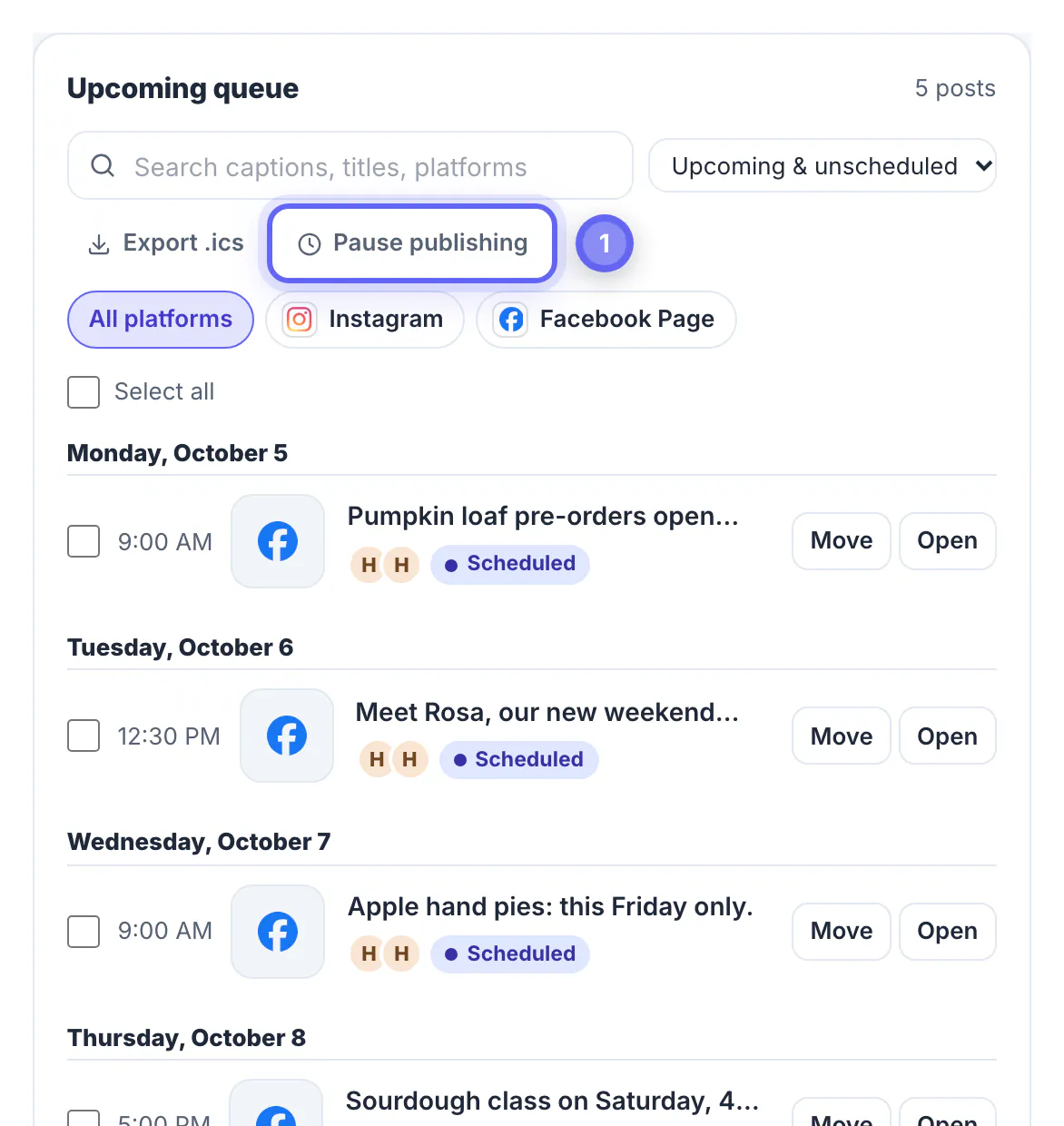
Open the Queue and press Pause publishing, next to Export .ics. In the dialog:
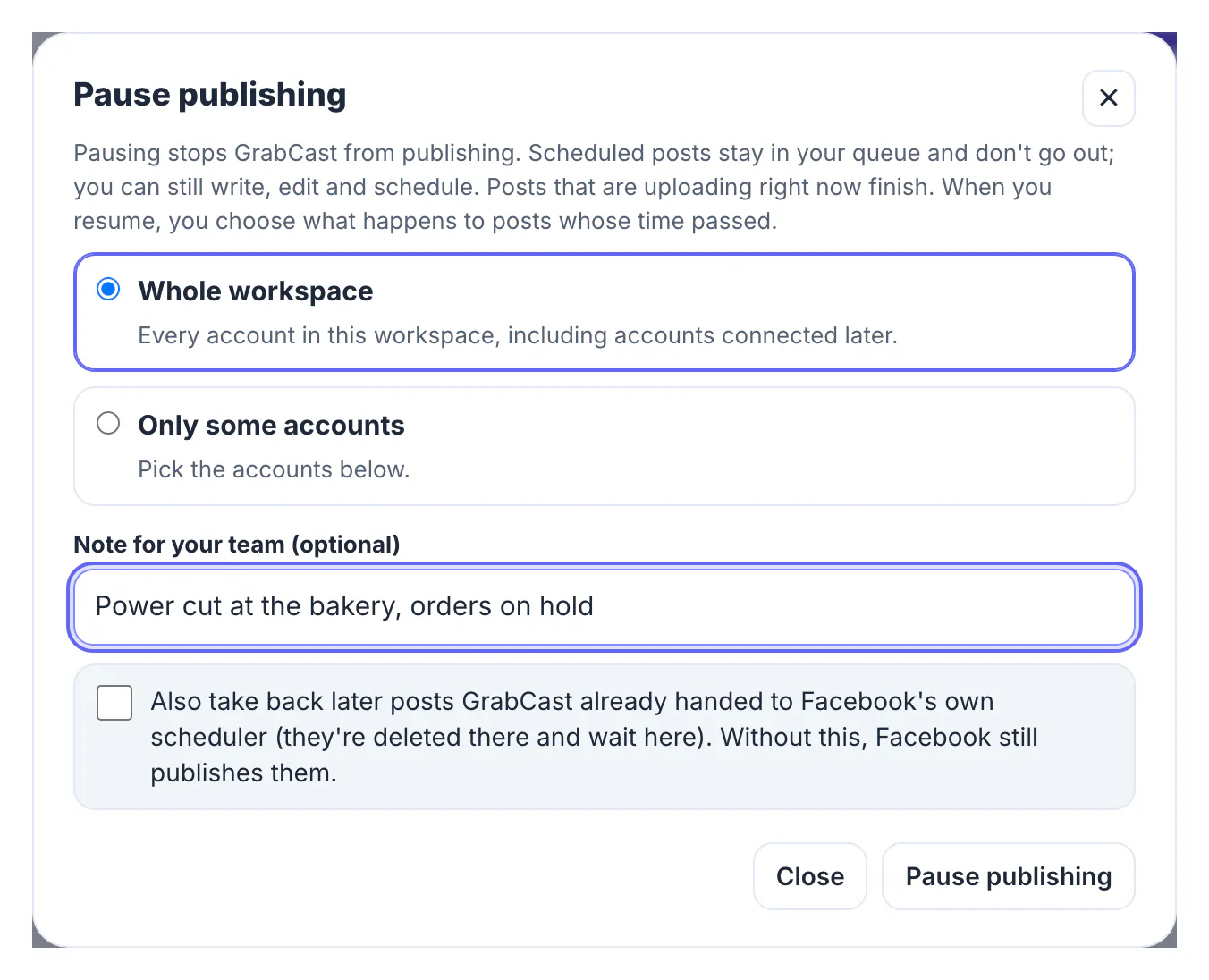
- Whole workspace stops every account, including accounts connected later. Only some accounts lets you pick, for example one compromised Instagram account.
- Note for your team: in the example, Power cut at the bakery, orders on hold.
- Also take back later posts GrabCast already handed to Facebook's own scheduler: without this, Facebook still publishes them. With it, those copies are deleted on Facebook and wait in GrabCast instead.
After pressing Pause publishing, a banner appears on every view: Publishing is paused for this workspace, with who paused it, the note, and Resume publishing. Scheduled posts wait in the queue; you can still write, edit and schedule. Publishing is refused on the server too, so Publish now and retries wait as well.
Pause needs the Owner, Admin or Editor role. Viewers see the banner read-only and are told to ask an Owner, and in shared workspaces the pause and resume are recorded in the audit log.
What a pause does not stop
Be clear about the edges, so nothing surprises you:
- Posts that are uploading at that moment finish; they are already with the network.
- Copies already handed to Facebook's own scheduler go out unless you ticked the take-back option, and a copy that can't be deleted is reported to you.
- Posts scheduled in other tools or natively inside Instagram, TikTok, Threads or YouTube are not affected; pause or delete them there.
- Ads and boosted posts run on their own schedule in the ad manager.
A two-minute checklist after pausing: look at each network's own scheduled-content screen, check running ads, and tell the team in your usual chat. If the reason is a compromised account, change its password and review connected apps in that network's security settings before you resume anything for it.
Resume without a burst of old posts
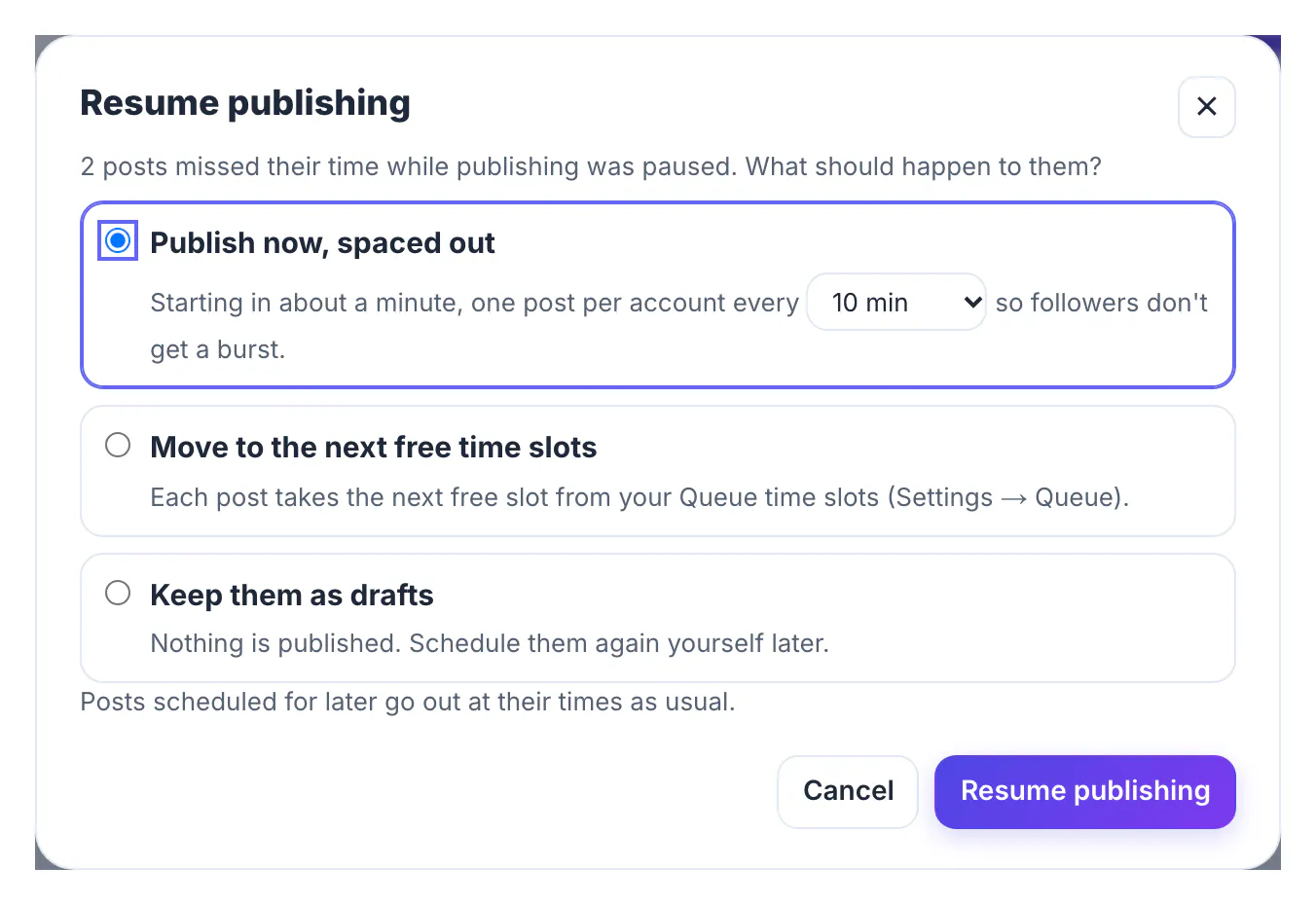
Before resuming, read the queue again with fresh eyes and edit or cancel anything that no longer fits. Then press Resume publishing. If posts missed their time while publishing was paused, you choose what happens to them:
- Publish now, spaced out: starting in about a minute, one post per account every few minutes (10 by default), so followers don't get a burst.
- Move to the next free time slots from your Queue time slots.
- Keep them as drafts: nothing is published, and you schedule them again yourself.
Posts scheduled for later go out at their times as usual. For planning the weeks after a pause, UTM links make it easy to see whether traffic has recovered, and a quiet, factual first post usually lands better than an immediate sale.
Check performance with the Social Media Analytics Dashboard before you resume.
Step-by-step
Common mistakes to avoid
Pro tips
Frequently asked questions
What happens to my scheduled posts when I pause publishing?
They stay in the queue and don't go out. You can still write, edit and schedule; nothing publishes until you resume.
Can I pause only one account?
Yes. Choose Only some accounts in the pause dialog and pick the accounts, for example one that may be compromised.
Will posts already scheduled on Facebook still go out?
Copies GrabCast already handed to Facebook's own scheduler still publish unless you tick the option to take them back when pausing.
What happens to posts whose time passed while paused?
When you resume, you choose: publish them now spaced out, move them to your next free time slots, or keep them as drafts.
Who can pause publishing in a team?
Owners, Admins and Editors. Everyone else sees the banner read-only, and in shared workspaces the pause is recorded in the audit log.
Pausing scheduled social media posts should take seconds: stop the whole workspace or one account, leave a note, check what a pause doesn't cover, and resume on your terms. Add the pause to your crisis checklist today, so nobody has to find it when something goes wrong.
Related guides
Browse more: all business guides · the Social Media Scheduler