Photo Collage Online: Layouts, Spacing and Export
To make a photo collage online, drop 2 to 9 pictures into the GrabCast Photo Collage Maker, click a layout, drag pictures between cells until the best one sits in the biggest spot, set spacing and corners, and download a JPG, PNG or WebP. Everything is drawn on a canvas inside your browser, so the files stay on your device. This walkthrough follows one real example, five garden flower shots turned into a square post, and explains each setting so you know what to change for your own set.
🧩 Try Photo Collage Maker now — freeOpen →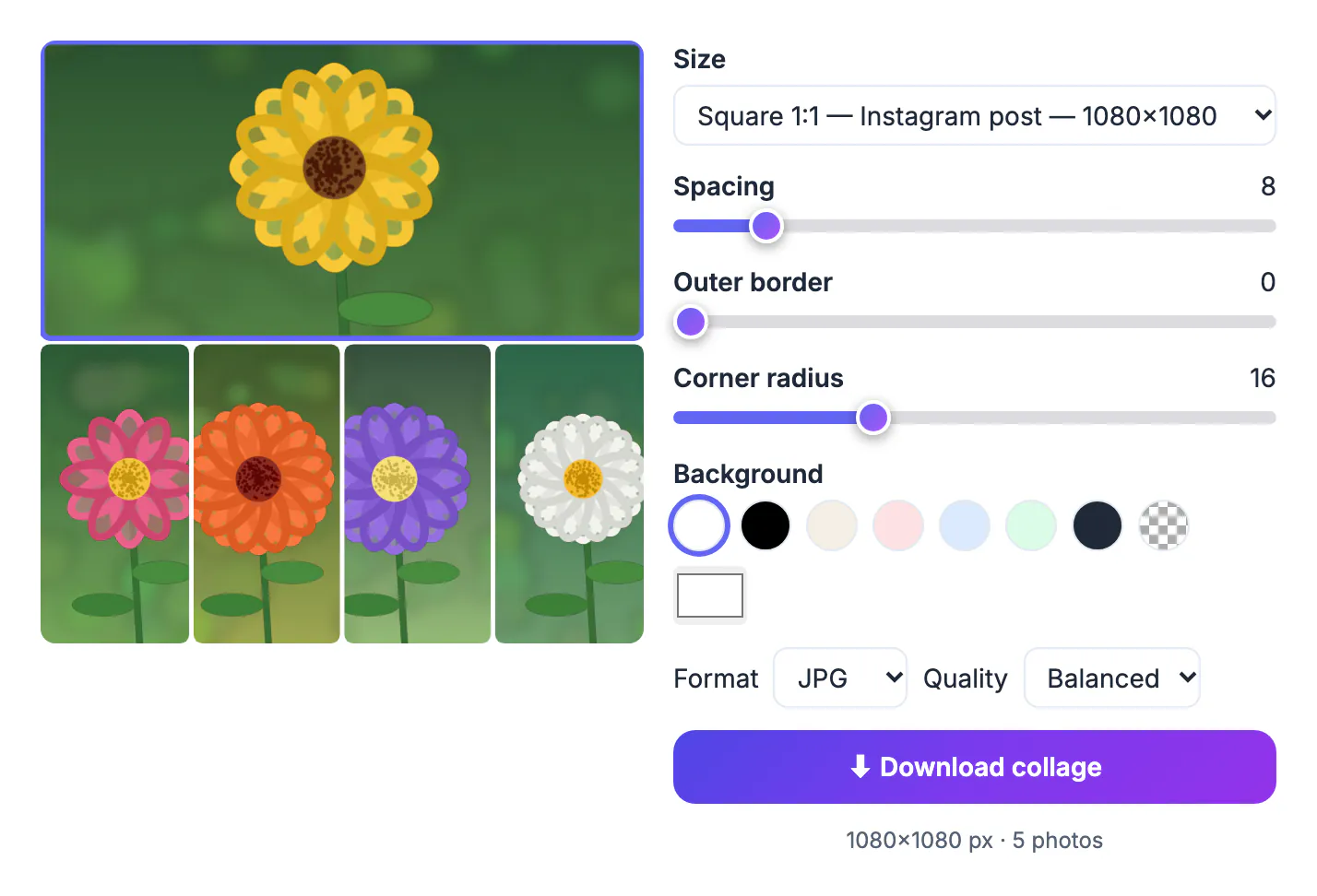
A grid tells a small story in one image: the harvest, the trip, the before and after. Followers see all of it without swiping, a printed grid fits one frame instead of five, and a newsletter needs one attachment instead of a gallery. The catch is that a careless grid looks cluttered, with random crops and uneven gaps. A few deliberate choices, a lead image, consistent spacing and a canvas shape that matches where it will be shown, make the difference between a scrapbook page and something people stop to look at.
Pick a layout that suits the pictures, not the other way around
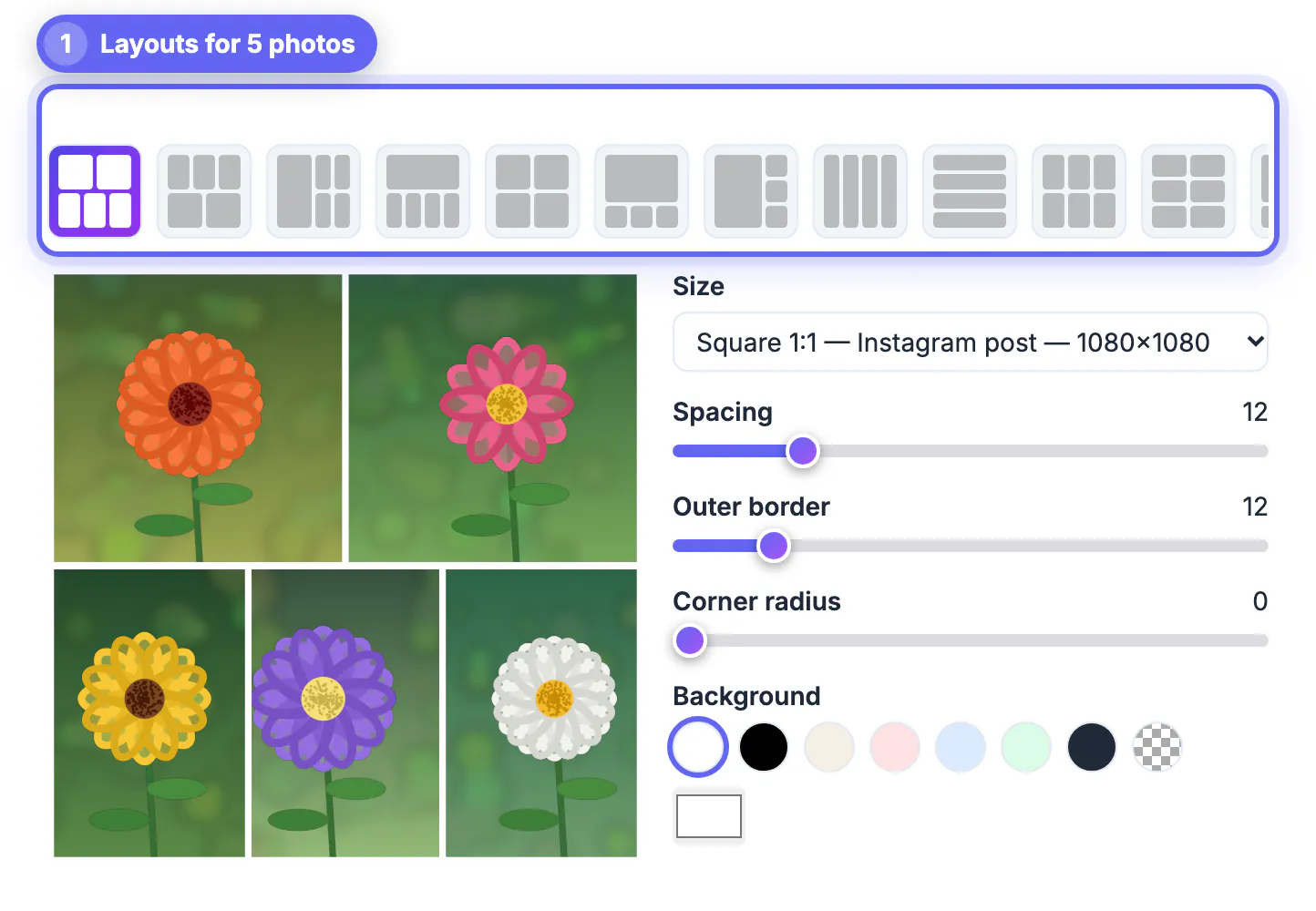
When you add pictures, the tool counts them and picks a grid with exactly that many cells, then sorts the layout thumbnails so options for the same count come first. There are more than 30 layouts for 2 to 9 images: plain rows and columns, a 2-over-3 split, one large cell beside a stack, one wide cell above a row of four, and 3 by 3 grids.
- Five shots of similar weight: a 2-over-3 grid keeps them equal.
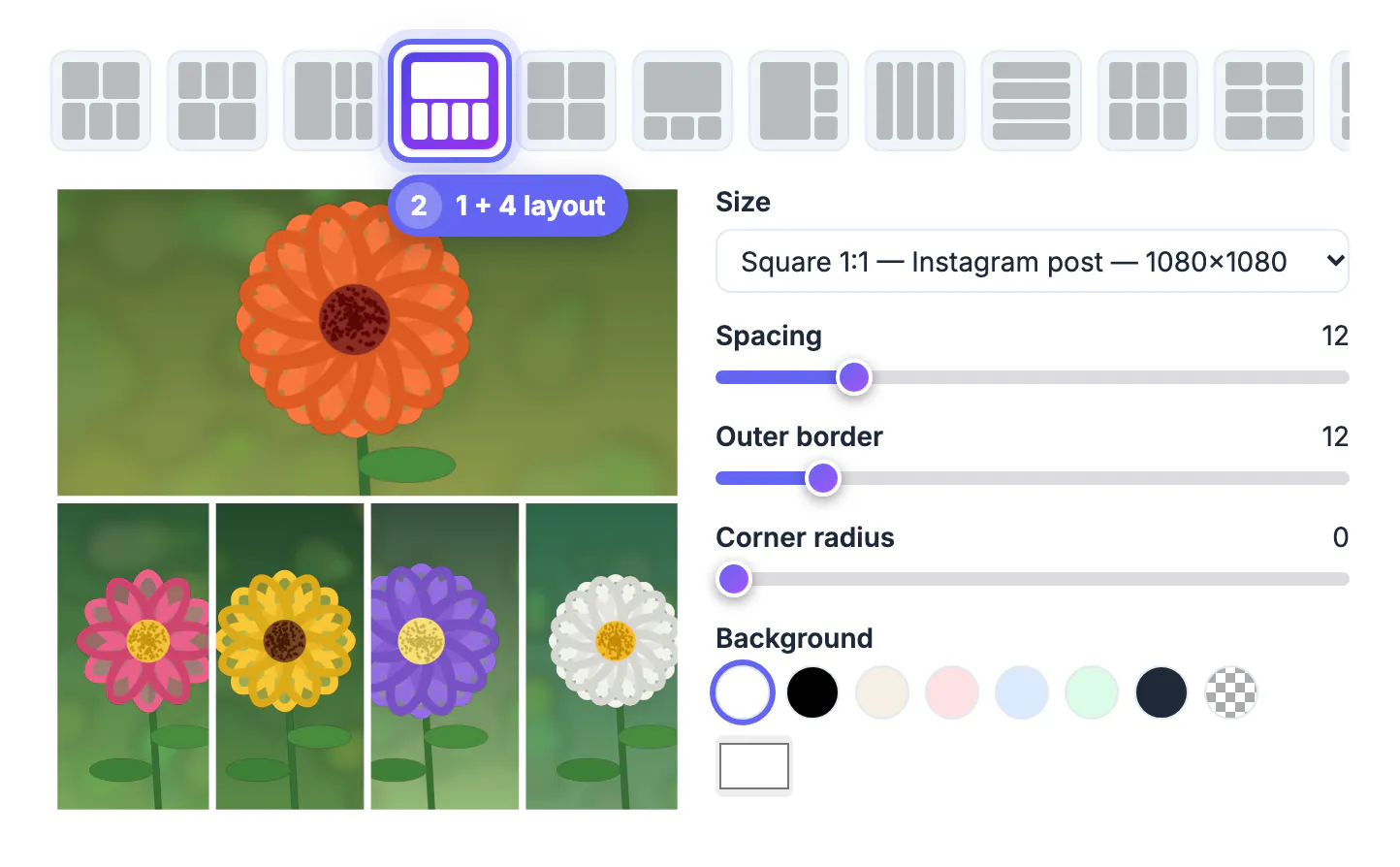
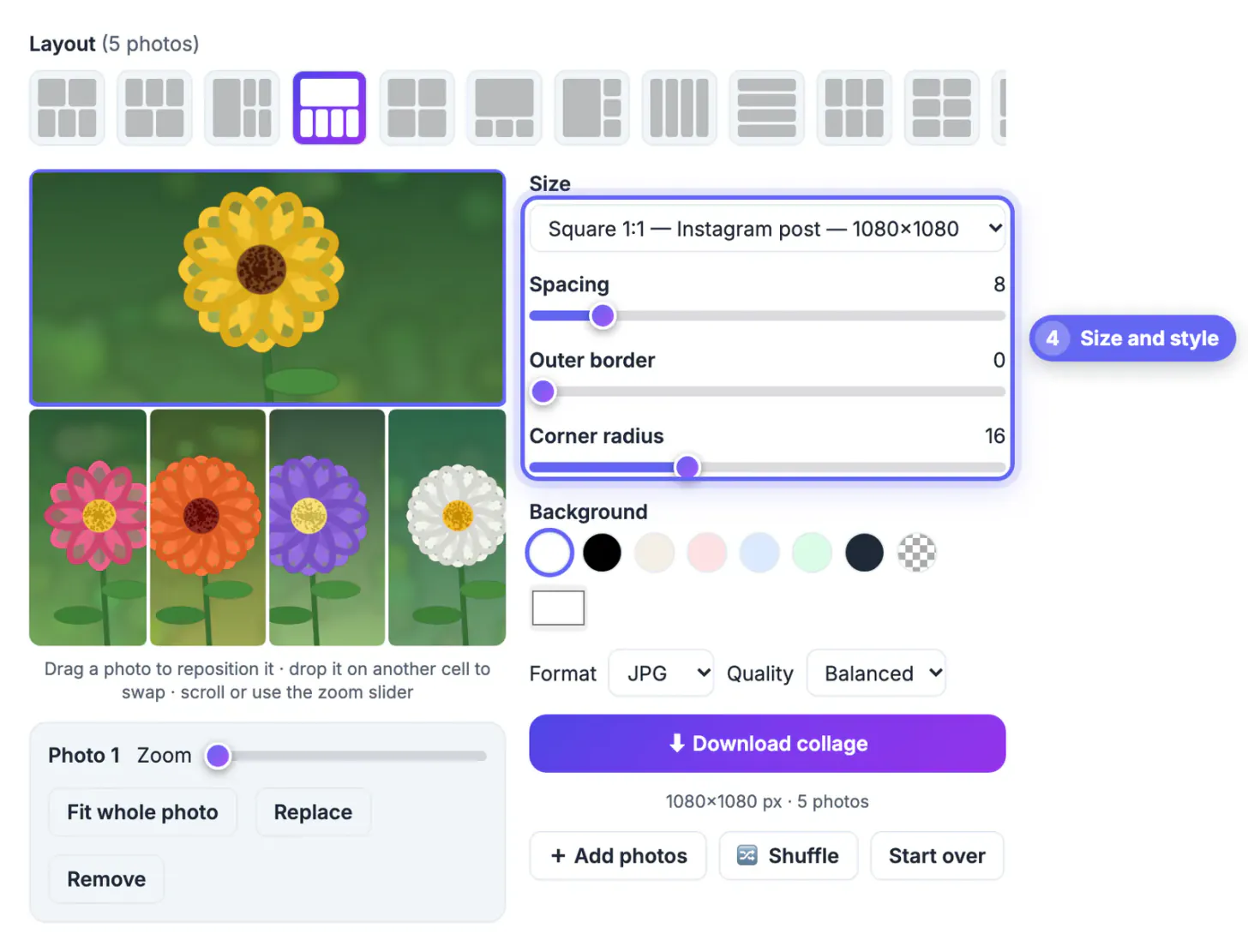
- One standout plus supporting shots: a large cell above four small ones, which is what our flower example uses.
- Mostly vertical pictures: layouts with tall columns crop far less than rows of wide cells.
- More than nine files: only nine cells exist, so the extras wait off the canvas until you swap or replace one in.
Switching layouts keeps your order and any zoom you already set, so trying five designs costs five clicks, not five rebuilds. A good test: squint at the preview. If your eye lands on the best picture first and nothing looks squeezed, the layout works; if a cell shows only sky or a sliver of a subject, try a layout with a different cell shape before touching zoom.
Arrange cells in the collage maker: swap, pan and zoom
Each picture fills its cell edge to edge, which means some of it is trimmed. Three controls decide what stays visible:
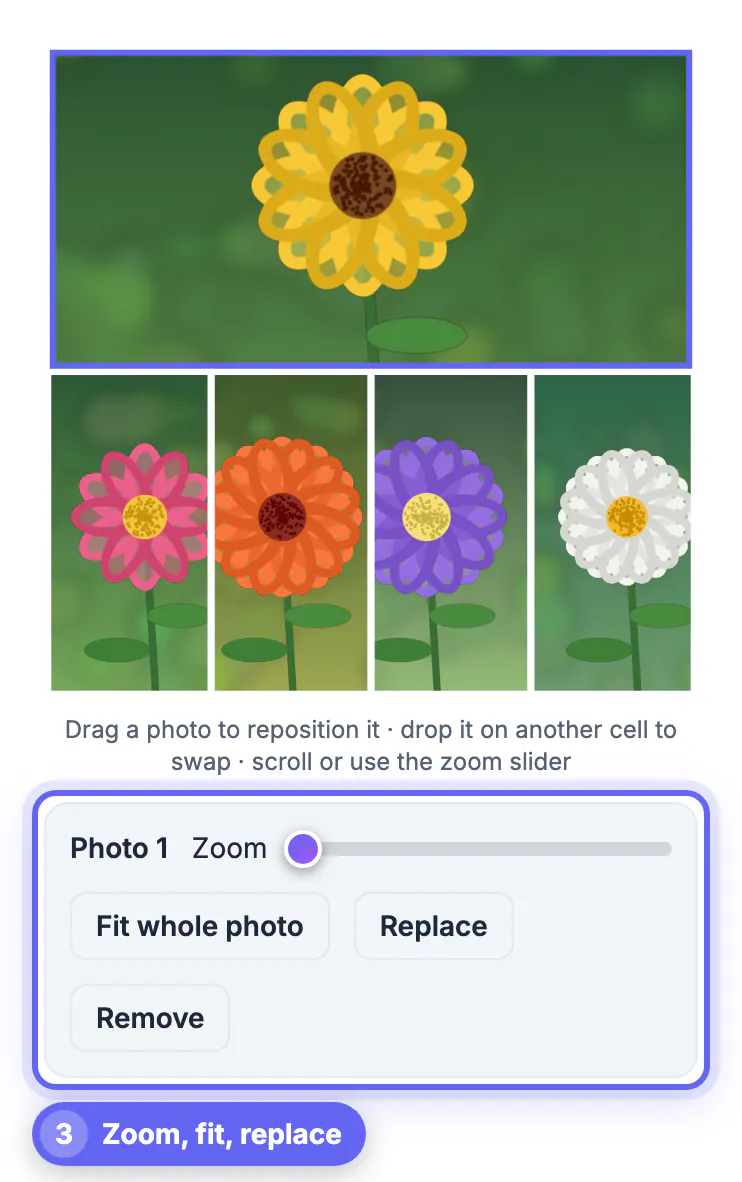
- Drag one cell onto another to swap them. In the example, the sunflower moves into the wide top cell and the zinnia drops into the row below.
- Drag inside a cell to slide the picture and bring the important part into view. Arrow keys nudge the selected cell too.
- Zoom up to 4 times with the slider, the mouse wheel or the plus and minus keys, and switch on Fit whole photo when nothing may be cut off.
- Replace swaps in a different file for one cell, Remove empties it, and clicking an empty cell opens the file picker for it.
Your pan and zoom are stored as proportions rather than pixels, so the framing you see in the preview is exactly what appears in a 1080 pixel post or a 3000 pixel print. On a phone, tap a cell to select it and drag with one finger; the same controls appear below the preview.
Spacing, border, rounded corners and background
The style sliders are measured against a 1080 pixel canvas and scaled for every export size, so the look never changes when you pick a bigger file.
- Spacing, 0 to 60: the gap between cells. 6 to 12 feels modern; 0 gives a seamless mosaic.
- Outer border, 0 to 80: a frame around the whole grid. Our square post uses 0 so the flowers reach the edge.
- Corner radius, 0 to 50: rounds every cell. Around 16 softens a grid without looking like app icons.
- Background: white, black, cream, pink, blue, mint, charcoal, a custom color, or transparent for PNG and WebP.
If you pick transparent and keep JPG, the tool warns you and fills the gaps with white, because JPG has no transparency.
Choose a canvas size and file format before you download
The Size menu sets the shape and the pixel count: Square 1080 x 1080, Portrait 4:5 at 1080 x 1350, Story 1080 x 1920, Landscape 1920 x 1080, a 1200 x 630 link preview, Pinterest 1000 x 1500, print sizes at 300 dpi, or a custom width and height from 100 to 8000 pixels. The preview changes shape immediately, so check your crops again after switching.
- JPG with Balanced quality is the everyday choice for social posts and email.
- High quality suits prints; Small file helps with strict upload caps.
- PNG is lossless and keeps transparent gaps, but files are larger.
- WebP keeps transparency with smaller files and works in current browsers and most apps.
Each cell is drawn from the original file at the export size, so a large export stays sharp as long as your source pictures have enough pixels.
Shrink the finished image with the Compress Image tool, and add a caption with the Add Text to Image tool.
Step-by-step
Common mistakes to avoid
Pro tips
Frequently asked questions
How many pictures can one collage hold?
Each layout has 2 to 9 cells. You can add more files, but only the ones placed in cells appear; swap or replace to choose which.
Is there a watermark or sign-up?
No. The tool is free, needs no account and adds nothing to your image.
Are my pictures uploaded?
No. The grid is drawn on a canvas in your browser and saved straight to your device. Only iPhone HEIC files need a small converter library, which downloads the first time you add one.
Which size should I use for an Instagram post?
Square 1080 x 1080 or Portrait 4:5 at 1080 x 1350. Portrait takes more screen height in the feed, square is safest for profile grids.
Can I make a collage on my phone?
Yes. The page works in mobile browsers; tap a cell to select it and drag with one finger to reposition or swap.
Add the pictures, choose a layout that matches their shape, put the best one in the biggest cell, and keep spacing and corners modest. Check the preview once more after picking the final size, then download a JPG for sharing or a PNG when you need transparent gaps.
Related guides
Browse more: all image guides · Photo Collage Maker