PDF Table to Excel: Keep Columns, Numbers and Sheets
To get a PDF table into Excel, drop the file into a converter that reads the text positions, check that the columns lined up in the preview, and download an .xlsx workbook. With GrabCast's PDF to Excel that takes under a minute for a typical document, such as a two-page wholesale price list with 17 products in four tables, and the prices arrive as real numbers you can sum, sort and multiply instead of text you have to retype. This guide uses exactly that example to show the choices that matter: one sheet per page or everything on one sheet, whether to keep the titles and notes around the tables, how to tell which cells became numbers, and when a CSV file is the better download.
📊 Try the PDF to Excel converter now — freeOpen →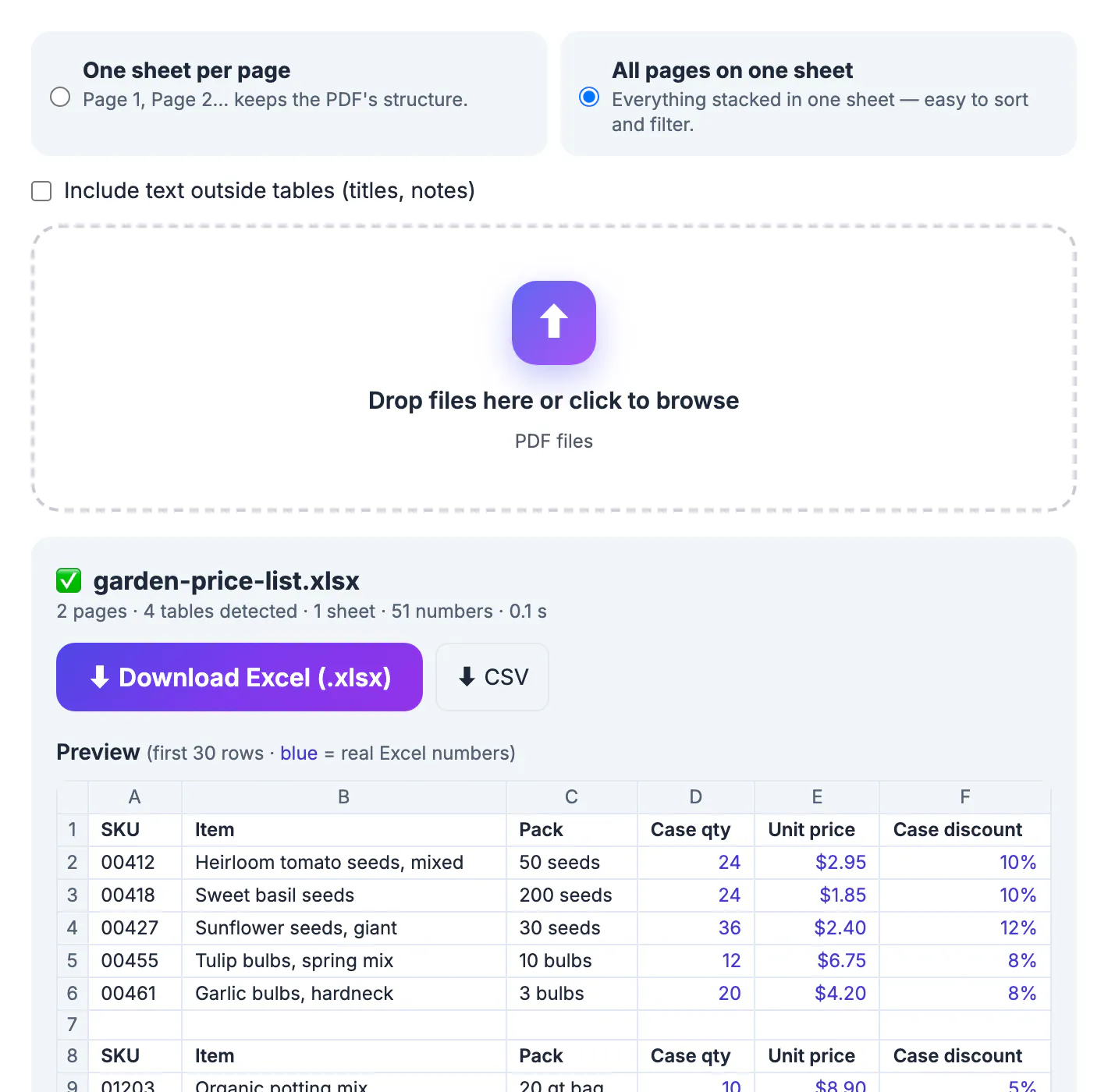
Select a table in a PDF viewer, paste it into Excel, and you usually get one long column of values, or every row crammed into a single cell. A PDF does not store a table as rows and columns; it stores individual words with coordinates on the page. A converter has to rebuild the grid from those coordinates. GrabCast groups words into lines by their baseline, then lines up the gaps between words across neighboring rows to find where each column starts and ends. It handles right-aligned amounts, empty cells, headers and several tables on one page. Because the work happens in your browser with PDF.js and SheetJS, a supplier price list, a payroll summary or a client report never leaves your computer.
What a PDF table becomes in Excel
The converter produces a normal Excel workbook. Each detected table becomes a block of rows and columns, the header row is marked in bold in the preview, and a blank row separates one table from the next. Column widths are set from the content, so a long product name gets a wider column than a two-digit quantity.
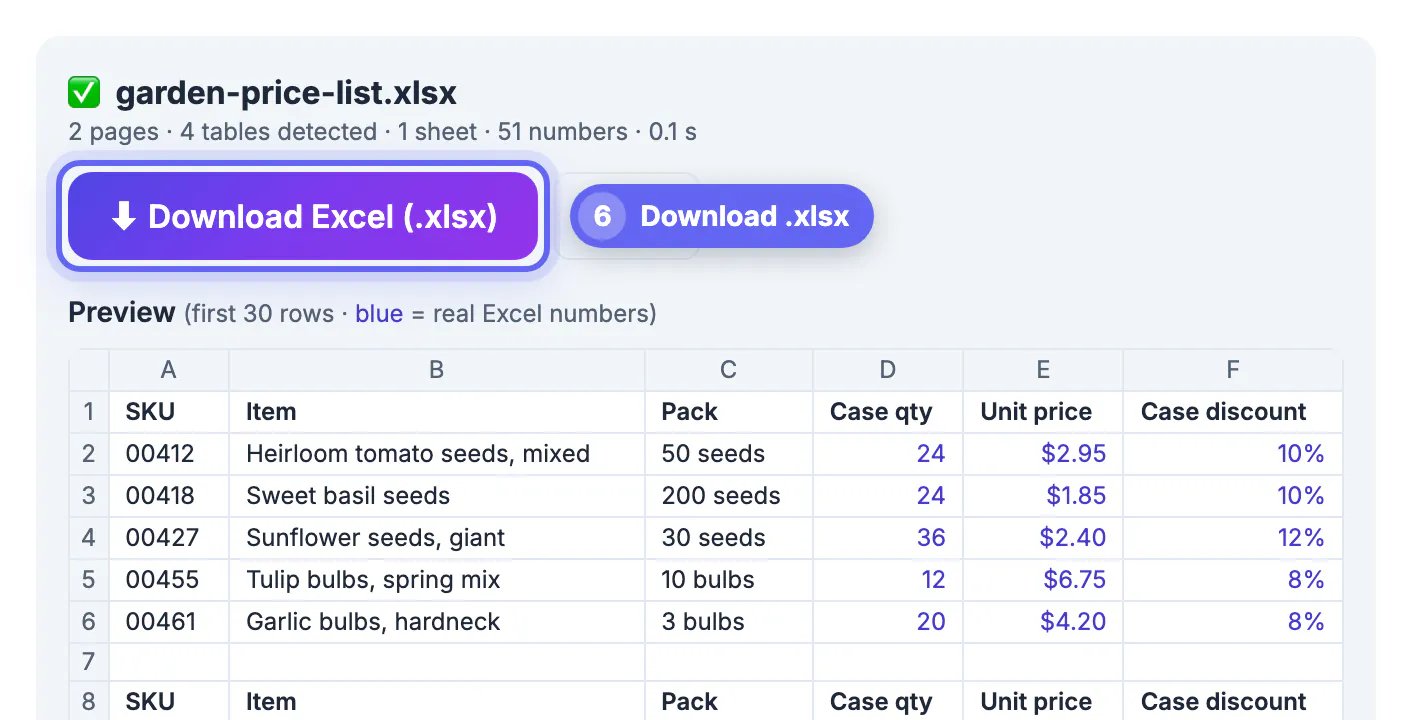
The part most people care about is the numbers. In the sample price list, case quantities like 24 and 36, unit prices like $2.95 and $12.50, and case discounts like 10% all become real Excel values with a matching number format. That means a formula such as =E2*D2 gives you the price of a full case, and a column of discounts can be averaged or sorted from high to low.
Values that only look like numbers are left alone. The SKU codes 00412 and 01203 keep their leading zeros because they are identifiers, not quantities. Dates and abbreviations like 1.2M also stay as text so nothing is silently changed.
One sheet per page or all pages on one sheet
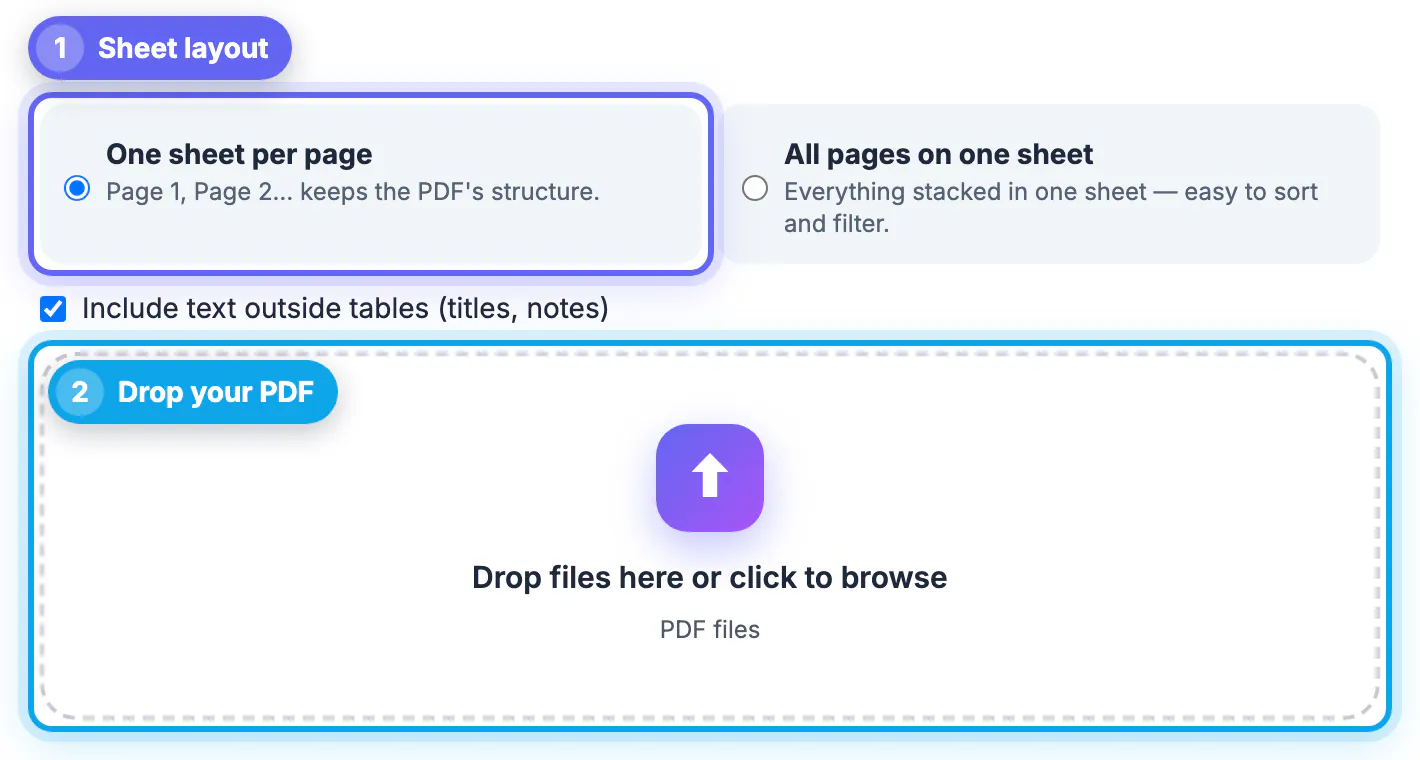
Before or after you drop the PDF, pick a layout. You can switch at any time; the preview updates without uploading the file again.
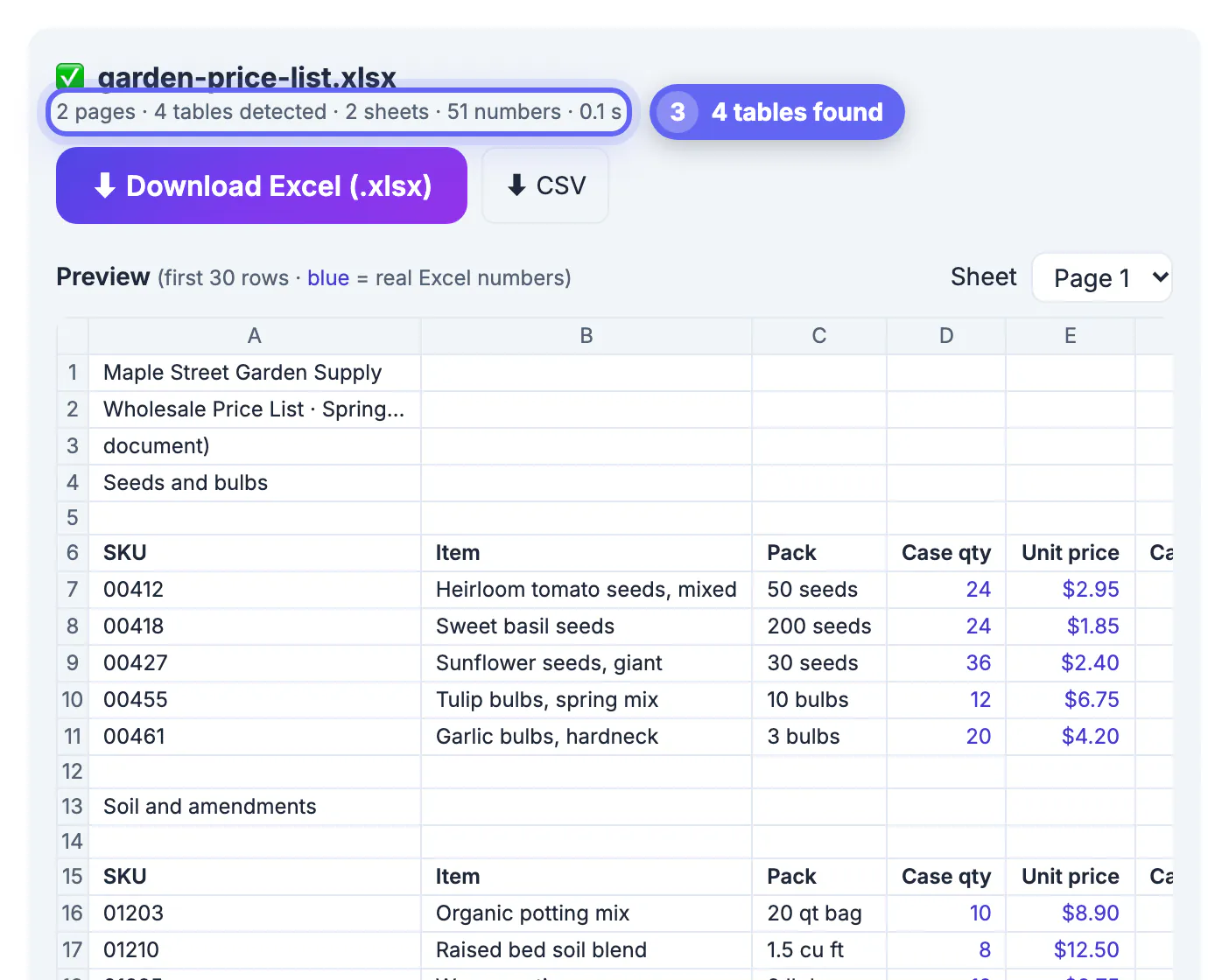
- One sheet per page creates tabs named Page 1, Page 2 and so on. Choose it when the page structure matters, for example a report where page 3 is always the regional summary.
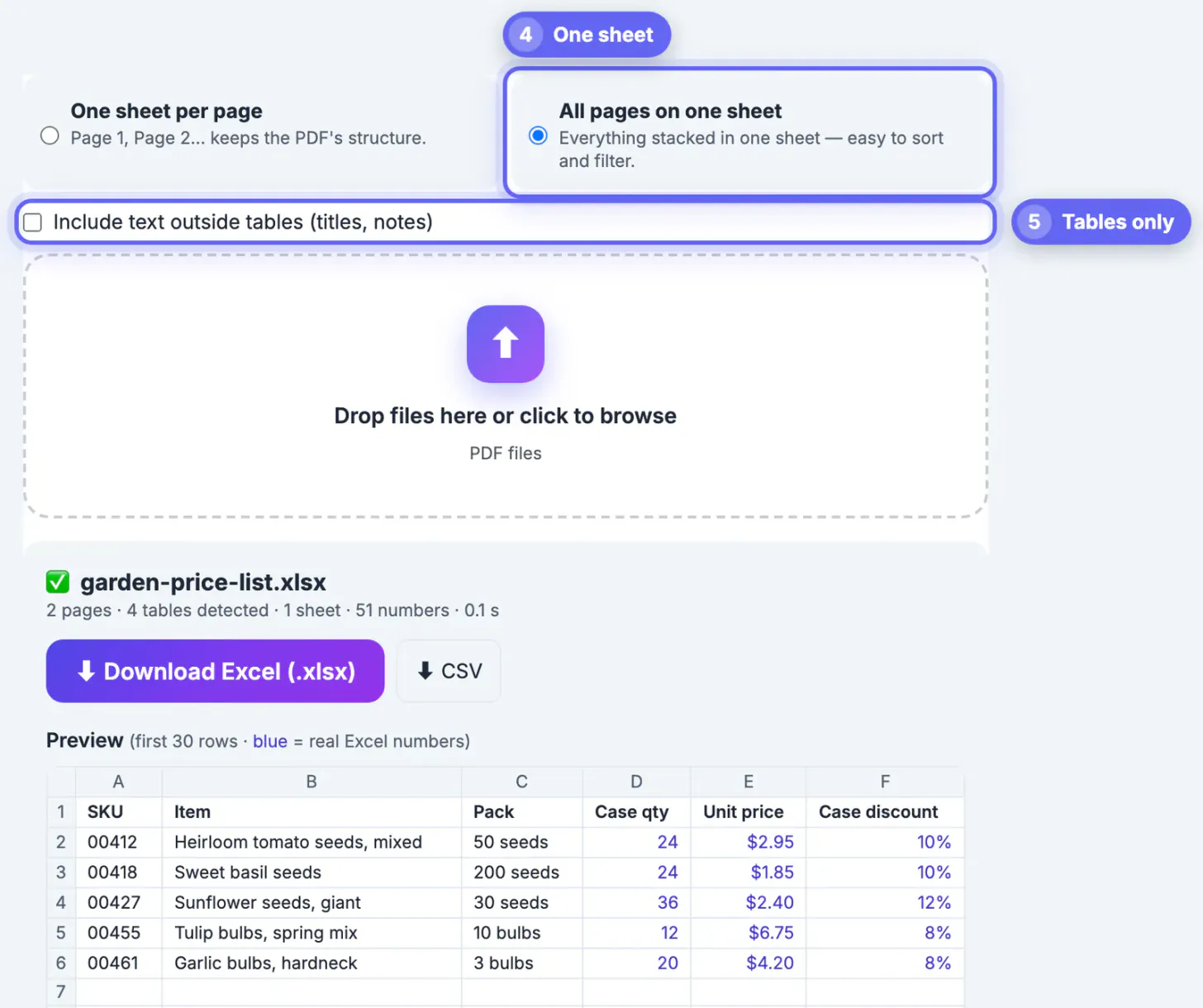
- All pages on one sheet stacks every page in a single tab, separated by blank rows. Choose it when the same table continues across pages, like a catalog or a transaction list, and you want to filter or sort the whole thing at once.
- Include text outside tables is on by default and keeps titles, section labels and footnotes as rows of their own. Untick it to keep only the tables, which is what you want for a pivot table or a VLOOKUP range.
For the garden supply list, all pages on one sheet with the text option off gave a clean block of product rows with the header repeated above each section, which takes one filter to tidy up.
Read the preview before you download
The preview shows the first 30 rows of the selected sheet in a spreadsheet-style grid with column letters and row numbers. Two quick checks catch nearly every problem:
- Look at the counts line under the file name. The price list reads 2 pages, 4 tables detected, 51 numbers. If a PDF you know has tables reports 0 tables, each line of text became its own row and you will need to split columns by hand.
- Scan the colors. Values shown in blue were recognized as real numbers. A price that appears in black is still text, often because of a unit glued to it, such as 12 kg or USD 40.
- Check that each header sits above the right values. Very tightly packed columns can merge into one cell; the preview is the place to notice that, not after you have built formulas on top of it.
- Use the Sheet menu above the grid to look at later pages when you chose one sheet per page.
Excel file or CSV: which download to pick
Download Excel (.xlsx) keeps number formats, so $2.95 still displays with a dollar sign and 10% still displays as a percentage, while the cell holds 2.95 and 0.1 underneath. It opens in Excel, Google Sheets, Numbers and LibreOffice.
The CSV button writes plain comma-separated text. Numbers are saved without currency symbols or thousands separators, so $1,250.00 becomes 1250, which is what databases, accounting imports and scripts expect. Percentages keep their percent sign. The file is UTF-8 with a byte-order mark so accented names survive in Excel, and any text cell that starts with an equals, plus, minus or at sign gets a leading apostrophe so it cannot run as a formula when someone opens it.
If you are not sure, take the .xlsx. You can always save a CSV from Excel later, but you cannot get number formats back from a CSV.
If the table is a scan, run the OCR PDF tool first. A CSV can also be turned into JSON with the CSV to JSON Converter.
Step-by-step
Common mistakes to avoid
Pro tips
Frequently asked questions
Does the PDF to Excel converter upload my file?
No. The PDF is read with PDF.js and the workbook is written with SheetJS inside your browser. Only the two libraries are downloaded when you use the tool, so price lists, payroll sheets and client reports stay on your device.
Why are some of my numbers black instead of blue in the preview?
Blue values were recognized as real numbers. Black values are text, usually because extra characters are attached, like 12 kg, 3 pcs or USD 40, or because they have leading zeros, like 00412. You can convert them in Excel afterward with Text to Columns or a VALUE formula.
Can I convert a PDF table with several tables on one page?
Yes. Each table is detected separately and placed in the sheet with a blank row between them. The price list in this guide has four tables on two pages, and all four were found.
What is not copied from the PDF?
The workbook holds text and numbers only. Fonts, colors, borders, merged cells, images and charts are not copied, and rotated text is skipped. Rebuild any formatting you need in Excel after the data is in place.
Is there a page limit?
The converter handles PDFs of up to 500 pages. Because everything runs on your own device, very long files take longer on older phones; splitting them first keeps the preview quick to review.
A PDF table only becomes useful in Excel when its columns and numbers survive the trip. Pick the layout that matches how you will use the data, untick the text option when you want a clean block for sorting, read the counts line and the blue numbers in the preview, and download .xlsx unless another program specifically asks for CSV. Check one total against the PDF, and the sheet is ready for real work.
Related guides
Browse more: all PDF guides · the PDF to Excel converter