How to Scan a QR Code From a Screenshot or Photo
To scan a QR code from a screenshot, you do not need a second phone pointed at your screen. Save or crop the screenshot, drop or paste it into an image-based QR reader, and it decodes the code straight from the picture. A good reader then shows what the code contains before anything opens: the real web address for a link, or the network name and password for a Wi-Fi card. This guide works through two everyday cases, a festival flyer shared in a group chat and a photo of a cafe Wi-Fi card, and explains how to spot a risky link.
📷 Try QR Code Scanner now — freeOpen →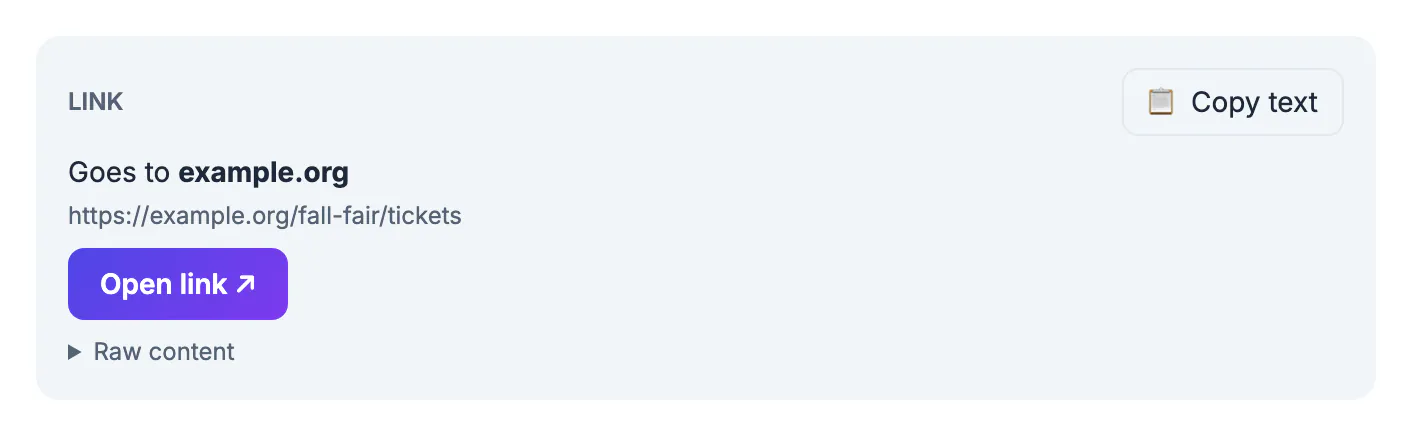
QR codes turn up in places your camera cannot reach: an event flyer posted on Instagram, a ticket in an email, a boarding pass PDF, a slide in a video call, or a photo a friend took of a Wi-Fi sign. Pointing your phone at itself is impossible, and borrowing another device is clumsy. Reading the image file solves that, and seeing the content first protects you from codes that lead somewhere other than they claim.
Three ways to get the screenshot in
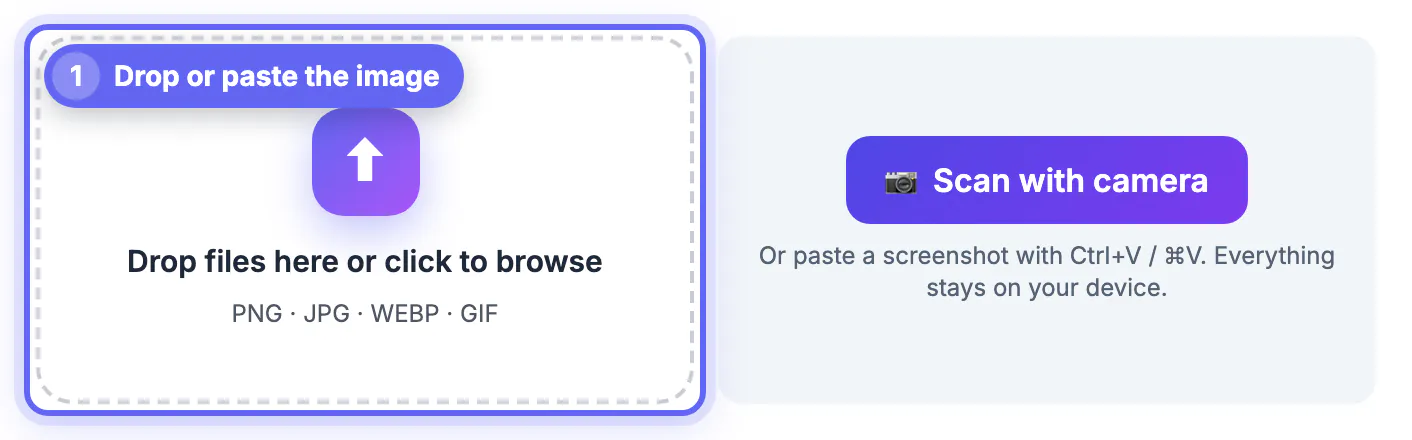
The GrabCast QR Code Scanner accepts PNG, JPG, WEBP and GIF images. You can drop the file on the page, click to browse for it, or copy the screenshot and paste it with Ctrl+V on Windows or Cmd+V on a Mac. Pasting is the fastest route on a computer: take the screenshot to the clipboard and paste it straight in.
On a phone, take the screenshot, open the scanner in your browser, tap the drop zone and choose the image from your photos. The Scan with camera button is there for codes that are physically in front of you, such as a poster or a table card.
Check where a link goes before you open it
For a web address the result is labelled Link and shows Goes to followed by the domain in bold, with the full address underneath. In the flyer example that reads example.org and https://example.org/fall-fair/tickets. Nothing opens until you press Open link, and Copy text lets you paste the address somewhere else instead.
The scanner also flags common warning signs:
- the address uses http rather than https, so it is not encrypted;
- it points to a raw IP address instead of a domain name;
- the domain uses punycode characters that can imitate a familiar name;
- it is a link shortener, which hides the final destination;
- it contains an @ login part, a common phishing trick.
Stickers placed over genuine codes on parking meters and posters are a known scam. If the domain does not match the business or event, do not open it. Type the organizer's official website address yourself, or search for the event by name, and buy tickets or pay there instead.
Wi-Fi codes, contacts and other content
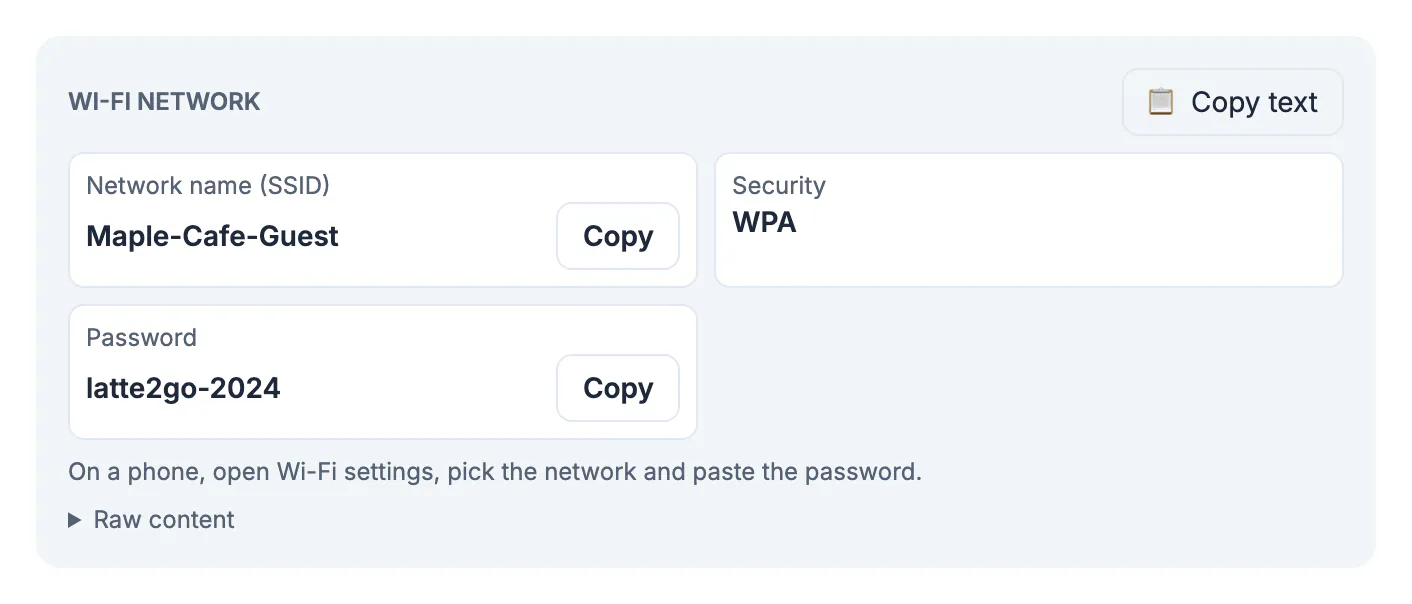
A Wi-Fi code is split into Network name (SSID), Security and Password, each with a Copy button. The cafe card in the example decodes as Maple-Cafe-Guest with WPA security. On a phone, open Wi-Fi settings, pick the network and paste the password.
Other formats are recognized too: a contact card can be saved as a .vcf file, a calendar event added with an .ics file, and a location opened in OpenStreetMap. Email, phone number and text message codes show their fields for you to read. Anything unrecognized appears as plain text, and Raw content shows the exact data inside the image for every type.
Some networks do not broadcast their name. In that case the result also marks it as a hidden network, and you add it manually on your phone: choose the option to join another network, type the name exactly as shown, including capital letters and dashes, pick the same security type, then paste the password. Guest networks at cafes and hotels often change their password every few months, so an old photo may simply be out of date.
When the scanner cannot find a QR code
If the result says No QR code found, the image usually needs a better crop rather than a better scanner.
- Include the whole code and its white margin. The quiet zone around the square is part of the pattern; a tight crop that cuts into it often fails.
- Use the original, not a thumbnail. A preview saved from a chat app can be too small to read; open the full image and screenshot that.
- Straighten and sharpen photos. A photo taken at a steep angle, in dim light or with glare across the code is hard to decode. Retake it square-on.
- Crop out a busy background. When a flyer has several codes, the page reports how many it found; crop to the one you want if it picks the wrong one.
If detection fails, cut away everything except the code; see how to crop a screenshot.
Your images stay on your device
Decoding happens in the browser, so screenshots of tickets, boarding passes or home network details are not uploaded. That matters for codes that contain secrets. A two-factor setup key in particular can generate your login codes, and the scanner warns you to add it only to your own authenticator app and never share it.
Step-by-step
Common mistakes to avoid
Pro tips
Frequently asked questions
Can I scan a QR code that is on my own phone screen?
Yes. Take a screenshot, open the scanner in your phone's browser, and choose the screenshot from your photos. It decodes the image directly, with no second device.
How do I scan a QR code from a picture on my computer?
Copy the image or screenshot and paste it with Ctrl+V or Cmd+V, or drop the file on the page. PNG, JPG, WEBP and GIF files work.
How can I tell if a QR code link is safe?
Look at the domain shown after Goes to and make sure it belongs to the business or event. Be wary of shortened links, raw IP addresses, http addresses and look-alike spellings, which the scanner flags.
Why does it say no QR code found?
The code is usually cropped too tightly, too small, blurred or photographed at an angle. Use a sharper, full-size image with the whole code and its white margin visible.
Can I get the Wi-Fi password from a QR code?
Yes, from a Wi-Fi code you have been given. The result shows the network name, security type and password, each with a Copy button.
Screenshot or save the image, crop it so the whole code and its margin show, then paste or drop it into the scanner. Check the domain before you open any link, copy Wi-Fi passwords straight into settings, and keep images of tickets and secret keys private.
Related guides
Browse more: all all guides · QR Code Scanner