Draw vs Type a Signature Online: Which Is Best?
When you draw a signature online you get something that looks genuinely yours, but typing one in a handwriting font is faster and more consistent. Both produce a signature image you can drop into a document, so the right choice comes down to realism, speed and how you plan to reuse it. This comparison weighs the two. Neither approach is complicated, so the decision is really about the impression you want the signature to leave.
✍️ Try Signature Maker now — freeOpen →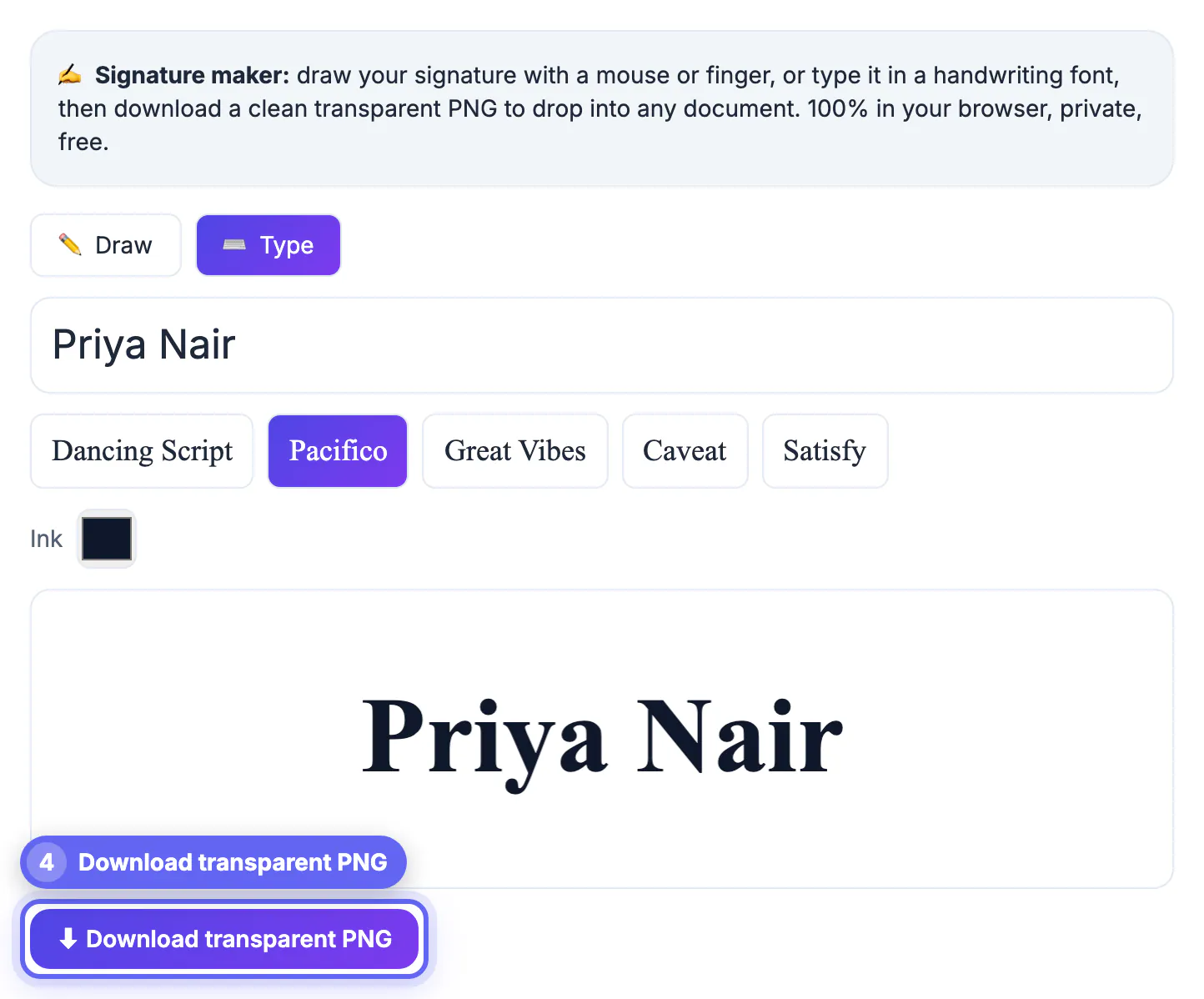
A signature is a small thing that carries a lot of expectation. On a personal letter or an informal agreement, a drawn signature reads as authentic and human. On a form you fill out dozens of times, a typed signature is quicker and looks identical every time. Neither is more legally valid than the other in most everyday contexts, but each suits different situations. Choosing deliberately means your signature looks right for the document instead of feeling like a mismatch. Many tools also let you switch between the two in seconds, so you can draw for personal notes and type for bulk forms without ever leaving the page.
Draw a signature online for realism
Drawing with a mouse, trackpad or finger produces a one-of-a-kind mark that looks like a real pen stroke. It is the closest thing to signing on paper.
- Feels personal and authentic on letters and agreements
- Every signature is unique, which is hard to fake by typing
- Works best on a touchscreen where your finger mimics a pen
- Takes practice to get a clean line with a mouse
Type a signature for speed and consistency
Typing your name and choosing a handwriting font gives you a tidy signature in seconds, and it looks the same every single time.
This suits repetitive paperwork, email footers and any place where a uniform look matters more than a hand-drawn feel. The trade-off is that a font-based signature is less distinctive than your own handwriting.
How the two compare at a glance
Put side by side, the choice usually comes down to what the document needs.
- Realism: drawing wins for a genuine, personal look
- Speed: typing wins, producing a signature instantly
- Consistency: typing wins, identical on every document
- Uniqueness: drawing wins, harder to replicate
What each mode offers in the GrabCast Signature Maker
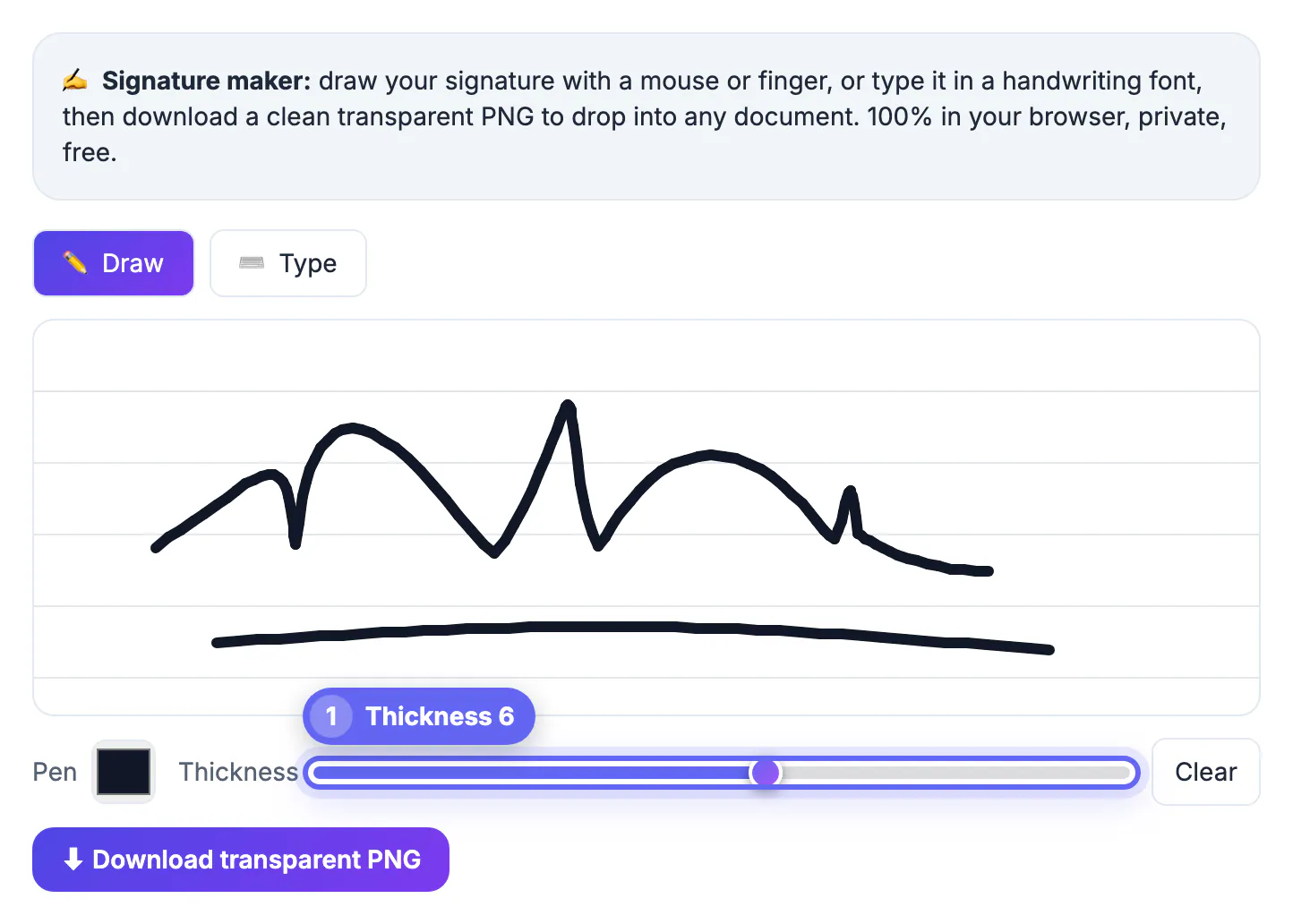
The ✏️ Draw and ⌨️ Type tabs sit side by side, and the ⬇ Download transparent PNG button saves whichever tab is active when you click it. Your drawing stays on the pad while you look at Type, so you can compare both before deciding.
- Draw mode gives you a Pen color picker, a Thickness slider from 1 to 10 and a Clear button; a setting of 2 or 3 hides most mouse wobble.
- The ruled lines on the pad are only an on-screen guide and never appear in the downloaded PNG.
- Drawn strokes are captured at your screen's pixel density, so a phone or high-resolution laptop display produces a sharper file.
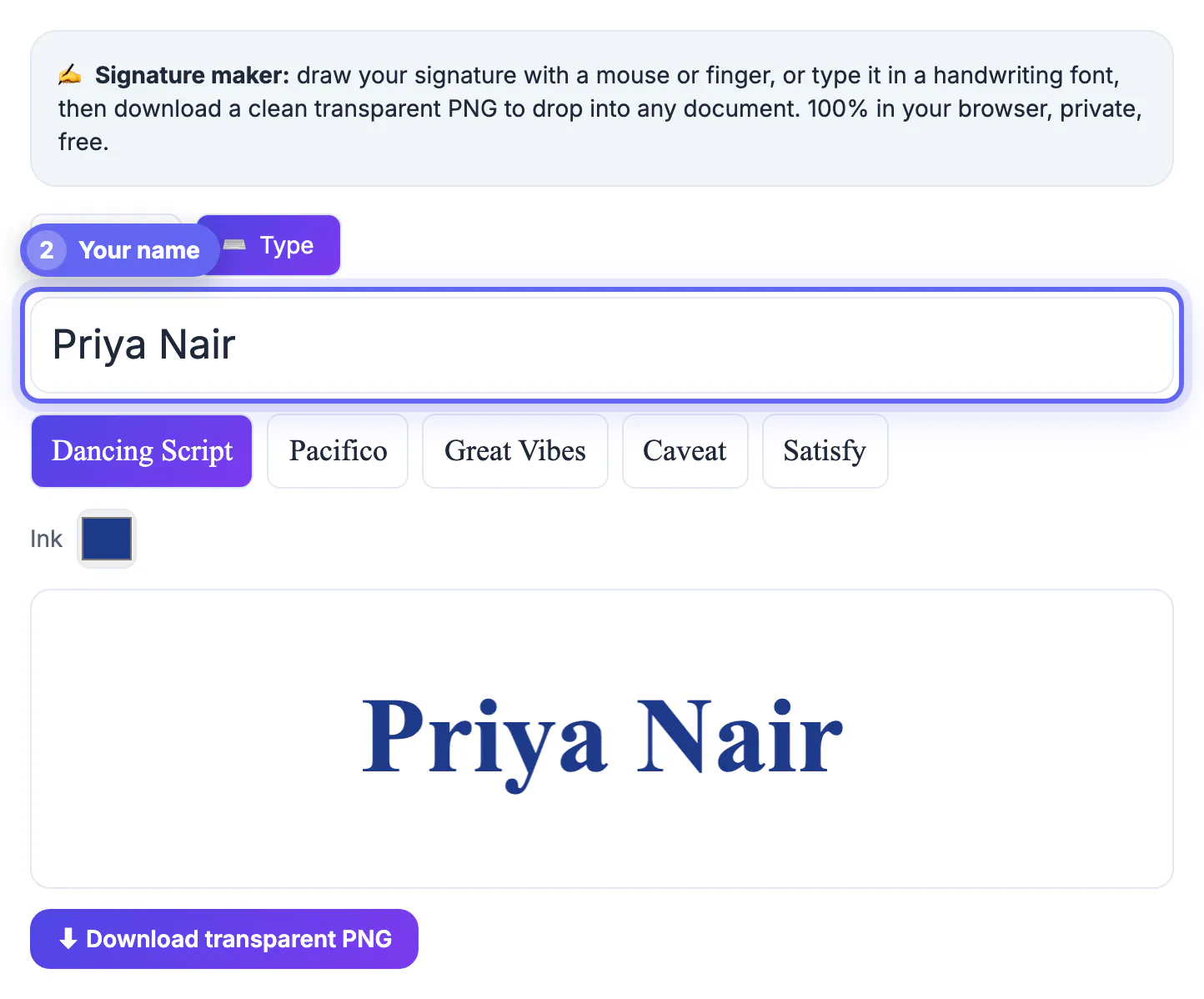
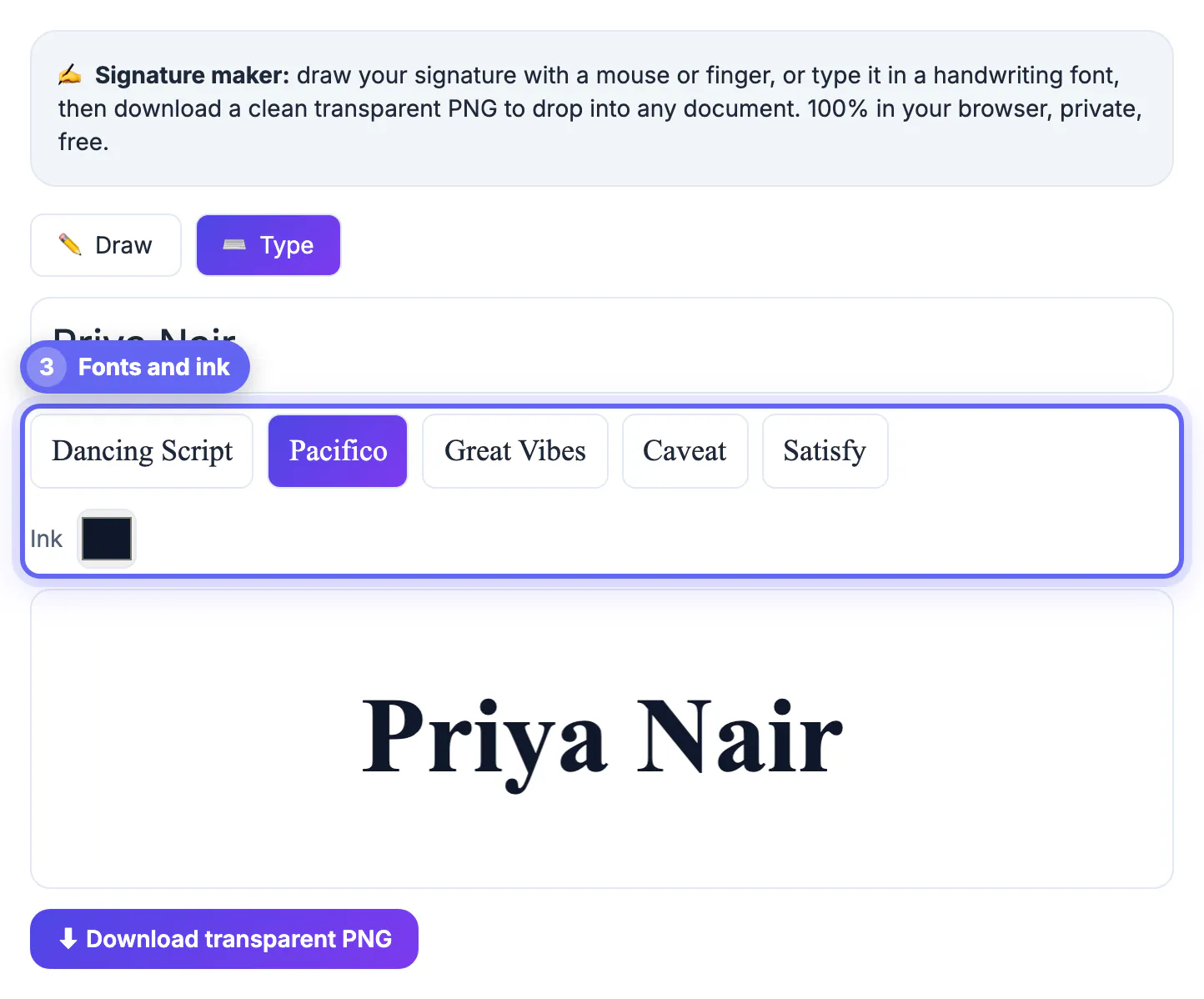
- Type mode offers five handwriting fonts, Dancing Script, Pacifico, Great Vibes, Caveat and Satisfy, plus an Ink color, and the preview updates as you type.
- A typed image is sized to fit your name, while a drawn one keeps the full width of the pad, so expect to crop more empty space from a drawn file.
Get a clean result either way
Whichever method you pick, export the signature as a transparent PNG so it drops onto any document without a white box behind it.
If you draw, sign slowly and use a touchscreen for the smoothest line. If you type, try a few handwriting fonts until one matches the tone you want, then save it for reuse.
Getting a clean drawn signature
A drawn signature only looks good if the stroke is smooth, and that depends more on your input device than on artistic skill.
- Use a touchscreen or stylus for the most natural line
- Sign a little larger than usual, then scale it down
- Draw slowly and in one motion where you can
- Redo it a few times and keep the best attempt
Getting a convincing typed signature
A typed signature succeeds or fails on the font. The right handwriting face reads as a real signature rather than a novelty.
Try several styles, favour ones with connected letters and a natural slant, and pick a weight that stays legible when small. Once you find one that suits your name, keep using it so your typed signature stays recognizable.
Which method suits which document
Think about who will read it and how it will be stored. A letter of recommendation, a handwritten-style invoice or a creative portfolio benefits from a drawn mark because it looks personal. A weekly timesheet, email footer or internal form works better with a typed signature, because identical results look tidy and take seconds.
- Contracts: either works; many people draw for a more personal feel.
- Print letters: draw, then export at a larger size for crisp edges.
- Email footers: type, so the look stays consistent across messages.
- Shared templates: type, so colleagues can reproduce it.
Once you have your file, how to sign a PDF online explains where to place it, and making an email signature with a logo shows how to reuse it in messages.
Fixing a shaky or awkward drawn signature
If your first attempt looks jagged, change the conditions rather than redrawing endlessly. A mouse produces more tremor than a trackpad, and a touchscreen with a stylus produces the smoothest line. Increase the pad size if the tool allows it, draw at a steady pace and finish strokes without hesitation. Try three or four attempts and keep the best, then check it at actual size, because a signature that looks fine zoomed in may be too thin when scaled down on a document.
Step-by-step
Common mistakes to avoid
Pro tips
Frequently asked questions
Is it better to draw or type a signature online?
Draw one for a personal, authentic look and type one for speed and consistency on repetitive documents; both are equally usable.
Is a typed signature legally valid?
In the US, the federal ESIGN Act and state laws based on UETA generally give an electronic signature, drawn or typed, legal effect when you intend to sign and the parties have agreed to do business electronically. The method matters less than that intent and the record around it. Some documents, such as wills and certain court or family-law papers, fall outside those rules or carry extra requirements, so check before relying on an image alone.
How do I draw a smooth signature?
Use a touchscreen or stylus and sign slowly, since a mouse tends to produce a jagged line.
Can I reuse the signature I make?
Yes. Save it as a transparent PNG once and drop the same image into any document afterward.
Can I switch between drawing and typing later?
Yes. In the GrabCast Signature Maker you can flip between the Draw and Type tabs at any time, and the download button exports whichever one is showing, so you can pick the right style for each document.
Draw a signature for a personal, authentic look or type one for speed and consistency, and export either as a transparent PNG to reuse anywhere.
Related guides
Browse more: all business guides · Signature Maker