Discord Video Too Big? Compress It Under 10 MB
Discord rejects files over 10 MB on a free account, so the fix is to compress the video to fit before you upload. In GrabCast Video Compressor, choose the Discord 10 MB target, keep or lower the resolution to 720p, and let the encoder pick a bitrate that lands under the cap, all inside your browser with no upload to a third-party server.
🗜️ Try Video Compressor now — freeOpen →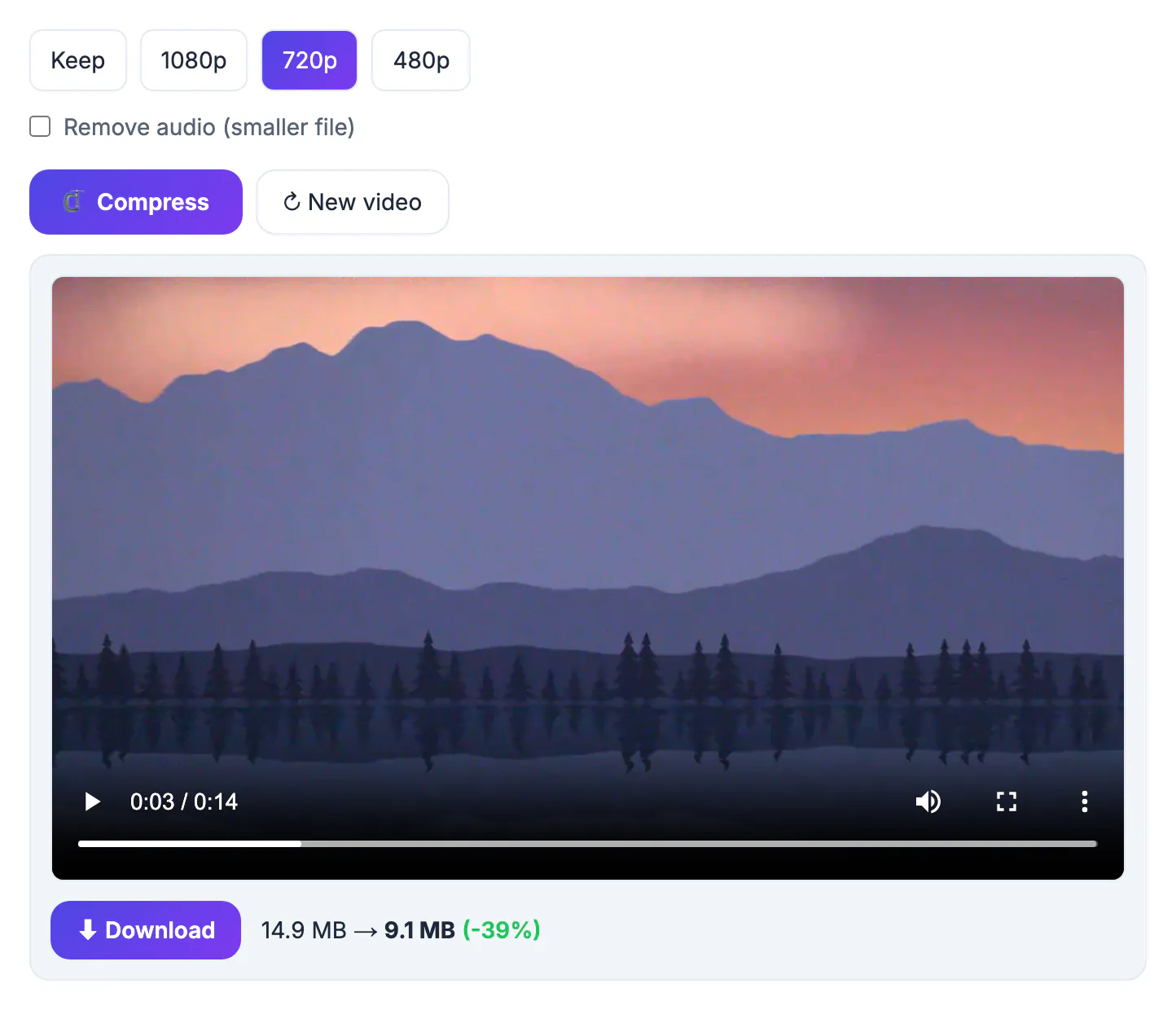
Phones and capture tools record at bitrates built for editing, not sharing. A 1080p60 gameplay capture from OBS or a phone can run 10 to 20 megabits per second, which means just five to eight seconds already fills 10 MB. Discord lowered the free upload limit to 10 MB in 2024; Nitro Basic raises it to 50 MB and full Nitro to 500 MB, but most friends and server members are on the free tier. Paying to send one clip is rarely worth it. Re-encoding to a smarter bitrate usually gets a 30 to 60 second clip under the limit with quality that looks fine in the chat preview, which is where most people will watch it anyway. Knowing the budget ahead of time turns a frustrating rejection into a predictable ten-second fix.
How much footage fits in 10 MB
A file size limit is really a bitrate budget. Ten megabytes is about 80 megabits, and the compressor has to share that budget across every second of footage plus the audio track. The longer the clip, the thinner each second gets.
- 15 seconds: roughly 5 Mbps available, enough for sharp 1080p
- 30 seconds: about 2.5 Mbps, a comfortable fit for 720p
- 60 seconds: around 1.2 Mbps, where 720p still works for calm scenes and 480p suits fast motion
- 2 minutes or more: under 0.7 Mbps, so trim first or expect visible blockiness
Audio takes a slice too. A typical stereo track at 128 kbps uses close to 1 MB per minute, so a one-minute clip really has about 9 MB left for the picture. That is why trimming ten seconds of lobby chatter often helps more than any setting change.
Settings that compress Discord clips cleanly
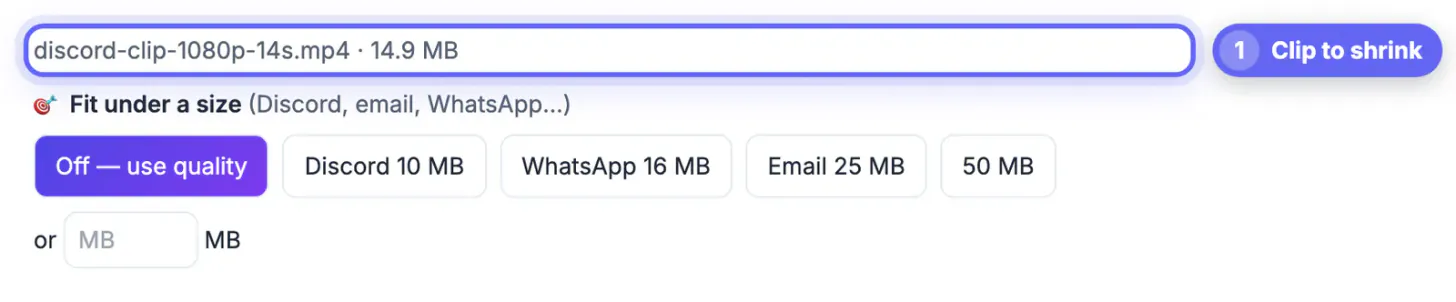
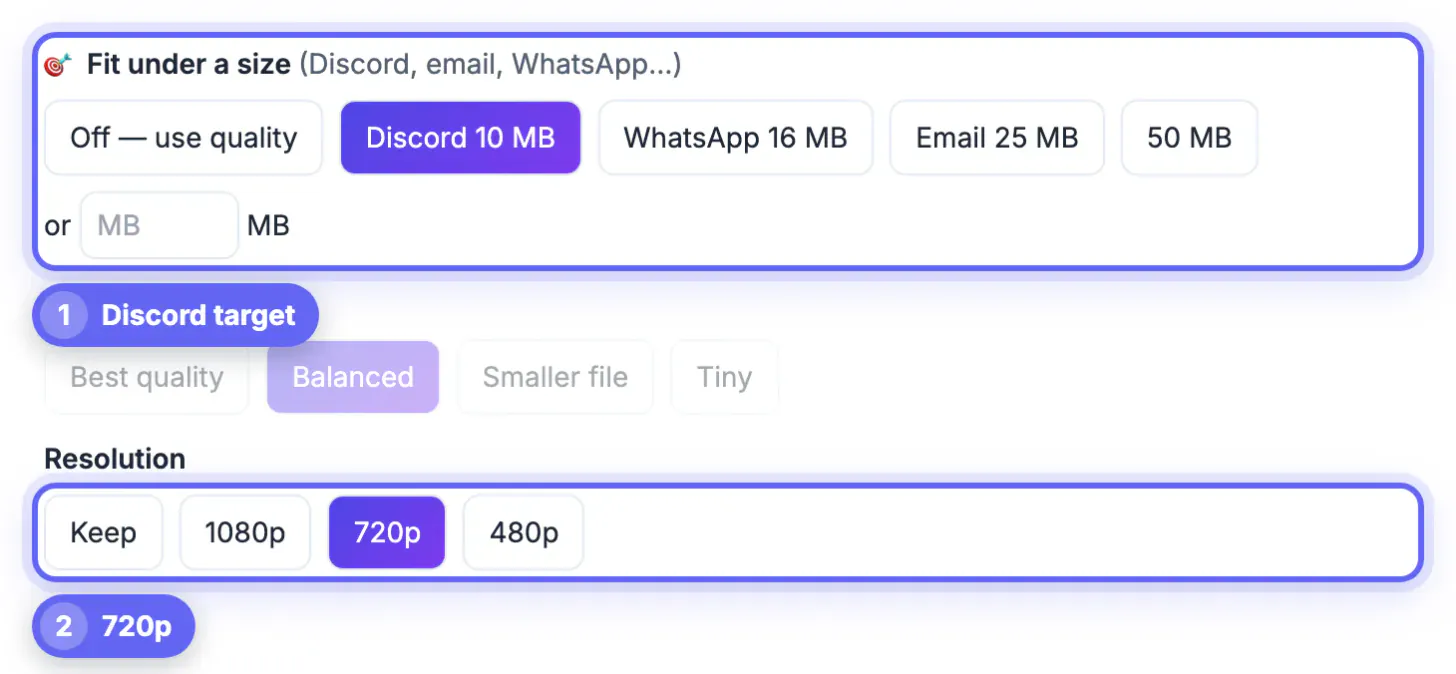
The Video Compressor offers target sizes as one-tap buttons: Discord 10 MB, WhatsApp 16 MB, Email 25 MB and 50 MB, plus a custom box for any number. With a target selected, the quality preset steps aside and the size goal wins.
- Target: Discord 10 MB for free accounts, or 50 MB if the recipient server and your account allow Nitro Basic sizes
- Resolution: Keep for short clips, 720p for 30 to 90 seconds, 480p for longer or high-motion footage
- Without a target, the Balanced and Smaller file presets typically cut size by 40 to 80 percent
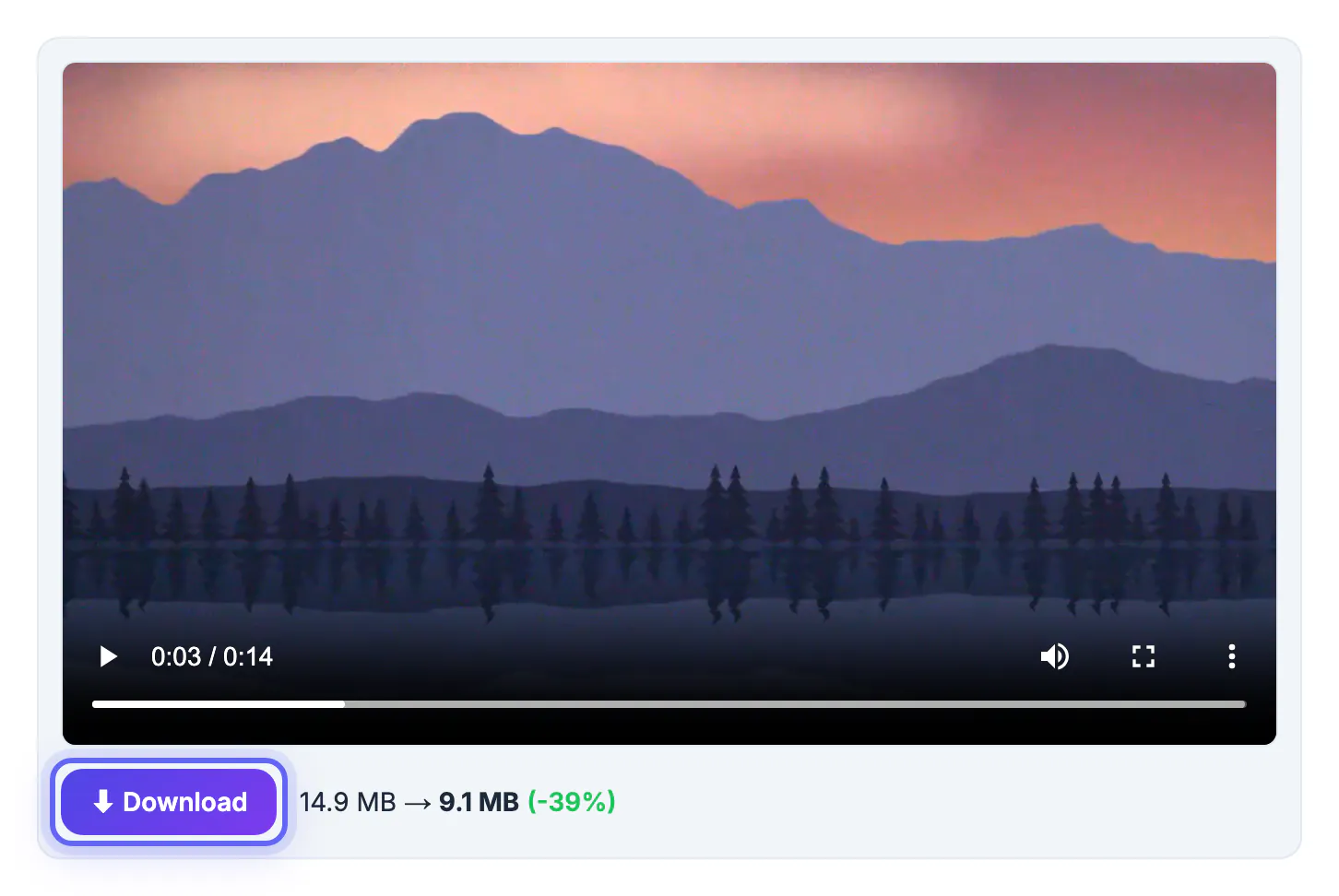
- The result panel shows original and new size, so you know it fits before you open Discord
A good first attempt for most gaming highlights is the Discord target at 720p. If the preview looks soft during explosions or quick camera turns, try 480p; fewer pixels at a healthier bitrate often look cleaner than more pixels starved of data.
Gameplay, memes and screen shares
Different clip types spend bits differently. Fast shooters and racing games are the hardest to squeeze because nearly every pixel changes every frame, while a slow walkthrough of a settings menu barely changes at all.
- Fast gameplay: 720p at the 10 MB target for up to about 40 seconds looks respectable
- Talking or facecam clips: 720p holds up well even near a full minute
- Screen shares of code or documents: keep a higher resolution so small text stays readable
- Memes with a few seconds of footage: Keep resolution, since they already fit easily
Frame rate matters for competitive footage. Sixty frames per second looks great for aim and movement, but it doubles the frames sharing the same budget, so a 30 fps recording often survives the squeeze better on longer highlights.
Meme-style clips often work better as loops, so see how to convert an MP4 to a GIF.
Before you compress: trim and double-check
The single best way to improve quality under a fixed size is to use fewer seconds. Every second of loading screen or dead air steals bitrate from the play that matters.
- Cut the intro countdown and the aftermath with the Video Trimmer first
- Keep the exported file as MP4, which Discord previews and plays inline
- Compressing an already compressed clip twice compounds artifacts, so always start from the original
- If the clip must stay long and sharp, upload it to YouTube as unlisted and share the link instead
Finally, preview the finished file before posting. Scrub to the busiest moment, since that is where blockiness appears first, and redo the export at a lower resolution if the action turns muddy.
Step-by-step
Common mistakes to avoid
Pro tips
Frequently asked questions
What is Discord's file size limit?
Free accounts can upload files up to 10 MB. Nitro Basic raises that to 50 MB and full Nitro to 500 MB. Server boosts can also raise the limit for everyone posting in that server. Limits have changed several times over the years, so check the number Discord shows when an attachment is refused.
Will compressing ruin the quality?
Not if the clip is short enough for the budget. A 30-second clip at 720p under 10 MB looks clean in the chat preview; the longer the clip, the more you should drop resolution or trim. Busy action scenes need more room than talking-head footage, so judge quality on your hardest scene.
Is my clip uploaded to GrabCast during compression?
No. The Video Compressor runs a self-hosted engine inside your browser, so the file stays on your device until you choose to post it on Discord. That also keeps private matches, voice chat and personal footage off unknown servers.
Why did my compressed clip end up slightly over 10 MB?
Size targeting is an estimate, and audio or very complex scenes can push it over. Enter 9.5 or 9 in the custom MB box and compress again. Leaving a small margin under the cap is a habit worth keeping for every future clip.
Does Discord play MP4 clips inline?
Yes. MP4 files under the limit get an inline player in the channel, so friends can watch without downloading anything first. Friends on phones get the same preview, which is one more reason to keep files light.
Compress a video for a Discord upload by trimming first, choosing the Discord 10 MB target and a sensible resolution, then checking the new size before you post. When a highlight simply cannot fit, share an unlisted link instead of sacrificing all the detail.
Related guides
Browse more: all video and audio guides · Video Compressor